


How do I set up and use the Zoom integration for Events?
Community engagement and fundraising with virtual events offers some powerful advantages over in-person meet-ups, including:
-
allowing you to host more participants on a smaller budget;
-
making your event accessible to supporters who might not otherwise be able to attend (because of location or other factors); and,
-
keeping your organization visible during challenging times like pandemics, extreme weather, or other emergencies.
With this integration, you can link your Event signups to your Zoom webinars or meetings, making it easier for you to manage attendance and use the data gathered from your virtual events.
Before you use the Zoom integration for the first time
Before you begin, Zoom requires that you set up a paid account with them. You can then set up the virtual meeting or webinar you'll be hosting on their platform.
- The Zoom Webinar integration can be set up using any Zoom user account once the NGP VAN + EveryAction Webinars V2 App has been pre-approved by the admin on your Zoom account in the Zoom Marketplace.
- The Zoom Meeting integration can be set up using any Zoom user account once the NGP VAN + EveryAction Meetings App has been pre-approved by the admin on your Zoom account in the Zoom Marketplace.
Our integration will only work with stand-alone meetings or webinars that are set to require registration. You will not be able to link instant, personal or recurring meetings, or recurring webinars to your Events. Make sure you set up separate meetings or webinars for each online Event you have planned.
Watch Video: Zoom Best Practices to learn more best practices.
When you are ready to begin your setup for the first time, you can follow the instructions in our Video: Zoom Linking & Syncing or follow the steps below.
Setting up your Zoom integration
The Zoom integration is part of the Event management workflow. You will first need to create an Event in our system that you can then link to your Zoom meeting or webinar.
Once you've created your event, open the Event Details page and expand the Zoom integration section. To set up the integration, choose whether you are linking to a Zoom Meeting or a Zoom Webinar. These are separate integrations, so be sure to choose the correct type for your event.
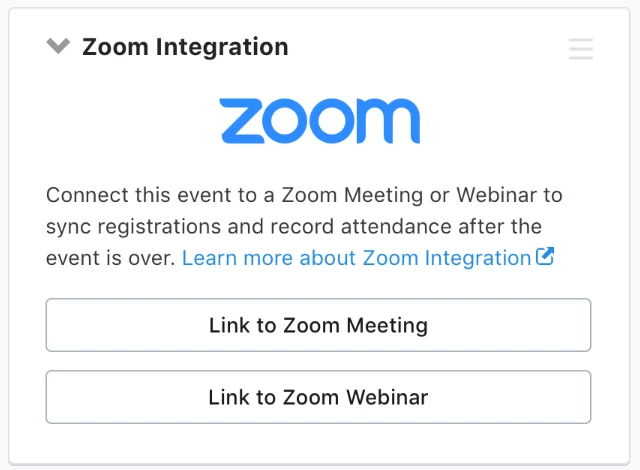
The first time you link to a Zoom Meeting or Zoom Webinar, you will be prompted to authorize and install the integration. Each integration is separate, so even if you've previously approved Zoom Meeting, for example, you will still need to authorize Zoom Webinar the first time you use it, and vice versa.
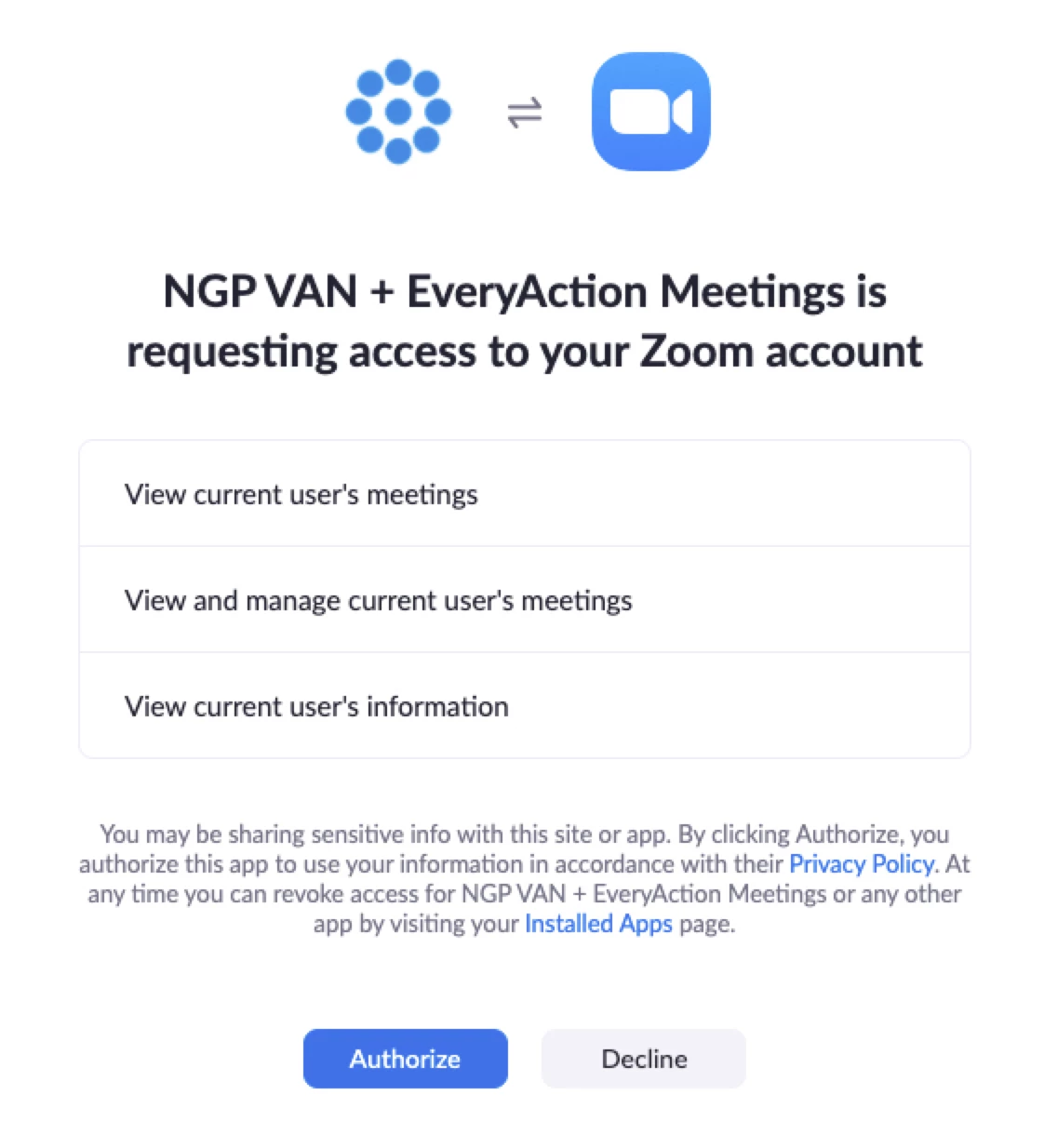
The same Zoom account can be linked to Events by multiple users, but for now, each user can only link to one account for meetings and one (identical or separate) account for webinars per committee.
Additionally, each meeting or webinar in Zoom can only be linked to one Event.
Linking to your Event
Once you have authorized the link with Zoom, you will see a list of your scheduled meetings or webinars.
When you return to link a future meeting or webinar, you will not need to authorize the integration again. As soon as you select Zoom Integration > Link Meeting or Link Webinar, you will immediately see the list of available meetings or webinars.
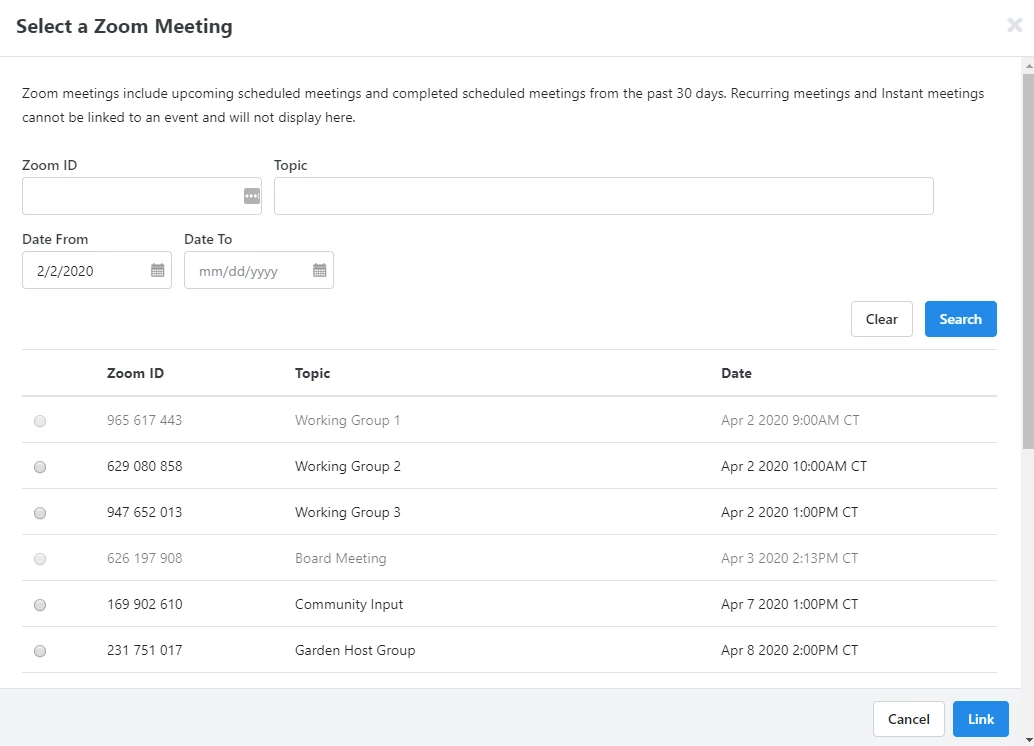
After selecting the Zoom Meeting or Zoom Webinar to link to your event, the Event Details page will reload and the Zoom Integration section will display the details of your Zoom event with a link to the Zoom administration page for that meeting or webinar.
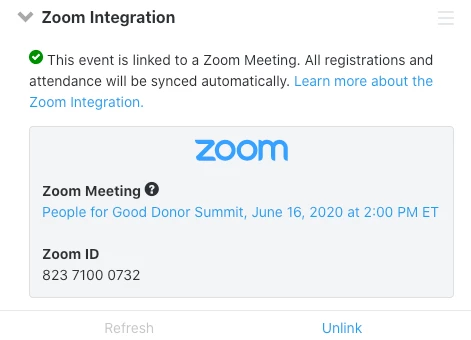
If you need to unlink or change the meeting or webinar, you can select Unlink. This will not remove data that has already been added, but it will stop any future syncing from occurring. You can then link to a different Zoom Meeting or Zoom Webinar.
If you have a data-sharing (multi-committee) setup, you can only link to meeting/webinars, refresh, and unlink from the committee that owns the event. Anyone looking at the event record from one of your data-sharing committees can see the Zoom details, but they will not be able to change or update the link.
Note Regarding Authentication for Event Attendees:
Under Security settings in your Zoom, you have the ability to require attendees authenticate to join.
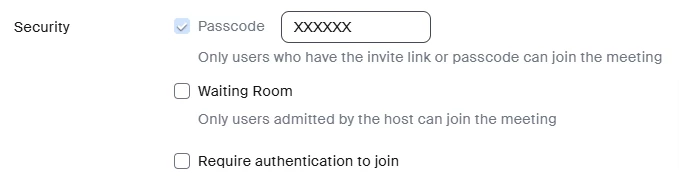
If this option is enabled, it will require event registrants to Sign into Zoom with their accounts. In the event that you run into a rate limit, Zoom would prioritize registrants that have a prior Zoom account.
If Users run into an issue where they are not seeing registrants syncing to Zoom, they should check:
-
If something other than First Name, Last Name, and Email Address is/are required on the Zoom event. These three fields do not need to be required but they are the only ones that can be required.
-
The contact's Event Status is something other than Confirmed, Scheduled, Sched-Web, or Sched-Text.
-
For Ticketed Events only: The contact(s) not syncing are guests. Only Ticket Purchasers will be synced and a Host cannot register for the event.
-
There is no registration requirement for the Zoom event in Zoom after linking it to EveryAction. Syncing will not work in either direction if registration is not required.
-
Check whether “Require authentication to join” is enabled. If so, and you are still accepting registrants, click “Refresh” on the Zoom page section on the event in the CRM to force the registrations through with the caveat that users may hit a rate limit.
What data syncs from Zoom to your Event
The data synced from Zoom to your Event automatically includes:
- Tracking any changes to your meeting/webinar Topic, Start Time or Duration in Zoom. These appear as details in the Zoom section of your Event. Your Event Name, Start Time, or End Time will not change.
- If you are managing your registrations via Zoom, we will automatically sync new registrants to your Event signups as Attendees with the status Sched-Web.
- We run a matching search on all your Zoom registrees to see if these signups are new contacts or if they have new personal data. Any new contacts, emails, phones, and mailing addresses are automatically added to your records with a source code of Zoom. New emails will be automatically subscribed to your email list and marked as the preferred email for the contact. If a Source Code is assigned to the event, it will be marked as the Origin Source Code for new contacts created from the sync.
When your event ends we will automatically use the phone numbers and email addresses from your Zoom Participant List to try to match the contacts in your Event signups.
- If we find a match, we will update the contact in your Event signup with the status of Completed.
- Nothing will be updated for contacts in your Event signup that cannot be matched from the Zoom Participant List (we will not add No Show, for example).
- Contacts that are on your Zoom Participant List but not on your Event signup are NOT added as new signups (we do not have enough information to match or add them as a contact). This is why your Zoom events must have registration required.
When you first link your Event to your Zoom meeting or webinar, we will sync any pre-existing registration and attendance data from Zoom to your Event. This means you can enable the integration after registration has begun for a meeting or webinar, or even after it has occurred. Please be aware that this initial sync can take a while for larger events where we must match more registrants.
You can also manually sync your Zoom data to your event by pressing Refresh on the Zoom section of the Event Details page.
What data syncs from your Event to Zoom
Instead of using Zoom forms for registration, you can manage registration through your Event. The data we will share to Zoom includes:
- Signups for Zoom-linked Events with the statuses of Scheduled, Sched-Web, Sched-Text, and Confirmed will be added to your Zoom meeting or webinar registration list at regular intervals. You should see your signups appear on your Zoom registration within an hour (or less).
- We will only send First Name, Last Name, and Email Address to Zoom for your signups, so please make sure that only these fields are marked required on the Zoom Registration Form for the meeting or webinar. If any other fields are marked required, then registrations will not be synced to Zoom.
- If the participant signed up for the event through an Online Actions form we will send the email address to Zoom that they used on that form. If the participant was entered in another manner we will send the participant’s preferred email address.
- If you have set your Zoom meeting or webinar to send confirmation emails to registrants, the email will be sent once the Event signups are added to the Zoom registration.
- You can use any of the usual methods for signing participants up for your Event, including Online Actions Event Signup forms, Online Actions Ticketed Event forms, Bulk Upload, our Event Signups API, or the Event Scheduler.
- If you are using a Ticketed Event form, only ticket purchasers are added to your Zoom registration. Ticketed Event Guests will not be included in this push.
Uninstalling the Zoom integration
If you need to change your Zoom account or remove the Zoom links, we highly recommend that you just unlink the meetings from the account you want to change and add the new account.
If for some reason you must uninstall the Zoom integration for a given Zoom user account, you will need to do it from the Zoom Marketplace page for NGP VAN + EveryAction.
Uninstalling the integration will unlink every Event that is attached to a Zoom meeting or webinar from that account. It can cause some serious issues if done incorrectly, so please read the directions carefully.
To uninstall:
-
Visit Marketplace.Zoom.com and search for our App (NGP VAN + EveryAction)
-
From the Manage tab of the App page look for the Uninstall button
-
Select your reason for uninstall
-
Select Grant App developer consent to retain data
-
Click Uninstall
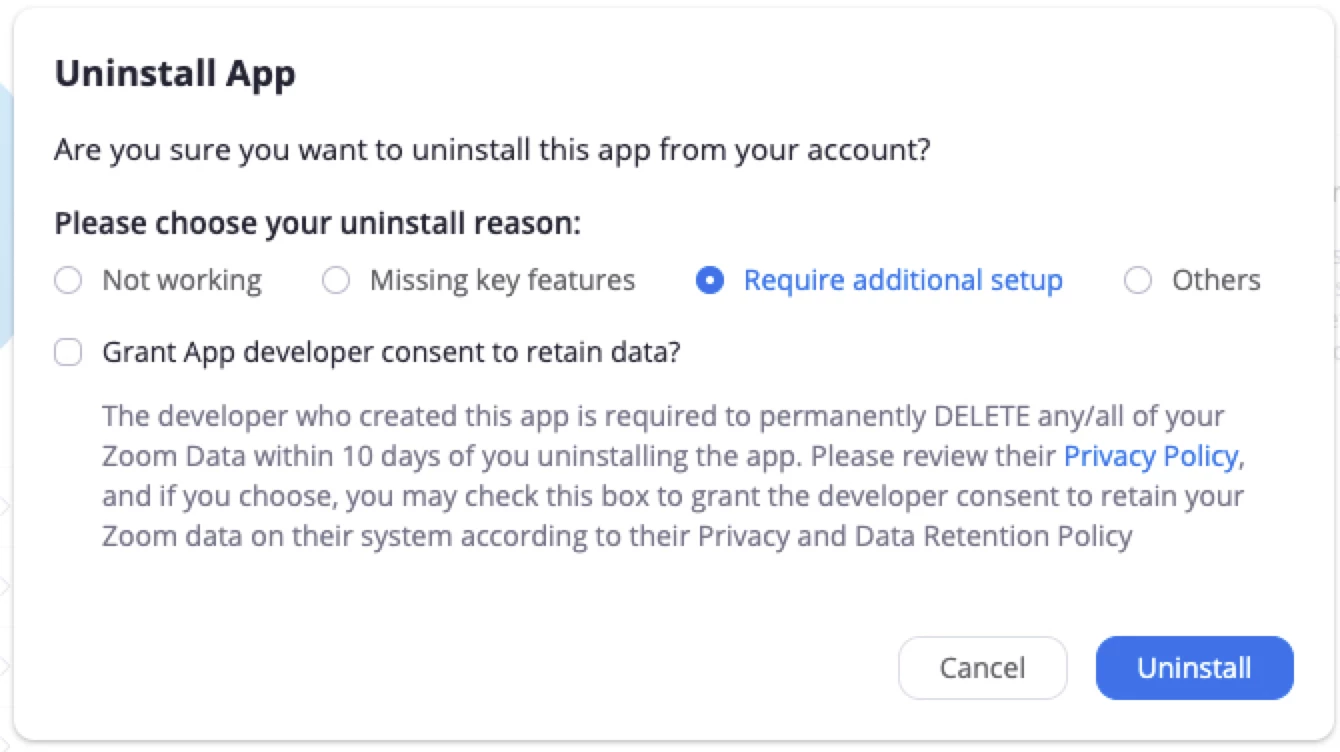
TO AVOID SERIOUS IMPACT ON YOUR RECORDS, CHECK THE BOX FOR Grant App developer consent to retain data
When you grant permission to retain data:
-
All Events that are linked to meetings or webinars in this Zoom user account will be unlinked. These events could theoretically have been made by multiple users in multiple committees or across multiple states, so make sure you understand the impact uninstalling will have on your records.
-
All the data collected from this Zoom account will be retained.
If you do not grant us permission to retain your data that came through this integration, we can only grant 7 days for you to change your mind. After that, your data will be queued for removal, since we are required to delete all the data that came from Zoom within 10 days, including things like event signups, contact records, phone numbers, emails, and addresses.
If you do not opt to have us retain data, you will receive a confirmation email with further instructions you can follow if you change your mind before the 7 day waiting period is up.
If you need help unlinking Zoom accounts without uninstalling the integration, contact Support for additional help.
How do I set up and use the zoom integration for events? | How does set up and use the zoom integration for events work in EveryAction? | Why can't I set up and use the zoom integration for events? | Where do I set up and use the zoom integration for events in EveryAction? | What is set up and use the zoom integration for events in EveryAction? | How to set up and use the zoom integration for events? | Can I set up and use the zoom integration for events in EveryAction?