



(3 min read)
Using Confirmed Opt-In with your Online Actions can help you improve your Targeted Email responses by adding only supporters who are the most engaged to your lists.
Once you are ready to get started, you will first need to create the Subscription Confirmation email that supporters will receive to confirm their opt-in. You can then enable Confirmed Opt-In on any of your Online Actions forms.
Drafting your Subscription Confirmation email
Begin creating your Subscription Confirmation email from the Triggered Emails tab in Targeted Email.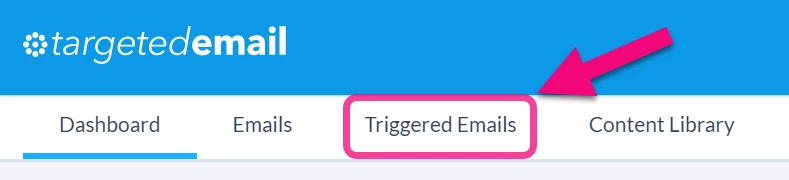
Locate the Subscription Confirmation template from the list and select Create.
Creating this email is similar to other Targeted Email messages. You can customize the message and subject, and use your templates (with the Drag & Drop editor) or Themes and Reusables (with the Classic editor) as you normally would.
Read more about using the Drag & Drop editor
Read more about using the Classic editor
However, you will not have the option to select or exclude an audience for your Subscription Confirmation email since this message is intended only for contacts whose email address has a Confirmation Status of Pending.
In the body of your email, you must include the Confirmation Link merge field in order for your supporter to activate the opt-in. You can then complete the rest of the message as you normally would.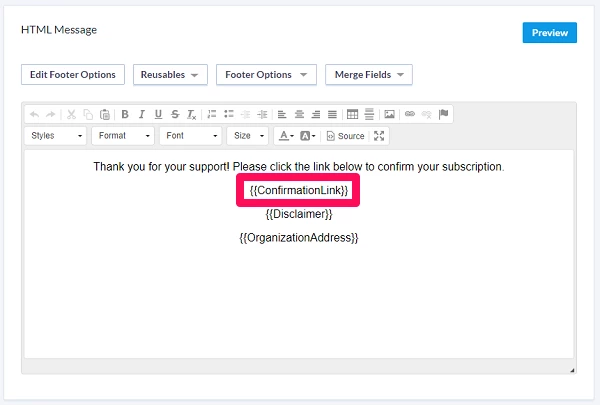
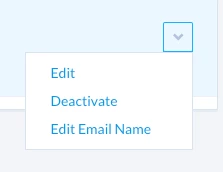
If you need to later return and edit your message, you can use the dropdown next to the title in the Triggered Emails list to Edit, Deactivate, or Edit Email Name.
Once you have drafted a subscription confirmation email, you cannot turn off this feature. However, it will only be active for the Online Actions forms where you have selected the Confirmed Opt-In option.
Turning on Confirmed Opt-In in Online Actions
Once you have created your subscription confirmation email, you are ready to begin using it with your Online Actions forms.
You can enable Confirmed Opt-In from the Basics page of your Online Actions form builder.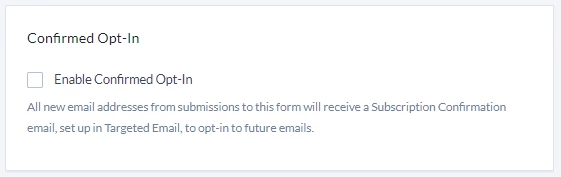
Once you enable Confirmed Opt-In, you will see a message about the email subscription option. 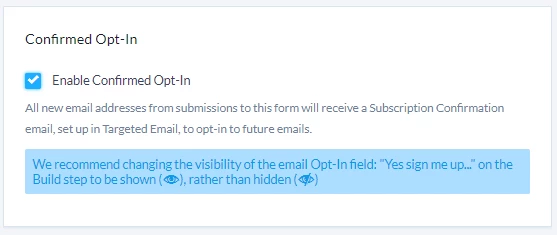
You can update the settings for email subscriptions from the Build Page. Unhide Yes, sign me up for email updates by clicking on the eye icon. It should change from being crossed out to not crossed out.
Keep in mind that subscription confirmation emails are sent in addition to any other confirmation emails you may have set up with your form. For example, if you've created a contribution form with a separate gift confirmation email, donors will receive their gift acknowledgment as well as the confirmed opt-in email.
All new supporters who submit your form and leave the signup box checked will now receive your subscription confirmation email. If you also wish to send the subscription confirmation to supporters who previously Unsubscribed from your lists, you can do so in Settings.
What your supporter sees
After you've enabled Confirmed Opt-In on your form, all new supporters (and supporters who previously unsubscribed, if you've set up that option) will be sent the subscription confirmation email immediately after submitting your form.
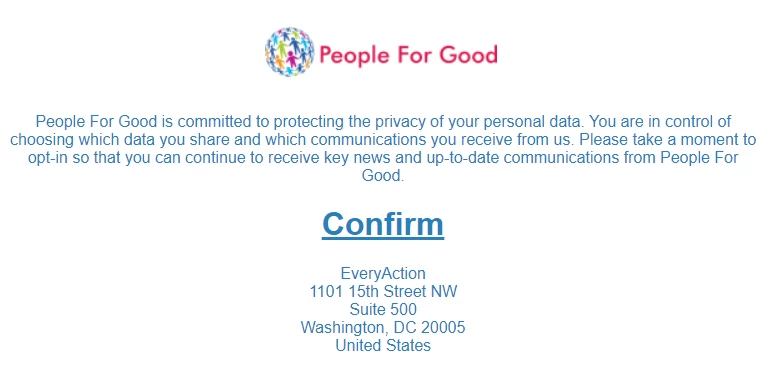
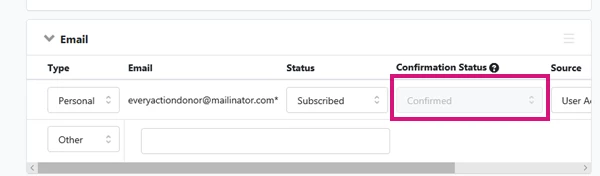
After confirming their subscription, your supporter's Confirmation Status on their contact record will change to Confirmed.
Read more on tracking confirmation statuses
Turning off Confirmed Opt-In
Once a subscription confirmation email has been configured, it cannot be deleted but you can Deactivate it from the dropdown menu next to the email name in Triggered Emails. You can also turn off the Confirmed Opt-In setting on your online forms to avoid triggering the subscription confirmation emails.
Alternate search terms: opt in, COI, confirm opt-in, confirm opt in, double opt-in, double opt-in