(2 min read)
If you are using the free MiniVAN mobile canvassing app for workplace organizing, the experience of creating a campaign as well as using the app is much the same as for standard door-knock campaigns. You will provide additional jobs-specific information along the way and you will have additional areas to add and edit canvass results in the app.
Read more about canvassing with MiniVAN
Canvassing workplaces
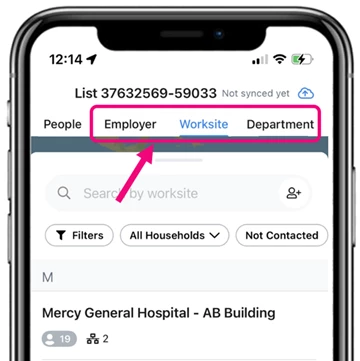
In the app you will see tabs at the top of your home screen for Employer, Worksite, and Department.
Each Employer, Worksite, and Department listing displays the total number of people at that location/site. The number next to the organizational icon will tell you how many departments are included for each site or employer.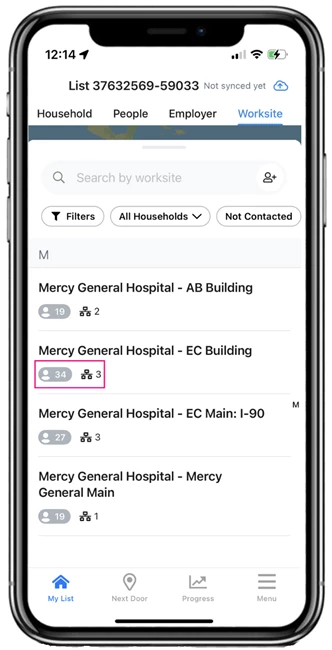
Selecting the Worksite opens an alphabetized list, sorted by Department, of your target workers.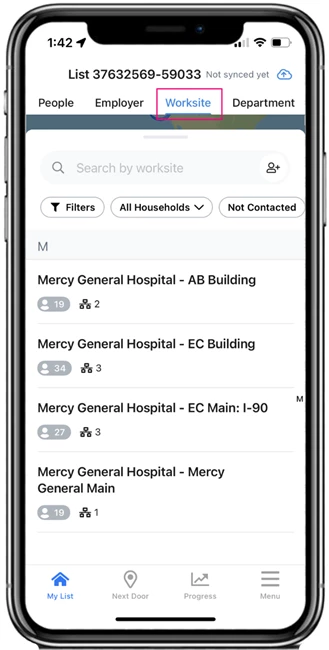
Selecting the Department, however, sorts information according to the bargaining unit.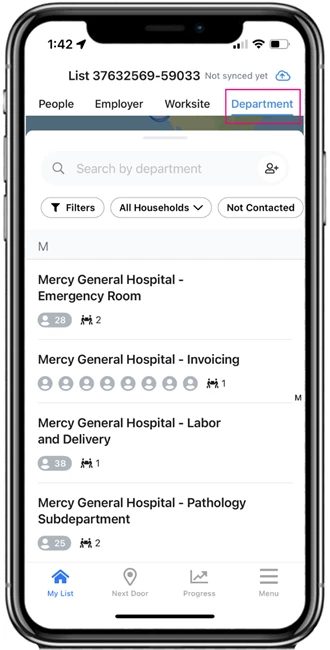
Editing Jobs in MiniVAN
You will be able to update jobs information in the app as you canvass. Once a worker contact is chosen, you have the option to edit their job and add a new one.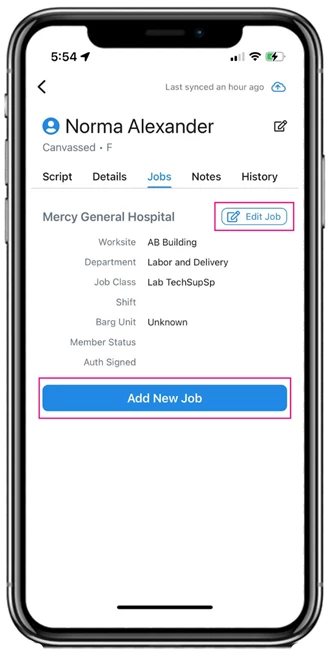
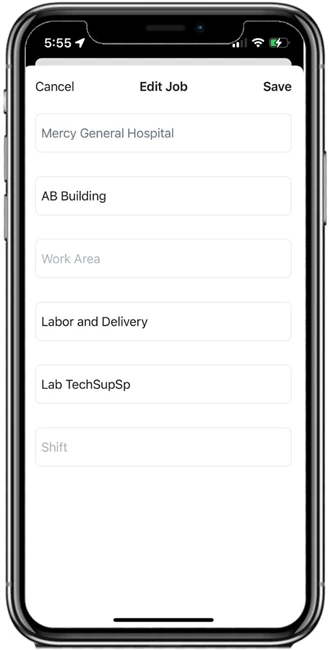
Selecting Edit Job allows you to update:
-
Employer
-
Worksite
-
Work Area
-
Department
-
Job Class
-
Shift
Add New Job allows you to add a worker’s new job information. The jobs available are determined by those set when your MiniVAN Campaign was created.
Preparing for a canvass
If you are managing the canvass, there are a few things you'll need to do before you send a list to your canvassers.
First, you'll need to choose which Job Fields you want your canvassers to see in the app. You can do this by creating or editing a miniVAN format and selecting at least one job field to include in the format.
Read more about MiniVAN formats
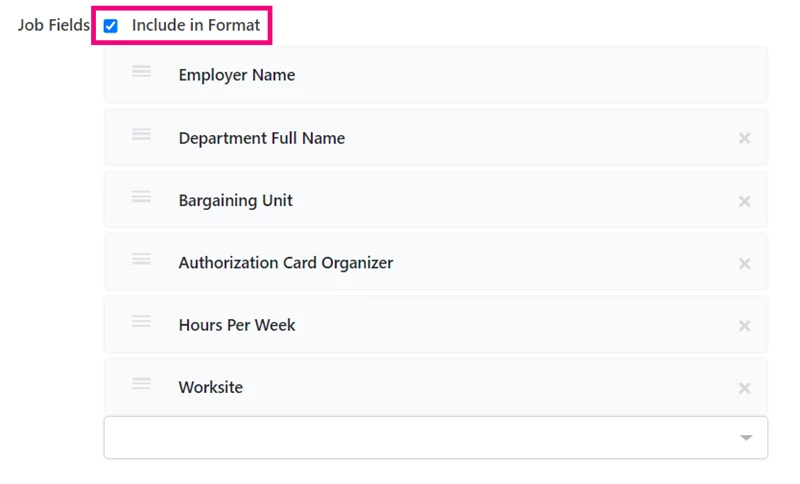
You will then need to create a MiniVAN Campaign. Campaigns help you customize what your canvassers will see including scripts and the MiniVAN format they'll use. To see Jobs in your MiniVAN Campaign choose a MiniVAN Format under Campaign Details with Job Fields selected.
Read more about setting up a MiniVAN canvass
Jobs in MiniVAN can only support 100 employers. Limit the campaign to only those employers you are working with. If you do not edit your employer list and the number of employers exceeds 100, the first 100 will export to MiniVAN in alphabetical order.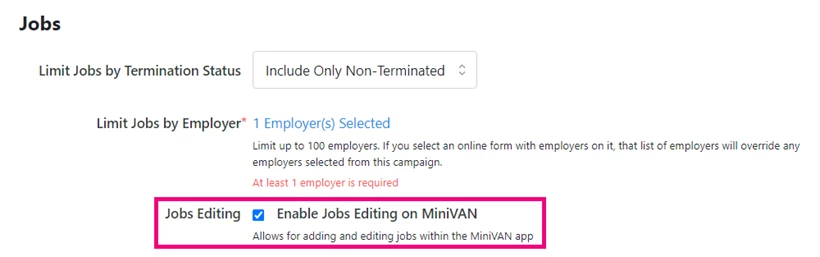
You can also limit jobs by termination status and Enable Jobs Editing in MiniVAN to allow canvassers to add and edit jobs while they canvass.
Creating your lists
You can create a list for canvassing using a range of jobs-specific data, like:
-
Location
-
Employment status
-
Schedule
-
Wages
-
Union membership
Read more about creating a list
Once you've created your list, you can then share it with your canvassers in the usual way.
Read more about setting up a list canvass