


How do I log in to EveryAction?
We’ve made some updates to our login experience! If you come across references to “ActionID” in our help resources, those are being updated to reflect the new name: Bonterra Account. Nothing changes on your end as we tidy up the documentation.
Step 1: Access the Login Page
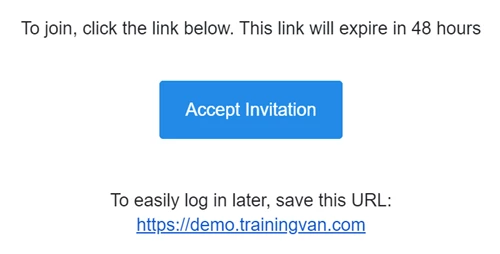
Navigate to the login URL provided in your Welcome Email. This URL includes your organization’s unique site name (e.g., https://[YourOrgName].everyaction.com).
Step 2: Enter Your Credentials
On the login page, enter the email address associated with your account. Type in your password. If this is your first time logging in, use the temporary password included in the Welcome Email.
Step 3: Set Up Two-Factor Authentication (2FA) (If Required)
If prompted, set up 2FA for additional security:
-
Download an authentication app like Google Authenticator or Authy.
-
Scan the QR code displayed on the screen using the app.
-
Enter the one-time code generated by the app into the field provided.
Note: Save your recovery codes securely in case you lose access to the authentication app.
Step 4: Accept the Terms of Service
If this is your first time logging in, review the Terms of Service. Click Agree to proceed.
How do I log in to everyaction? | How does log in to everyaction work in EveryAction? | Why can't I log in to everyaction? | Where do I log in to everyaction in EveryAction? | What is log in to everyaction in EveryAction? | How to log in to everyaction? | Can I log in to everyaction in EveryAction?