(2 min read)
Note: This article contains screenshots reflecting the Contact Record contact view. To toggle between the Contact Record view and the All Details view, select “View contact record” or “View all details” at the bottom left corner of your screen.
The Financial Households feature allows you to manually group individual donors who give jointly and may or may not live together. Much like the Households feature, which groups individuals with the same mailing address, Financial Households is particularly useful when creating a list for Direct Mail.
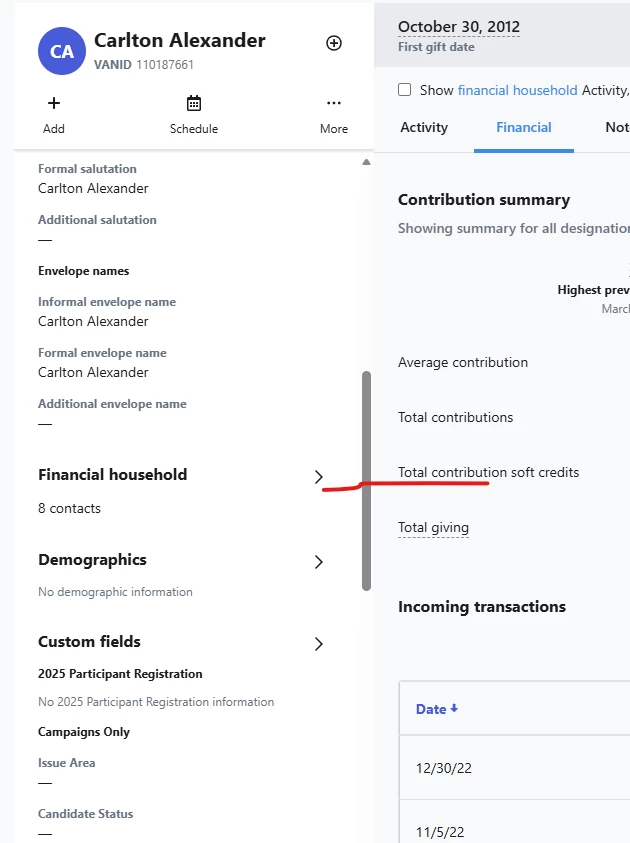
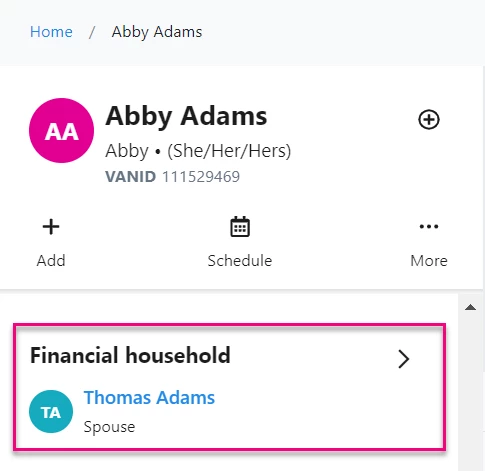
Household information – both residential and financial – is viewable on the left-hand About column of the contact record.
You can also Bulk Upload Financial Households for faster, more efficient financial household management if you have multiple records to update.
Read more about bulk uploading Financial Households
Managing Financial Households
To view or create a Financial Household, open a contact record and navigate to the Financial Household section of the About Column.
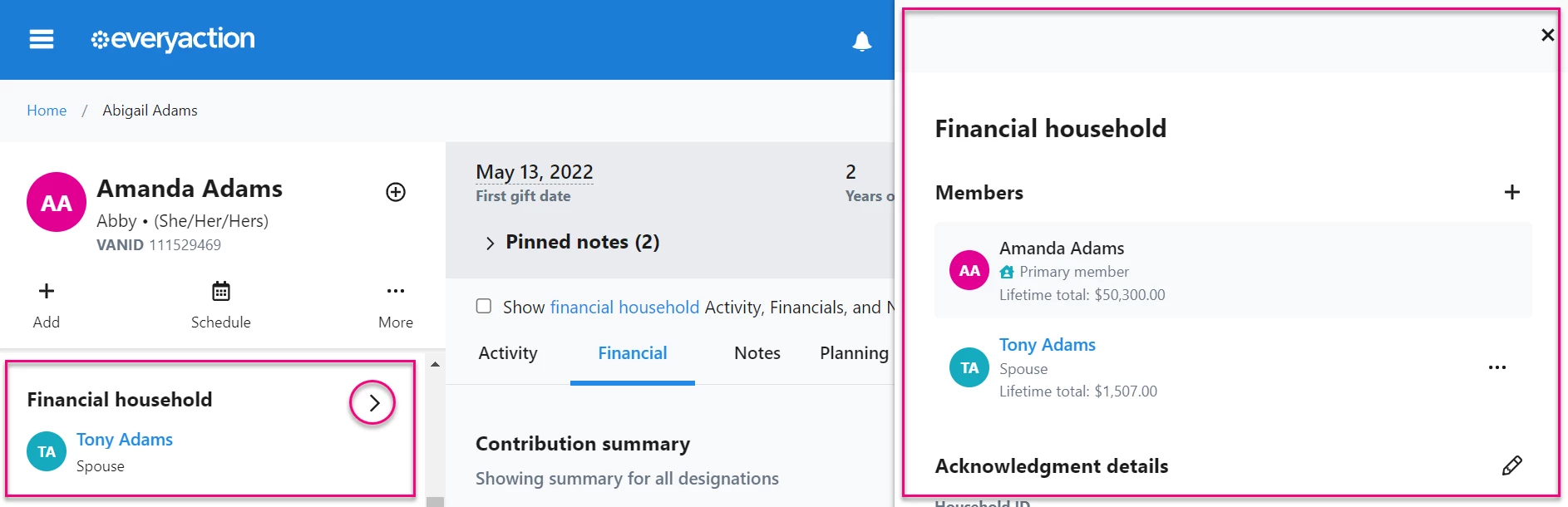
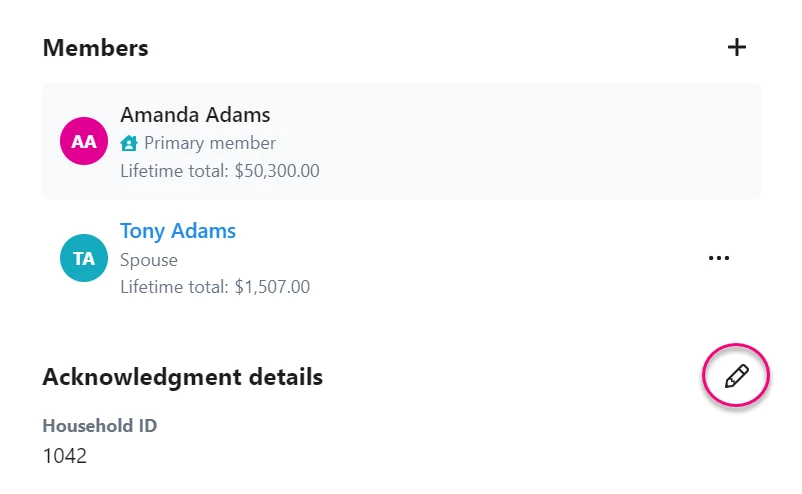
Select the More arrow on the Financial Household section to open the Financial Household drawer. At the top, you will see Financial Household members followed by:
-
Acknowledgement details
-
Salutations
-
Envelope names
-
Address
To edit this information, select the pencil icon.
Viewing Financial Household data
If you are viewing a contact record linked to a Financial Household, you have the option of turning on, or off the Financial Household view with the checkbox below the stat bar in the center column.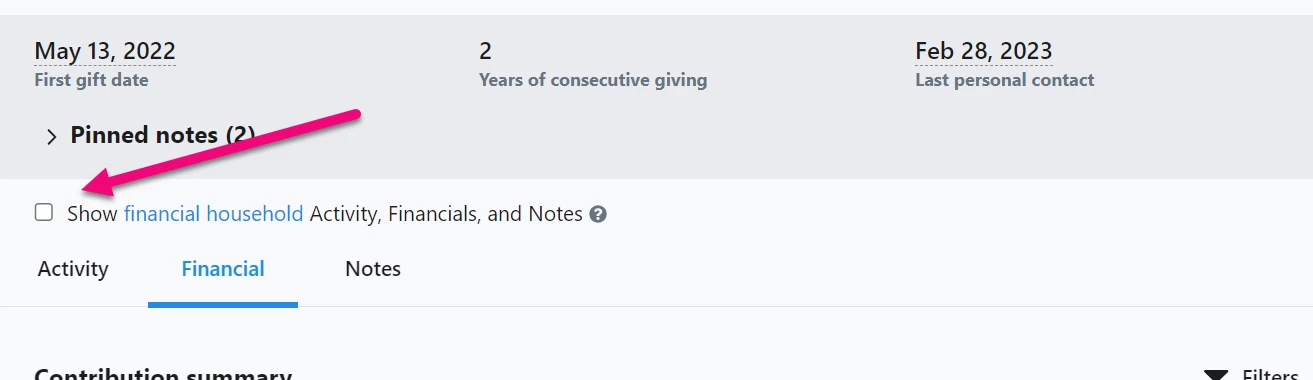
The Financial Household view provides a comprehensive picture of how your organization interacts with a household as a whole, displaying combined Activity (follow ups, event sign ups, form submissions), Financial (transactions, contribution summaries), and Notes tabs for everyone in the Financial Household, rather than that of the individual contact whose record you’re on.
When turned on, the data outside of the Activity, Financial, and Notes tabs remains unchanged. Some sections under the Financial tab are excluded from the combined view and are noted in the tooltip next to the checkbox and also as a disclaimer within the section itself.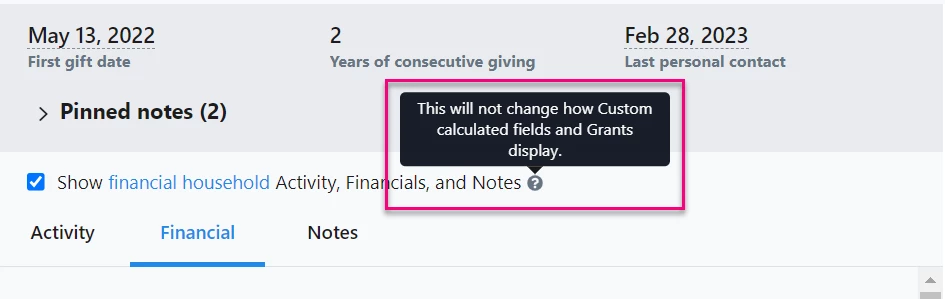
Unchecking the box reverts the view back to the individual contact.
As you move through each tab, you will see the Contact Name of the person associated with different data points, so you know how they have contributed to the household’s overall transactions.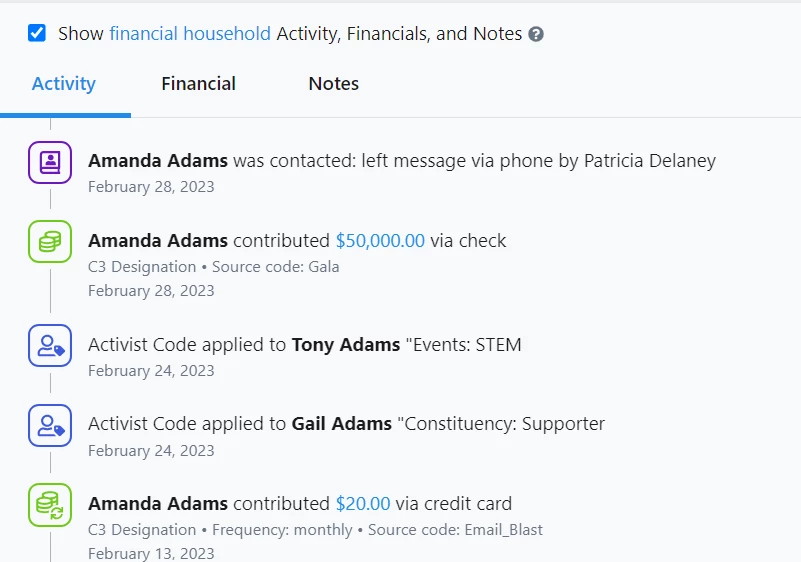
Creating Financial Households
Select Add Members from the Members section to add records to a Financial Household.
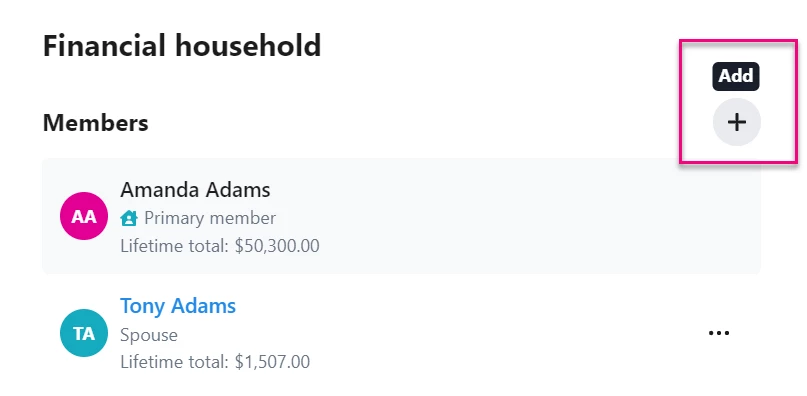
The window that opens shows contacts known to have a relationship to the current contact and/or contacts that live at the same address that you can add to the Financial Household. You can also use the search bar at the bottom to find other contacts in the database to add.
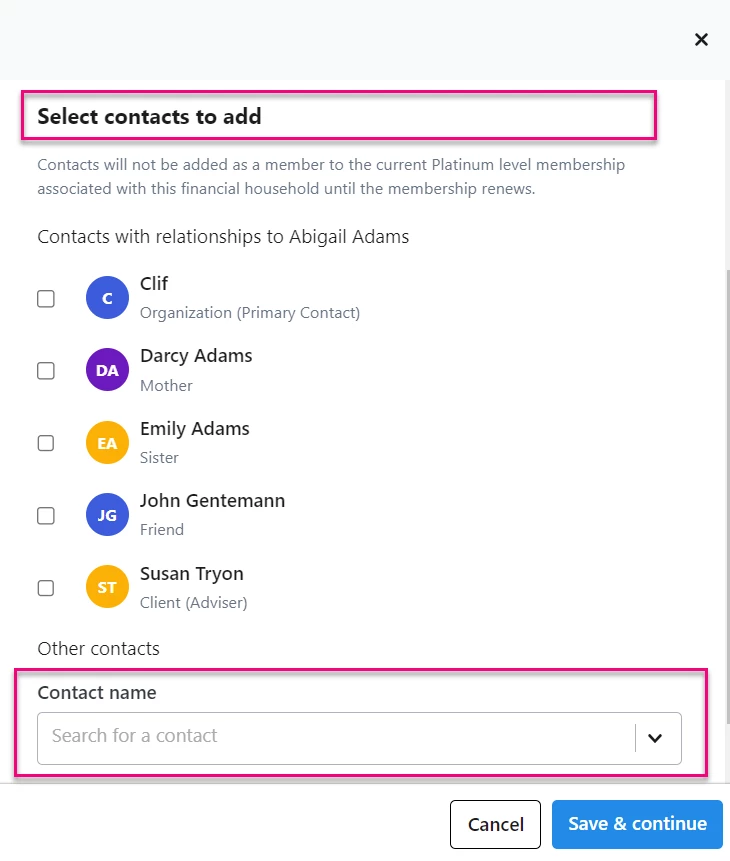
If you search your database for a contact to add, select Save & continue.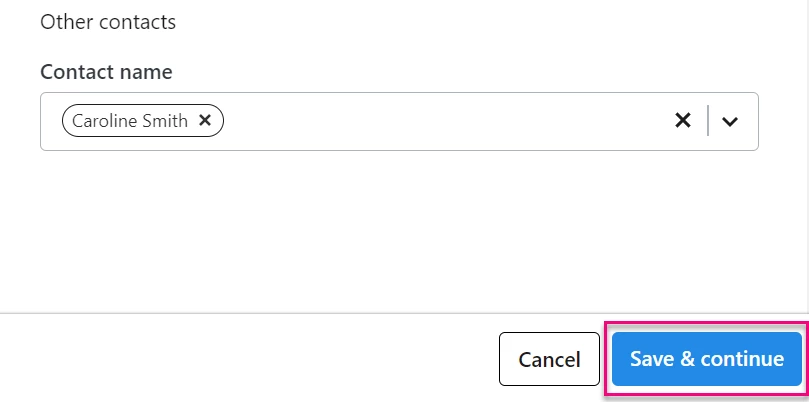
You are then asked whether or not you want to update the Primary Member of the household to that new contact.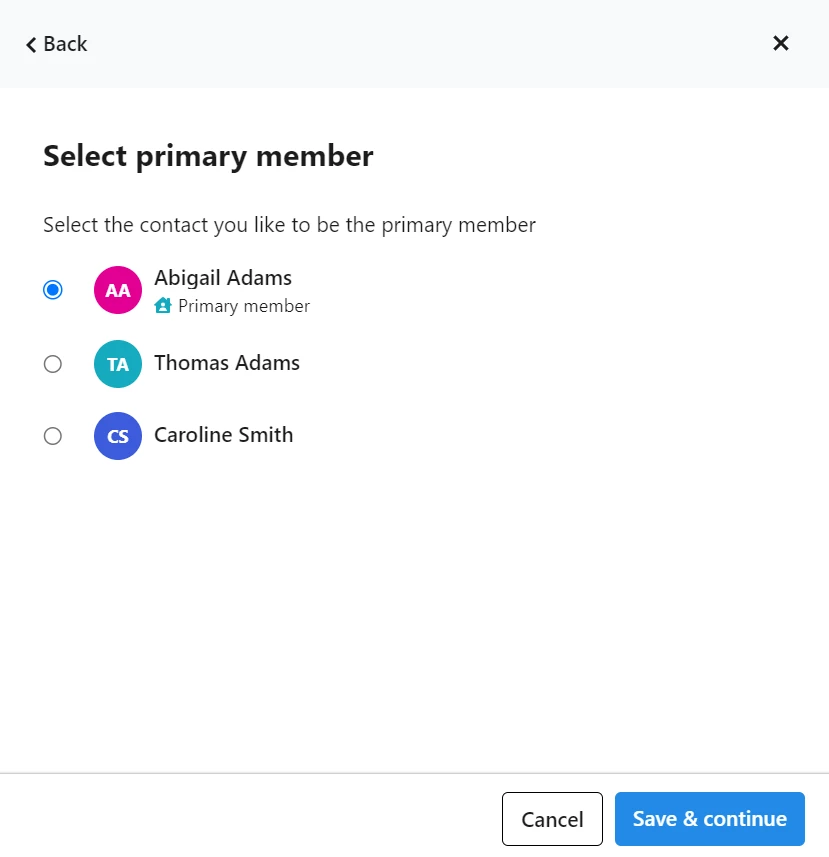
Finally, edit the Relationship for this new contact.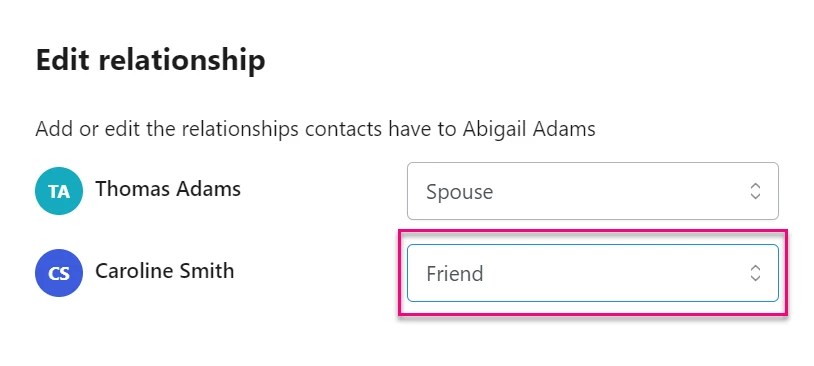
If you ever need to make changes to a Financial household, you can Edit a relationship, change the Primary Member, and Remove members from the Financial Household Members section.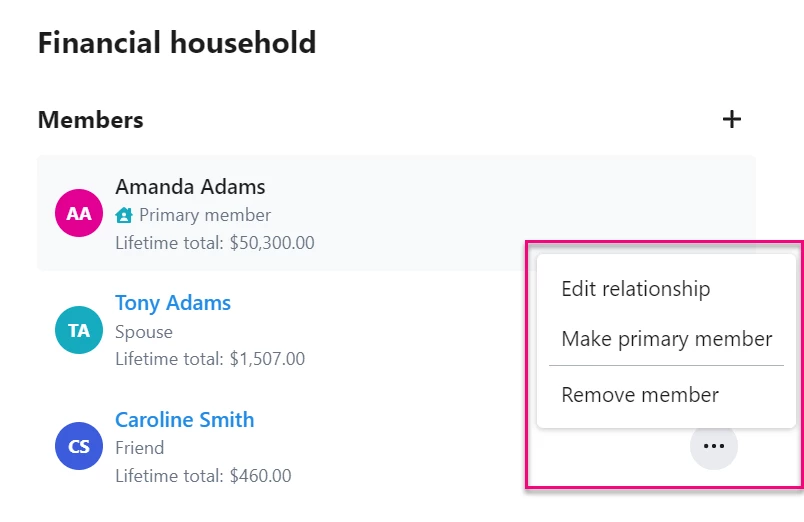
Using Create A List to form a Financial Household
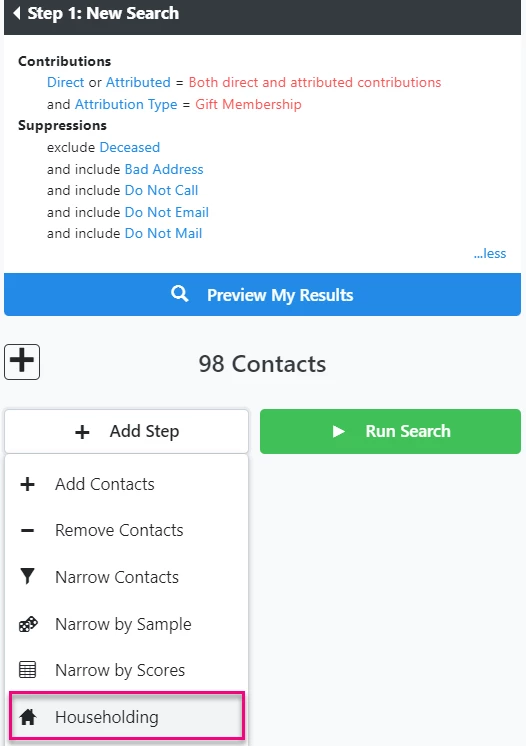
When you filter a list in Create A List, your contacts can be householded in two ways. Click Add Step and select Householding.
Then choose Fill Household by and then Financial Household, Financial Household with limit, or Contact with a Financial Household in another Saved List.
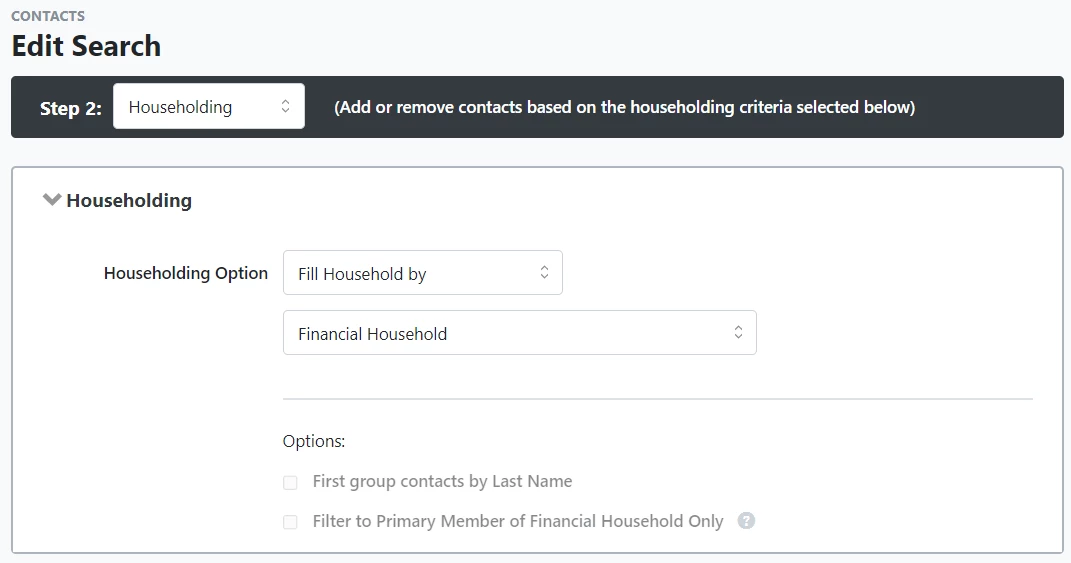
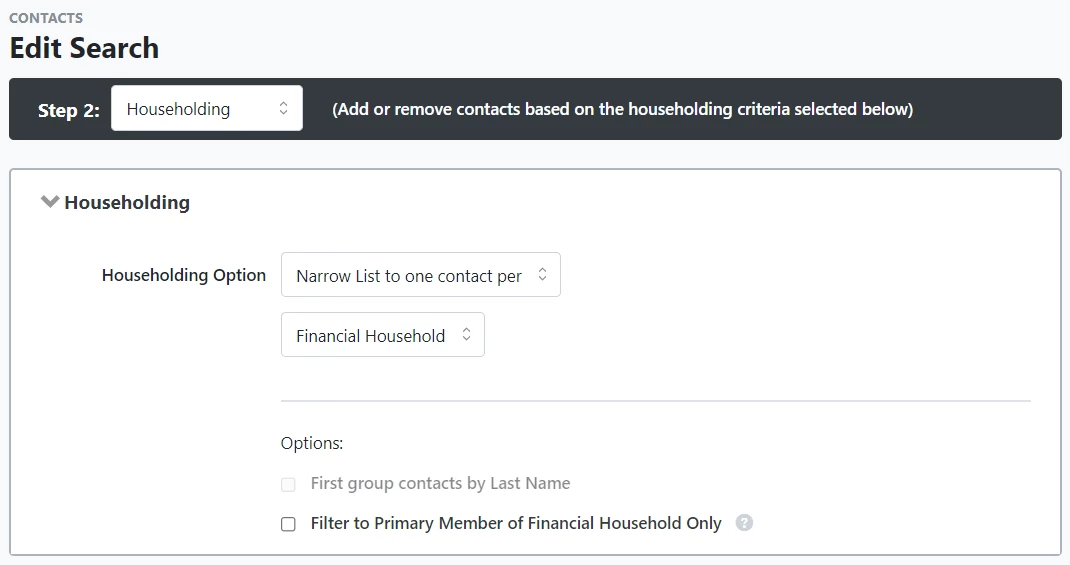
Alternatively, you can choose Narrow List to one contact per, and then Financial Household.