


How do I add a folder?
Step 1: Navigate to My Folders
-
Start on the EveryAction home page.
-
From the left-hand menu, go to Contacts > Searches & Lists > My Folders.
-
Or use Search for a page and type My Folders.
Step 2: Select 'Add New Folder'
To add a new folder, click the 'Add New Folder' button in the upper right corner of the page.

Step 3: Input details for your new folder
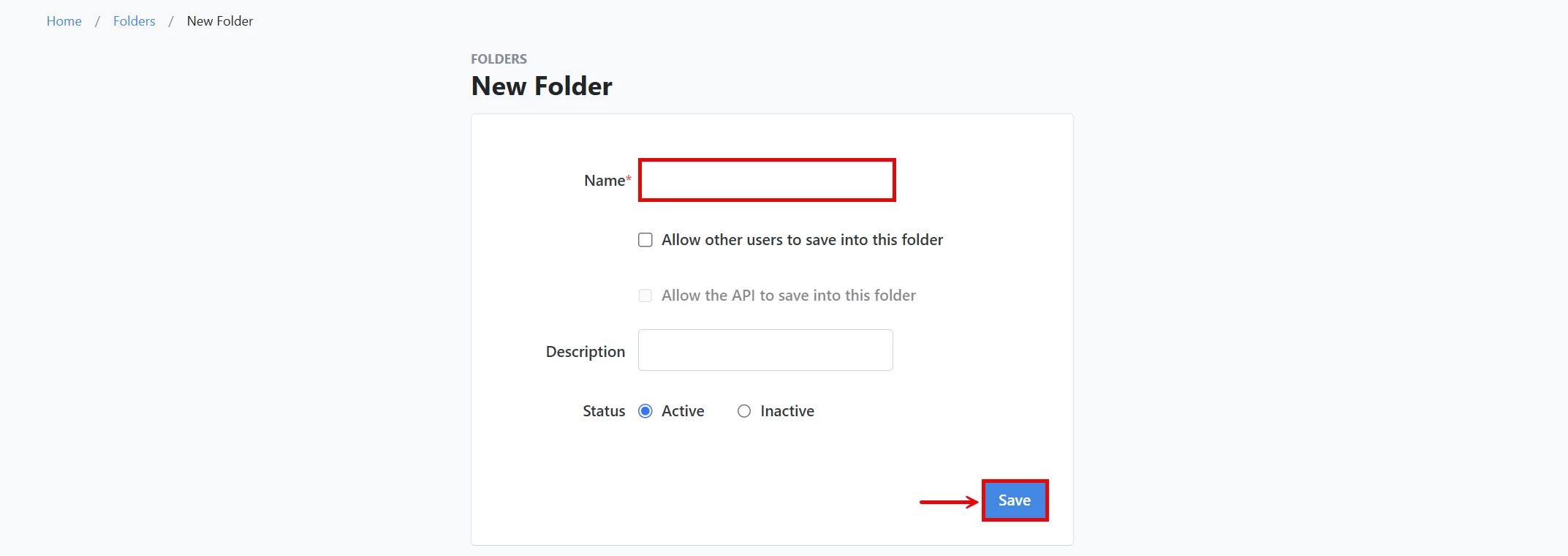
Here, you will name your folder. You can allow others to save into your newly created folder, add a brief description of the data it will contain, and set its status. Click the 'Save' button when you are finished.
Step 4: Edit your 'List Settings' (Optional)
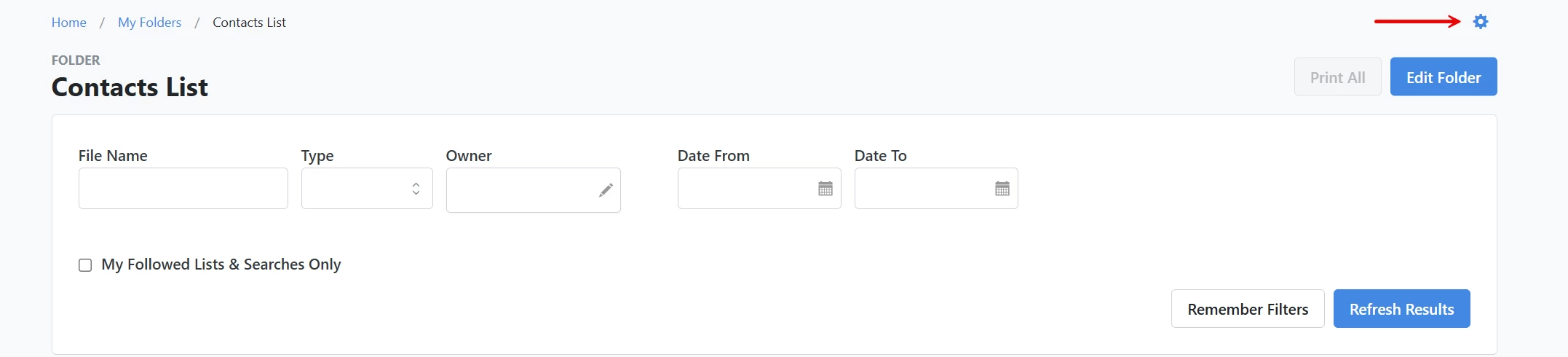
The gear symbol above the 'Edit Folder' button allows you to configure your 'List Settings'.
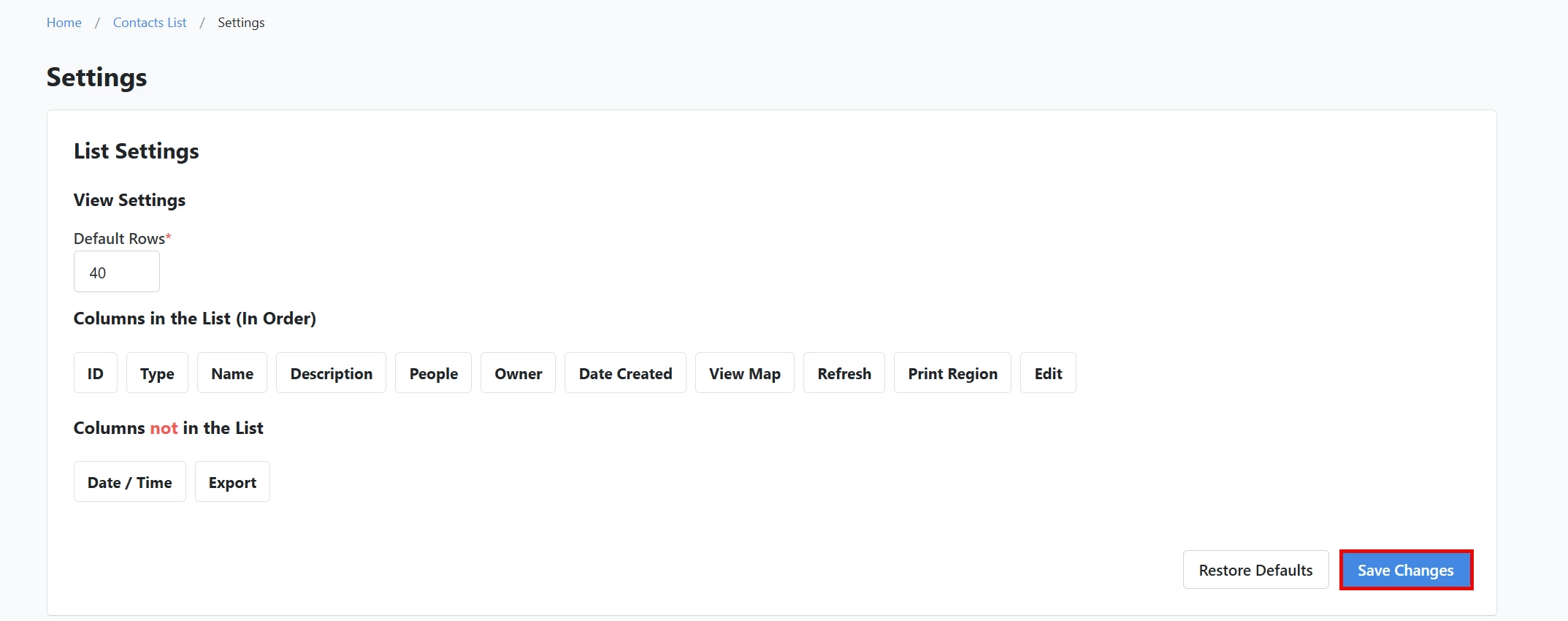
Here, you can add other fields you want to display. Once you are finished, click 'Save Changes'.
Not quite what you were searching for?
- Navigate back to the Lists and Saved Searches Resource Index.
How do I add a folder? | How does add a folder work in EveryAction? | Why can't I add a folder? | Where do I add a folder in EveryAction? | What is add a folder in EveryAction? | How to add a folder? | Can I add a folder in EveryAction?