Mobile Messaging is a powerful tool for amplifying your message, reaching donors, and organizing your supporters.
Read more about Mobile Messaging
To craft effective messaging, you can customize each text by incorporating Merge Fields that pull information from your contact records and creating Smart Links that pre-populate Online Action forms with recipient data, so they don’t have to provide information you already have.
Getting Started
- From the homepage, navigate to the left-hand menu. Click Engagement > Communication Tools > Mobile Messaging.
- Or use the Search for a page field and type Mobile Messaging.
Select Create New, Broadcast Message at the top of the section.

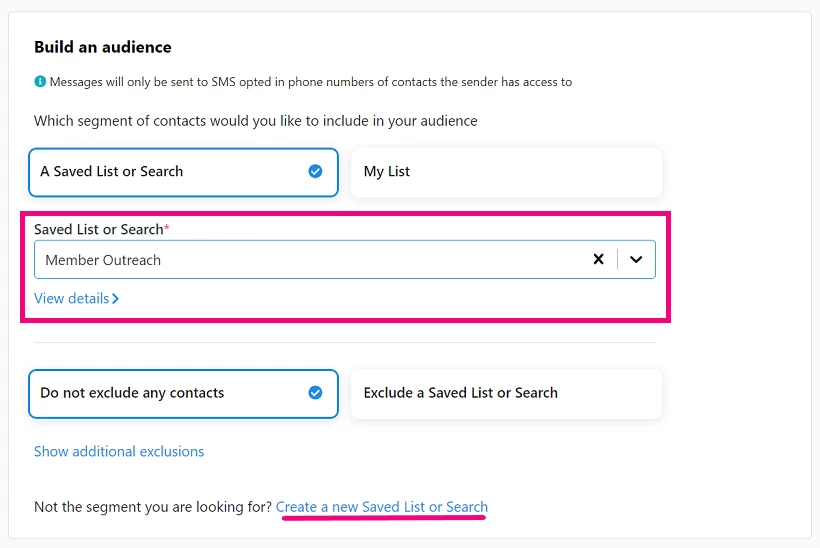
Choose a Saved List or Search or create a new one to pull contacts for your mobile outreach effort.
Creating your message
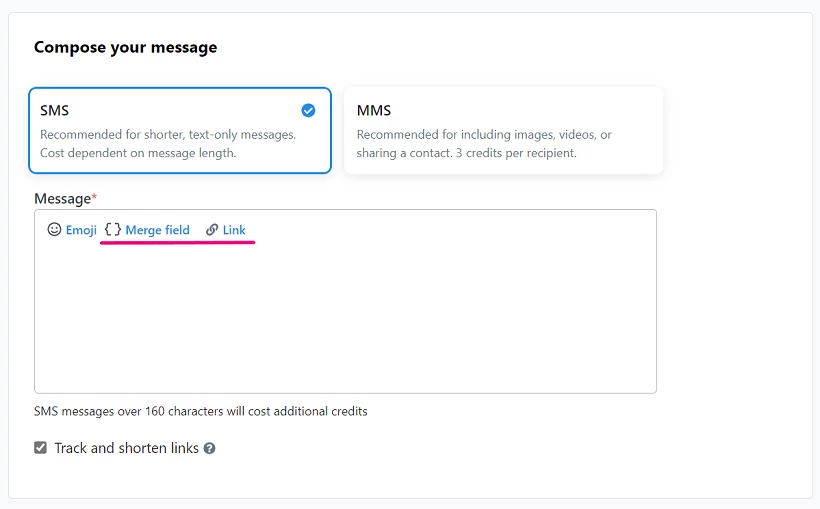
You can choose to send your audience an SMS text or MMS text.
-
SMS - Length determines cost, text-only
-
MMS - 3-credits per recipient, can include images or video
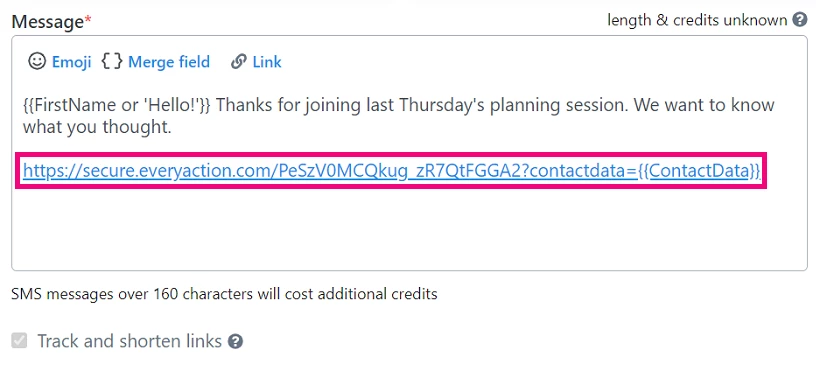
The message box includes the option to insert a Merge field and a Link. By default, any link you include will be tracked and shortened.
Add a Merge field to your email template to incorporate a value, like recipient names, zip codes, or contributions, from your contact records.
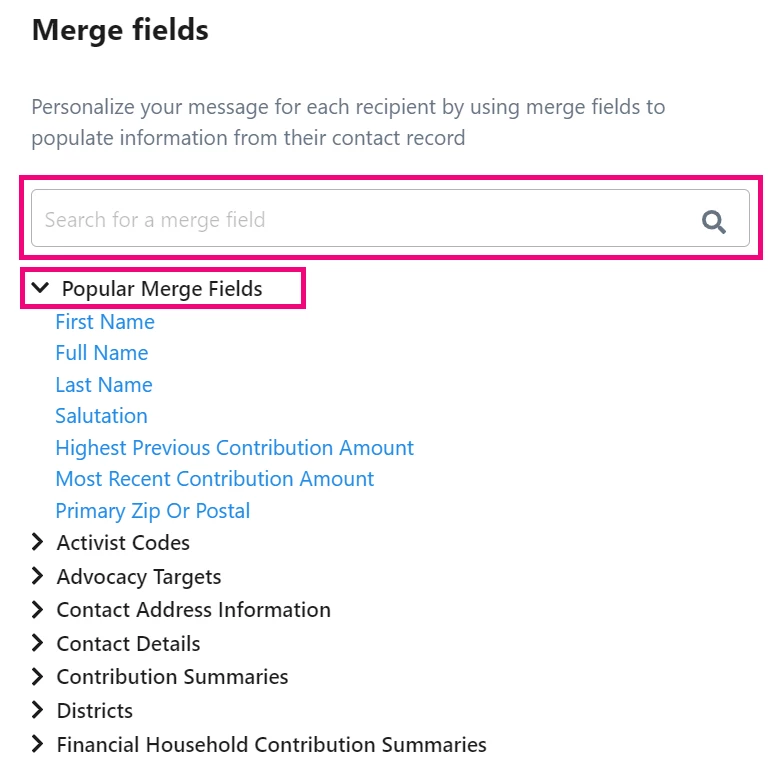
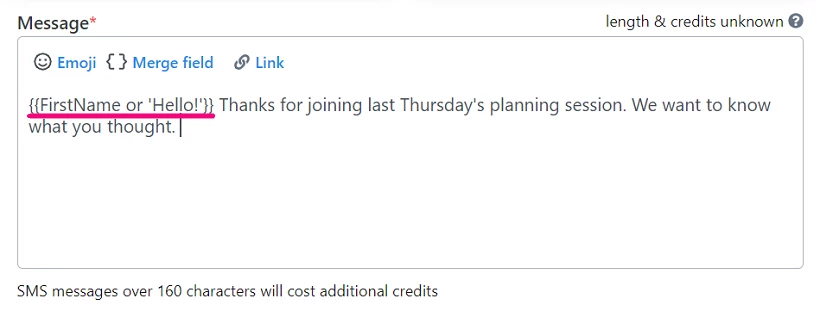
Draft your message and select Merge field to chose a value to insert.
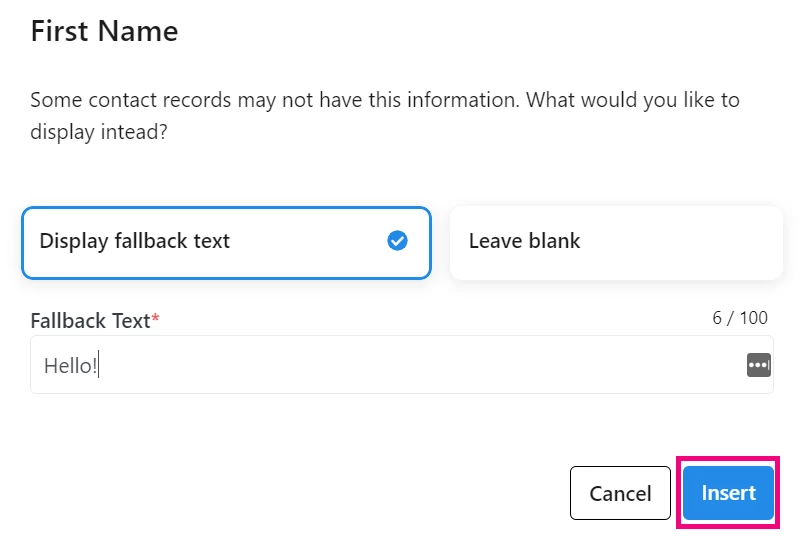
After you’ve selected the value, enter fallback text to populate the field in the event your records for a contact are incomplete.
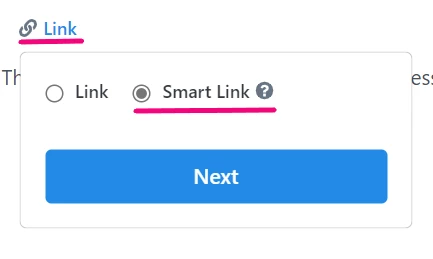
You can also add a Link - a URL of your choosing or a Smart Link to an Online Actions form. When you choose a Smart Link, the forms you link to will automatically populate with supporter information based on your records.
Note: SmartLinks are intended to work specifically for the e-mail recipient and our recommendation is not to forward them. When you click on a SmartLink in an e-mail, it can load data onto the form for a supporter based on the identifiers in the link, regardless of whether or not they have a cookie in their browser to pre-fill data on the form. So, forwarding a SmartLink can result in pre-filling data, including the credit card token stored in FastAction, for the original recipient, even when the recipient of the forwarded email clicks the link. For this reason, we recommend indicating that these links are designed to be one-time use for the original e-mail recipient.
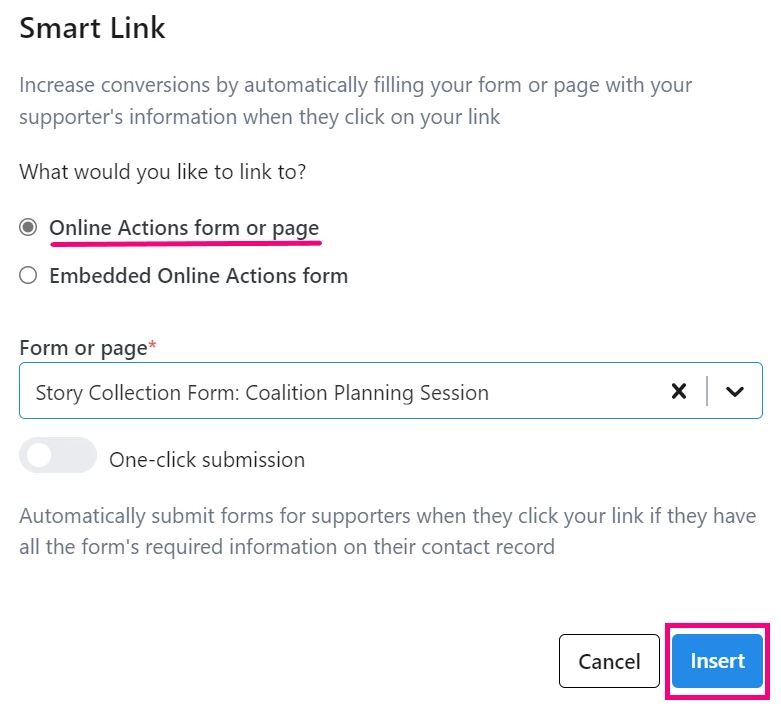
You can choose to link to an Online Actions form or page or one you have Embedded externally. Find the form or page you previously created in the search bar and Insert.
If you choose to link an Embedded Online Actions form, you will have to enter a valid URL and identify whether or not you are linking a contribution form.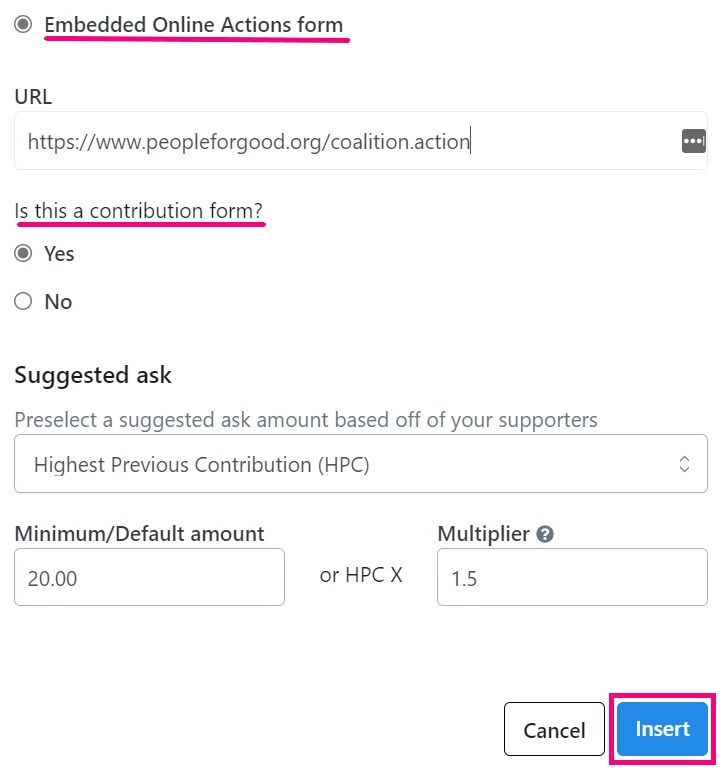
If you link to a contribution form, select the suggested donation amount you will offer your contacts. When your donor lands on the donation page, one the following will be highlighted.
- Highest Previous Contribution (HPC) - The HPC is the a donor's all-time highest contribution. Additionally, you can provide a suggested minimum, or default amount, and you can enter a multiplier to increase the HPC by.
- Most Recent Contribution (MRC) - The MRC is a donor’s most recent contribution. Additionally, you can provide a suggested minimum or default amount, and you can enter a multiplier to increase the HPC by.
If a donor does not have a previous contribution, the Default will be highlighted.
-
Default Amount - If you select Default, you will choose one amount to suggest to your contacts.
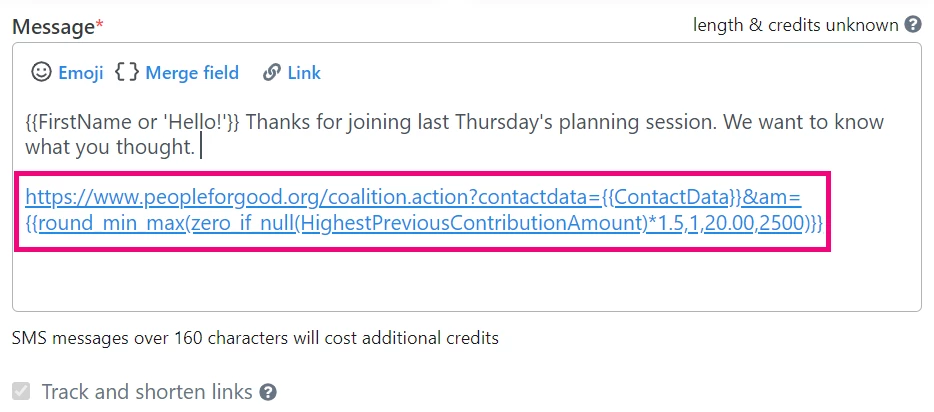
Previewing your message
Before you send your message, Preview & Test it to be sure the details are correct.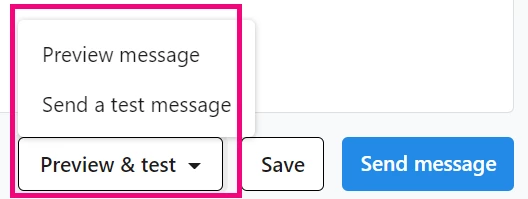
Your preview will reflect merge fields and any links you added. Links will appear shortened as long as you kept the default link shortening selection engaged.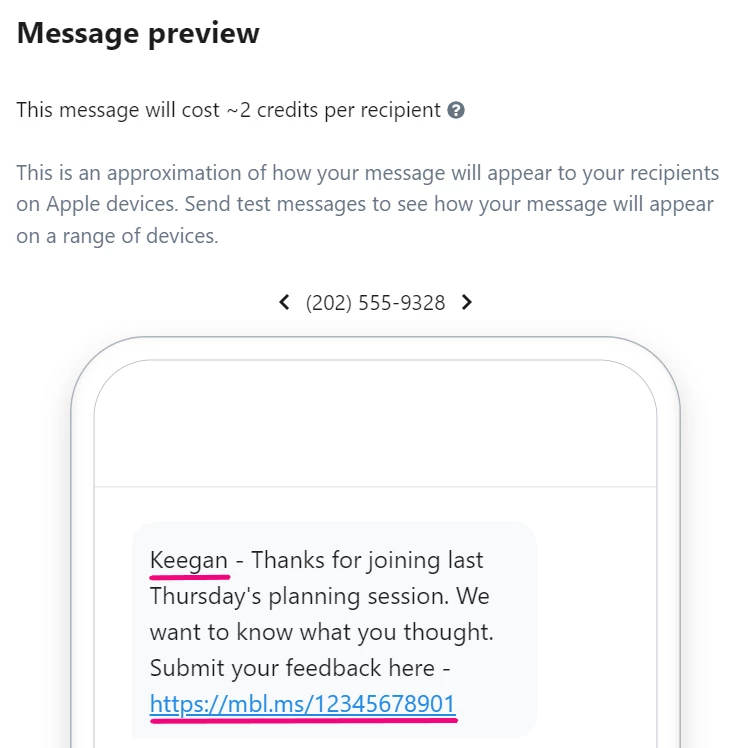
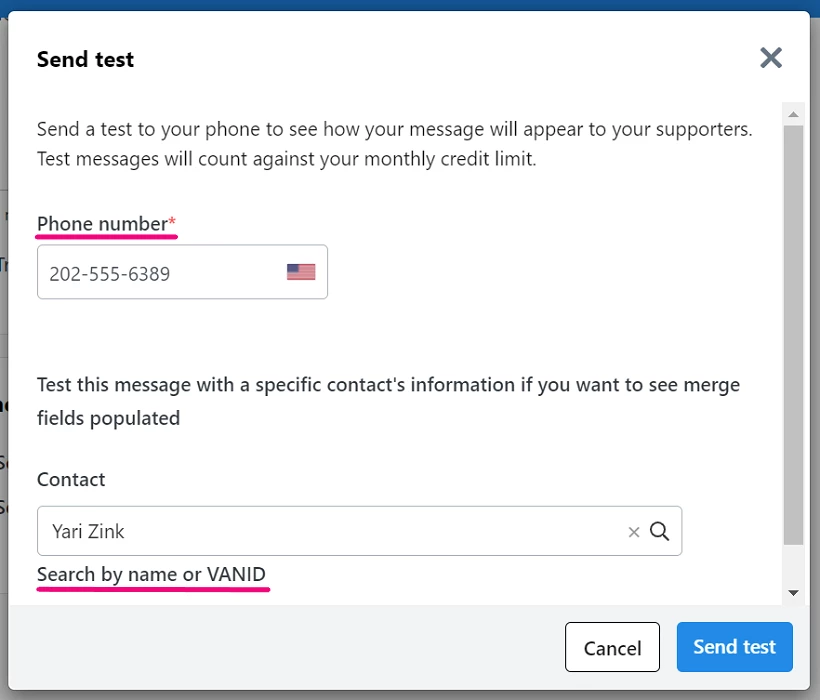
Send test messages to understand how messages appear on different devices.
Enter a phone number to receive a test message. Search for an individual contact record as a model to see the merge field populated in your text.
Scheduling your message
When you are satisfied with the content of your message, you can send it right away or schedule it for release later.
Scheduling a message is only available when sending to a Saved Search or Saved List. Your search or list will refresh just before the message sends to ensure any new contacts are included in the message audience.
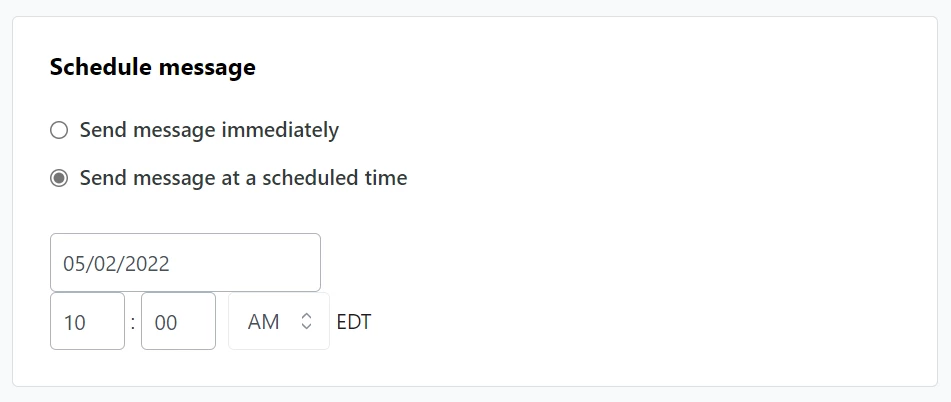
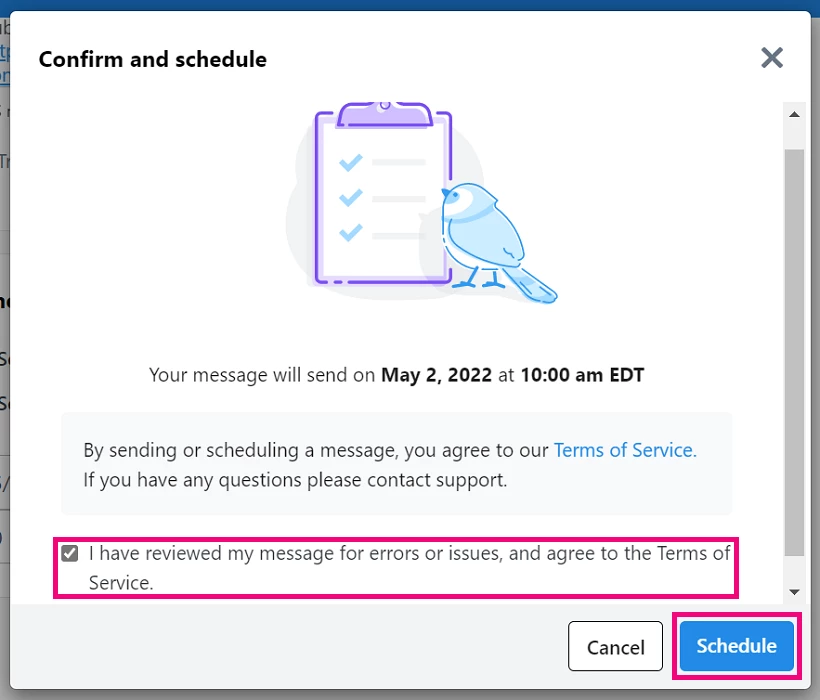
Set the date and time for your message to be sent. Reach out to Support with further questions about messaging. Before you can schedule your texts you will need to confirm that your message is error free, links are correct, and that you agree to the Terms of Service.