



Attention: EveryAction Development is now Bonterra Development. Please bear with us as we update our screenshots to match our new name.
(2 min read)
Once you've entered your Moves Management Action Plan and added your information, you will be able to search and report on the details of the plan.
Read more about creating Moves Management Action Plans
Using the Major Giving Portfolio
One of the easiest ways to track your progress with your donors and prospects is by using the Major Giving Portfolio. You’ll be able to filter and sort your action plans, see key metrics of your effectiveness and review contacts needing immediate attention.
Read more about the Major Giving Portfolio
Searching on Moves Management Action Plans
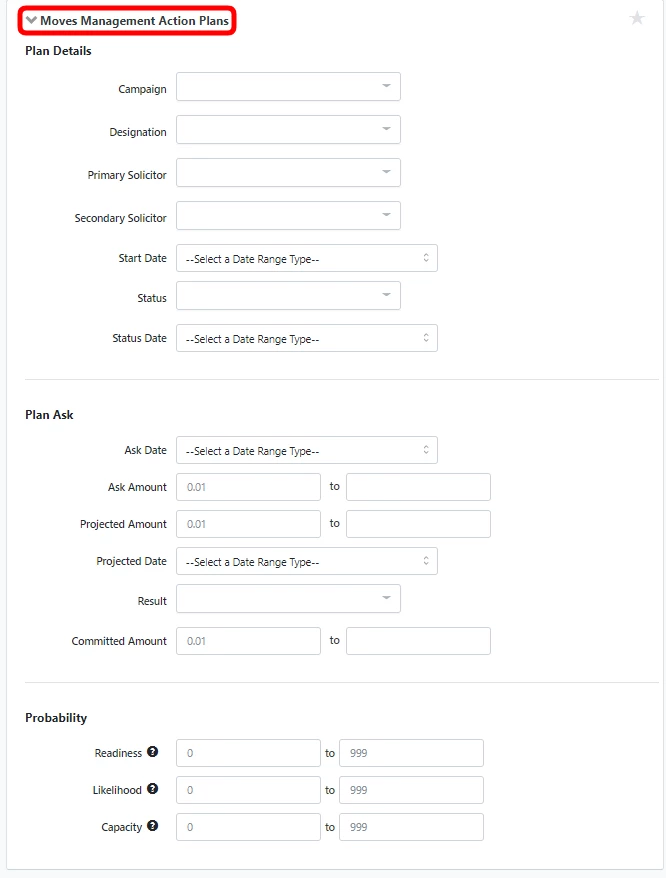
Moves Management Action Plans have their own section in Create A List. By expanding the section, you can see various fields for searching on specific criteria.
Reporting on Plans
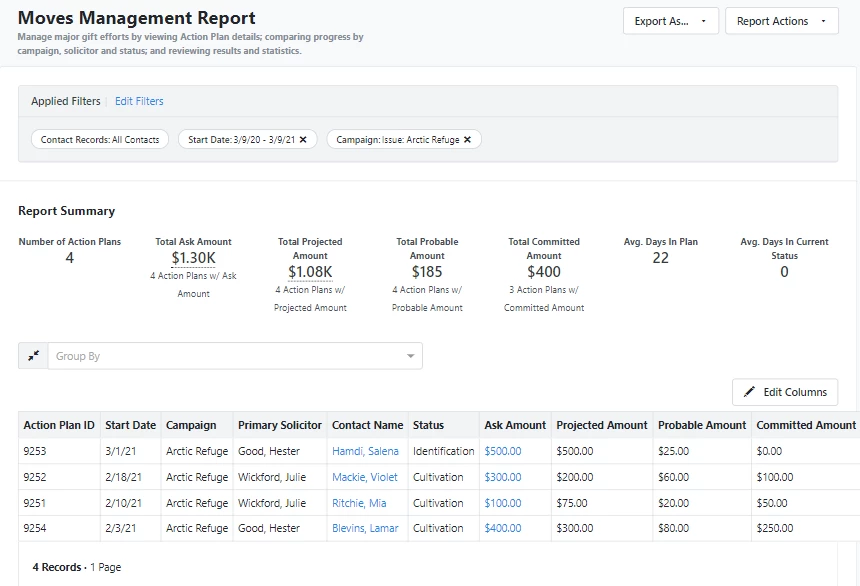
You can customize the Moves Management Report to include details about the Plan, Target/s, and Solicitors.
At the top of the page, you will see a summary that includes:
-
Number of Action Plans: Number of plans included in the report or group, if grouped by a field
-
Total Ask Amount: Calculated based on the sum of Ask Amounts entered for all plan in the report or group
-
Total Projected Amount: Calculated based on sum of Projected Amounts included in report or group
-
Total Probable Amount: Ask or Committed Amount multiplied by the probability % for each plan in list, summed
-
Total Committed Amount: Sum of committed amounts in report or group
You can also add the following fields as columns that will return Follow Up or Contact History data from the plan:
-
Next Move Date: The date of the next scheduled Follow Up
-
Next Move Action: The Type (Phone, Meeting, Event, etc) of the next scheduled Follow up
-
Next Move Note: The Description of the next scheduled Follow up
-
Last Move Date: The most recent Contact History
-
Last Move Action: The most recent Contact History Type (Phone, Meeting, Event, etc)
-
Last Move Note: The most recent Contact History Description
-
Moves Ahead: Sum of incomplete Follow Up items associated with the Action Plan
-
Moves Made: Sum of Contact History items associated with the Action Plan
Exporting your data
While Moves Management data is not available to select for columns in a Standard Text Export, you can export the Moves Management Report from Report Manager by selecting Export As from the top right.