



(4 min read)
Every email in your records is assigned an Email Status indicating whether that address is subscribed to receive Targeted Email. Understanding and managing these statuses can make a difference in your email deliverability and ensure you are reaching your most engaged supporters.
Understanding email status options
Subscribed
Subscribed indicates that the email address is eligible to receive Targeted Email. This is the only email status that will allow Targeted Email to be sent.
If you are also using Confirmed Opt-In, only Subscribed emails that do not have a confirmation status of Pending or Sent - Not Confirmed can receive communications.
Unsubscribed
Unsubscribed indicates the email address has been opted out of receiving Targeted Email. Email addresses can have this status after one hard bounce (meaning a user not found error) or three soft bounces (meaning we've tried to deliver it three times but always get some sort of user unreachable or mailbox full error).
This can also happen if the individual who owns the unsubscribed email address has asked to be removed, or has used the Unsubscribe link in an email. Using the Unsubscribe link in an email will take them to a page where they can choose to unsubscribe from all emails, or choose particular types of emails to receive (such as opting into/out of particular segments).
Once an email address has been marked as Unsubscribed, your organization cannot change the status. In order to change a status, the person who owns the email address must email your organization with the request, which you can forward to our support team.
If you are using Confirmed Opt-In, you can, however, allow supporters to Resubscribe by responding to one of your Online Actions forms.
Read more on resubscribing email addresses
Not Subscribed
Not Subscribed is the least frequently used email status but is nonetheless useful and is most frequently used in two cases:
- Use it when an individual's contact information has been collected by your organization, but you don't yet want to opt that person or that particular email address into your Targeted Email. This can be useful, for example, with a sensitive potential donor or political contact.
- Use it if you are applying multiple email addresses to a contact record (or multiple contact records in the Bulk Upload tool) and you only want one email address to be opted in so your contact doesn't receive multiple copies of an email. Not Subscribed is a better option to use than Unsubscribed, since the latter indicates that your contact never wants to be contacted at that address. Not Subscribed allows you to still use the secondary email if the primary email is having trouble receiving your messages.
Viewing and changing status from the contact record
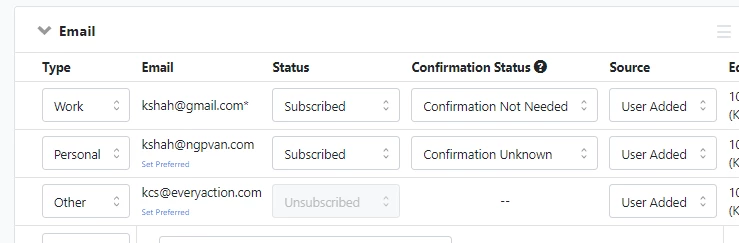
To view an email address and its status on a record, open the Email section on the contact record. Use the Status dropdown to switch from one value to another. You cannot use this to resubscribe someone who has unsubscribed.
Bulk Applying Email Status
There are two mapping options for email address in the Bulk Upload tool: Email and Apply Email Address.
The first will allow you to map a column from your file to the Email field. This will apply an Email Type default value of Personal (versus Work or Other) and an Email Status default value of Subscribed. If you would like all of your email addresses to be marked as Subscribed and to be the type Personal, you can select this mapping option.
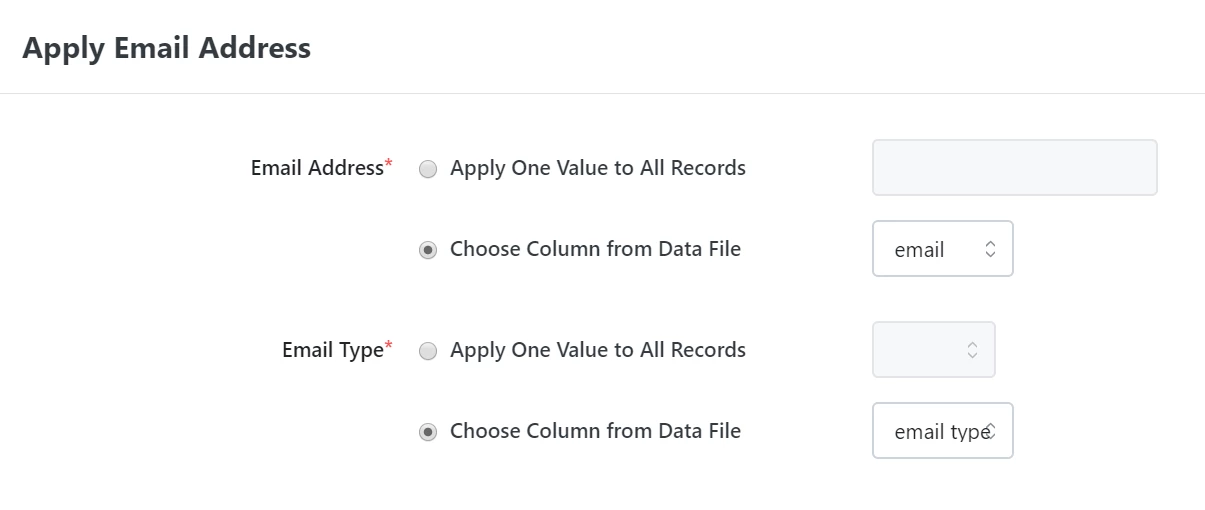
If you would like to select a custom Email Status and/or Email Type, select the other email mapping option: Apply Email Address. This will allow you to map those fields to a column in your file. See the example below, where the Email, and Email Type are being mapped to a column in the file, and the Subscribed email status is being applied to all records. If you are applying the same value to all records, you do not need a column in your file for that field.

Searching on Email Status
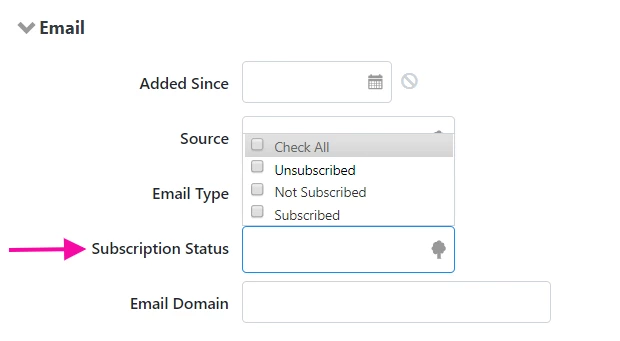
You can use the Email Status to search for and segment your contacts by using the dropdown from the Email section of Create A List.
Reporting on Email Addresses

Your Email Address Status Report displays a wealth of data, including the subscription status, unsubscribe method, and confirmed opt-in status for all the email addresses in your records.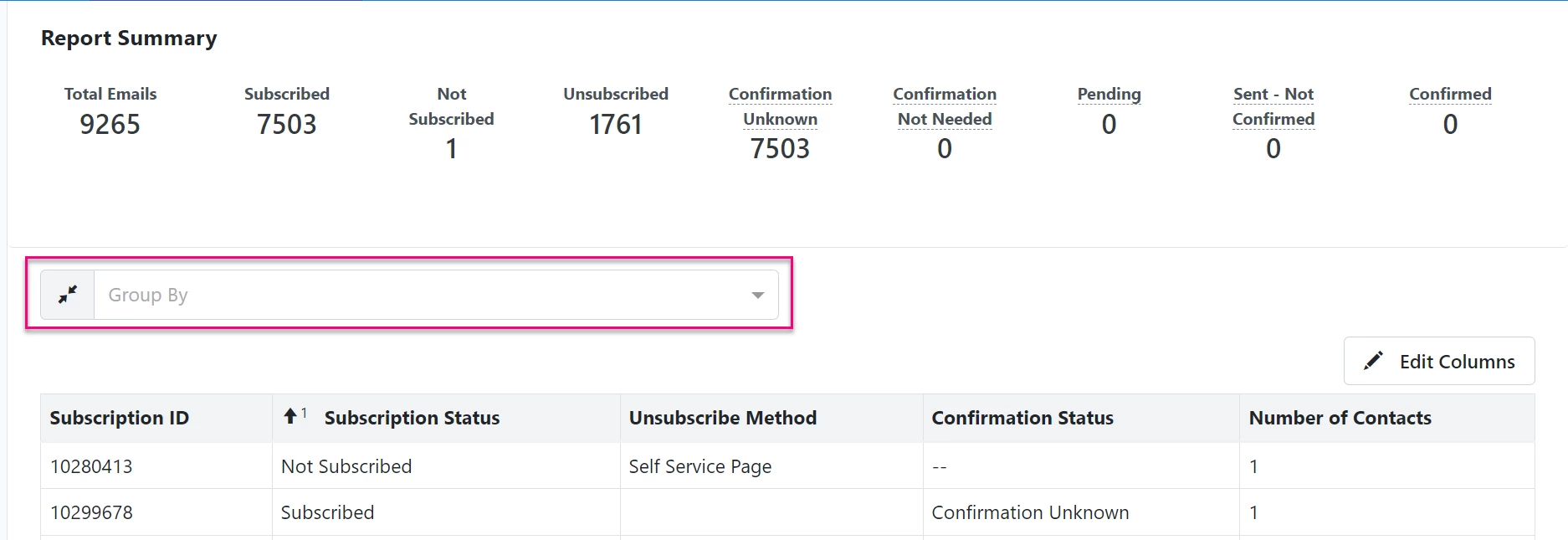
Use Group by to view how many emails you have in your records according to certain values, like Unsubscribe Method or Subscription Status.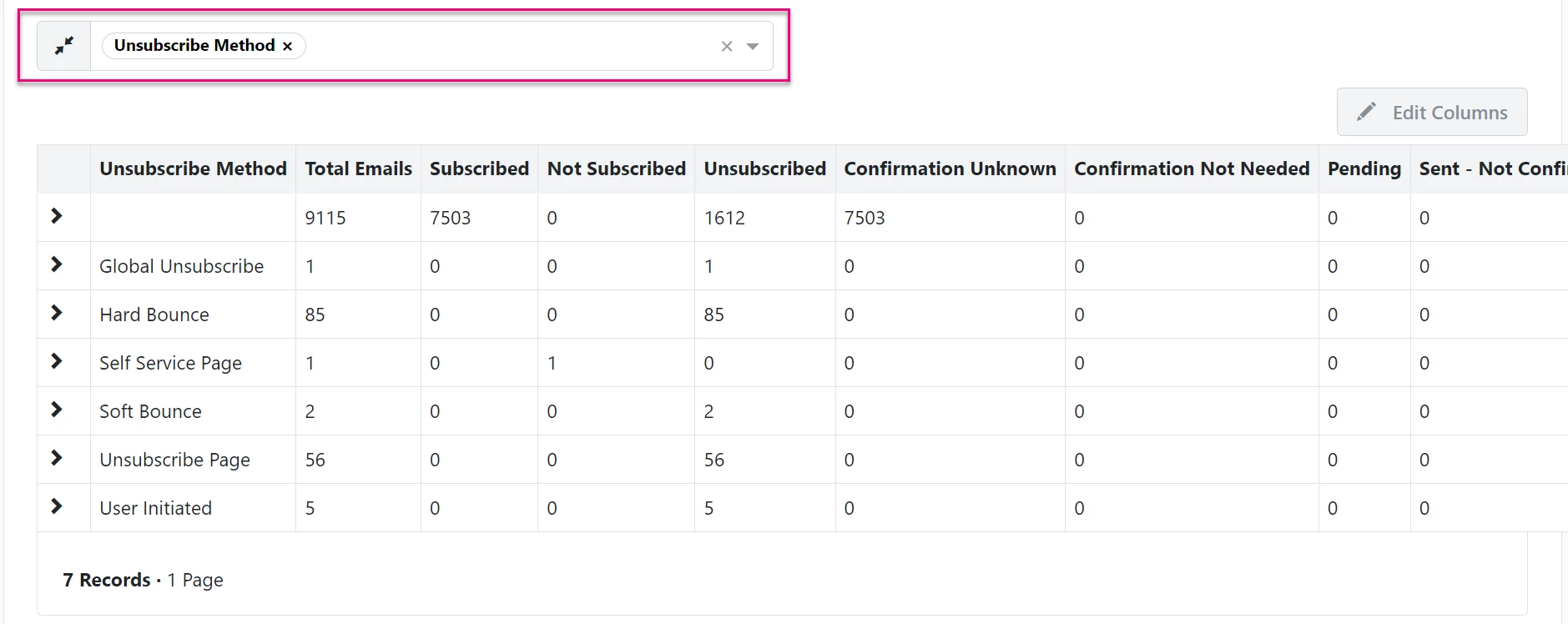
Alternate search terms: opt in, COI, confirm opt-in, confirm opt in, double opt-in, double opt-in