


How to: Canvass with Street Team
(4 min read)
When you use the add-on MiniVAN Street Team package for your canvassing efforts, you’ll have an easy way to capture the contact details of the people you speak to in the community and then record the results of your conversations. You won’t need a pre-defined list of voters or contacts. After entering a supporter’s name or identifying their voter record, you can jump right into your script, gather their answers to questions, encourage them to sign electronic petitions, and even donate on the spot. All your results automatically sync back to your CRM.
Before you begin
Before you begin, make sure your Street Team effort is set up and ready to go. You will need your organizer to give you a list number to join the effort.
Read more on setting up a Street Team Effort
You will also need to download and log in to MiniVAN on your device.
How to: Read more about logging in to MiniVAN
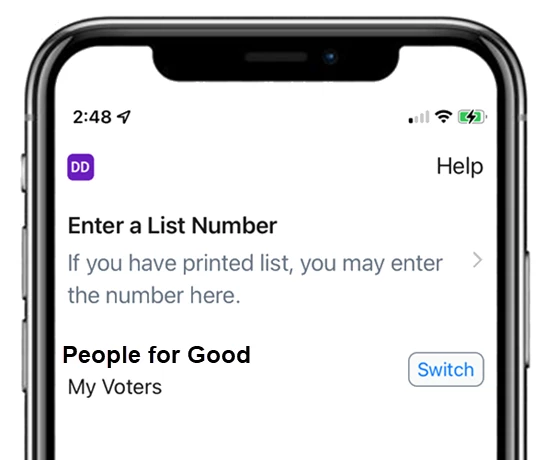
You can then begin your Street Team effort by entering the list number for your Street Team effort.
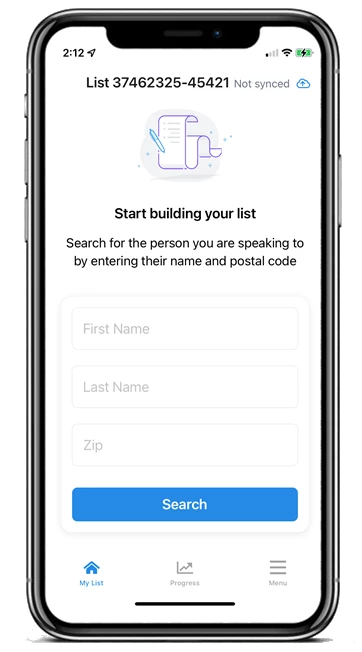
Searching the voter file for contacts
If you are canvassing registered voters for your Street Team effort in My Voters, your first step will be to search the voter file for the person you are speaking with.
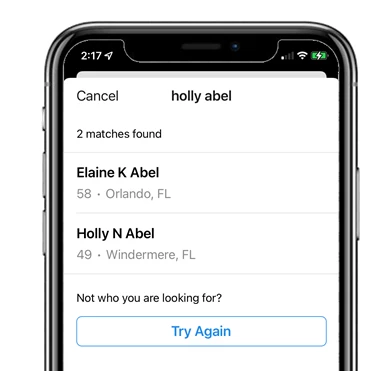
Select one of the names from the results or try searching again with different criteria. If there is no record for the person in the voter file, you will not be able to add the contact.
Adding new contacts to My Campaign or EveryAction
If you’re not using the voter file but instead are using your EveryAction or My Campaign database, you’ll be able to directly add a new person to your list as you go.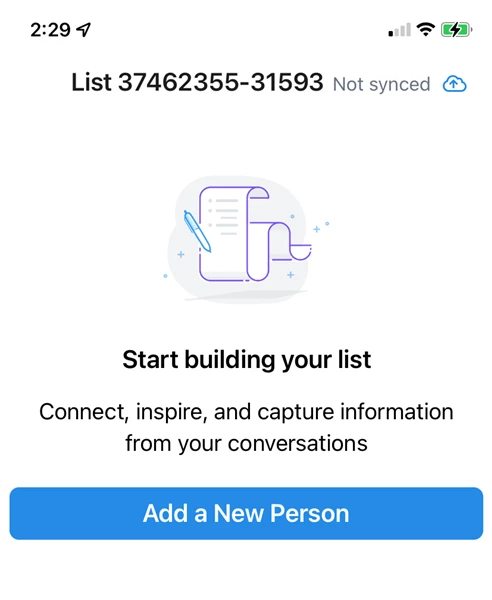
The only required fields to add a new contact are first and last name, but you’ll have the option to add other information about the person you are canvassing.
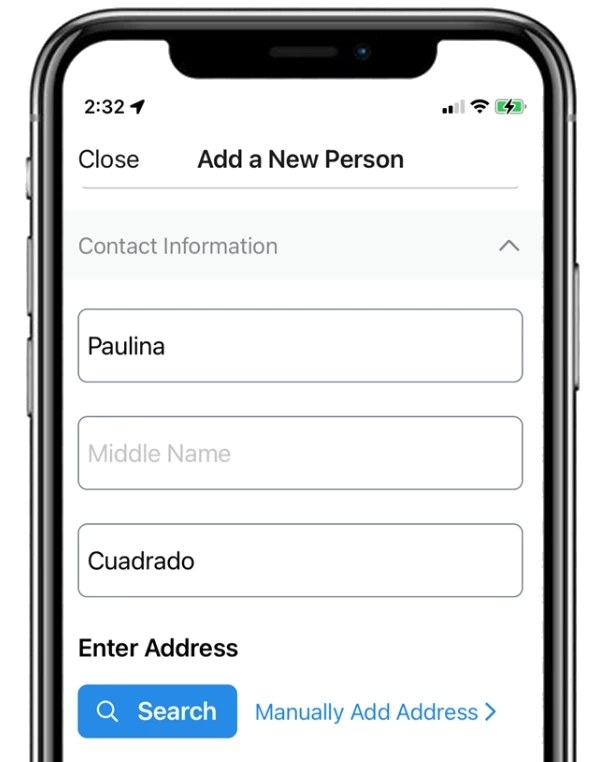
When adding an address, you can search for it on Google Maps and auto-fill the results or manually add an address.
You’ll also be able to enter other information like phone number and email address.
Adding canvass results
Once you’re added the contact or found the voter, the app will open on the script page that will walk you through the survey questions, event sign-ups, or other information you need to gather.
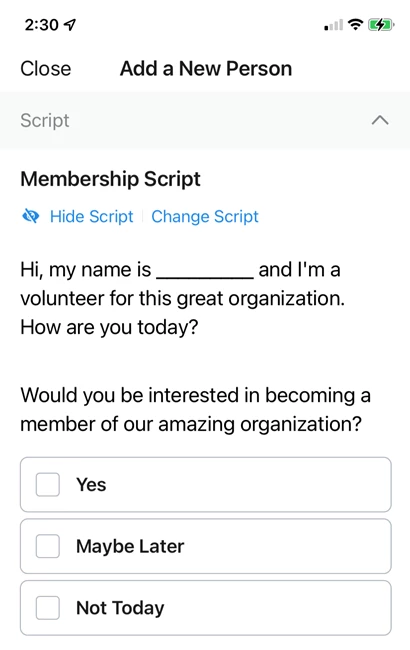
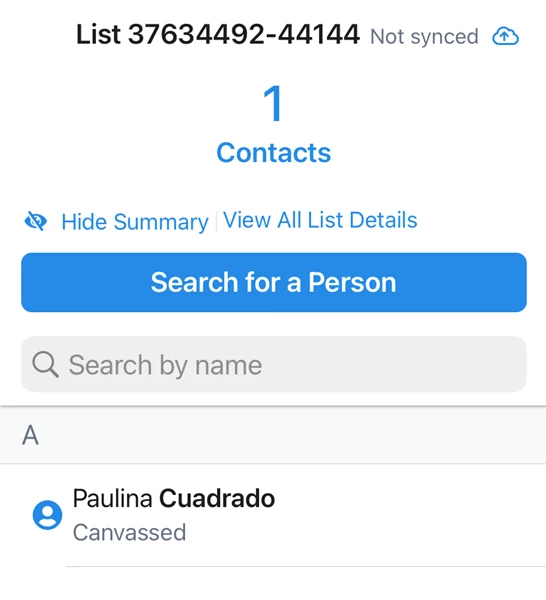
Once you are done canvassing that person, you can then add another person to your list or search the voter files again for the next person.
Collecting form responses
If you’re collecting form responses or signups, you will see a green pen icon in the lower right. If you do not see this button, contact your organizer for more help.
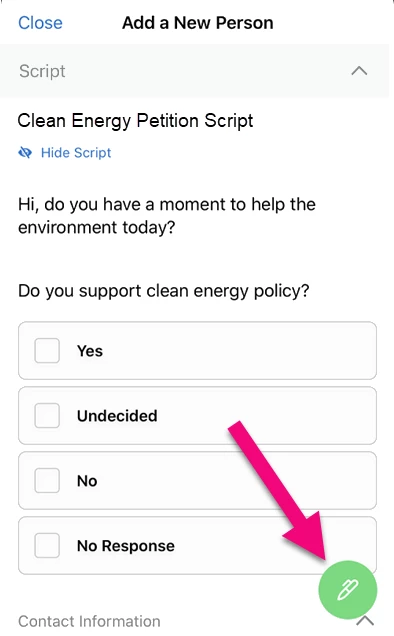
Clicking on the button will take you out of the app and into the signup or questionnaire form on your device’s default browser. The person’s information will be auto-filled based on what you entered when you added the contact, and you or the supporter can finish filling out anything else and submitting the form.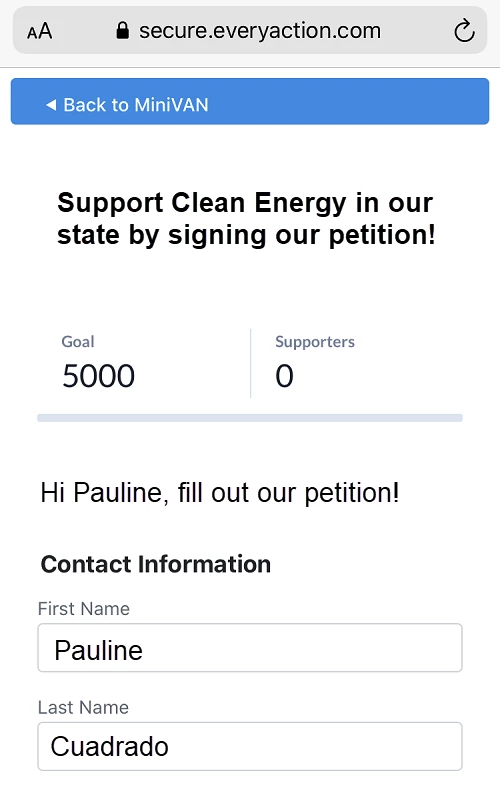
After the supporter has submitted the form, use the button at the top to navigate back to MiniVAN.
Collecting contributions when canvassing
If you’re collecting contributions, you can enter a donation from the supporter by tapping the green payments button. If you do not see this button, contact your organizer for more help.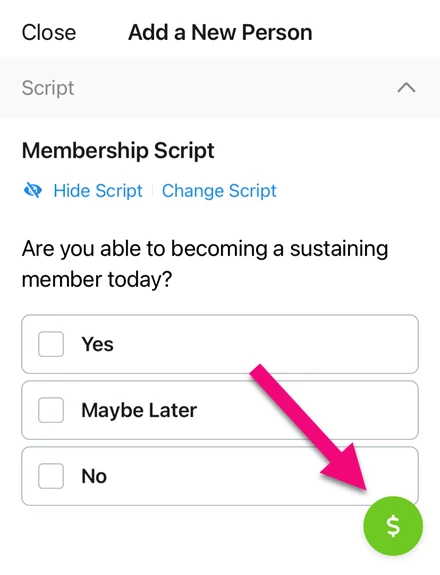
Select one of the available payment methods. If you do not see the payment options you need, contact your organizer for instructions.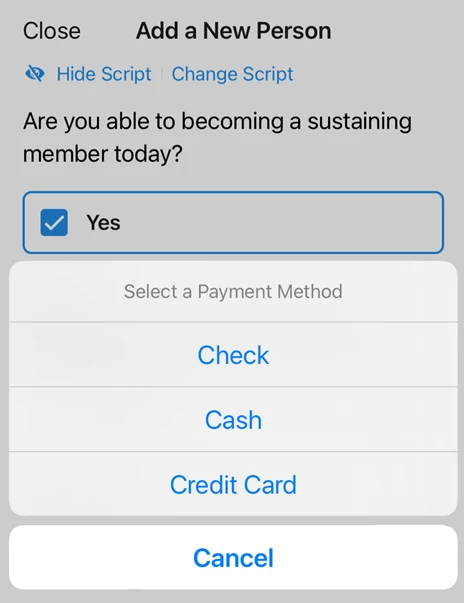
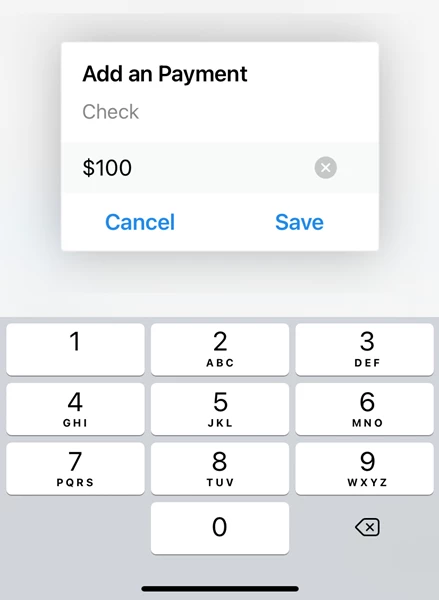
If the donation is cash or check, you will only need to enter the amount you were given.
If the person is paying with a credit card, the online custom contribution form that is assigned to your effort will open so you can process their payment immediately. The donor’s contact information will be pre-filled with the information you entered when you added the contact. You can then collect their card number and any other details and submit the form. You can also use the camera on your device to add their credit card information using the Scan Card link available by default on most mobile devices.
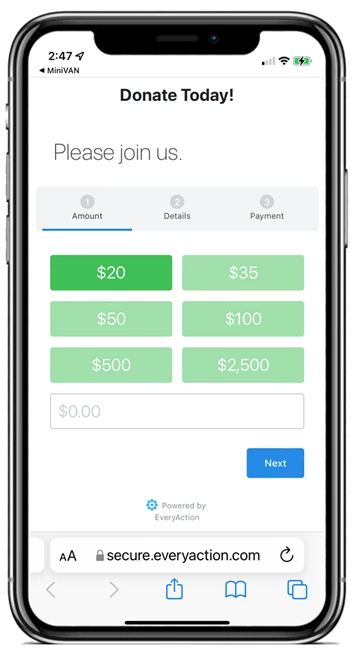
Once you sync your MiniVAN data back to the CRM, credit card contributions donated through the form will process right away and a contact record will be created. You should always manually sync your MiniVAN data right away if you are processing credit card transactions.
Syncing your data
When you first open your list, you should see a message that Auto-sync is on. (Only Administrators can disable the auto-sync option.) This will allow canvass results to be added automatically to your database as long as you have an active data connection.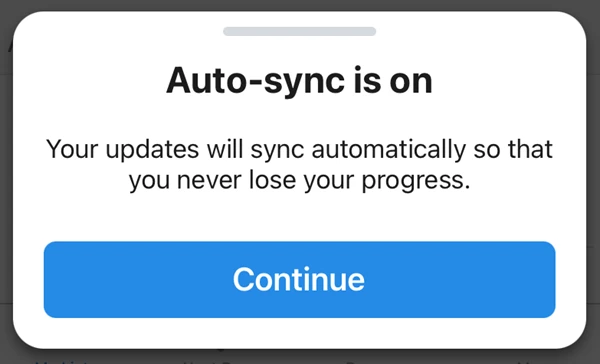
You will need to be connected to wifi or a data connection in order to download your list at the beginning of your canvass. But even if you lose your connection while you canvass (or if you only have wifi-enabled devices), the app will still save your results and automatically send them back to your database as soon as your connection is restored.
You can always manually sync your data by using the sync icon in the right-hand corner or from the Menu at the bottom. It’s a good practice to make sure you have synced your data before you leave for the day.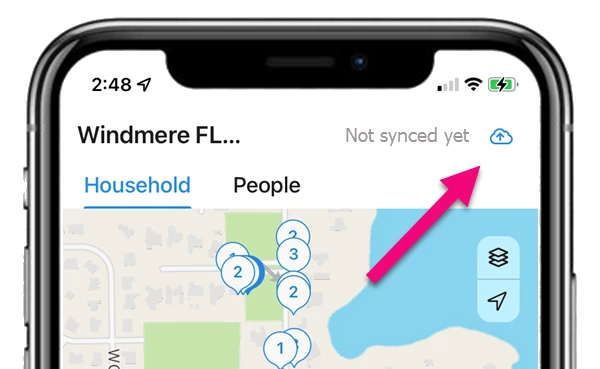
How do I how to: canvass with street team? | How does how to: canvass with street team work in EveryAction? | Why can't I how to: canvass with street team? | Where do I how to: canvass with street team in EveryAction? | What is how to: canvass with street team in EveryAction? | How to how to: canvass with street team? | Can I how to: canvass with street team in EveryAction?