



(5 min read)
The Drag & Drop editor is one of the easiest ways to get started creating emails that are mobile-friendly and polished. And while the interface is meant to be intuitive enough to begin using right away, there may be a few differences from other email creation tools or editors you’ve used in the past.
Read instructions for creating emails with the Drag & Drop Editor
To make it easier for you to quickly find the answers you need, we encourage you to watch our webinar on Drag & Drop and read through some of the most commonly asked questions.
Getting started
Can I use my existing Themes and Reusables with the Drag & Drop Editor?
No, existing Themes and Reusables are not compatible with the code generated by the Drag & Drop editor. But you can choose a template to work with.
Can I create my own Templates?
Yes! When you create your own templates, you can:
- lock rows or content blocks so others cannot accidentally change the content
- share templates across committees
Read more about creating email templates with Drag & Drop
Watch more about creating Drag & Drop templates
Can I switch Templates after creating and editing my email?
Yes. You can access the Template Library at any time while you are editing your email’s content by selecting Templates from the top left of the Drag & Drop editor. Choosing a new template will overwrite your existing content.
Is it possible in Targeted Email to see which editor drafts or scheduled emails were created with?
Not at this time.
Can I still use Create from Existing for Drag & Drop editor-built emails?
Yes. The Create from Existing option is available for the Drag & Drop editor.
Is the total character limit for an email still 100,000?
The current character count limit is 150,000. We do not display the current character count of an email.
Does the Drag & Drop Editor autosave as I am working, or must I click “Save & Close”?
The editor will attempt to autosave every 15 seconds as you are working. There are times when a browser extension may interfere with this behavior so you may want to make some test emails before relying on this behavior (or turn off all browser extensions). You can always manually save your work if you are worried about losing your progress.
If you have the Editor open and idle for a long time, it is possible that our regular login time-out process will activate and you may need to reload the page to continue working. You will see a warning about the timeout.
Creating your layout
Can you copy a row or content object after you have customized it?
Yes. Select the row, and click the Copy icon.
Can I delete an empty row?
Yes. Select the row, and click the Trash icon.
I see Padding as an option on rows and content objects. What is padding?
Padding is the spacing from the outside edge of an object to where the content of the object is shown.
What are Display Conditions for rows?
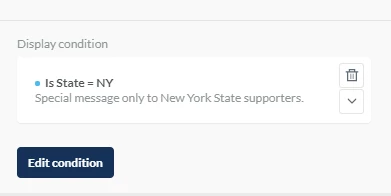
This is an advanced feature that allows you to display rows based on conditional content. For example, if you have a disclaimer that is specific to only recipients in one state, you can create a conditional statement that will allow you to display the row containing that text only to those contacts.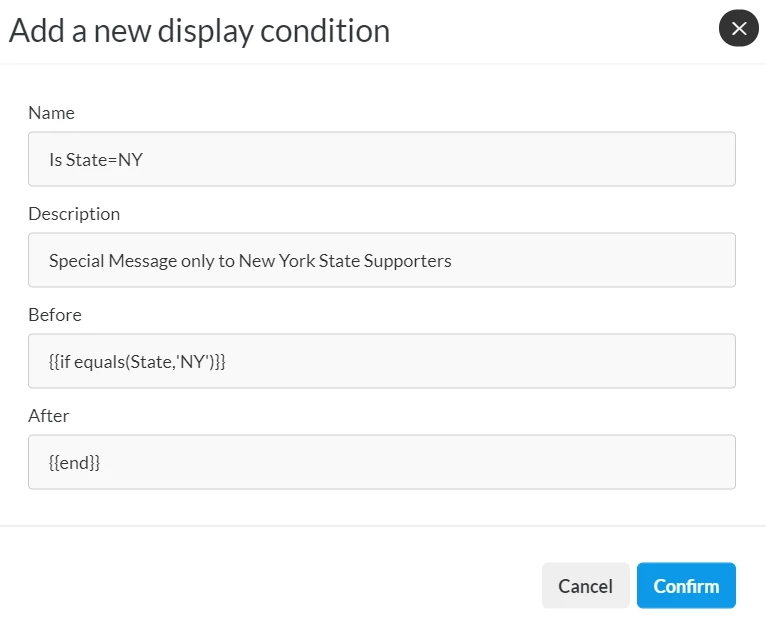
Can I change the width of an email?
Yes. To find the email width setting, click on the Settings tab.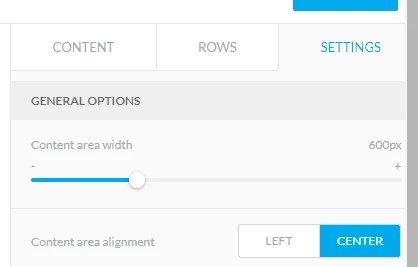
Is there a color picker available to change colors, or must I enter the hexadecimal color code?
Yes, there is a color picker. Open it by clicking the color square next to any hexadecimal input area.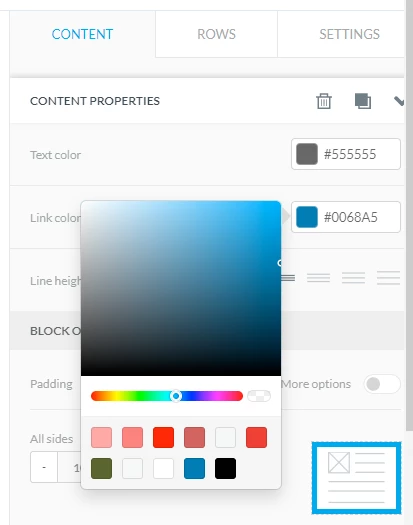
How do I input my own hexadecimal color code?
There is an input field for hexadecimal values next to every color content property.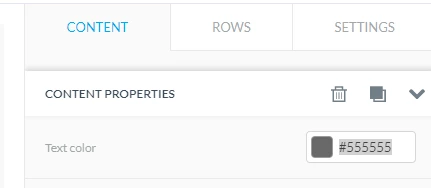
When changing colors, is there a tool to add “brand colors”?
Not specifically, but the editor will remember recently used colors.
Working with images
Can I resize images on-the-fly, instead of changing the actual file size?
Yes. Images will conform to the width of the Image object dragged into your email. This does not actually change the image’s dimensions, just how it is displayed.
Can I still access all the photos and images I uploaded with the Classic Editor?
Yes. You can access all of your existing uploaded files through the Image Library.
Can I wrap text around an image?
Images cannot be placed within a Text object. You put images to each side of a text box, or stack them above or below.
Does the Image object support animated gifs?
Yes.
Can you add background images?
Yes, however, all email clients handle them differently. You can add a background image to a row but be aware it may not appear, depending on the recipient’s email client.
Formatting your text
Can I style the {{OrganizationAddress}} and {{Disclaimer}} merge fields?
Yes, you can treat these like any other piece of text. You can also put each into its own row if you want access to a row's style settings separately.
Read more on How To: Update Organization Address and Disclaimer merge fields in Targeted Email
Can we override the link style entered into the Settings tab?
Yes. You can set a default link style in the Settings tab and override it on an individual link basis by using the text formatting tools.
Is line height applied separately to each line of text in a Text box?
The line height setting on a Text content object sets the line height for all the text in the text box. Different text boxes can have different line heights.
When I pasted in text from another document I lost all my styles. Why did this happen?
The editor strips all styles from content pasted into the Text content object. This helps ensure that unwanted, usually unseen, and unpredictable styling is not added to the content while preserving your links.
Working with other kinds of content
Can I embedded a Button within a Text object?
You can stack a Button object below or above a Text object, but you cannot put a Button into a Text object.
Is the entire shaded area of a Button clickable, or just the text?
The entire button is clickable.
Can I change the color of Social Icons?
We offer a wide variety of display choices for your Social Icons. You can also upload your own custom icons.
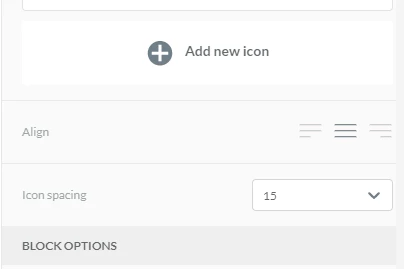
Can I change the spacing of Social Icons?
Yes. Once you have added Social Icons to your email, use the Icon spacing setting.
Can I add video previews from platforms other than YouTube and Vimeo?
No. At this time, you can only add video previews to your email automatically from YouTube and Vimeo. We recommend using a screenshot of the video thumbnail and placing a button or link that directs users to the full video on YouTube or Vimeo. This is a simple and effective way to showcase your video content without embedding it directly.
Creating mobile-ready and accessible emails
Is the HTML and CSS in Drag & Drop emails optimized for mobile view?
Yes. There are also settings on row and content objects that let you customize the behavior of each object during mobile viewing, including Hide on mobile, Reverse stack on mobile, and Do not stack on mobile.
Can you preview the mobile version?
Currently, you can preview an email by using the Send Sample Email feature and opening it on a mobile device.
Will Drag & Drop emails work with screen readers?
Yes.
Using Drag & Drop with other tools
Can I use Smart Links?
Yes! You can add Smart Links from the More dropdown menu in your Text blocks or from the Content Properties > Action section on your Buttons and Images.
For most forms, the Smart Links wizard will work exactly the same in both the classic and drag & drop editors. However, you will notice a difference in the workflow when you use Smart Links with your contribution forms.
When you use the Smart Links wizard in the Classic Editor with contribution forms, you can create multiple ask amount links on the fly and you can pre-select the text you wish to display as your link. Once you insert the Smart Link, you will see a complex merge field in your text, such as:
{{round_currency(zero_if_null(HighestPreviousContributionAmount)*1,1,20.00,2500)}}
Because our Drag & Drop Editor works a little differently, you will need to create an individual Smart Link for each amount you wish to insert into your Text block. You will also see a simplified merge field that will insert the {{Amount}}, such as:
Donate {{Amount}} today!
When the email is sent, the Amount field will update to whichever amount you set for that particular link.
Read more about using Smart Links in the Classic Editor
Read more about using Smart Links in the Drag & Drop Editor
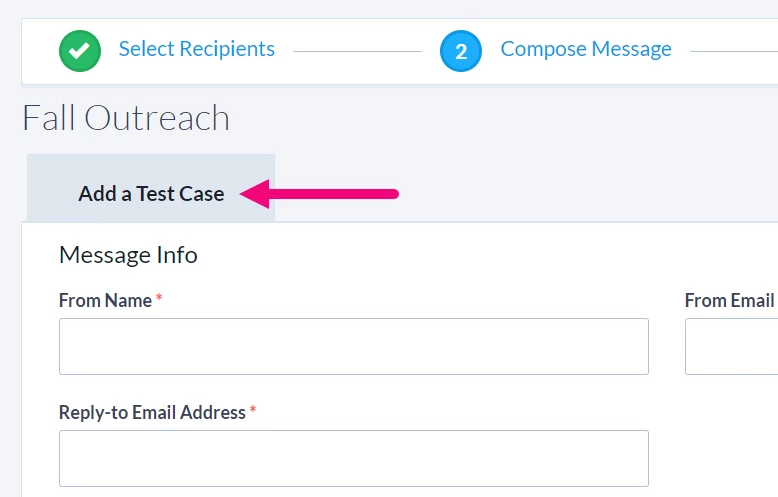
Is A/B testing available for the Drag & Drop Editor?
Yes. A/B testing is available and works just the same way it does with the Classic Editor. Use Add a Test Case on the Compose Message step to add more versions of your email.
Can I use the Drag & Drop Editor when I create an Automation?
When you select the Send an email step in your Automation, you can create a new email using the Drag & Drop Editor, or copy an existing drag & drop email, using Create From Existing.
Will the Drag & Drop Editor be available for Online Actions forms?
At this time, the editor’s HTML and CSS is optimized for email clients, not current web browsers.
Can I embed an Online Actions form by using an HTML content block?
No. Many email clients do not support the rendering of and submitting forms.
Can I export the HTML source to test with an email client rendering service?
No, but you can use Send a Sample Email to send a version of the email to yourself or directly to your email testing service.