



SmartLinks help you link your Targeted Emails to your 'Online Actions' forms. They also make it easier for your supporters to respond to your asks, encouraging greater engagement and improving conversions.
SmartLinks are meant to work specifically for the e-mail recipient and we recommend not to forward them. When you click on a SmartLink in an e-mail, it can load data onto the form for a supporter based on the identifiers in the link, regardless of whether or not they have a cookie in their browser to pre-fill data on the form. So, forwarding a SmartLink can result in pre-filling data, including the credit card token stored in FastAction, for the original recipient, even when the recipient of the forwarded e-mail clicks the link. For this reason, we recommend that you indicate that these links are designed to be a one-time use for the original e-mail recipient.
-
You can create SmartLinks that immediately submit a pre-filled form directly from the email.
-
You can also use SmartLinks to create personalized asks on your contribution forms based on a donor’s previous giving.
For example, you can add a SmartLink to your email that will dynamically suggest donation amounts based on your donor's most recent contribution or on their highest previous gift. When the donor clicks that link, they will see the suggested amount you personalized for them on the contribution form. If you enable FastAction Auto Processing on your form and one-click contributions for your SmartLink, then their contribution will go through immediately, with only one click.
Read more about FastAction
Getting started
If you are working in the Classic Editor in Targeted Email, you can use SmartLinks to add the links to any of your Online Actions forms. The SmartLinks wizard will then help you customize the links and build a query string that will deliver personalized information to your form (such as custom contribution amounts or personal contact information).
Read instead about adding SmartLinks in the Drag & Drop Editor
From the Compose Message step, select SmartLink (above the text editor) in the HTML Message section.
Using the SmartLinks wizard
The SmartLinks wizard will help you create links to a standard Online Actions form, an Online Actions form that is embedded in your own site, or to a form that is located at another URL.
When you choose either Embedded Online Actions form or External URL, you will be prompted to enter the web address for the external form. If you are using a standard Online Actions form or page, you can select the form from the dropdown menu.
With embedded forms, you will have access to all the same SmartLink options as you would with forms served directly from Online Actions.
Using SmartLinks on forms other than Contribution forms
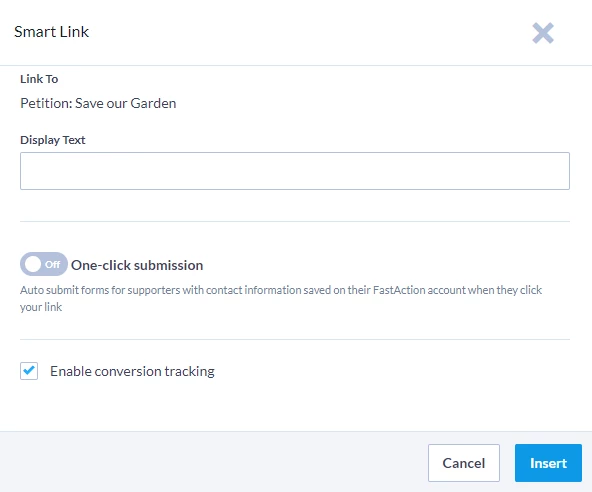
When you link to an Online Actions form that is not a contribution form (Advocacy, Ticketed Events, Petitions, and so on), you will see a prompt asking whether you want the link to be a one-click submission and whether you want to add conversion tracking to your email.
Selecting One-click submission will allow your supporter to use your link to submit the form immediately without further keystrokes if all the required contact information was pre-filled on the form.
You can also create links to a contact's record in your self-service pages. Supporters clicking on the link will be taken directly to their own record.
Using SmartLinks on Contribution forms
If you are linking to a Contribution form, you can easily create multiple automatically generated giving links that will be included in your email.
Once you've selected your contribution form, you'll be asked if you want just one donation option (such as $25) or if you would like to create multiple links with suggested amounts (such as $25, $50, $75).
At the top of the next screen, you will see a summary of what the link is and how it will appear in your email. You can edit the default text for your contribution links under Display Text. You can use the {{Amount}} merge field to ensure the suggested ask amount is also shown to the user in the text for each link. This is required when FastAction is enabled.
On the next screen, the Suggested Ask Amounts displays the settings for building your dynamically generated links. If you opted to include multiple links in your email, this is where you can set up each link.
If you are inserting multiple links at once and have enabled FastAction one-click contributions, your Disclaimer should remind your FastAction users that as soon as they choose one of the donation links, their contribution will be processed immediately.
You can choose your Suggested Ask Amount based on the recipient's Highest Previous Contribution (HPC), Most Recent Contribution (MRC), or - if inserting a single contribution link - Optimized Ask Amount. If you do not have this data for a recipient, you can set a Minimum/Default Amount for each suggested donation level.
Please note: Optimized Ask is only available when inserting a single link. If you are adding multiple links at once, for each link you can specify a "multiplier" which can be used to increase or decrease the Suggested Ask Amount.
Read more about using Optimized Ask Amounts in Targeted Email
Next, you'll be asked if you want to include the Other Amount link for supporters who want to give an amount not listed in the email. This is not connected to FastAction so your donor will be taken to your chosen form to complete their donation.
Using FastAction for one-click contributions
If you enabled the FastAction Auto Processing on the contribution form you are using with your Smart Link, you can turn on FastAction one-click contributions which will automatically process a donation as soon as the link is clicked. FastAction is turned on by default if you selected to insert multiple links (but not if you only have one link).
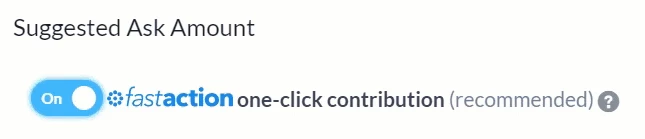
In order for a one-click contribution to work, the FastAction account must include all the contact information required on the form and the tokenized credit card information. If any of this information is missing, your supporter will instead be taken to your Online Action form to complete their contribution.
When you send your email, your one-click links will only work the first time they are clicked. This prevents your supporters' information from being used again if they decide to forward your email to friends and family. If the link is clicked a second time, the form will not prefill with the information contained in the original URL link.
However, if the person who clicks the link a second time is already logged into FastAction, their information will automatically be used for pre-filling the form.
Using conversion tracking
Conversion tracking is enabled by default on your Targeted Email. With tracking turned on, your email reports will automatically include statistics on form submissions and dollars raised from this email.
If for some reason you do not want to add tracking IDs to your emails, you can disable this feature by unchecking the box. If you prefer not to ever track this information, you can request to turn this feature off entirely. Alternate search terms: one click, oneclick, email tracking, smartlink, smartlinks