



Picking the right ask amounts for potential donors encourages them to give as much as possible without making them feel that you are expecting more than they can give. You can use Optimized Ask Amounts in your Targeted Email to automatically find the perfect range for each donor based on their past giving history and their likelihood to give more.
With the right ask, you’ll begin seeing more and bigger gifts with no extra effort—an average of 347% more per form load.
Read more about how to run an A/B test case comparison for Optimized Ask Amounts
Understanding Optimized Asks
Optimized Ask Amounts remove the guesswork from the conditional ask amounts you use with your Online Actions contribution forms. When you include this link in your Targeted Emails, suggested ask amounts are dynamically generated for each donor using predictive analytics based on their previous contribution amount, frequency, and timing.
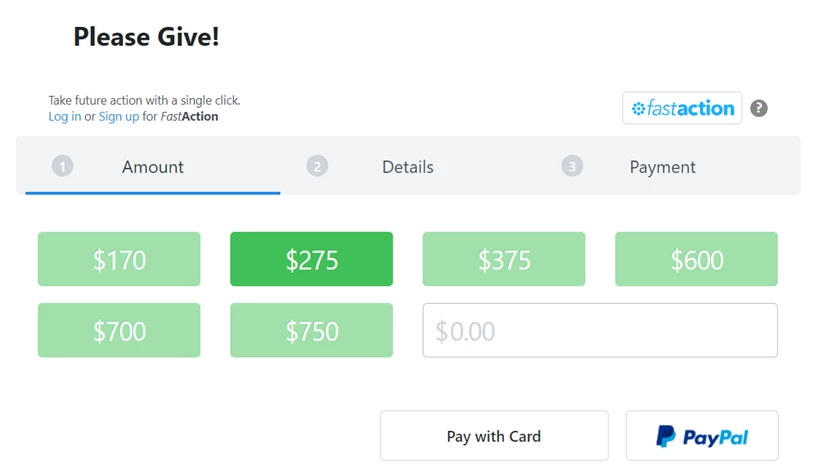
Once donors click the contribution link in your email:
-
any donor who’s made at least one contribution in the last 24 months will see 6 customized ask amounts
-
forms with recurring commitment asks will display 6 customized monthly ask amounts for any donors who gave at least once in the last 24 months
-
anyone with no donation history will see the default amounts already configured on the form
-
the second-lowest amount of the one-time or recurring asks will always be pre-selected as the default amount on the form
Optimized Ask Settings
Optimized Ask Amounts are enabled as the default setting in Targeted Email, and will be used whenever you include a link to an Online Actions contribution form.
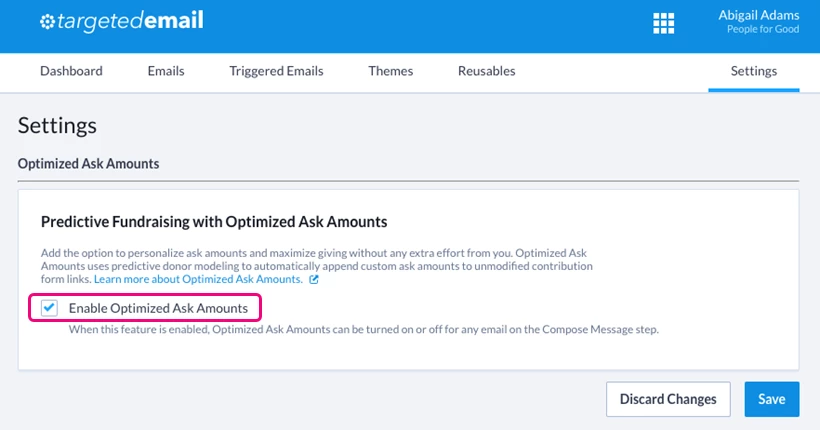
The Targeted Email administrator for your organization can turn off Optimized Ask Amounts for all users by selecting the checkbox available under the Targeted Email > Settings tab. Optimized Ask Amounts don’t take monetary limits for an election cycle into consideration, so if you’re required to file compliance or disclosure reports and want to use the feature, be sure to monitor for over limit contributions.
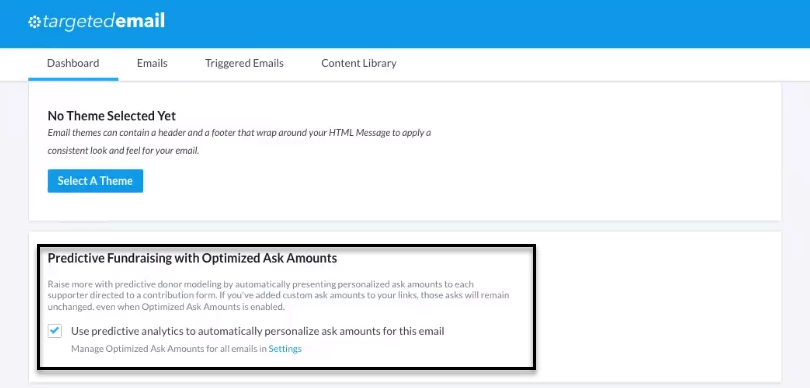

If you don’t want to use Optimized Ask Amounts for a specific email--for instance, because you’re asking for a meaningful specific amount from all donors--you can opt-out from the Compose Message step.
If your organization uses other methods to optimize ask amounts based on donor history, you may prefer to turn the feature off. An administrator can do this by selecting the checkbox under the Targeted Email > Settings tab.
Read more about using Smart Links to create custom asks with the Drag & Drop Editor
Read more about using Smart Links to create custom asks with the Classic Editor
Adding Optimized Ask Amounts manually
In both the Drag and Drop and Classic editors, Optimized Ask can be added manually by using Smart Links. In Smart Links, once you have selected your contribution form, you will see Optimized Ask as an option in the Suggested Amount dropdown selection. After you select Optimized Ask Amount, you can also set a default ask amount for supporters who have not contributed yet. When the link is inserted into your email, all optimized ask amount fields will be added to your link.
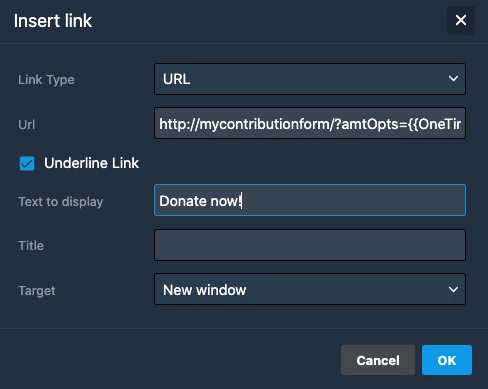
You can use query strings to manually add Optimized Ask Amounts to your Targeted Email links. This option can be particularly useful if you are creating emails to use with your Automations or whenever you are creating A/B test emails where you want to test Optimized Asks for one variant.
Your query string links should follow the format:
http://mycontributionform/?amtOpts={{OneTimeOptimizedAskArray}}&am={{OneTimeDefaultOptimizedAskAmount}}&recurringAmtOpts={{RecurringOptimizedAskArray}}&recurringAm={{RecurringDefaultOptimizedAskAmount}}
You can see all the available merge fields from the Optimized Ask section of the Merge Fields dropdown in Targeted Email:
-
One-Time Optimized Ask Array - {{OneTimeOptimizedAskArray}} - A comma-delimited array of 6 donation amounts
-
One-Time Default Optimized Ask Amount - {{OneTimeDefaultOptimizedAskAmount}} - A single one-time amount (second-lowest from the array)
-
Recurring Optimized Ask Array - {{RecurringOptimizedAskArray}} - A comma-delimited array of 6 monthly donation amounts
-
Recurring Default Optimized Ask Amount - {{RecurringDefaultOptimizedAskAmount}} - A single monthly amount (second-lowest from the array)
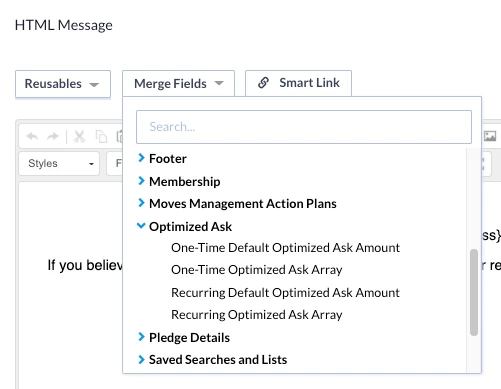
Once you’ve added the merge field to your query string link, your supporters will see their personalized ask amounts after they click the Donate link.
While you probably would not want to use the array merge fields in the body of your message (since that will show you a string of asks), you can use the One-Time Default Optimized Ask Amount or Recurring Default Optimized Ask Amount with the format currency macro to preview a single Optimized Ask amount in your email. When supporters follow the link they will see this amount listed in the Enter your own amount space. The other amounts on the form will still be the defaults you set up for that contribution form.
Donate {{format_currency(OneTimeDefaultOptimizedAskAmount,USD)}} today!
Whenever you add Optimized Ask Amounts manually, we'll add a tracking code so you can easily identify these ask amounts later on reports.
Tracking your success
Optimized Ask Amounts are structured to increase gift amounts for supporters who are likely to upgrade but ask for lower amounts from supporters who you are trying to reactivate. As a result, Amount Raised is an important metric, but not the only one to consider.
Some questions to consider when assessing your results:
-
Does your list include supporters who've never donated before?
-
Optimized Ask only provides customized amounts for previous donors. Supporters with no previous donation history to your organization will only see the default amounts. If you want to evaluate the total amount raised using the Optimized Ask, you should filter your reports to only include previous donors.
-
-
Does your list include inactive donors?
-
Optimized Ask makes lower ask amounts of inactive donors in order to reactivate them. If your list includes inactive donors, you should track the number of donations as well as the amount when evaluating performance. Then you should track whether the reactivated donors keep giving over time.
-
-
Are you A/B testing? If so, are you changing anything else about the campaign?
-
To compare results focusing on the ask amounts in your tests, it's best to avoid making other changes in your variants since these may impact your clickthrough and response rates.
-
-
Did you add a recurring upsell lightbox to your form?
-
Your upsell lightbox will still work if you are using Optimized Asks, but the upsells will still convert one-time contributions to recurring gifts based on a percentage you selected on your form, rather than using the Optimized Ask monthly amount. As a result, you may see that the contribution amount in your reports won't match the calculated ask amounts from the Optimized ask. You can see the calculated amounts by adding the Optimized Ask Options column to your Contribution or Recurring Commitment reports.
-
Reporting on results
During or after your campaign, you will be able to track your progress from several different reports.
You can see how many of your supporters saw your Optimized Ask using the Online Activity Report. From this report, you can:
-
Add the Optimized Ask Shown, Optimized Ask Accepted, Optimized Ask Options, and Amount columns to your report to get an overall view of how well the asks performed
-
Group by > Optimized Ask Shown to see how many supporters in the selected date range or on the selected form saw your asks
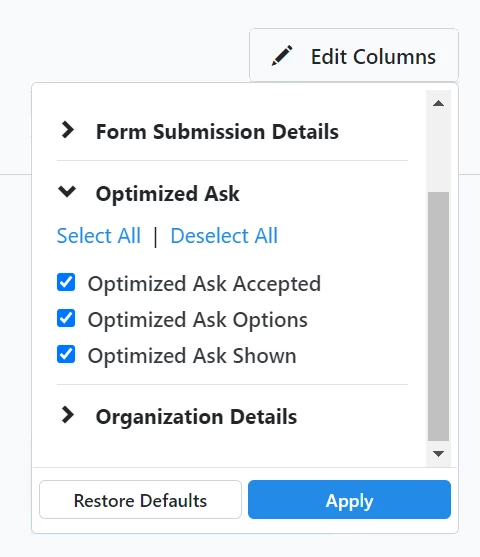
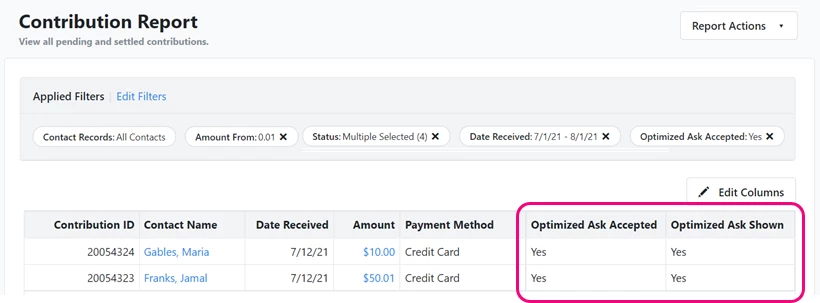
To view summary metrics on how much you raised, add the Optimized Ask column to your Contribution Report and then filter it by Optimized Ask Accepted = Yes. You can also filter this report on Form Name or Online Form Campaign to see how much was raised from a specific form or campaign.
You can also see how much you raised from sustainers using the Recurring Commitment Report. Add the Optimized Ask column to the report and then filter it to Optimized Ask Accept = Yes. You can also filter it to find out how much was raised from a specific form.
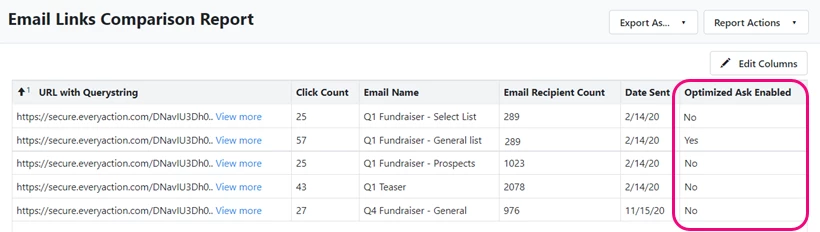
The Email Links Comparison Report can help you see how your Optimized Asks performed in your A/B email tests. Add the Optimized Ask Enabled column to see click-through rates for the emails that included an Optimized Ask link. You can also use this report to see conversion and contribution amounts for your test cases involving Optimized Ask amounts.
Understanding the predictive models
Each ask is calculated using the highest previous contribution (HPC) or most recent contribution (MRC) as the starting point and then adjusting the amount to be more or less conservative depending on the model guidance. The models we use have been developed over years of research and testing and can predict who's likely to give a larger gift, continue at the same level, or reengage with your organization by making a small gift after being inactive for a period of time. Ask amounts are based on donor scores that are updated daily and the amounts are optimized to encourage them to give again. This means the amounts may be higher, lower, or equal to their previous gift, depending on their recent level of engagement.
Ask amounts for recurring gifts will be calculated as a percentage of a donor’s suggested one-time ask amounts. These ask amounts are recommended for monthly giving rather than other frequencies of recurring gifts.
There are a few special cases where Optimized Ask amounts are adjusted:
-
If the previous gift is $50 or under, we'll use a pre-set array for sustainer gifts ($5, $10, $15, $20, $25, and $50) to avoid amounts that are too low or duplicates.
-
All ask amounts are rounded, from the nearest $5 to the nearest $500 depending on the amount. This ensures that the amounts appear as even-numbered amounts that are more appealing to donors.
-
All asks will be between $10 ($5 for recurring) and $5000. If you have other minimum and maximum values on your contribution form, no Optimized Ask amounts will be shown outside of those limits. Any ask amounts that are above or below are dropped, which means that you may see fewer than 6 asks on the form.
Looking for training?
Explore this feature at your own pace - join a live training session or watch a recorded webinar by clicking the link below.
How do I how to: use optimized ask amounts in targeted email? | How does how to: use optimized ask amounts in targeted email work in EveryAction? | Why can't I how to: use optimized ask amounts in targeted email? | Where do I how to: use optimized ask amounts in targeted email in EveryAction? | What is how to: use optimized ask amounts in targeted email in EveryAction? | How to how to: use optimized ask amounts in targeted email? | Can I how to: use optimized ask amounts in targeted email in EveryAction?