


How to: Create a MiniVAN Campaign
MiniVAN Campaigns help you manage the information your canvassers see in the app, like your script, format and contact type.
Getting started
Open MiniVAN Campaigns on the Sidebar. If your organization has created MiniVAN Campaigns before, they will appear on this page and can be edited by clicking the campaign name.
To create a campaign, find Add New MiniVAN Campaign on the upper right of your list page.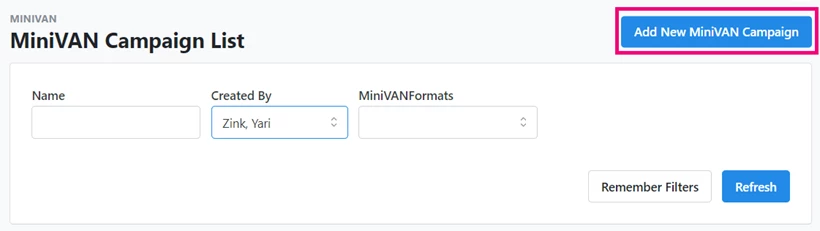
The options available on the Campaign Details page will depend on what database you are in and what packages your committee has purchased.
Adding a MiniVAN format
Your MiniVAN format determines what information about your contacts is available to canvassers in the MiniVAN app. You may choose the Default Format or one that you have created. If you are creating a campaign for workplace organizing, select a format that includes information in the Job Fields section.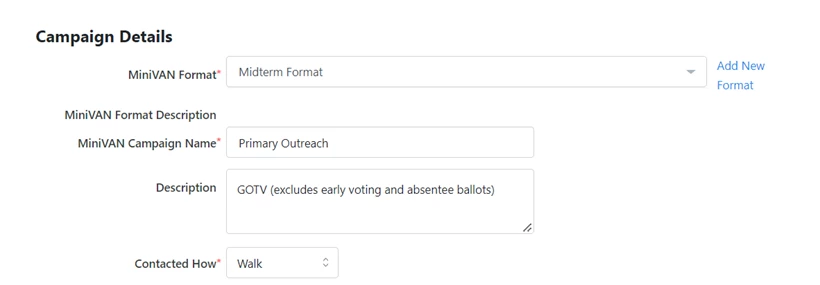
Selecting your script
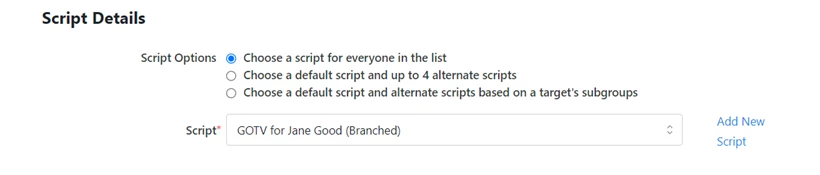
Your script is a roadmap for canvassers to follow during conversations on doors or on the phone. Select your preferred script and up to four alternatives. This includes the option to select alternative scripts based on a target's subgroups so that your canvassers have language appropriate for each group.
Enabling auto-sync
Auto-sync is engaged by default. When you first open your canvassing list in MiniVAN, you should see a message that Auto-sync is on. This saves you from having to review and manually sync data to VAN after your canvass is over.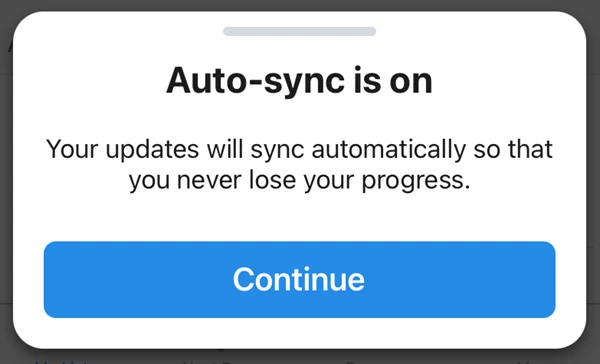
Canvass results will be added to your database automatically as long as your canvassers have an active data connection. Even if a canvasser loses connection or works with a wifi-enabled device, the app will save results and automatically send them to the database after a connection is restored.
Canvassers can manually sync their data in MiniVAN as well, using the sync icon in the right-hand corner or the Menu at the bottom. Discuss best practices before your canvass launches so that canvassers sync their data before they finish for the day.
Adding more advanced options
Depending on your package, you may have access to this accountability tool, which shows you the location, progress, and effectiveness of each canvasser in real-time.
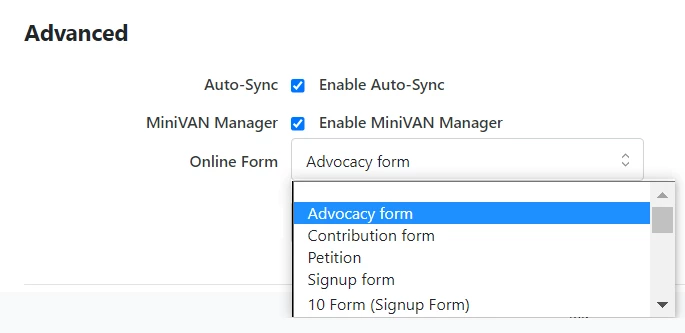
Online Actions help you reach your fundraising and advocacy goals by providing an easy way for your supporters to donate or take action immediately. Depending on your My Campaign or EveryAction account package, you may have the option to link to a form created in Online Actions and it will appear below your script in MiniVAN.
Shifting volunteers with Mobilize
If you’re a Mobilize client, you can help your volunteers re-shift at the end of their canvass by linking to a Mobilize event when you create your MiniVAN campaign.
The Mobilize step allows you to add a mobilize URL. Only Mobilize URLs can be entered, but your link can be a specific event or a list of events.
If you are not a Mobilize client, you can skip this step.
At the end of a canvass, your volunteers will be prompted to sign up for their next shift within the app.
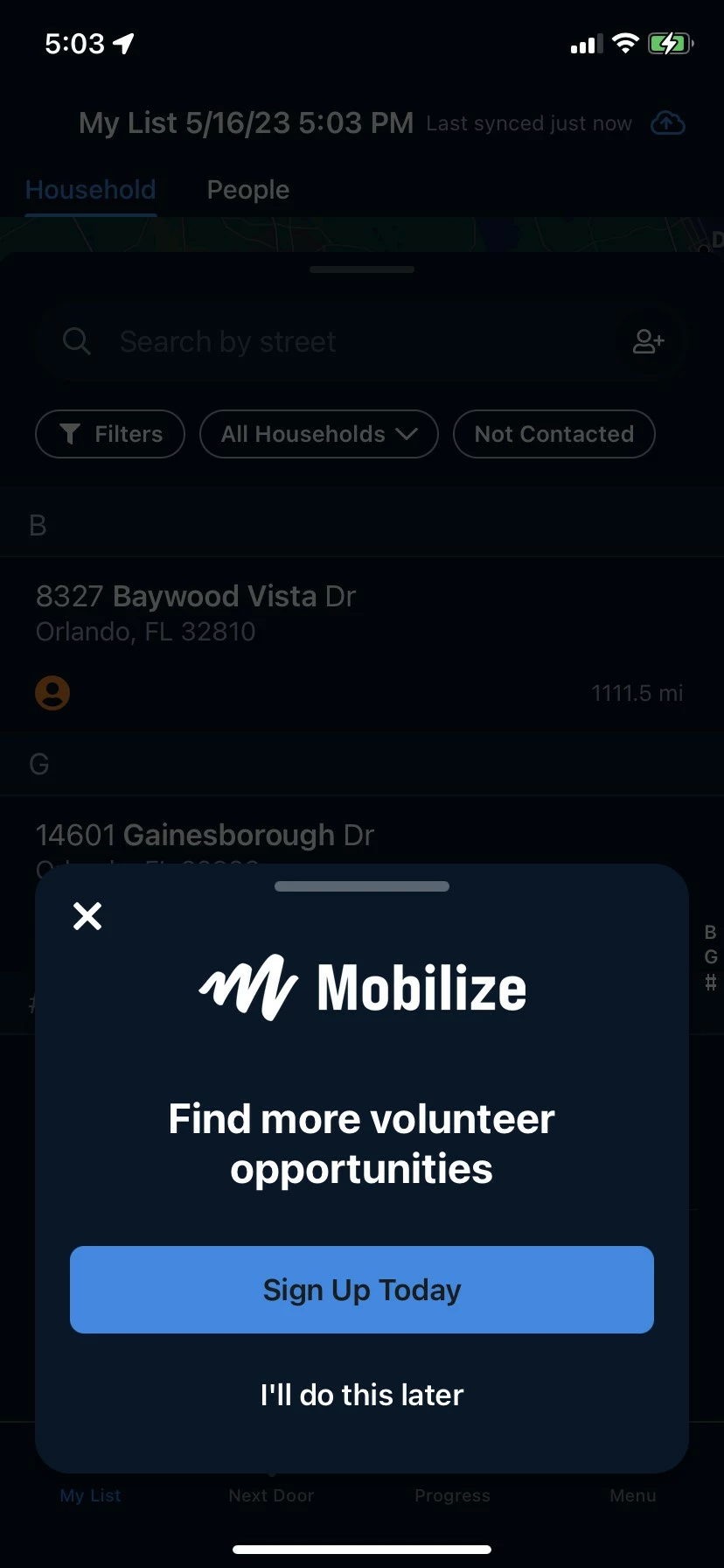
To track volunteer signups coming from MiniVAN, you can use the MiniVANCampaignID as an analytics tag in your Mobilize Dashboard.
Enabling committee sharing
If you have a multi-committee setup, you can share your MiniVAN campaigns to any of the committees you have access to.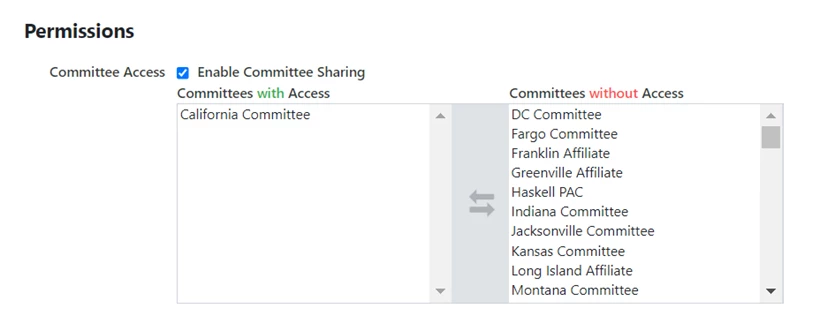
Setting Jobs Parameters
Enable Jobs Editing on MiniVAN to allow your canvassers to add and edit jobs in MiniVAN while they canvass.
If you add a MiniVAN Format with Job Fields engaged, a jobs section will appear after Script Details. Limit jobs by termination status and by employer. If there are more than 100 employers in your list, you will further limit the campaign to only those employers you are working with.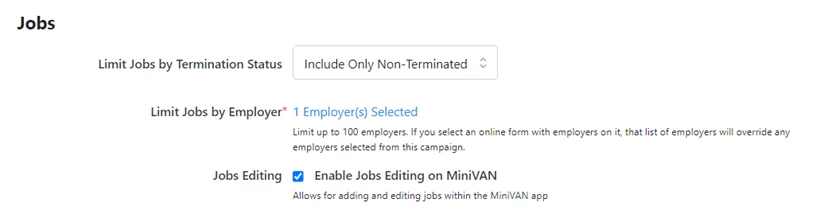
Using your data
You can use your MiniVAN campaign for searching or for filtering your reports.
During your campaign, you can filter your reports to track your progress and analyze the data you collect based on your campaigns. You can also find out how successful your efforts were and who might respond well to future outreach by analyzing the data your canvassers collected for each campaign using the searching feature of Create a List.
Not quite what you were searching for?
- Navigate back to the MiniVAN Resource Index.
How do I create a minivan campaign? | How does one create a minivan campaign work in EveryAction? | Why can't I create a minivan campaign? | Where do I create a minivan campaign in EveryAction? | What is a minivan campaign in EveryAction? | How to create a minivan campaign? | Can I create a minivan campaign in EveryAction?