


How do I edit aggregate report cell properties? (Native Reporting)
Users can click on a cell within an aggregate report grid to view the Cell Properties and select which data type to display in a grid cell. Some options correspond with the section count values of the feeder report section used in the grid, while other options can be manually entered by the user.
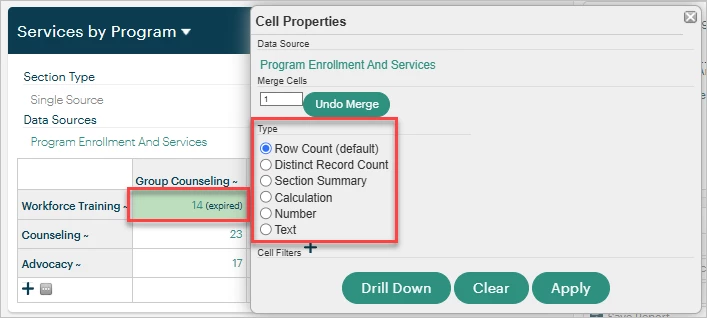
Continue reading below to learn more about each data type found within an aggregate report grid's Cell Properties.
Note: With any data type you choose, be sure to select Apply then refresh your data sources for the changes to reflect in your grid.
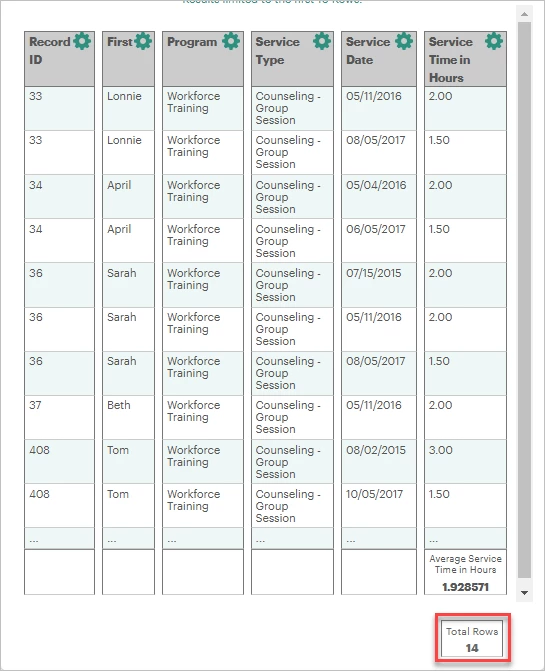
Row Count
This is the default setting anytime you add a data source to a cell. Row Count displays the value in the "Total Rows" section count at the bottom-right corner of the feeder report section.
Distinct Record Count
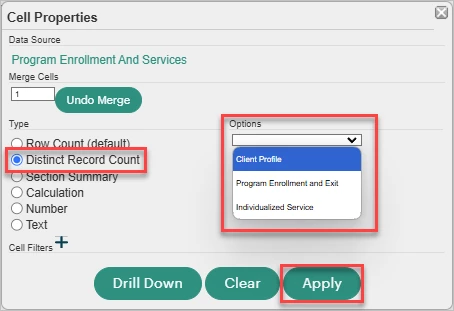
This option is only available if the feeder report section contains records from more than one form in the database.
In the Section Properties of the feeder report, you have the option to change the section count from "Total Rows" to instead count the number of records for a specific form. You also have the ability to make this choice in the aggregate report section's Cell Properties in the Options section.
Section Summary
If your feeder report section contains a column set to show a Summary value in its Column Properties, the Aggregate Report Builder allows you to display that value in your grid as well.
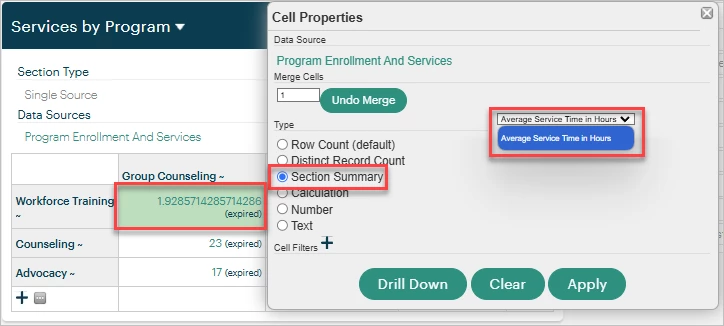
For example, this report section displays the Average Service Time in Hours in its table.
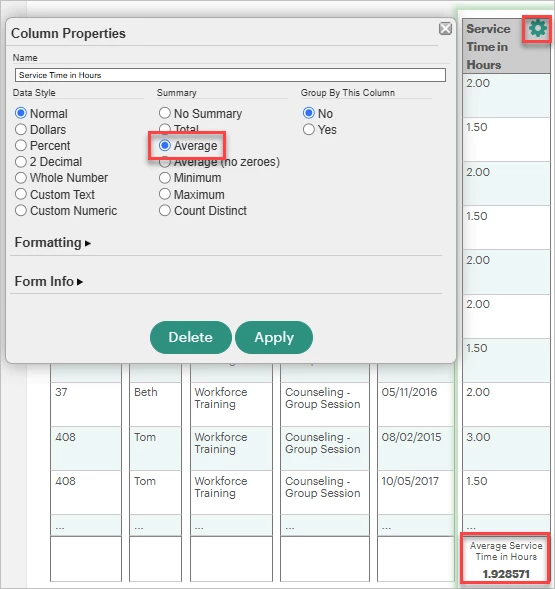
Choose the Section Summary type and select the Summary value from the dropdown in order to reflect this value in the aggregate report section.
Calculation
Calculations can be added to a cell for further insight into the existing values in your grid. To learn more about each calculation option available in the Cell Properties, click here.
Number
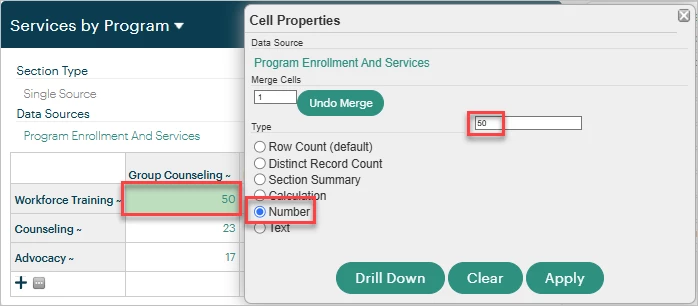
This option allows you to enter a static number value to use in the aggregate report section, such as a projected goal or a fixed cost.
Select the Number type, then enter your number value in the field to replace the current cell value with your number.
Text
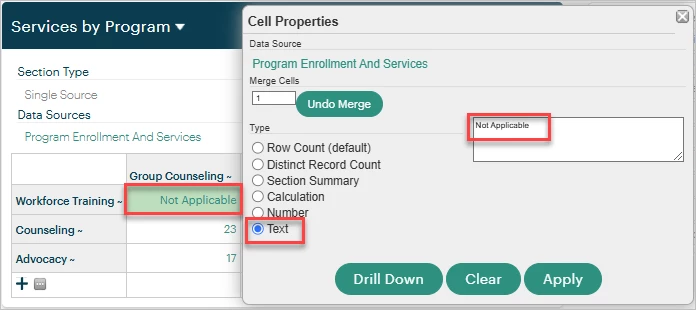
Text is similar to the Number option in that it allows you to replace the default cell value with static text that you type into a text box.
What else do you need help with?
-
Not what you're looking for? Navigate to overview
How do I change the data type in an aggregate report cell? | What is the difference between Row Count and Distinct Record Count? | How do I show a summary value in an aggregate report grid? | How do I add static text or numbers to an aggregate report cell? | Why is my aggregate report showing Total Rows by default? | How do I display an average or summary from a feeder report in an aggregate report? | Where do I edit cell properties in the Aggregate Report Builder?