

How do I run HMIS reports?
Overview
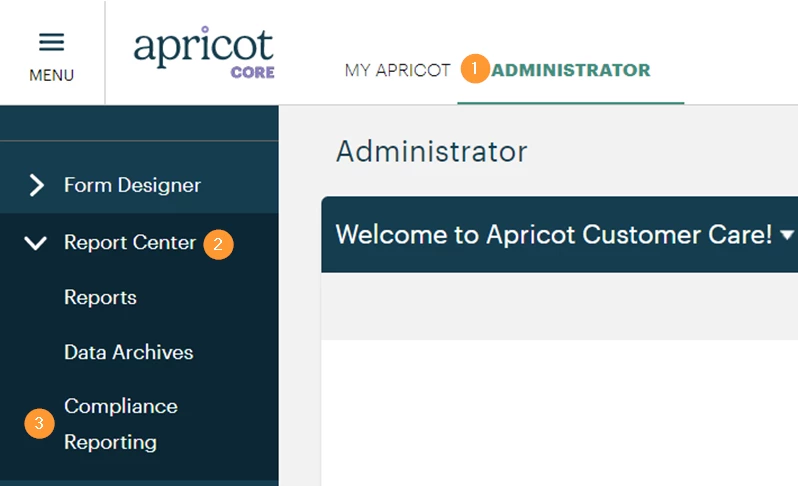
This article pertains to the newest version of Apricot for Homeless Services. If you do not see the "Compliance Reporting" option present in the Administrator tab under "Report Center" please refer to this article instead.
Running a new report
-
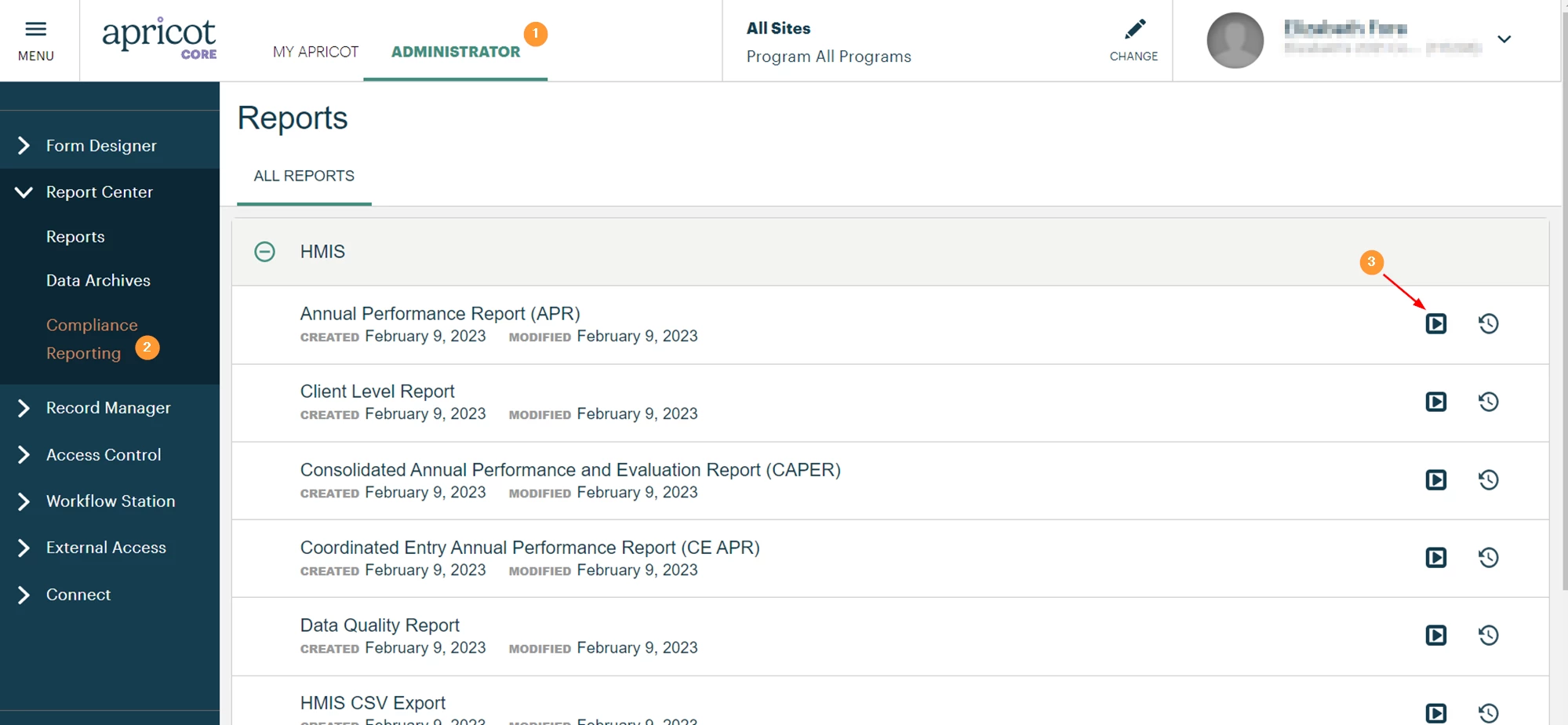
Head to the Administrator tab...
-
Expand the "Report Center" category, click "Compliance Reporting...
-
Locate the Report that you need to run and click the "Play" icon
-
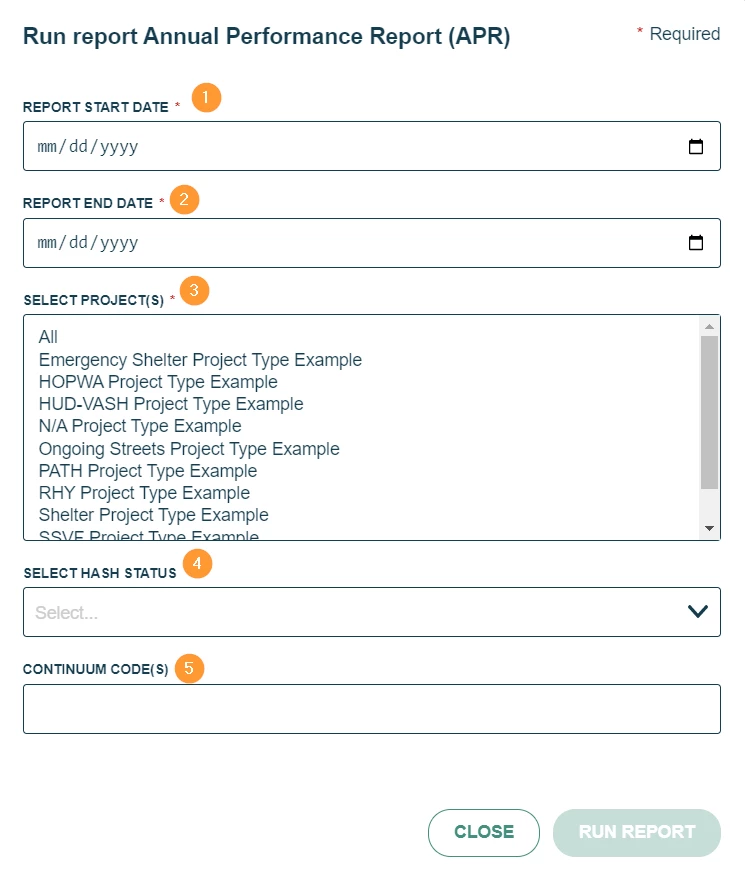
Report Start Date - This will be the Grant Start Date, typically the beginning of the reporting year.
-
Report End Date - This will be the Grant End Date, generally the end of the reporting year.
-
Select Project(s) - Select the pertinent Project for the report run.
-
Select Hash Status - This option will dictate whether the following data points are anonymized for the Report Run: First Name, Middle Name, Last Name, and SSN.
-
Continuum Code(s) - Optional: Allows you to specify the Continuum of Care in the event that you serve multiple jurisdictions.
Viewing Previous Report Runs
-
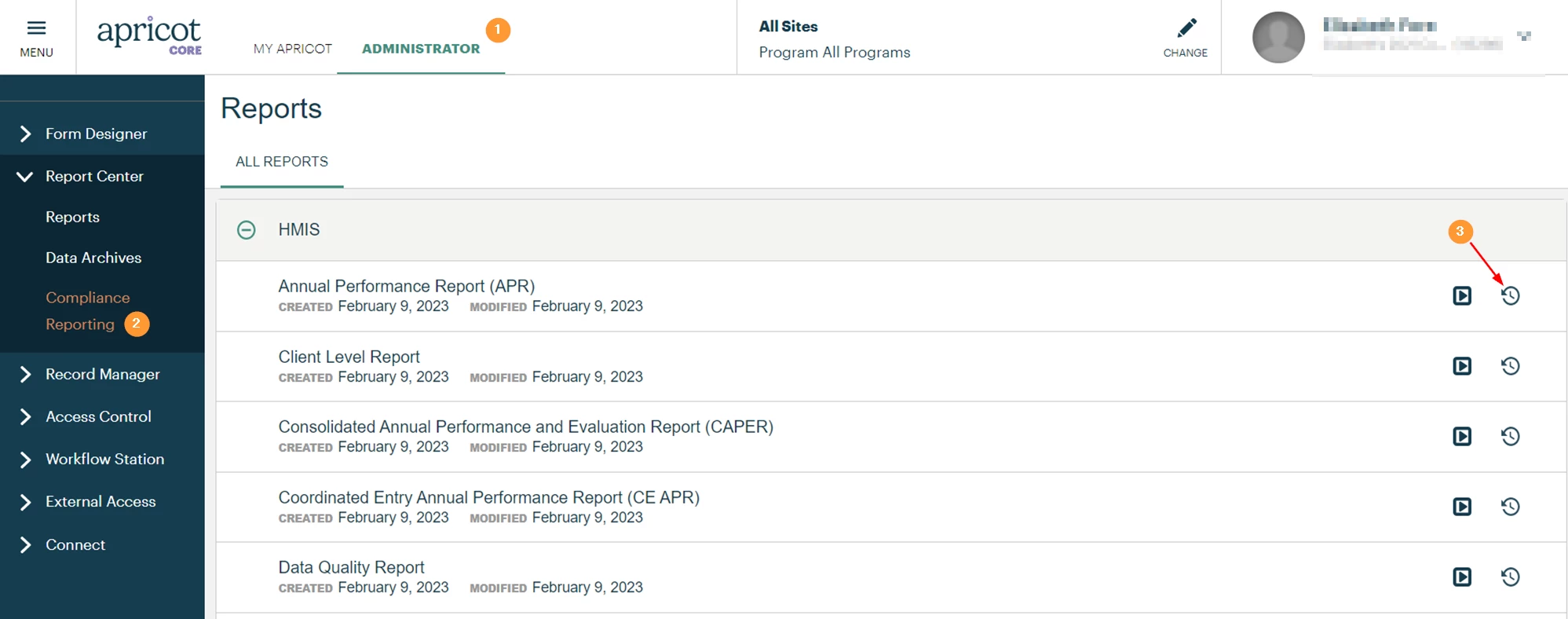
Head to the Administrator tab...
-
Expand the "Report Center" category, click "Compliance Reporting...
-
Click on the Clock icon

-
Click on the name of the Report Run to view it's details
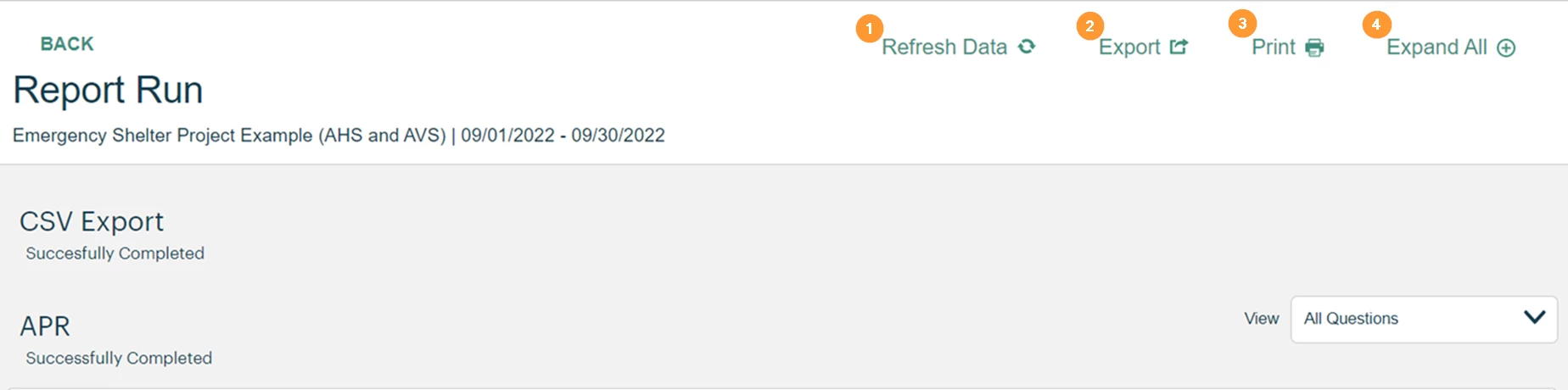
-
Refresh Data - Will refresh the report run with the same parameters that were chosen upon it's original run. Used if data has been updated since the original report was run.
-
Export - To export your APR or CAPER specific files, to upload to SAGE
-
Print - Used to Print the details of this page
-
Expand All - Expands all Report Sections
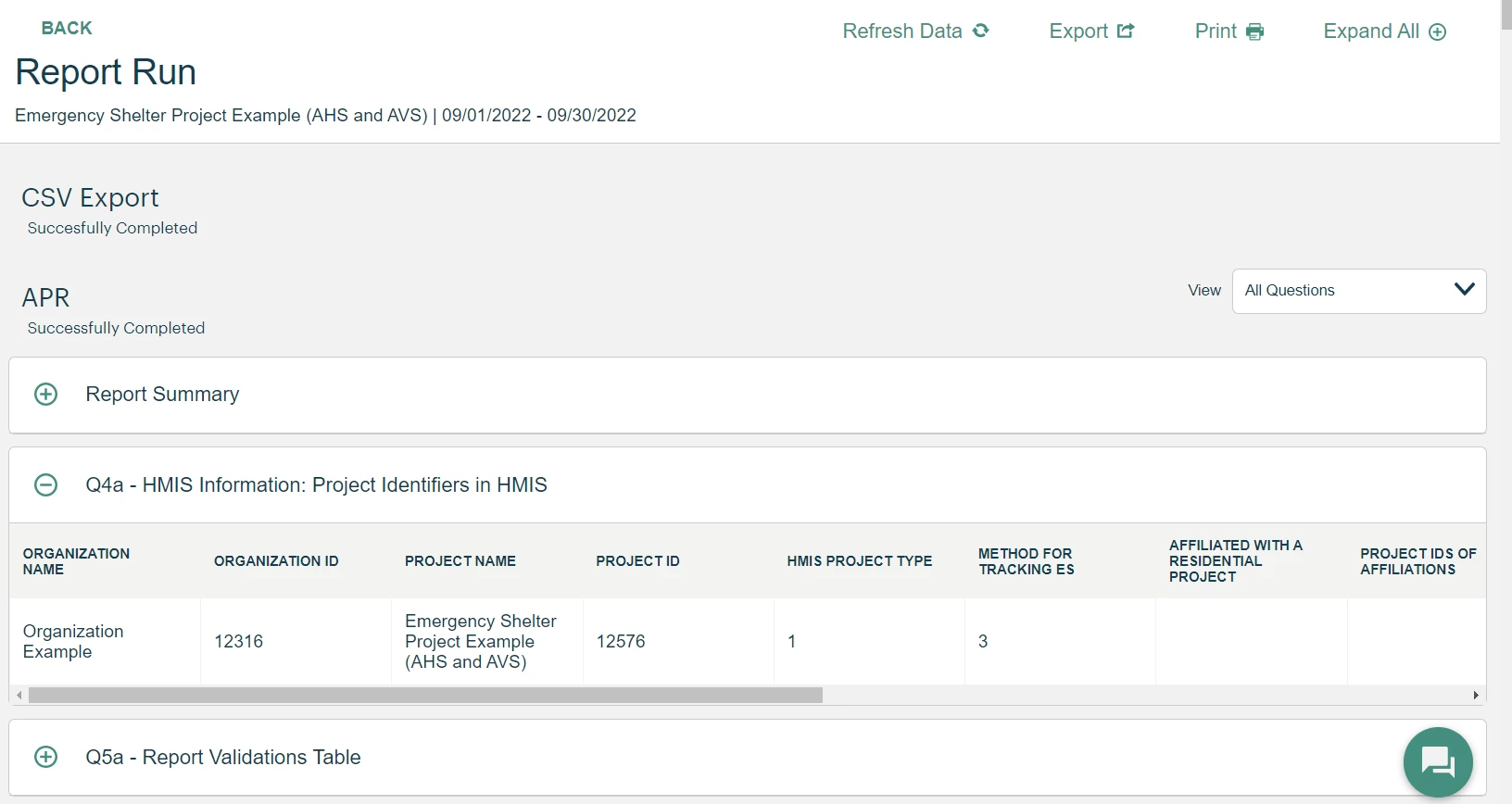
Expand any category to view more details about the Report Section, each will display the table that makes up the report run, down to the row level.
Download Source Files

-
Click the Vertical Ellipses
-
Download Source Files - This will download the report as a .Zip file containing the .CSV files used to produce the report (Not to be confused with the APR or CAPER .CSV files)
How Do I Run HMIS Reports in Apricot? | How Do I Generate HMIS Reports in Apricot? | Where Do I Start HMIS Reporting in Apricot? | Why Can’t I Run My HMIS Report in Apricot? | How Do I Submit HMIS Data From Apricot? | How Do I Pull HMIS Data for Reporting? | How Do I Get HMIS Numbers Out of Apricot? This article will cover how to run your HMIS reports