

How do I manage users' access to AVS?
Apricot for Violence Survivors (AVS) is a database that has been set up with a standard process for entering data. It allows you to enter new information about clients who are receiving services from your organization. It was built primarily for organizations that provide services to survivors of domestic violence.
Your AVS database has been set up with login access for a number of users. A site Administrator can manage these users by adding new user accounts when needed or removing access from people who no longer work for your organization or who no longer need access to the database.
Your AVS database has also been set up with different levels of access - some users have access to enter data into certain parts of the database while other users may only have access to see information that has already been entered. A site Administrator can also manage the access that has been granted to these groups of users and can move users from one group to another, in Apricot we call these groups "Programs".
Finding Existing User Information
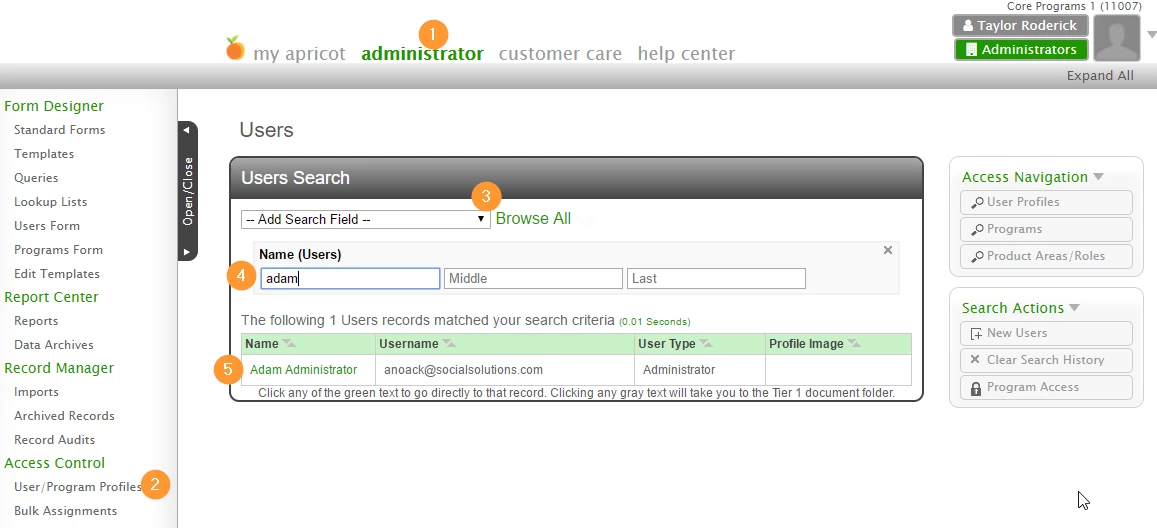
Each person who will access the database should have their own user account.
-
To access information - like the login username - for an existing user, click the Administrator tab at the top of the page.
-
In the left hand menu, select User/Program Profiles.
-
This will take you to the Users Search page where you can see a list of all existing users. Expand the black arrow next to "Add Search Field" to add a field to help you search the existing users. It may be helpful to add "Name" or "Username."
-
Type identifying information into the search field. As you type, the database will return relevant results.
-
Each row represents one user. Click the green text of their name to open their user account information.
Editing or Adjusting Existing User Login Information
-
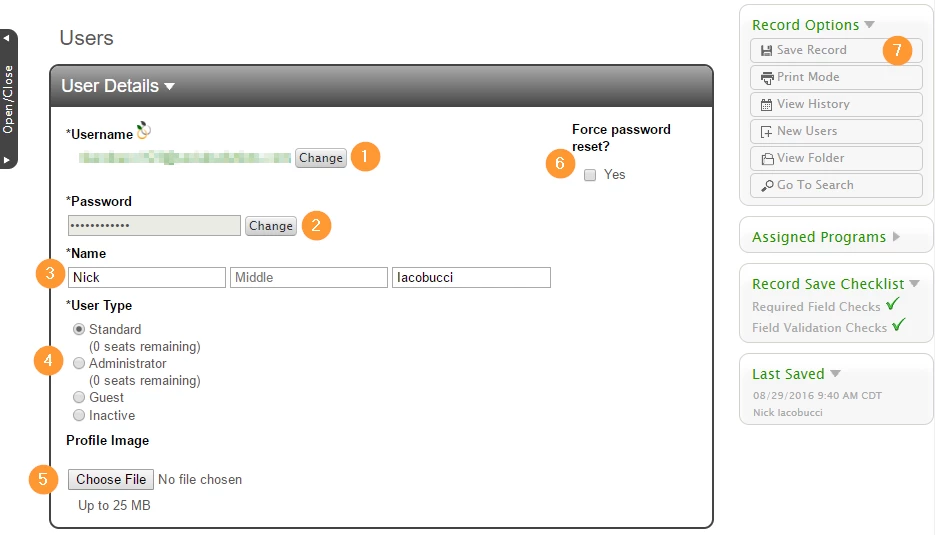
Under Username, you will see the email address used to login. It can be changed by selecting the change button.
-
Under Password, you will an encrypted password. No one has access to a user's password. If a user is having trouble logging in, you can reset the password by selecting the change button.
-
Under Name, you will see the user's name as it appears in the database when this account is used to create or modify records.
-
User Type:
Standard: A standard user can log in to the database and access parts of it for data entry. The AVS database has several levels of access for standard users.
Administrator: An Administrator user can access all parts of the database for data entry and may also access design elements to make changes to users, access levels, form design and report building. An Administrator's access cannot be limited or edited in any way.
Inactive: An inactive user can no longer access any part of the database. Their login and password have been disabled. Their information remains in the system, marked as inactive, so that other users can still view or investigate what records they created or changed, even after their access to the database has been removed.
5. Profile Image: You may upload a picture to Profile Image. It will appear in the upper right hand corner of every Apricot page, showing who is logged in.
6. Check this box if you would like to enforce that the user update their password the next time that they log in to Apricot
7. When changes have been made, select Save Record.
Adding a New User
-
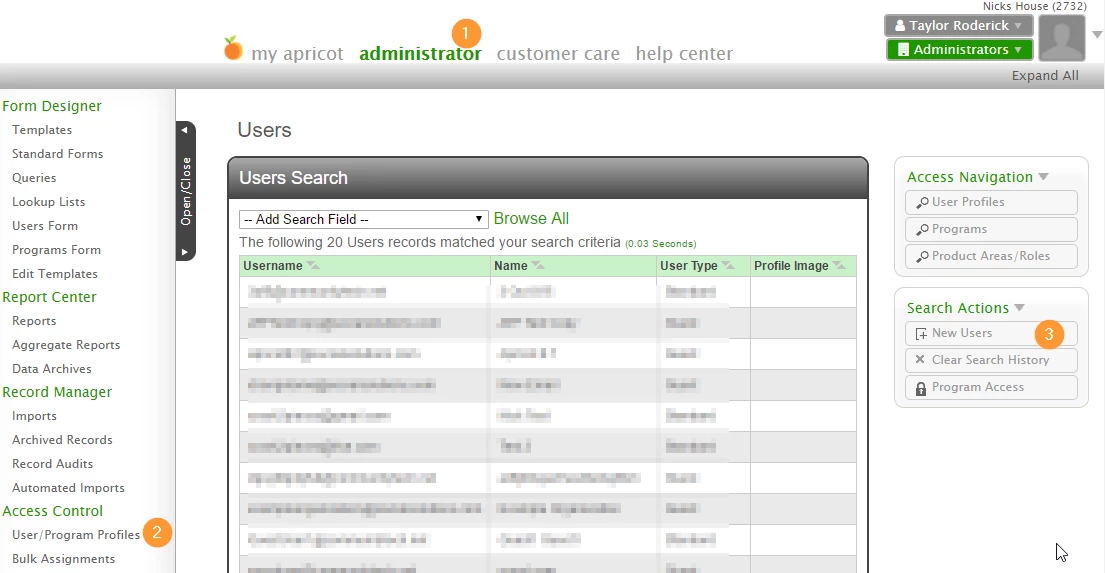
To add a new user, click the Administrator tab.
-
In the left hand menu, select User/Program Profiles.
-
In the right hand menu, select New Users.
-
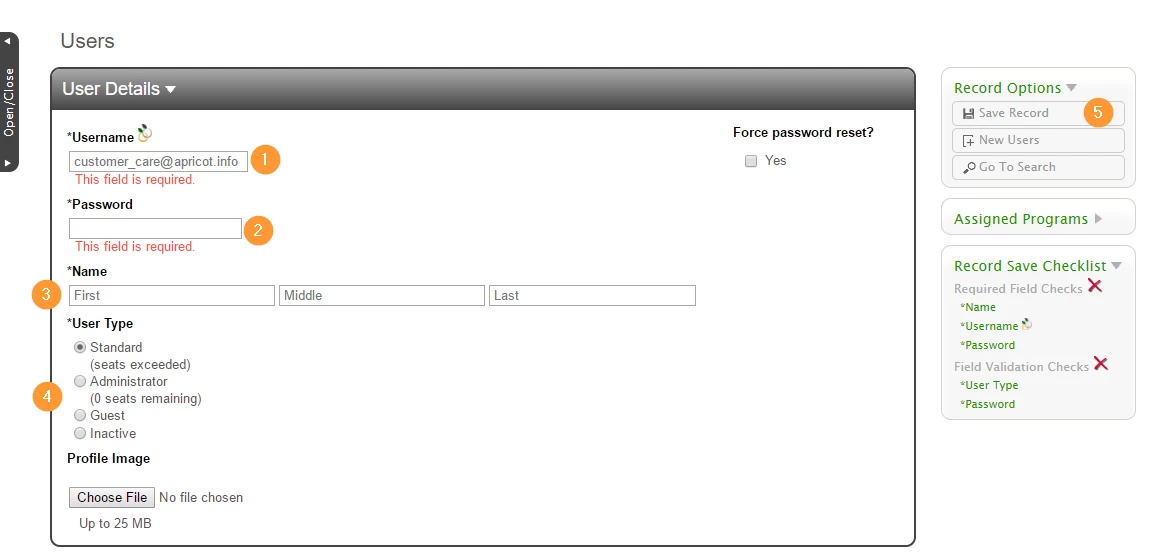
Under Username, enter the email address this user will use to login. The username and password you enter on this page will be sent to this email address to inform the new user that their account has been set up.
-
Under Password, enter a password. The user will use this password the first time they log in"
How do I manage AVS users | How do I add a new user in Apricot | How do I reset a user’s password in AVS | How do I find which program a user belongs to | How do I edit a user’s access level | How do I assign a user to a program | How do I remove a user from AVS