


How do I upload my organization's logo to my Apricot database?
Accessing Apricot Settings
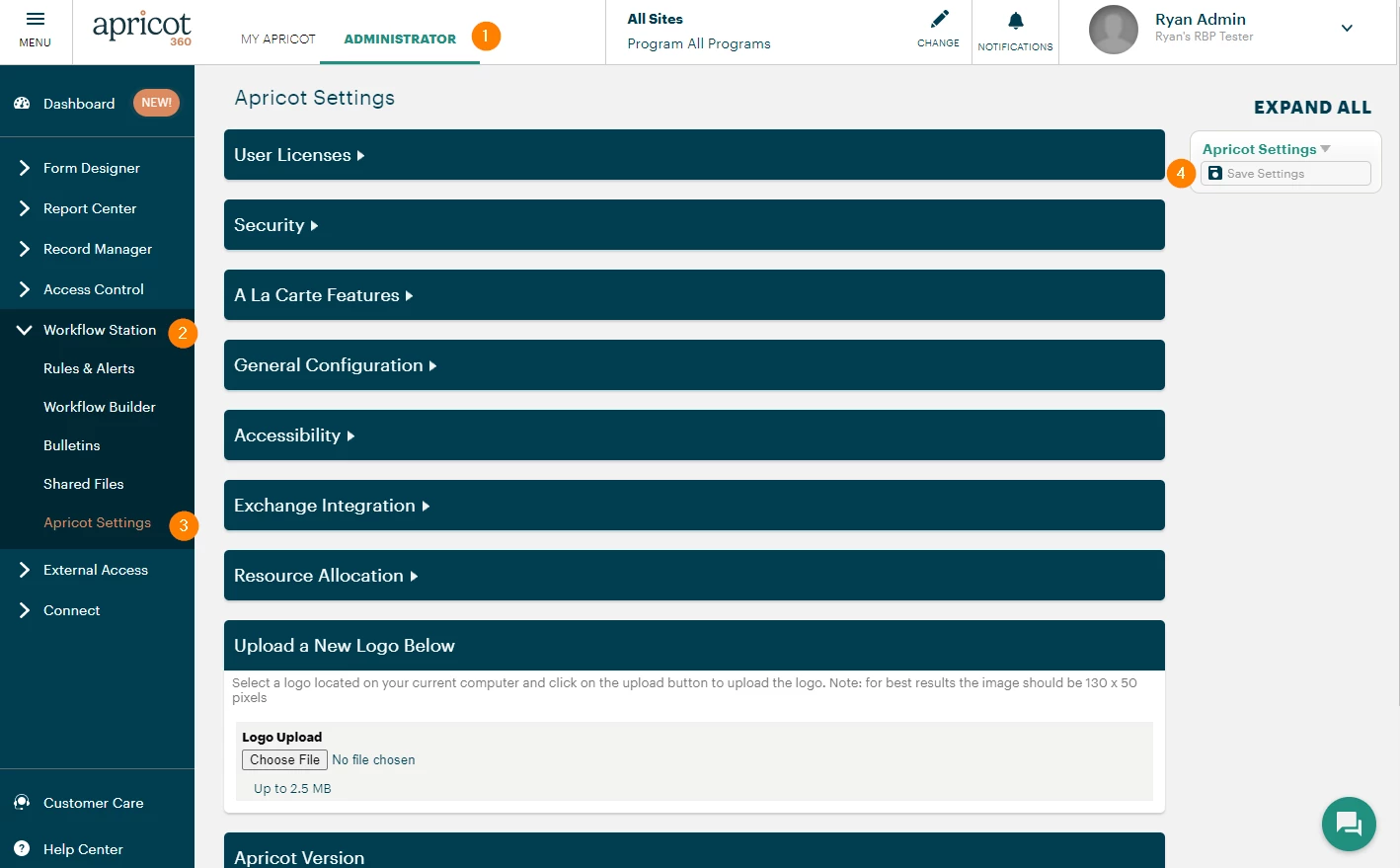
-
Select the "Administrator" tab.
-
In the left-hand menu, click Workflow Station.
-
Select "Apricot Settings."
-
If you make any changes, select "Save Settings" before leaving the page.
Upload a Logo
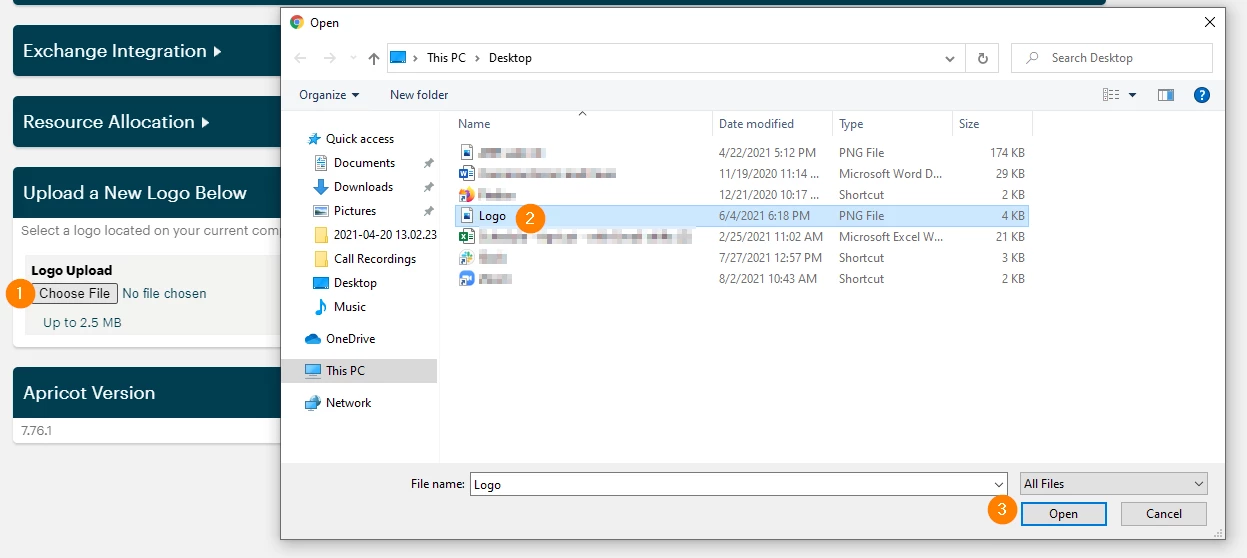
You can upload a picture file to serve as your logo.
-
Select "Choose File" under "Upload a New Logo Below."
-
A dialog box will open, allowing you to choose the picture from your computer that you would like to upload.
-
Select "Open."
-
Your logo will appear at the bottom of your Apricot pages and in the "Current Logo Image" box on the "Apricot Settings" page.
Where Do I Upload My Organization’s Logo in Apricot? | How Do I Add a Logo to My Apricot Database? | Why Can’t I Upload My Logo in Apricot? | How Do I Change the Logo in Apricot? | What File Types Can I Use for My Apricot Logo? | How Do I Customize My Organization’s Branding in Apricot? | How Do I Update the Logo in Apricot Settings?