


How do I find more information on Results functions and operators? (ARR)
When building a formula, you may notice the many options within the Functions and Operators panels you can scroll through in the Variable Editor. Apricot Results Reporting (ARR) provides a way to get more context on what each option does and seek further documentation on it if you like. Follow the steps listed below to learn how to do this.
Step 1: Open the Variable Editor
Within the Document Objects panel, click the '+ Add Variable' button or select 'Edit' next to an existing variable to open the Variable Editor.
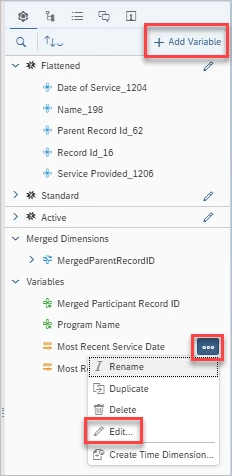
Step 2: Locate the function or operator
The Functions panel is in the middle, and the Operators panel is to the right. Click to expand any Functions folder and scroll through the available options of either panel to locate which item you want to learn more about and click on it once.
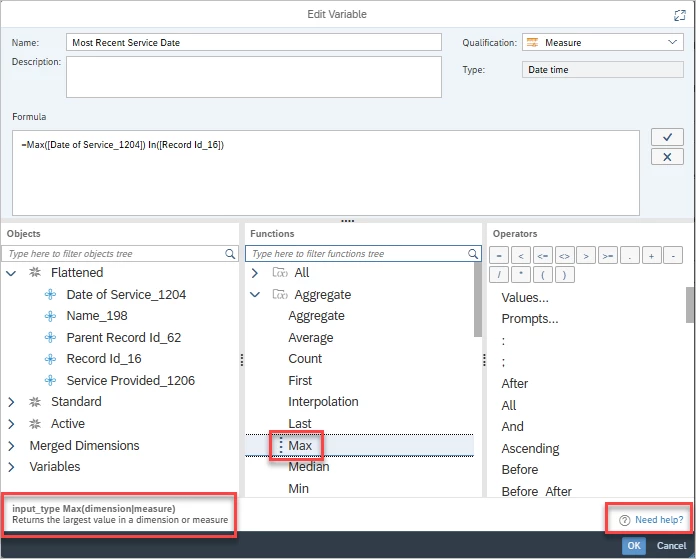
At the bottom of the Variable Editor, you will see information regarding what this specific function does when included in a formula. You can also click "Need help?" to the right of this explanation to be taken to an article that gives more detail on the function and how it should be used in a formula.
What else do you need help with?
-
Not what you're looking for? Navigate to overview
Where Can I Find Results Functions and Operators in Apricot? | How Do I Learn About ARR Functions and Operators? | What Functions Are Available in Apricot Results Reporting? | How Do I Use Operators in ARR Formulas? | Where Is the Documentation for Results Functions in Apricot? | How Do I Understand Functions and Operators in ARR? | How Do I Troubleshoot Functions and Operators in Results Reports?