

How do I "check in" bidders at my auction?
Checking in your bidders for your auction is a quick and easy way to confirm which of your participants have arrived, and provide those participants with the necessary information they'll need to participate.
Below, we've outlined the steps you'll need to take to check in those bidders once your event has begun.
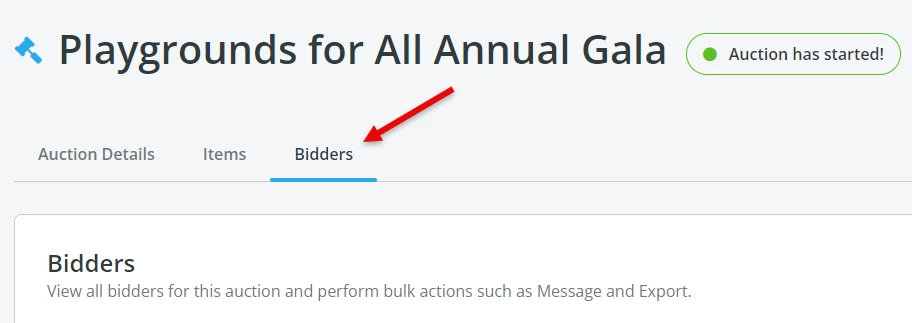
Step 1: Open up the "Bidders" tab within your Auction page's Dashboard
Once your auction has begun, you'll want to navigate to your auction's dashboard, and click on "Bidders."
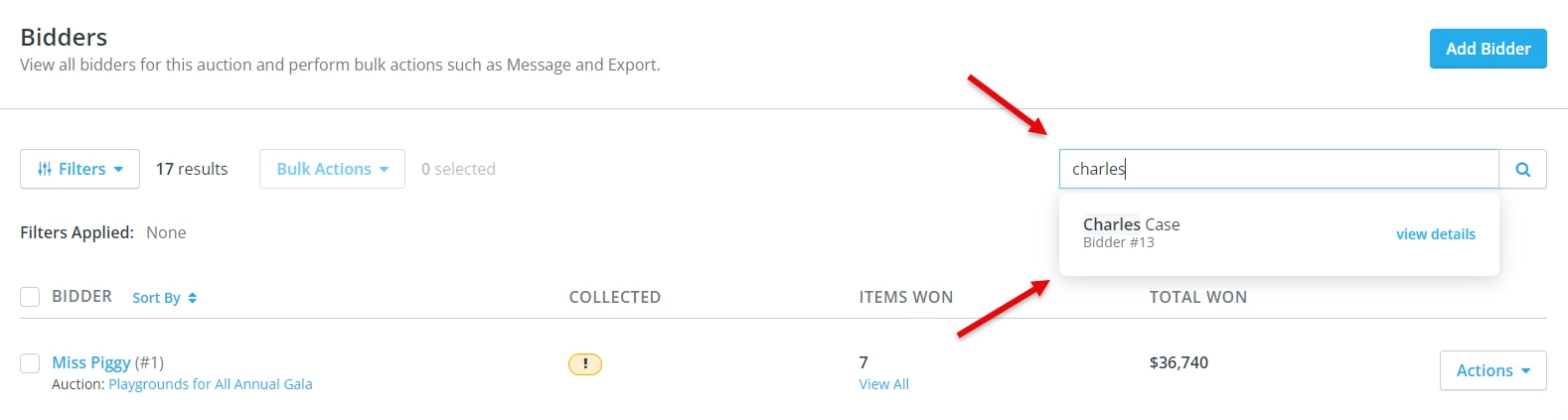
Step 2: Search for the name or email of the bidder you're looking to check in
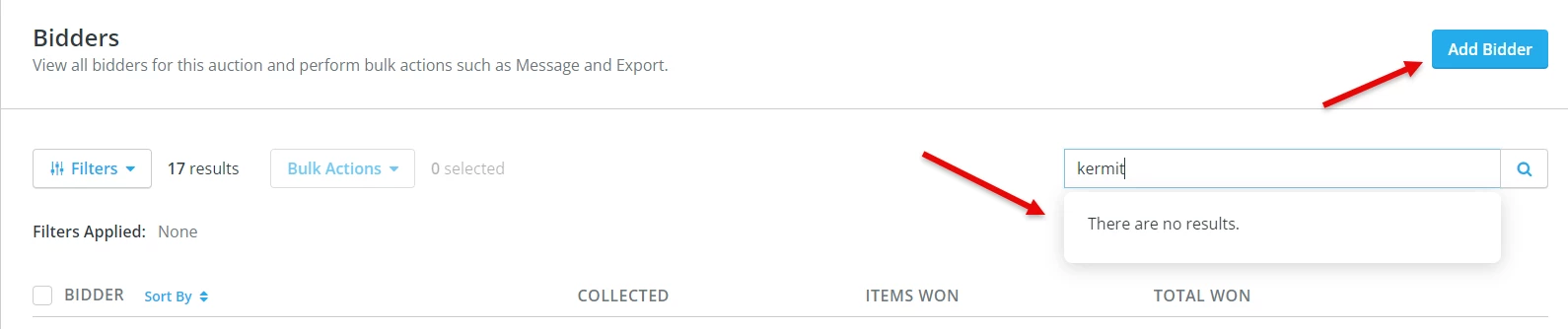
Step 3: If the bidder isn't reflecting, select "Add Bidder"
For a refresher on how to add a new bidder, please click here.
Step 4: Confirm the bidder's credit card is on file, and confirm their bidder number
Once you've located (or added) your bidder, you should be able to confirm that they have added a credit card on file and their bidder number.
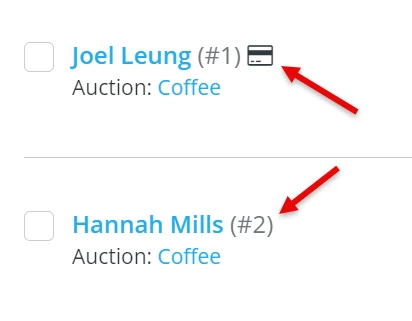
Doing so will not only help your participants bid more quickly and easily - it'll help make the checkout process much smoother once your auction has ended.
What else do you want to do?
Not what you're looking for?
Go back to the Feature Overview.
How do I connect to pipeline cloud using command line? | How does connect to pipeline cloud using command line work in EveryAction? | Why can't I connect to pipeline cloud using command line? | Where do I connect to pipeline cloud using command line in EveryAction? | What is connect to pipeline cloud using command line in EveryAction? | How to connect to pipeline cloud using command line? | Can I connect to pipeline cloud using command line in EveryAction?