

How do I manually remove an "accidental" bid?
If a bidder makes an “accidental” bid on an item, they should contact your organization directly to see if they are willing to delete that bid. However, removing bids is ultimately up to the discretion of the nonprofit.
If your organization does choose to remove that erroneous bid, you can follow the steps below to make that adjustment.
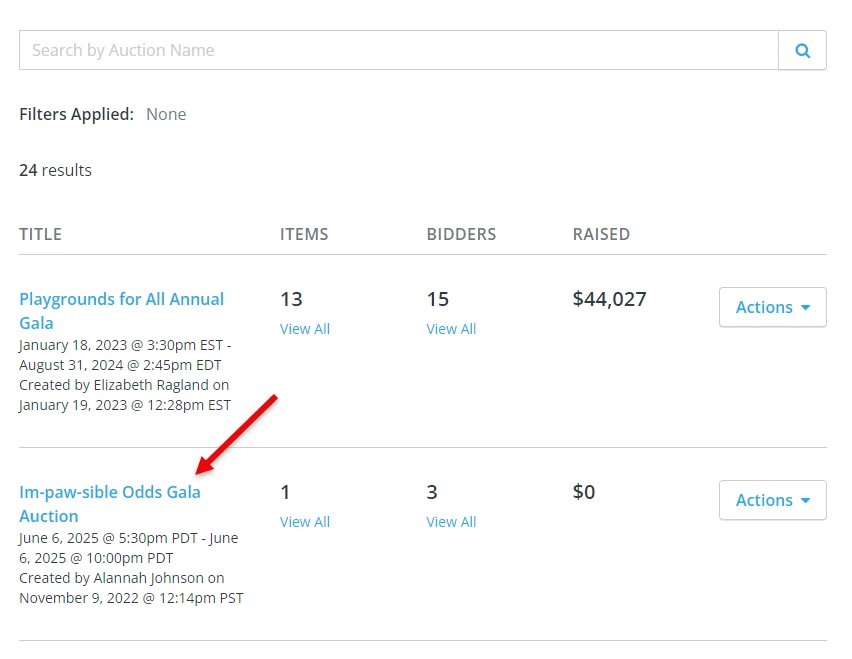
Step 1: Open up the auction you're looking to add items to
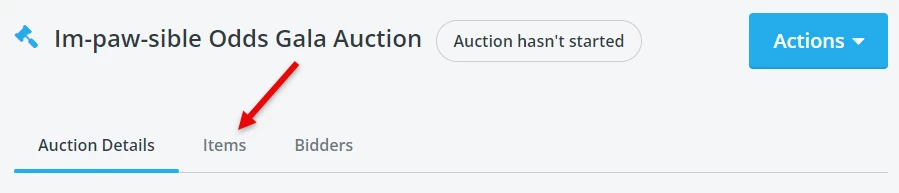
Step 2: Locate the "Items" section on your Auctions Dashboard
On your Auctions dashboard, you should see a section labeled “Items.”
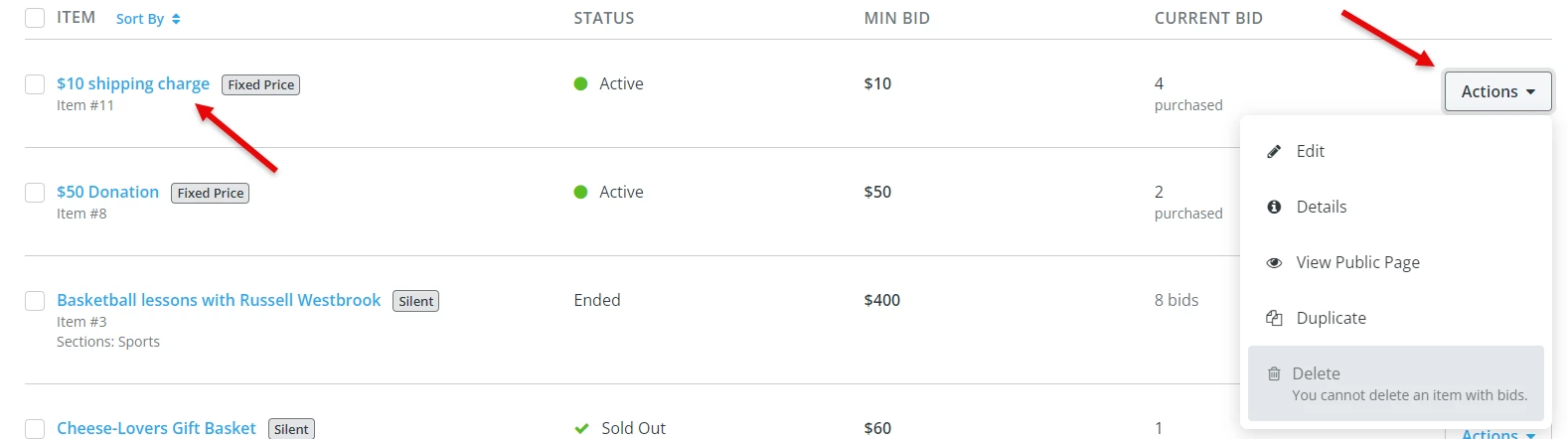
Step 3: Locate the item on which the bid was made
Click the ‘Actions’ button to expand the dropdown menu.
Step 4: Click on "Details" from the dropdown options available
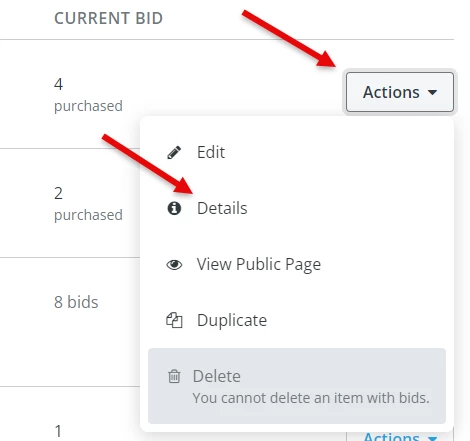
It may seem more intuitive to click on "Edit" in this situation - but "Edit" actually edits the item itself, not the bids made on that item.
Step 5: Locate the bidder who made the erroneous bid under the "Bids" section
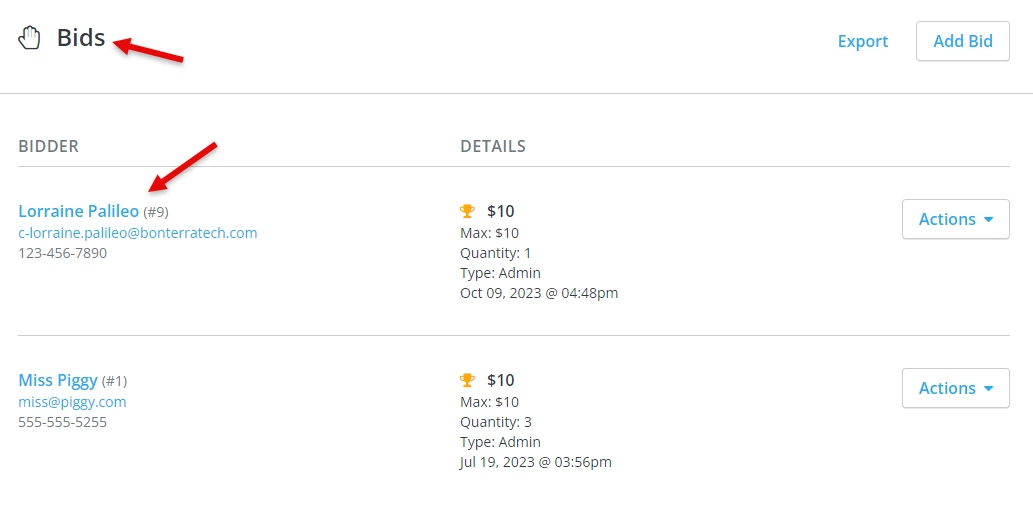
Step 6: Click "Actions," then "Delete"
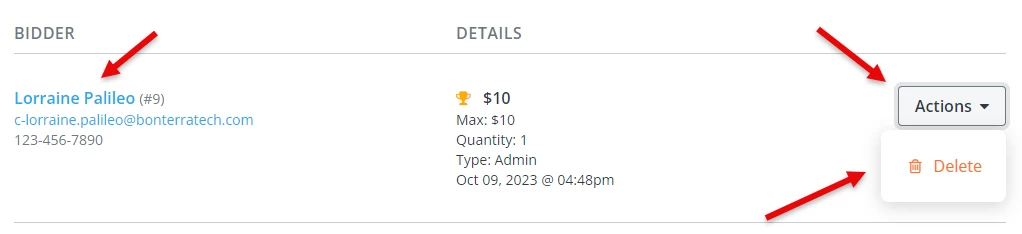
To delete a bid, the nonprofit should click on the button with the red “trashcan” icon next to the bid.
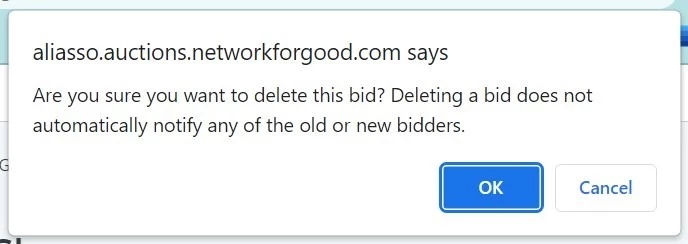
They should receive a pop-up prompt confirming that the bid should be deleted and click “OK” to confirm.
What else do you want to do?
Not what you're looking for?
Go back to the Feature Overview.
How do I update recurring commitments with self-service pages? | How does update recurring commitments with self-service pages work in EveryAction? | Why can't I update recurring commitments with self-service pages? | Where do I update recurring commitments with self-service pages in EveryAction? | What is update recurring commitments with self-service pages in EveryAction? | How to update recurring commitments with self-service pages? | Can I update recurring commitments with self-service pages in EveryAction?