

FAQs: Email Trigger Best Practices
Make the Email Trigger Visible
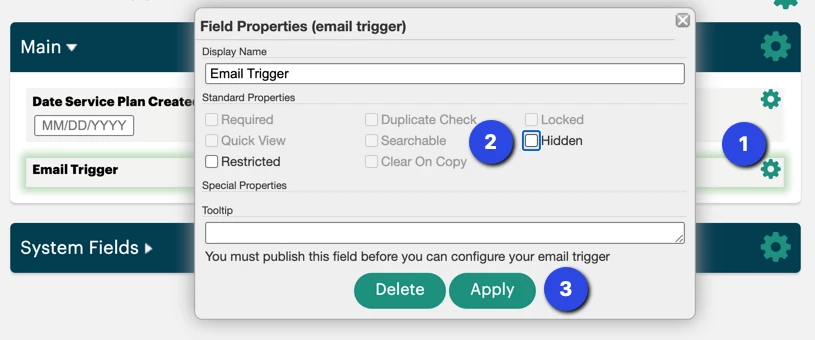
The best way to see if an email had sent or if there was an error is to make the email trigger visible on the form. This way, you can see exactly what was placed in the email without having to access the recipients email for proof. If, for some reason, it did not send this will also help notify you as you can verify the status.
-
Click the gear for the email trigger
-
Uncheck the Hidden checkbox (it is default to be Hidden)
-
Choose Apply
Email Trigger Statuses
-
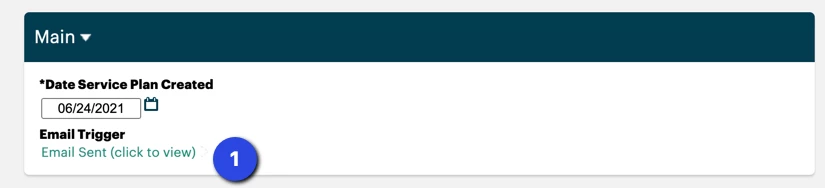
This is the Email Trigger Status area. Please note, you can click it if it was Email Sent or Email Failed for further details.
If the email trigger is visible on the form, after every single save, you will then be able to see the email trigger on the form. Yes, that means on a brand new record (before the first save) you won't see it, but directly after saving it you will. After each save, you will then see the status of the email trigger and there are a few statuses to keep in mind:
-
Not Triggered: this means that the email was not send. This is generally not due to an error but usually because the email trigger didn't meet the proper criteria to send, for example, there was a filter on it that said to only send on record updates and if the Date field changed.
-
Email Sent: this means that the Email successfully left Apricot. This isn't the end of the emails journey through the web though! It next reaches SendGrid, Apricot's official email relay service. SendGrid will then send it via standard email protocol. It's possible that the email was blocked or bounced after SendGrid attempted to send it (this is not an Apricot error). You can read more about SendGrid at the bottom of this article.
-
Email Failed: this means that the email trigger was supposed to send the email (all criteria was met) but there was an error and it didn't even make it out of Apricot. You may click the error message to see additional details which may provide a hint as to why it failed. If it doesn't provide a hint to the failure please contact the Ongoing Support Team for further assistance. Please provide the URL to the record in question when doing so.
Trigger Event
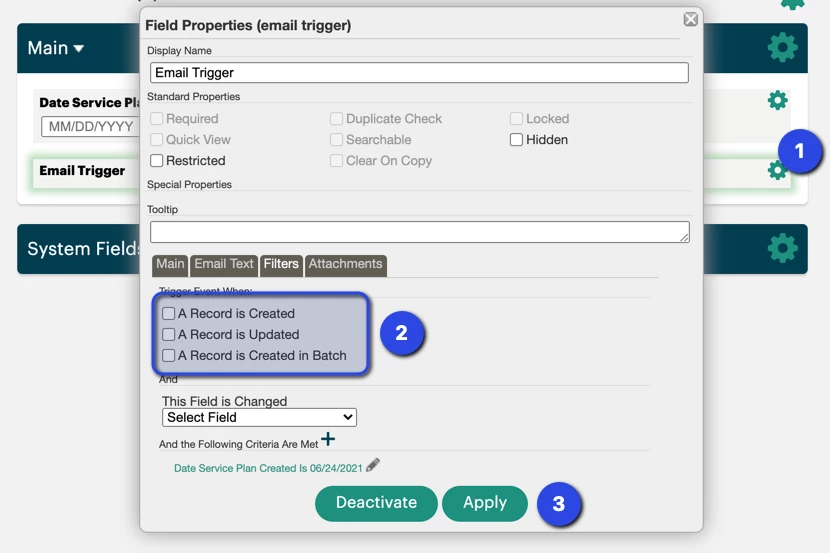
The Trigger Event is the most common problem why an email trigger doesn't send. Generally, you will see "Not Triggered" in the Email Status every single time you save the record, even if it meets the criteria to send, if you forgot to set the Trigger Event. This tells Apricot if it should send an email only on record creation, only on record update, only on batch creation, or a combination thereof. At least one Trigger Event must be checked or an email will never send.
-
Click the gear for the Email Trigger
-
Check one or more of the boxes
-
Apply
Note that you can also set your Trigger Event to send an email when a specific field is updated.
Email Trigger fields are unique where that the record displays only the most recent status of an email trigger; reports also only show the most recent email status. Therefore, it's not accurate to look at a record (or a report) and see "Email Sent" or "Email Failed' or even "Not Triggered" and come to the conclusion that it is accurate. For example, let's take a look at some of these scenarios:
-
You have an Email Trigger to send an email only upon Record Creation Let's then say that record was created and all filter criteria was met. The Email did send. But, then someone re-saves the record one more time. The Email Trigger Status now says Not Triggered
-
You have an Email Trigger to send an email upon Record Updated only if the Date field is changed. The record is created, no email trigger is sent so our Status says Not Triggered, as expected. The record is updated, but the Date field was never changed, so our status still says Not Triggered The record is updated again, but this time the Date was changed, the record will now show Email Sent But, let's say someone saves the record yet again, the date did not change, the record will not show Not Triggered
The record will only show the status of the most resent save, but we can verify that the email was sent by by clicking 'View History' to view the Record History.
Let's say we have an Email Trigger that has the following criteria:
-
Send only on Record Updates
-
And, only if, Date = 6/24/2019

-
Click Show History

-
Find the record history which should have triggered the email, you may need to go through multiple histories to find the record. Once you find it, click on it.
-
Then, we can see if the email trigger was sent and we can see that it sent on 6/24/2019 as expected.
Email Trigger Tips and Tricks
-
Email is not a secure form of communication. Please take this into consideration when deciding what information to send via an email trigger field.
-
System fields (Record ID, Created By, Creation Date, Modified By, Modification Date and Assigned Programs) cannot be used in email trigger filters.
-
An email is only sent to recipients listed in the Main tab of the Email Trigger properties, if all the field's configured conditions are met. The trigger does not automatically send an email to the user who created or edited the record.
-
We use a 3rd party integration to send emails through Apricot on your behalf called SendGrid (see below for additional details). Customer Support can check to see if an email was sent, but SendGrid only saves email logs for 7 calendar days so you must contact us within that time for us to check. We cannot provide direct access to SendGrid. You may need to inform your recipients that they might need to allow-list the following email address if the emails are going to their spam folder: no-reply@socialsolutions.com
-
Imports cannot be used to prompt an email trigger to send an email. Records must be manually created or updated in order to activate the email trigger.
-
Email triggers cannot be used to send emails at a future time. They are triggered by an action and will only send upon creation/modification save.
-
Images from Shared Files that are linked in the email body will not display in external email clients.
What Are Best Practices for Email Triggers in Apricot? | How Do I Set Up an Email Trigger in Apricot? | Why Isn’t My Email Trigger Sending in Apricot? | How Do I Customize Email Trigger Content in Apricot? | When Should I Use Email Triggers in Apricot? | How Do I Test Email Triggers in Apricot? | How Do I Troubleshoot Email Trigger Issues in Apricot?