

How do I attach a document or image to a form?
Form fields govern how data is collected and reported on in Apricot. A diverse selection of fields is available in the Form Designer to tailor your forms to your organization's data entry needs.
In the Field Choices palette, fields are organized by category or in alphabetical order within the "All" section. Once you've found the field you want to add to your form, you can drag and drop the name of the field into the main body of the form section.
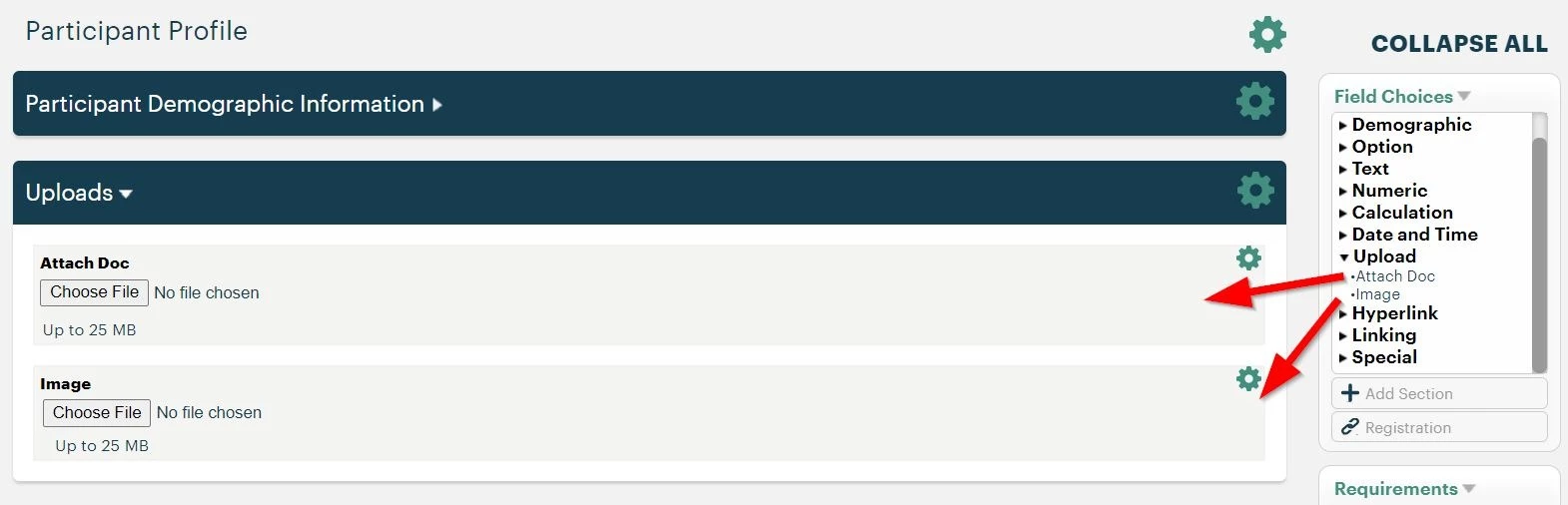
NOTE: As of September 2026, you can also use the Attach Docs - Multiple field to upload up to 25 files (500 MB each) in one field. The screenshot above does not show this field yet.
Continue reading below to learn how to utilize the fields available in the Upload category.
Important:
-
These fields cannot be pulled into native reports, and there is not a mass export option for the files uploaded with these fields. If at any point you want to retrieve the uploaded files from Apricot, you'll need to access each individual record and download the document or image to your computer.
-
The Preview File function is only available for .pdf, .png, and .jpg file types.
Attach Doc
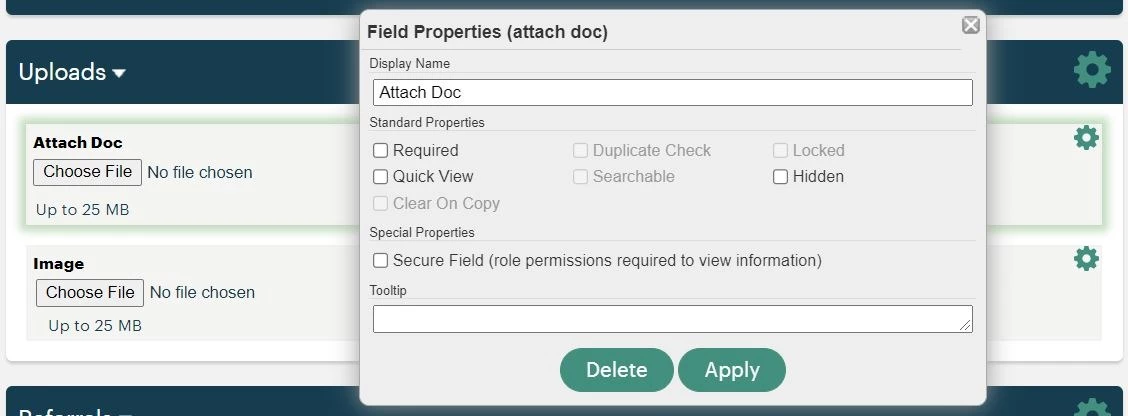
Attach Doc allows users to upload a stored document or file from their computer to the record they're creating. Once the record is saved, a link to the file will appear on the record for anyone with the proper access to open and save. The file size limit for this field is 25 MB.
The non-comprehensive list of supported file types include:
-
Microsoft Office (.doc, .docx, .xls, .xlsx, .pptx)
-
Comma Delimited (.csv)
-
Open Office Spreadsheet (.ods)
-
Adobe Acrobat (.pdf)
-
Image files (.gif, .jpeg, .png)
-
Text files (.txt, .pdf, .csv,)
-
Text/HTML files (.html, .htm)
The non-comprehensive list of unsupported file types include:
-
Open Document (.odf)
-
Zip files (.zip, .zipx)
-
Microsoft Office (.docm, ,xlsm, .pptm)
-
Image files (.bmp, .tiff)
-
High Efficiency image files (.heif, .heic)
-
Audio files (.m4a, .mp3, .wav)
Attach Docs - Multiple
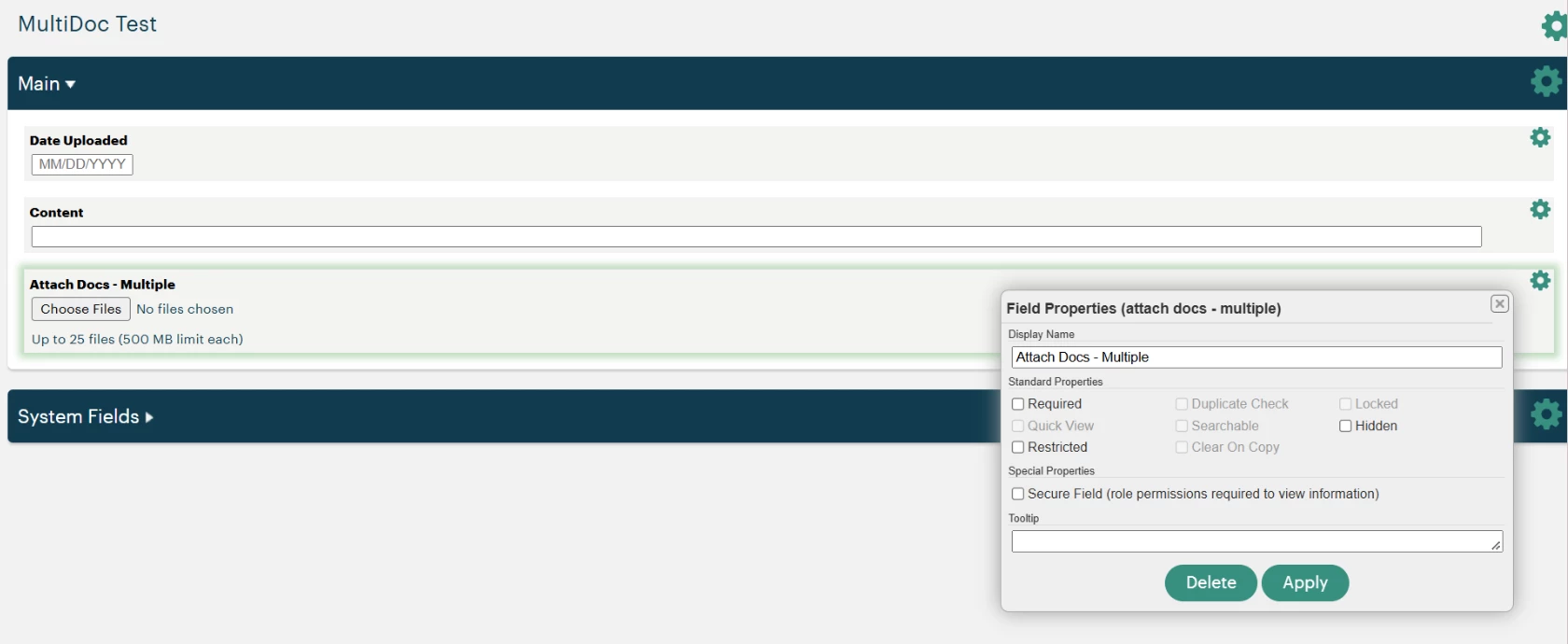
Attach Docs - Multiple allows users to upload several documents or files from their computer to the record they're creating, all within one field. Each field can hold up to 25 files, and each file can be up to 500 MB. Once the record is saved, links to the files will appear on the record for anyone with the proper access to open and save.
Upload progress and status indicators show users how each upload is going. The field also supports keyboard navigation and screen readers.
NOTE: The Attach Docs - Multiple field is not supported in Intake yet.
Image
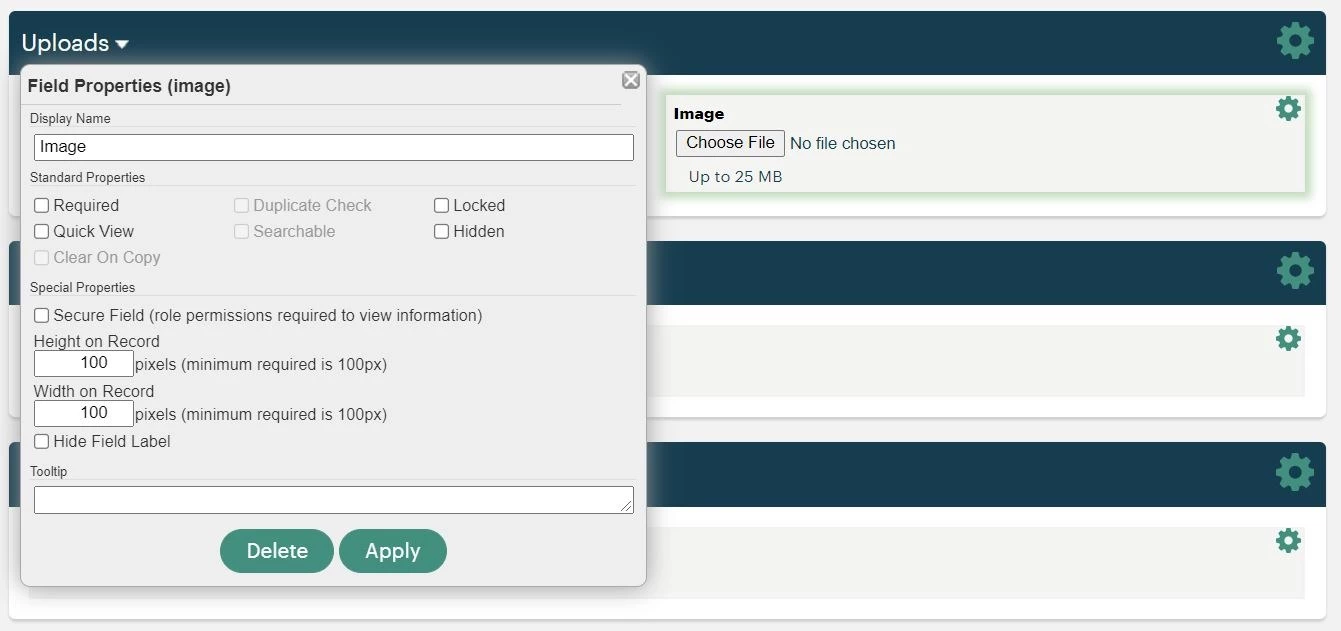
Image allows users to upload .jpg and .png image files from their computer to the record they're creating. The uploaded image will be displayed within the record once the record is saved.
NOTES:
-
Images might be rotated in Apricot depending on your camera or the saved metadata. We recommend double-checking your camera's settings and the final image before uploading, as it cannot be rotated or adjusted in Apricot.
-
The uploaded images will not be available for download; if you want to retrieve the images from your records, we recommend using the Attach Doc field instead of the Image field. Images saved from records will be significantly smaller and lower quality than the original upload. If you need full-quality image retrieval, use Attach Doc instead.
Properties
To view the image files uploaded in the records on the Record Search page and the Document Folder, set the field to Quick View in the Standard Properties.
The Height and Width on Record special properties allow you to set the pixel height and width for uploaded images. The minimum size for any uploaded image is 100x100 pixels, whereas the maximum size depends on the user's monitor size.
NOTE: Images larger than 100x100 pixels may cause fields surrounding the Image field to be less visible or accessible for data entry. If you need to set the width and height larger than 100x100 pixels, we recommend placing the Image field in its own form section.
Not sure which field to use?
If participants need to upload photos that will be downloaded, shared, or printed at full quality — use Attach Doc instead.
The Image field displays a small, low-resolution version of the image within the record. Images saved from the record will be significantly reduced in size and quality and cannot be adjusted in Apricot.
If the people filling out your form need to upload more than one file, consider using a single Attach Docs - Multiple field instead of adding several Attach Doc fields to the same form.
However, you may want to include extra fields for the details of each upload, such as the date uploaded, the date signed, or a text field that summarizes the content. In that case, consider using one Attach Doc field for each upload. This lets you name each upload field and its related fields clearly. For example:
- Lease Agreement Upload
- Lease Agreement Signed Date
- Lease Agreement Key Terms
What else do you need help with?
How Do I Attach a Document or Image to a Form in Apricot? | How Do I Upload Files to an Apricot Form? | Can I Add an Image to an Apricot Record? | How Do I Use the Document/Folder Component in Apricot Forms? | What File Types Can I Attach in Apricot? | How Do I View Attached Documents in Apricot Records? | Why Can’t I Upload a File to an Apricot Form?