


How do I calculate time durations across multiple days in a form?
Apricot's Calculation Time Difference field is designed to calculate the time elapsed between two time fields. However, due to MySQL limitations, this field will always assume the times entered are from the same day. This means if you try to calculate the difference between 11:30pm on the first day and 12:30am the next day, the result will incorrectly show a 23-hour difference instead of a 1-hour difference.
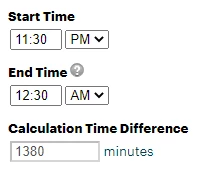
There are several scenarios where your organization may need to track time durations that extend past midnight and into the next day. For example:
-
Logging the start and end times of a client service that runs late into the evening
-
Tracking volunteer hours that begin one day and end the next
-
Monitoring the length of an overnight program or event
Using additional form fields and form logic, we'll instead calculate the time spent on the first day and add it to the time spent on the second day. Follow the steps below to learn how to implement this workaround that accurately calculates time differences that span multiple days.
Step 1: Add Time fields
Within the Form Designer, drag 4 separate Time fields into your form:
-
Start Time
-
End Time (End of Day)
-
Second Start Time
-
Second End Time
Note: We recommend adding a Tooltip to the "End Time (End of Day)" Field Properties to tell users they must enter "11:59pm" for this field if the true end time is on the second day.
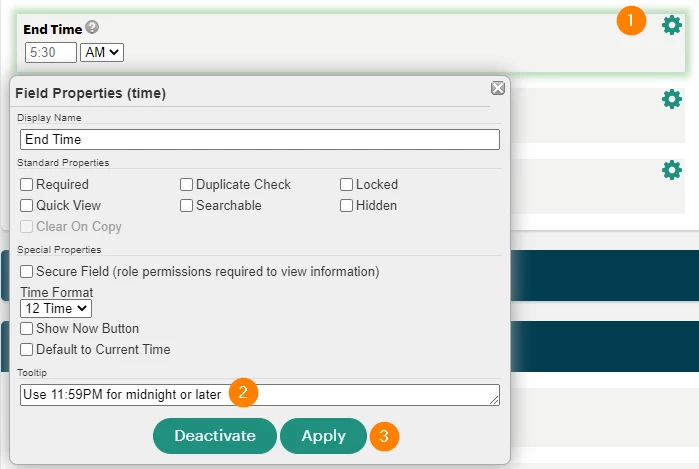
Step 2: Add a Numeric field
This field will be used to correct the lost minute of time tracking when entering "11:59pm" in the second Time field. The Default Value property, however, should be set to "0".
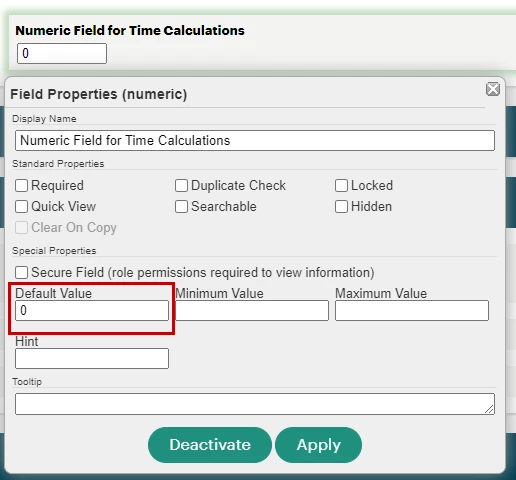
Step 3: Add Calculation Time Difference fields
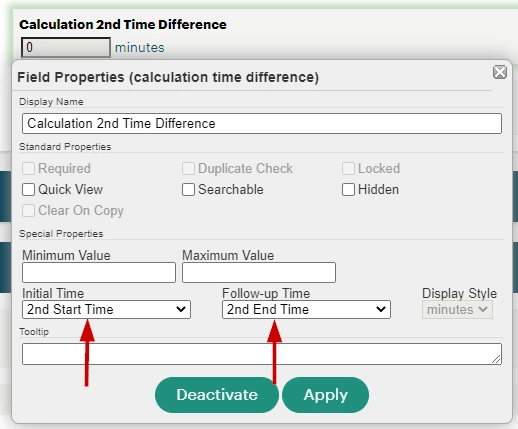
Bring in two Calculation Time Difference fields to the form. The first will calculate the time difference on the first day, and the second will calculate the time difference on the second day.
Select the corresponding days' Time fields in the Initial Time and Follow-up Time dropdown menus within their Field Properties.
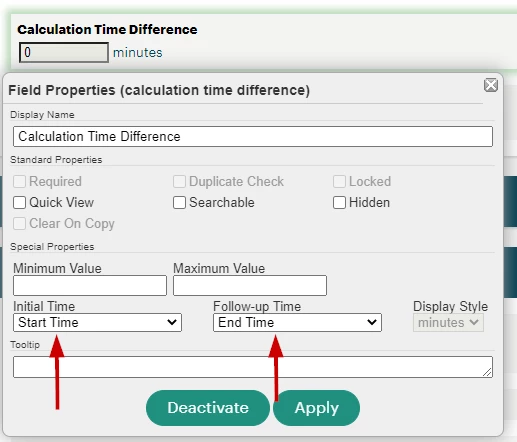
Step 4: Add a Calculation (+) Add field
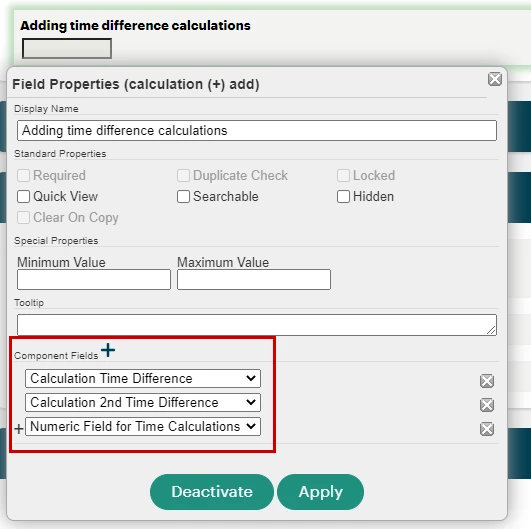
Our final calculation field will add the numeric values provided by the Calculation Time Difference field together with the Numeric field. Select the appropriate fields in the Component Fields section of the Field Properties.
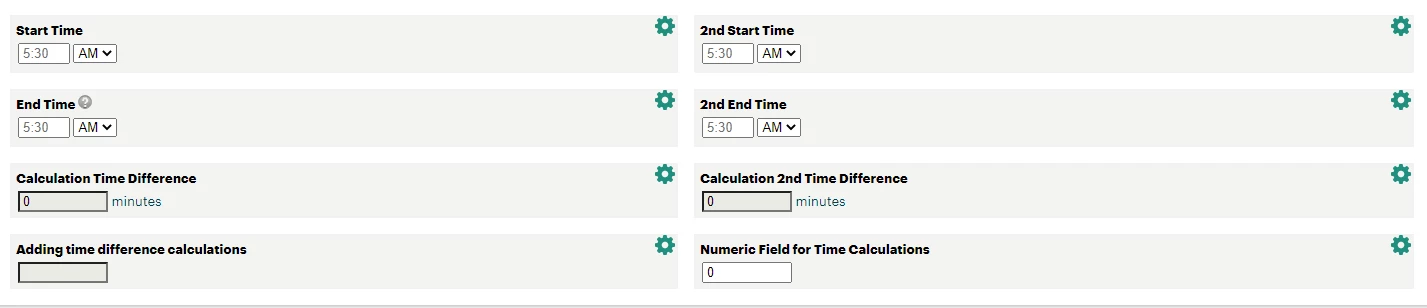
Altogether, the report section's setup should look similar to the example below.
Step 5: Add form logic
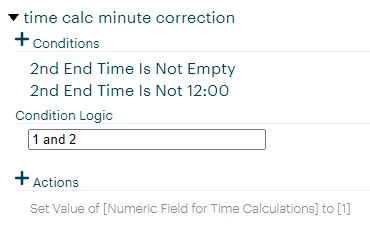
Finally, you'll need to add two form rules. The first rule will set the second day's start time to midnight, while the second rule will set the Numeric field value to "1" to account for the lost minute.
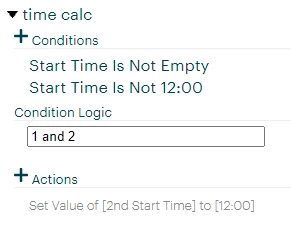
Configure the first rule as follows:
-
Conditions
-
[Start Time] Is Not Empty
-
[Start Time] Is Not 12:00
-
-
Condition Logic: "1 and 2"
-
Action: Set Value of [Second Start Time] to [12:00]
The second rule is set up similarly except for its Action:
-
Conditions
-
[Second End Time] Is Not Empty
-
[Second End Time] Is Not 12:00
-
-
Condition Logic: "1 and 2"
-
Action: Set Value of [Numeric Field Name] to [1]
Step 6: Save your changes
Once the fields and form logic have been created, publish the form to calculate the correct time differences in all new records. To learn how to update existing records with the new calculation fields, click here.
What else do you need help with?
How Do I Calculate Time Durations Across Multiple Days in an Apricot Form? | How Do I Use Calculation Fields for Time Durations in Apricot? | How Do I Calculate Total Hours Across Dates in Apricot? | Why Isn’t My Time Duration Calculation Working in Apricot? | How Do I Calculate Multi-Day Time Differences in Apricot? | What Formula Do I Use for Time Duration in Apricot? | How Do I Format Time Duration Results in Apricot?