


How do I calculate numbers in a report column? (Native Reporting)
There are three types of special Calculation Columns in Apricot's Report Builder: Number Calc, Date/Time Calc, and Text Calc. Multiple calculation columns can be added to a section, and the results from one calculation column can be used in subsequent calculation columns.
Number Calc columns can perform simple mathematical functions between multiple columns of numeric values or between a column and a static number that you designate. Follow the steps listed below to learn how to calculate numeric data within a report column.
Step 1: Add a Number Calc column
In the upper right-hand corner of the Report Builder, click on Special Columns in the Field Choices palette then expand Calculation Columns. Drag and drop the Number Calc column into your report section.
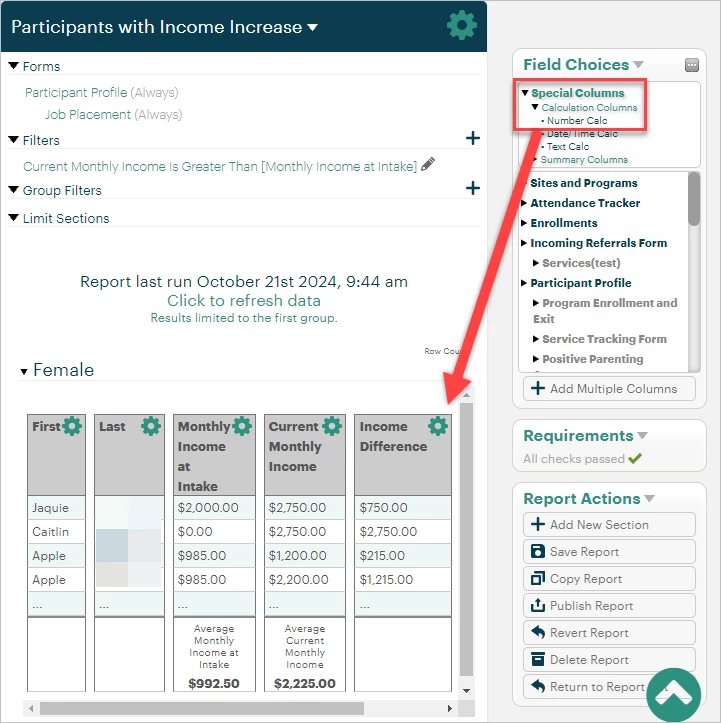
Step 2: Create your calculation
Open the column properties by clicking the gear icon next to the calculation column's name.
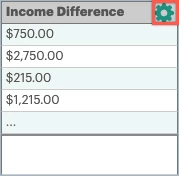
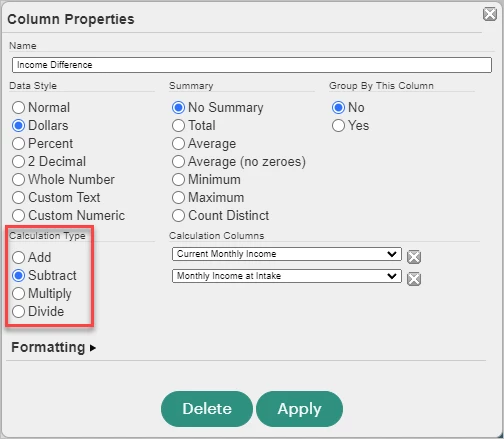
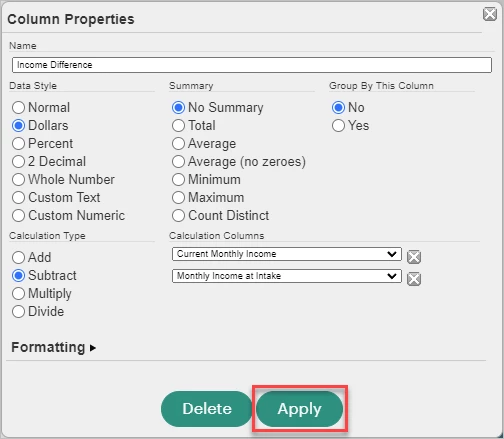
You can create a column name in the Name field based on what it's meant to calculate. In this example, we are calculating the difference between participants' current monthly income and their previous monthly income upon program intake to view their income progress.
Each calculation column can only have one Calculation Type and perform a single mathematical function: Add, Subtract, Multiply, and Divide. If you need more complex calculations, you can create multiple Number Calc columns and have each column perform a separate function.
In the Calculation Columns section, use the dropdown fields to select which values you want to calculate. Columns will only be available in the dropdowns if they contain numeric data or have been set to display a numeric value. You can also select [Static Value] which allows you to type in your own numeric value to use in the calculation. This will remain a constant value when you run your report.
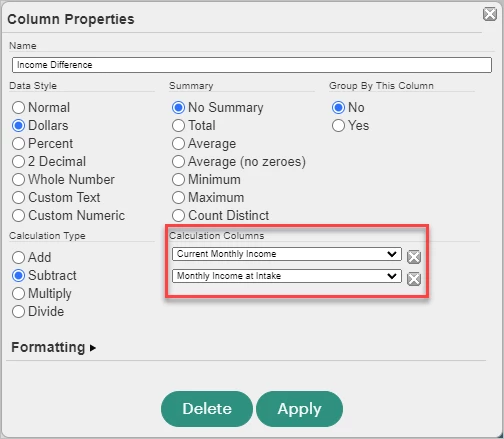
Step 3: Apply your changes
Once the column's properties have been set, select Apply to save your changes.
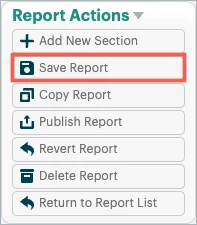
Finally, save your report from the Report Actions palette. You can also publish the report to make the changes immediately available to other users running the report.
What else do you need help with?
-
Not what you're looking for? Navigate to overview
Looking for training?
Explore this feature at your own pace - join a live training session or watch a recorded webinar by clicking the link below.