

How do I add an offline payment from bidders?
Sometimes your bidders may prefer to pay for their winning items offline (like with a check, or even cash).
Entering these types of payments into your Auctions platform is quick and easy – we'll show you how to do so in the steps below.
Step 1: Click on "Bidders."
You’ll first want to click on the option for “Bidders.”
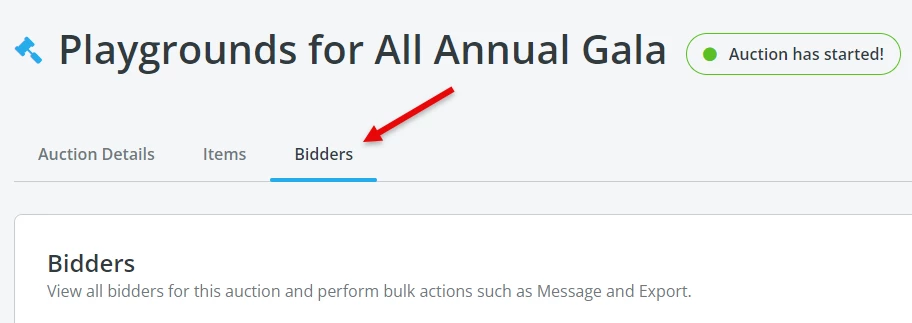
You should then see a list of your bidders, which includes how many items they’ve won and how much they still need to pay for those items.
Step 2: Locate and select the bidder who wants to make the payment.
Next, you’ll want to locate the bidder who’d like to make the offline payment. If you don’t see them listed, you can search for them by either their name or bidder number through the search tool located towards the top of the page.
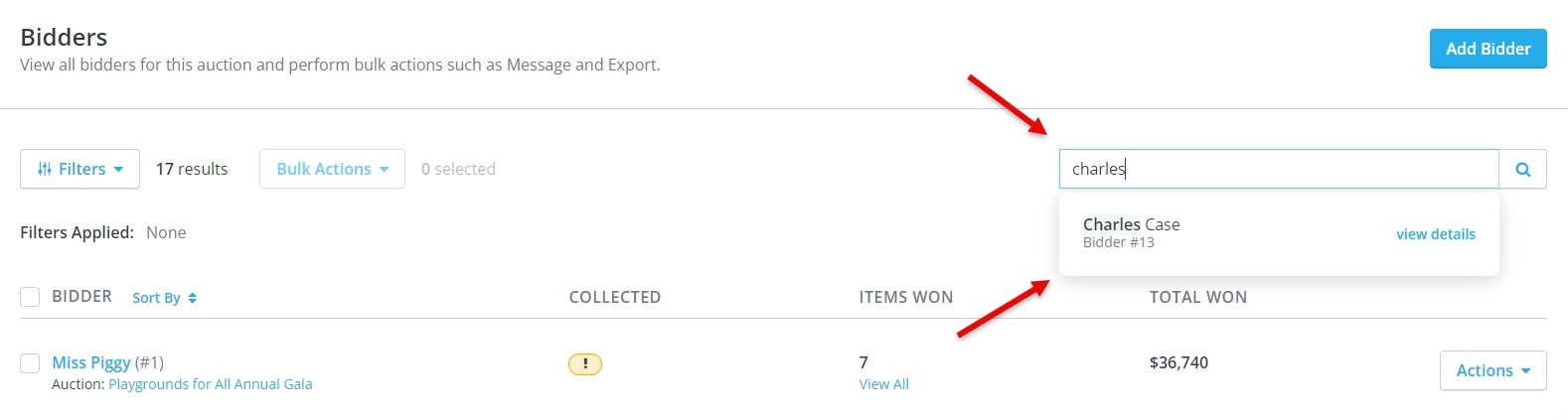
Once you’ve located the bidder, you’ll want to click on their name. This should then display that bidder’s profile, including their winnings (and any existing payments).
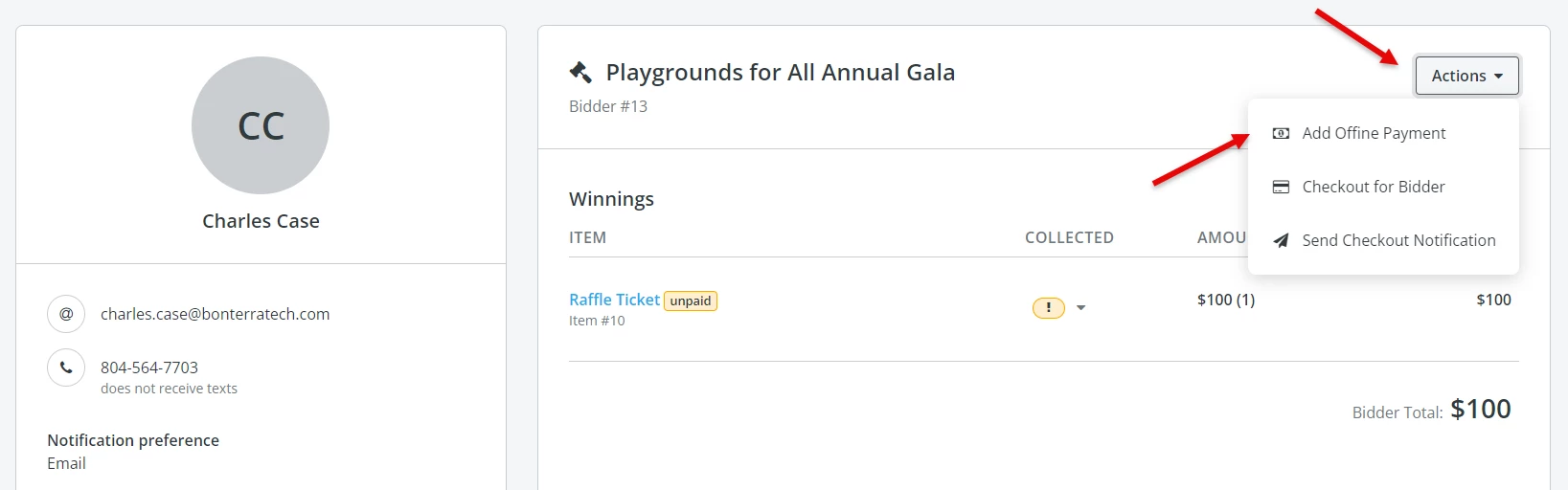
Step 3: Click on "Actions," then Select "Add Offline Payment."
You’ll then want to click on the “Actions” button towards the top-right of the screen, and select the option to “Add Offline Payment.”
Step 4: Enter the details of the payment.
You’ll then be prompted to review the details of the offline payment, as well as ensure that all of the items the bidder has won are listed.
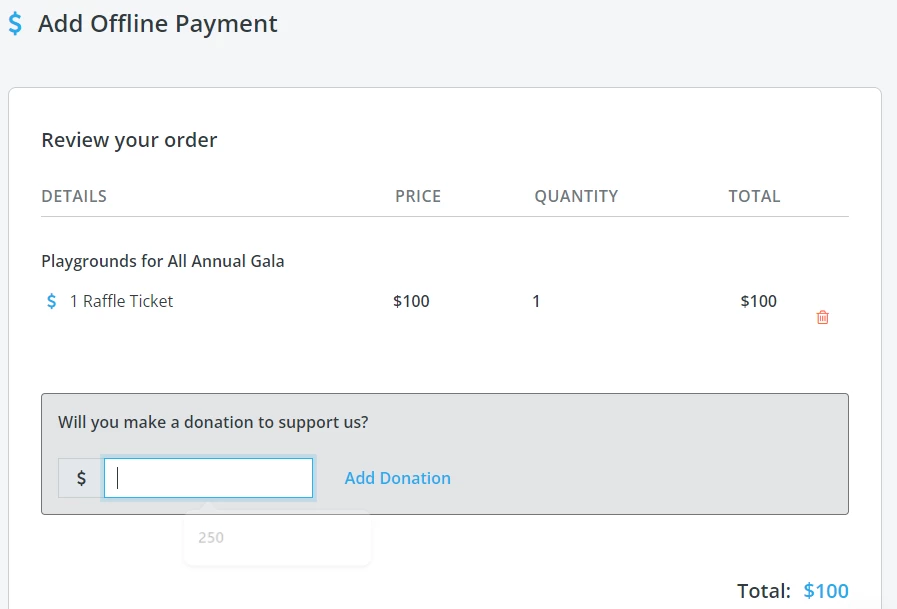
For bidders who have purchased multiple items but only wish to make an offline payment for one of those items, you can click on the small red trashcan icon to remove it from the offline payment.
You’ll then be asked to confirm the type of payment (such as cash or check), and you’ll have an option to add additional notes to the payment for your own internal reference.
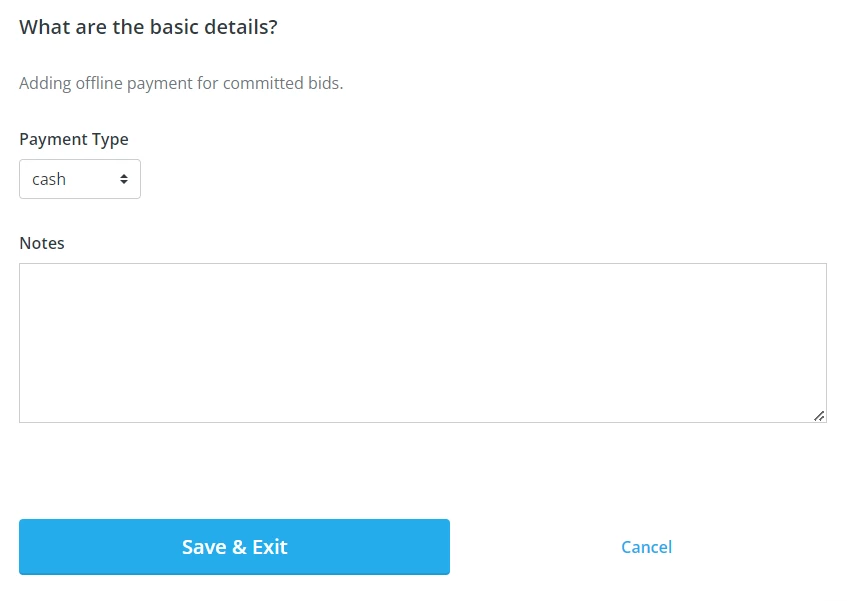
Step 5: Click "Save & Exit."
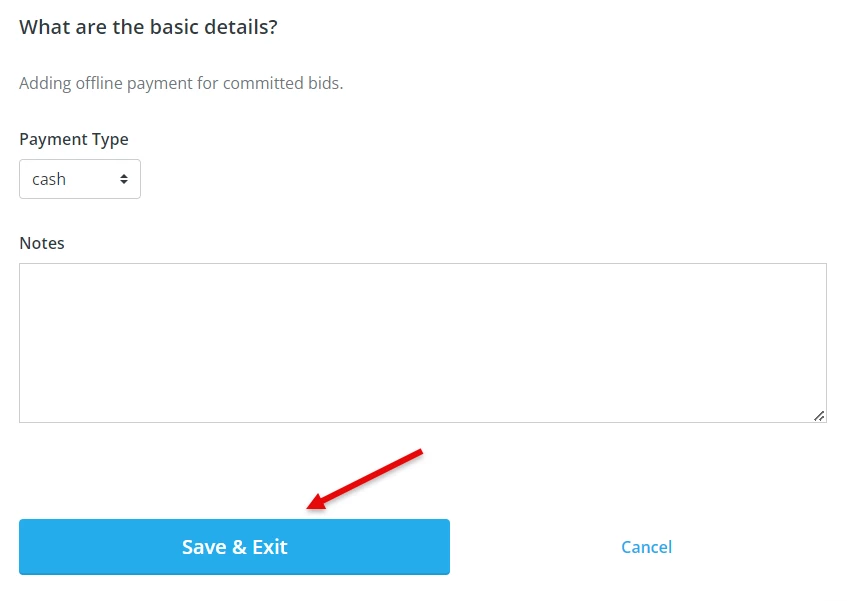
You can then click on “Save & Exit."
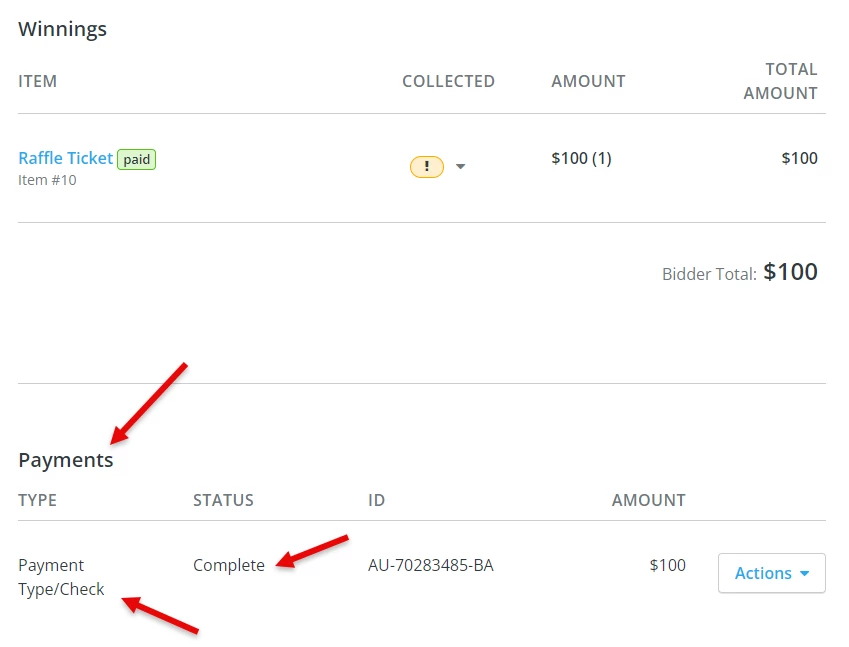
The page should then reload and display the bidder’s profile once more, with the offline payment listed below the bidder’s winnings.
What else do you want to do?
-
How do I use Bonterra Payments as a payment processor for my auction?
-
How do I issue a refund to a bidder?
Not what you're looking for?
Go back to the Feature Overview.