

How do I apply or remove Tags?
Applying Tags to Events, Locations, and Contacts
Step 1: Navigate to your 'Events', 'Locations', or a contact record
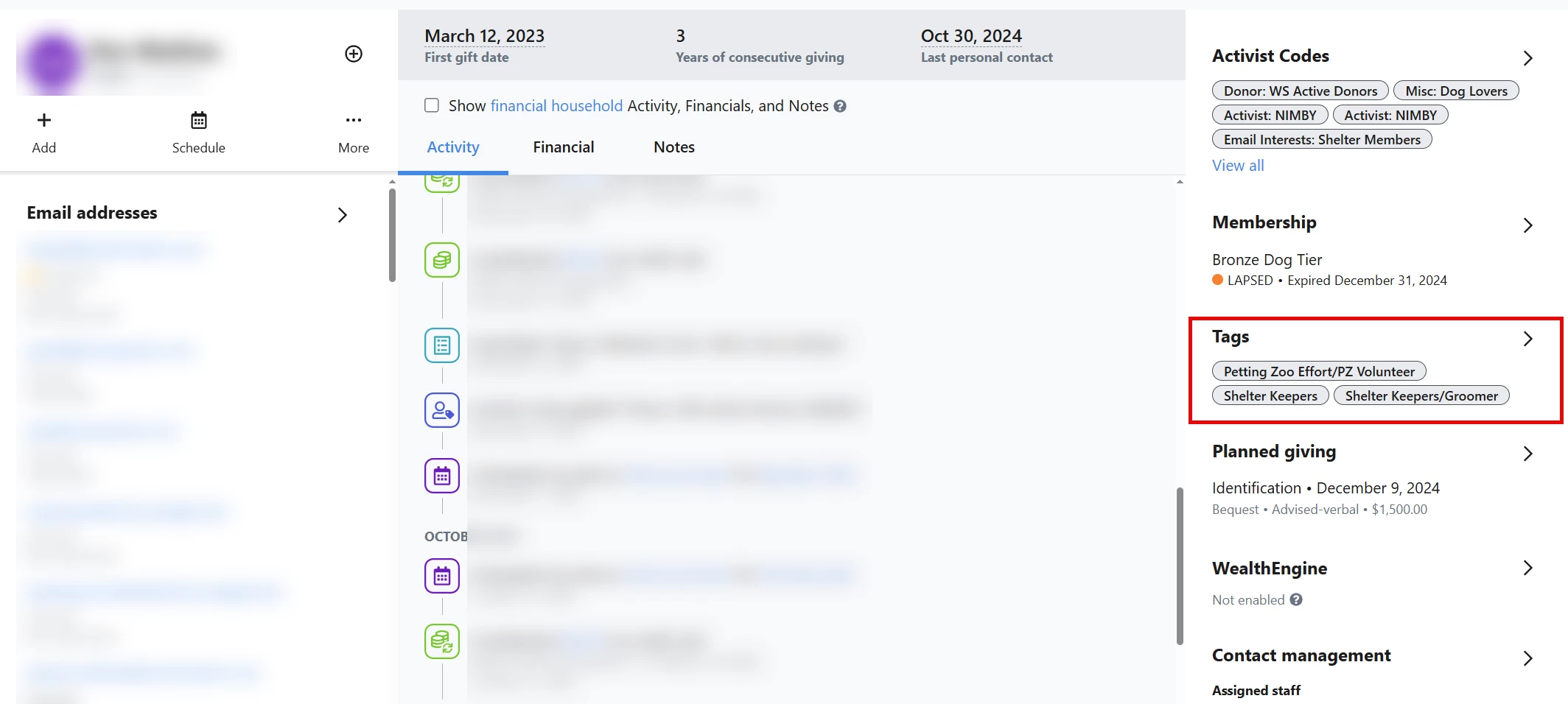
From the 'Main Menu', navigate to one of your 'Events', 'Location's, or a contact record and expand the 'Tags' section to 'Add/Remove Tags'.
For this example, we will be taking a look at a contact record -
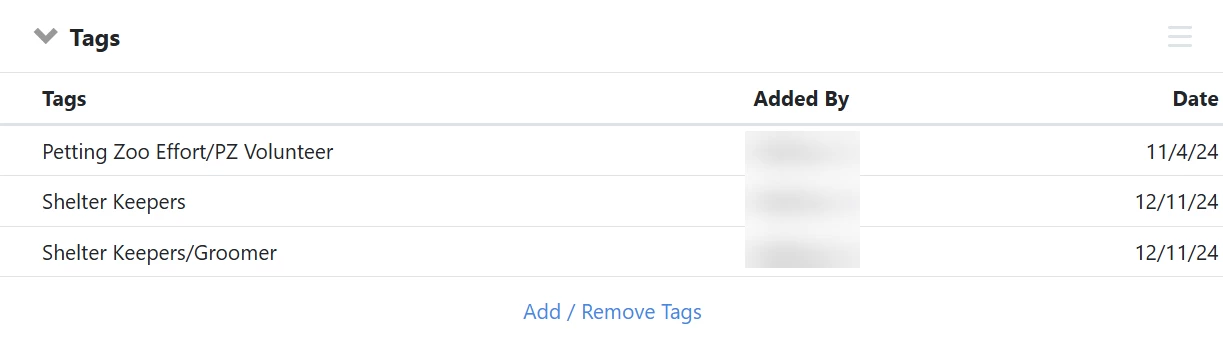
You can add or remove tags from the 'All Details' page or the 'Overview'.
'All Details' page:
'Overview':
Step 2: Search for/Select the tag you want to add
Select the tag you want to add and click 'Save'. If the tag is greyed out, it has been set to 'Searchable Only'.
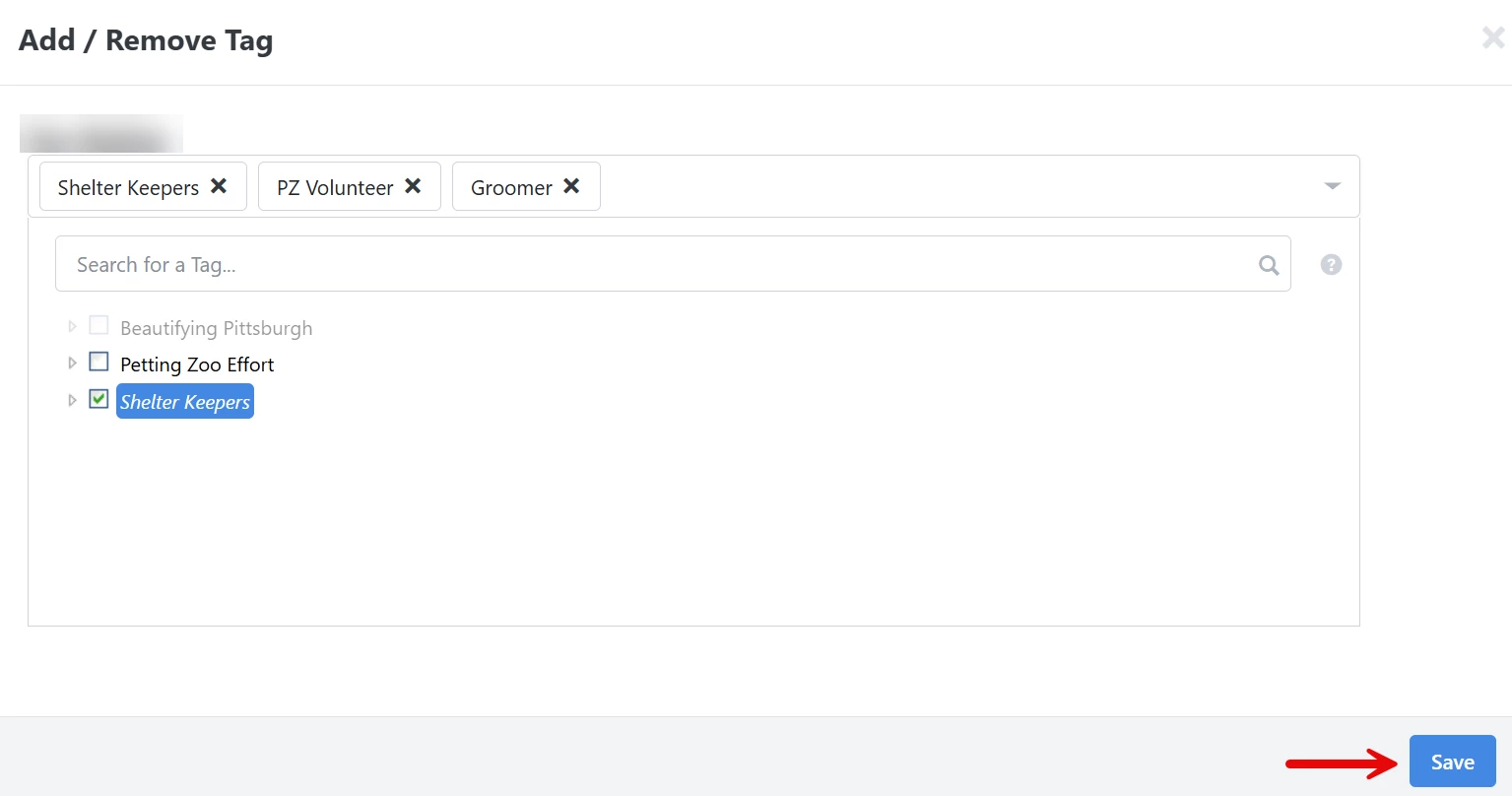
To remove a tag, simply click the 'x' next to it and click 'Save'.
Can I bulk apply Tags?
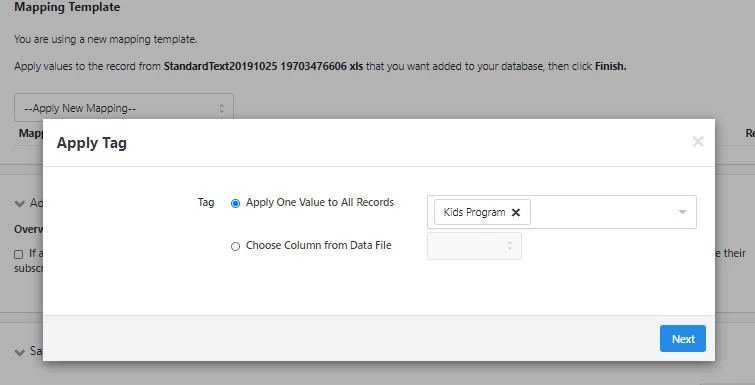
Yes! To apply a tag to contact records using the 'Bulk Upload' tool, select the 'Apply Tag' mapping option. Then, select the tag(s) you want to apply and click 'Next'.
Your tag will be applied once you finish and approve the bulk upload.
Not quite what you were searching for?
- Navigate back to the Classification & Data Management Resource Index.
How do I apply or remove tags? | How does apply or remove tags work in EveryAction? | Why can't I apply or remove tags? | Where do I apply or remove tags in EveryAction? | What is apply or remove tags in EveryAction? | How to apply or remove tags? | Can I apply or remove tags in EveryAction?