

How do I search using Tags?
Step 1: Navigate to 'Create A List'
-
Start on the EveryAction home page.
-
From the left-hand menu, go to Contacts > Create A List.
-
Or use Search for a page and type Create A List.
Step 2: Scroll to the 'Tags' section and search
- Click to expand the 'Tags' drawer on the 'Create A New Search' page and enter the details you are searching for.
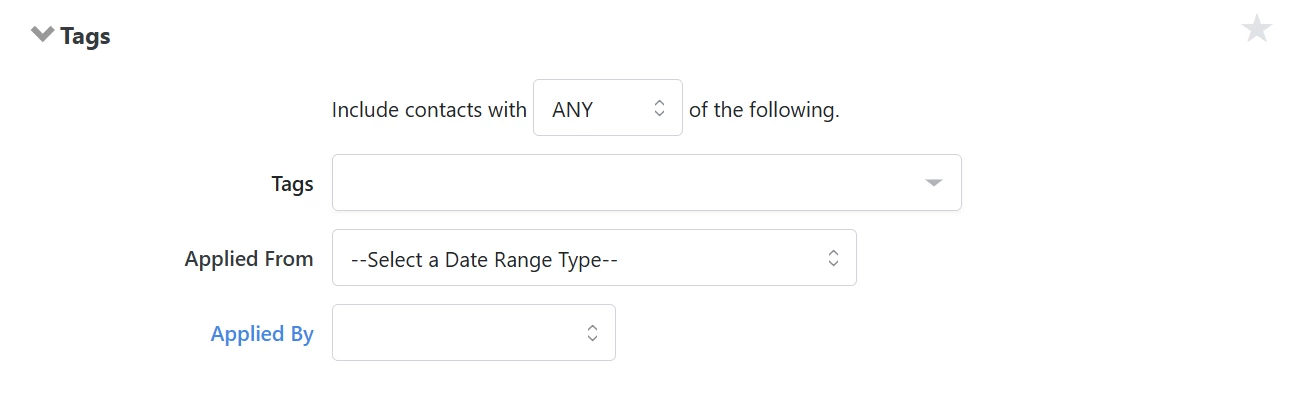
- Click 'Run Search'.

Not quite what you were searching for?
- Navigate back to the Classification & Data Management Resource Index.
How do I search using tags? | How does search using tags work in EveryAction? | Why can't I search using tags? | Where do I search using tags in EveryAction? | What is search using tags in EveryAction? | How to search using tags? | Can I search using tags in EveryAction?