

How do I add multiple contacts to a group?
Adding contacts to a group you have already created is easy!
If you have not already, follow the steps outlined in this article to create a group.
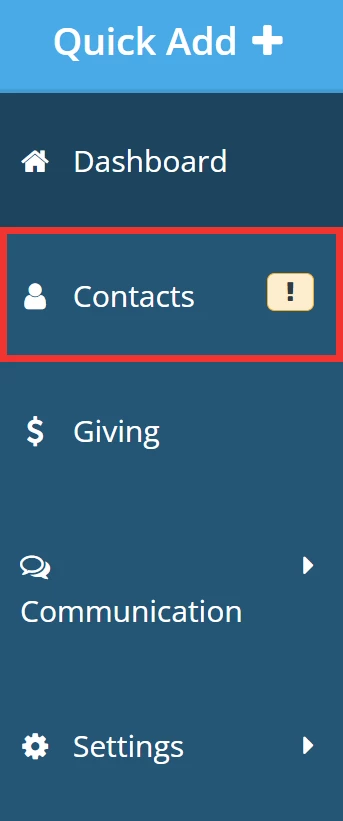
Step 1: Navigate to your 'Contacts'
From your 'Donor Management' Dashboard, click the 'Contacts' tab on the left navigation panel.
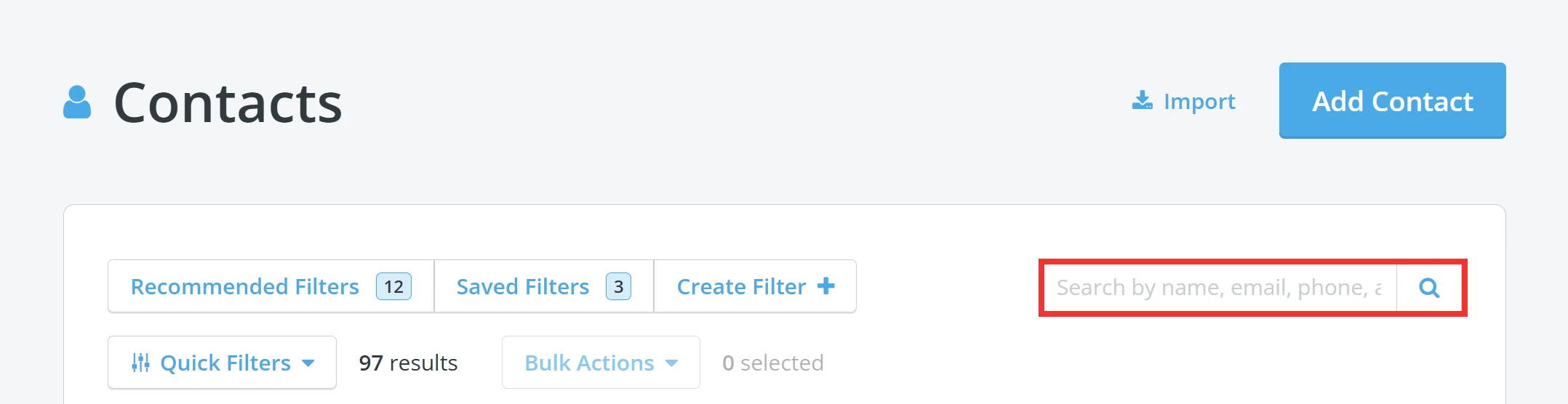
Step 2: Select the contact you want to add
You will be directed to your 'Contacts' page to search for the contacts you want to add to your group.
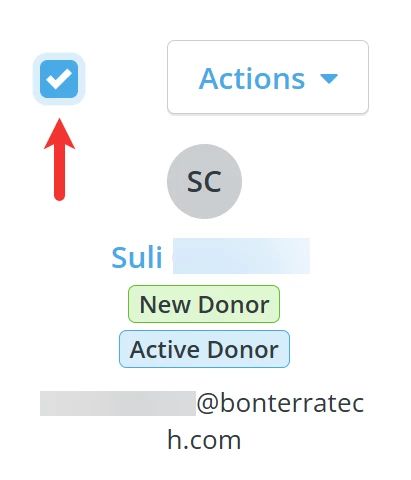
Check the box in the tile for each contact you want to add.
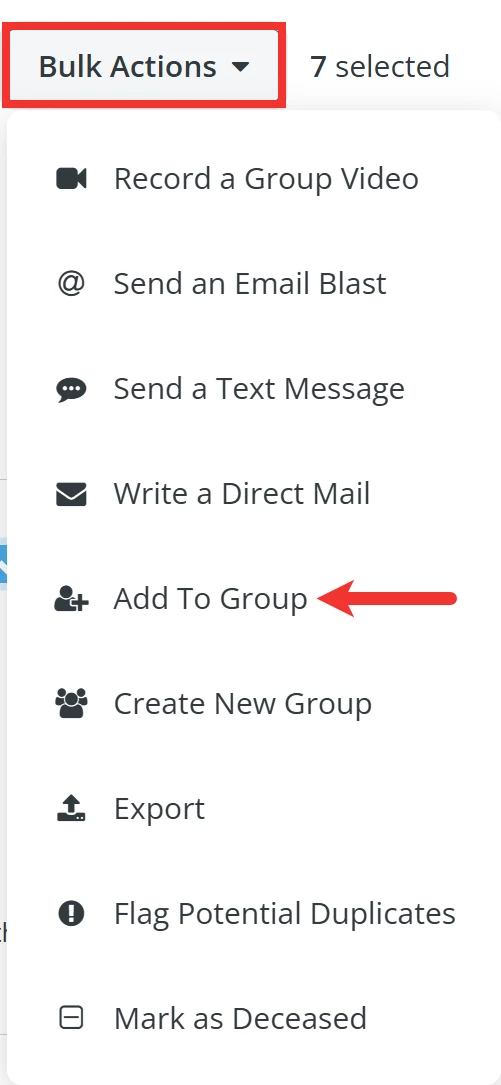
Step 3: Use 'Bulk Actions' to add your contacts
Once you have selected all the contacts you want to add to the group, click the 'Bulk Actions' button towards the top of your 'Contacts' page and select 'Add To Group' from the drop-down list of options.
Step 4: Confirm which group you want to include your contacts
A pop-up window should appear where you can select which group you would like to add those contacts to.
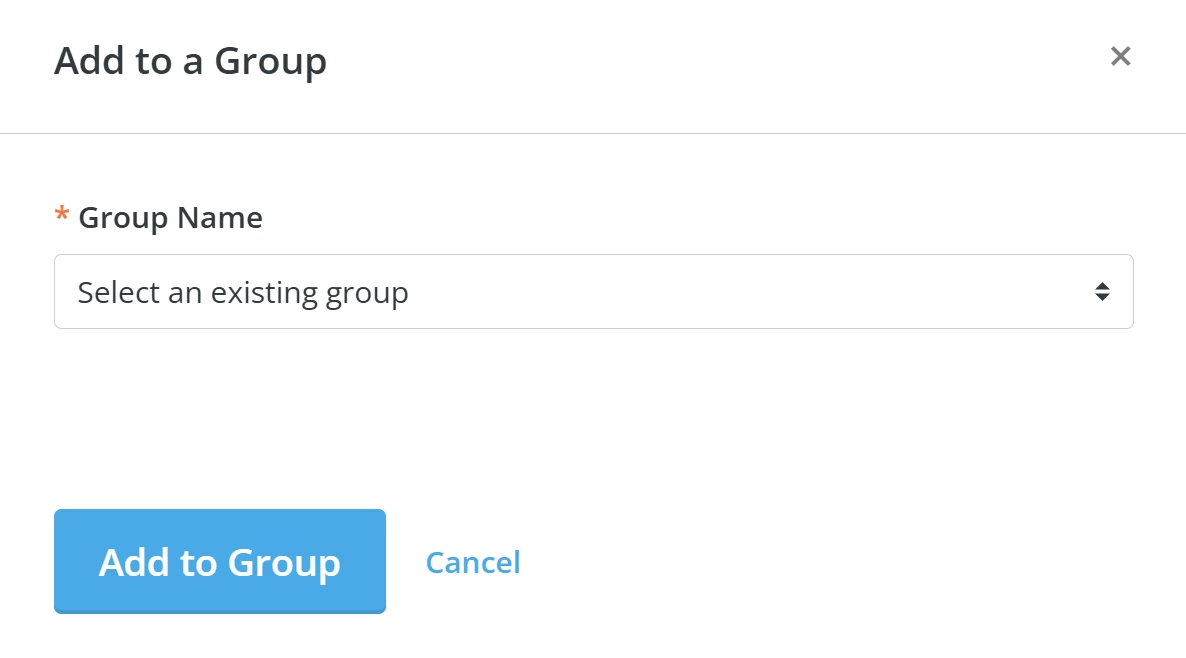
Once you have selected a group, click the 'Add to Group' button.
What else do you need help with?
How do I add an individual contact to a group?
How do I unsubscribe a contact from e-mail communications?
How do I manage individual contacts with multiple e-mail addresses?
Not quite what you were searching for?
Navigate back to the Feature Overview.