

How do I manually run an NCOA update?
If you have recently added new contacts in your 'Donor Management' system and/or have an urgent upcoming mailing, you may want to check for NCOA updates before the regularly scheduled 90-day mark.
Follow the steps outlined below to run a check at any time!
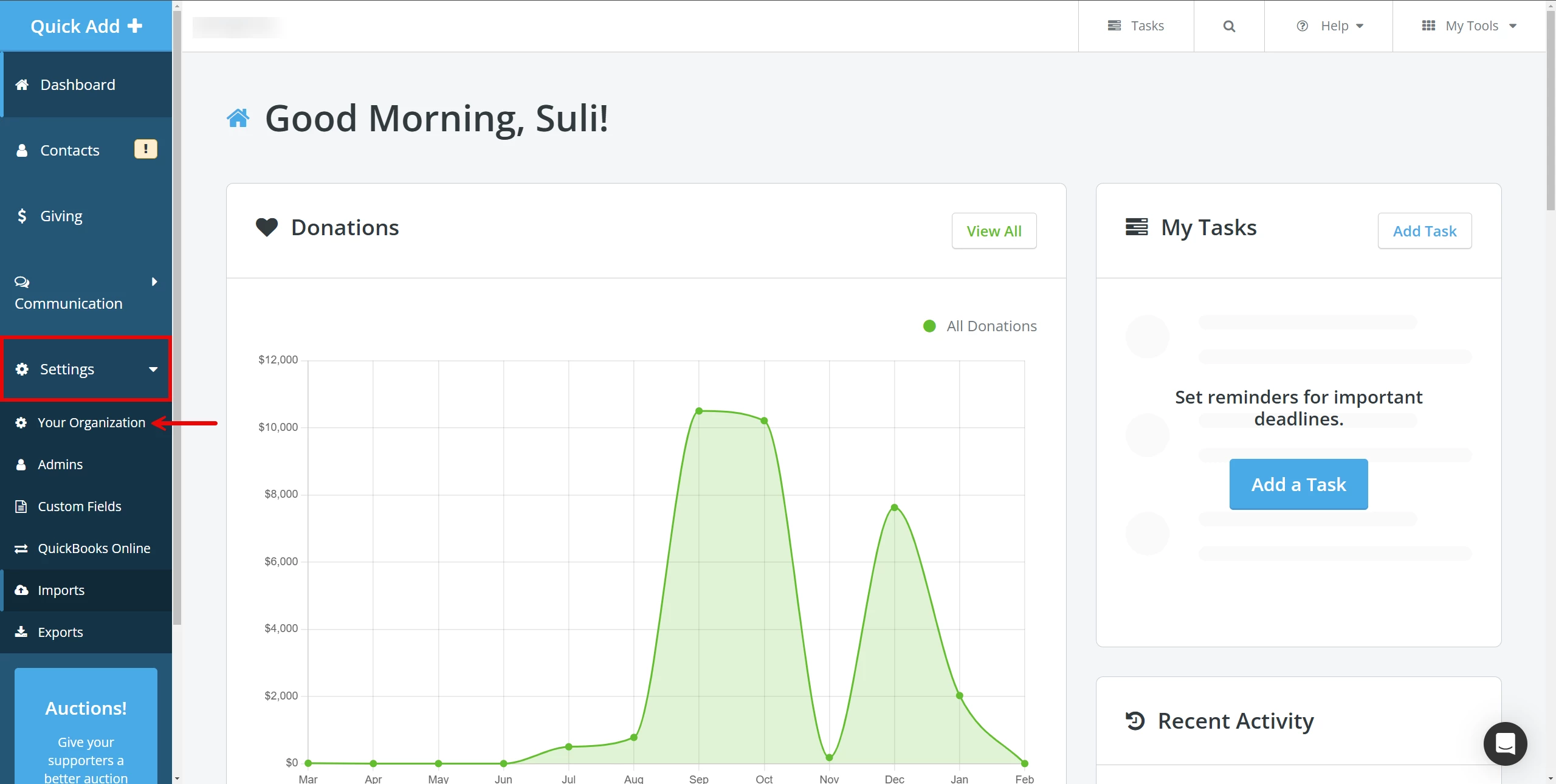
Step 1: Navigate to 'Settings'
From your 'Donor Management' Dashboard, click to open the 'Settings' tab on the left navigation panel. Select 'Your Organization' from the newly expanded drop-down.
Step 2: Scroll to 'NCOA Settings'
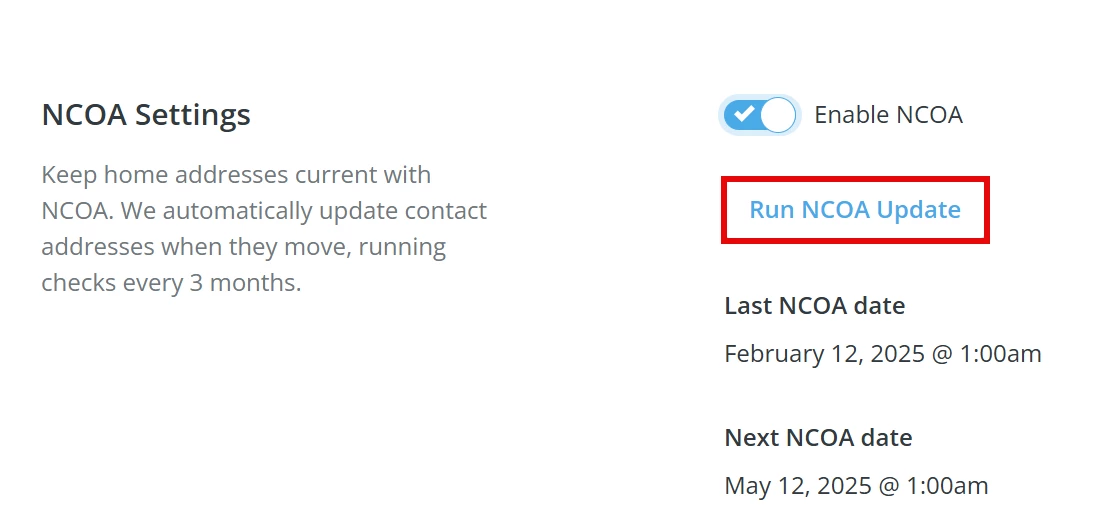
Scroll to find the 'NCOA Settings' section and click 'Run NCOA Update'.
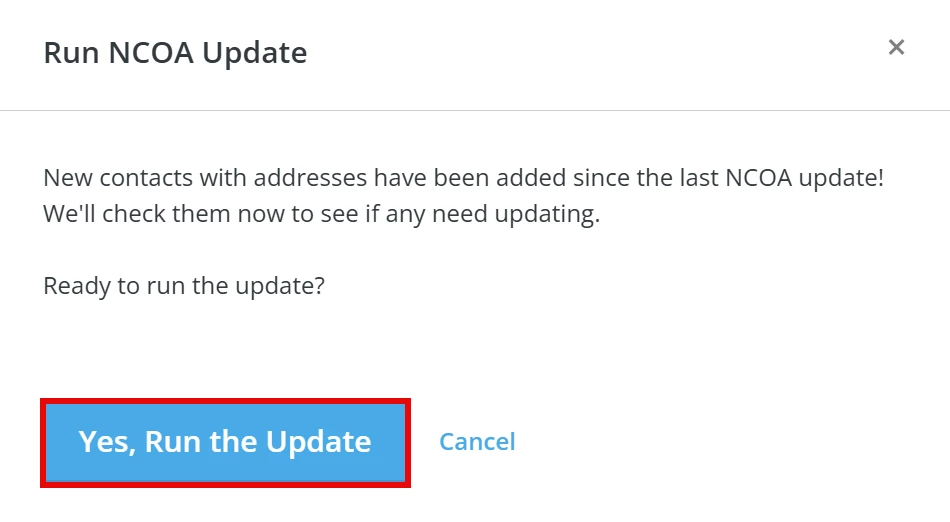
A pop-up window will appear, asking you to confirm. Click 'Yes, Run the Update'.
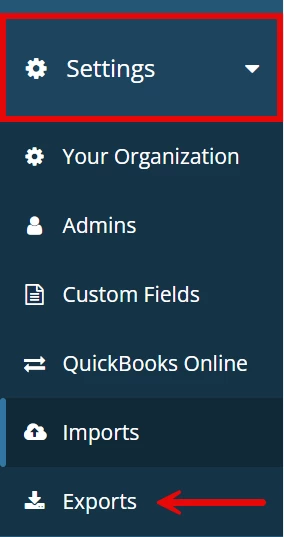
Step 3: Navigate to 'Exports'
Next, click the 'Settings' tab on the left navigation panel to expand the drop-down and select 'Exports'.
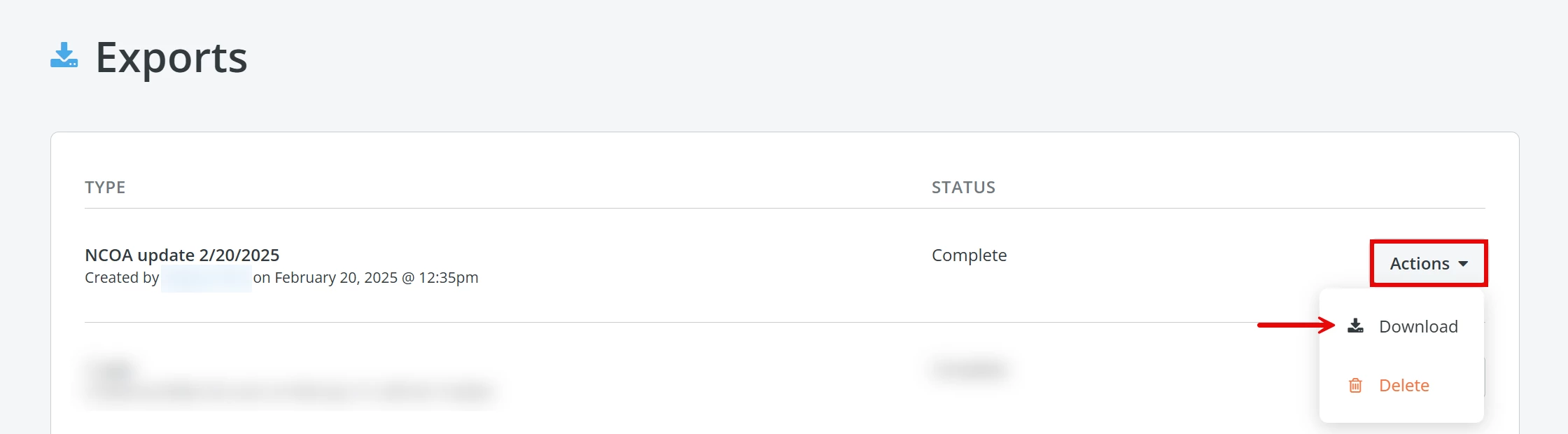
Step 4: Download your report
You can view the status of your report on the main 'Exports' page - to download a copy, click the 'Actions' button next to it and then click 'Download'.
What else do you need help with?
Not quite what you were searching for?
Navigate back to the Feature Overview.
How do I manually run an NCOA update in Donor Management? | How do I update mailing addresses before a mailing? | Where do I find the Run NCOA Update button? | How do I download the NCOA report? | How often does NCOA run automatically? | Why should I run NCOA before exporting contacts? | How do I check the status of my NCOA export?
How do I search for contacts who used shared links? | How does search for contacts who used shared links work in EveryAction? | Why can't I search for contacts who used shared links? | Where do I search for contacts who used shared links in EveryAction? | What is search for contacts who used shared links in EveryAction? | How to search for contacts who used shared links? | Can I search for contacts who used shared links in EveryAction?