

How do I review duplicate record pairs in Data Integrity?
Overview
Once a scan is complete, Que shows you likely duplicate pairs to review. Here’s how to find them, read what Que found, and decide what to do.
Step 1: Open a form’s results
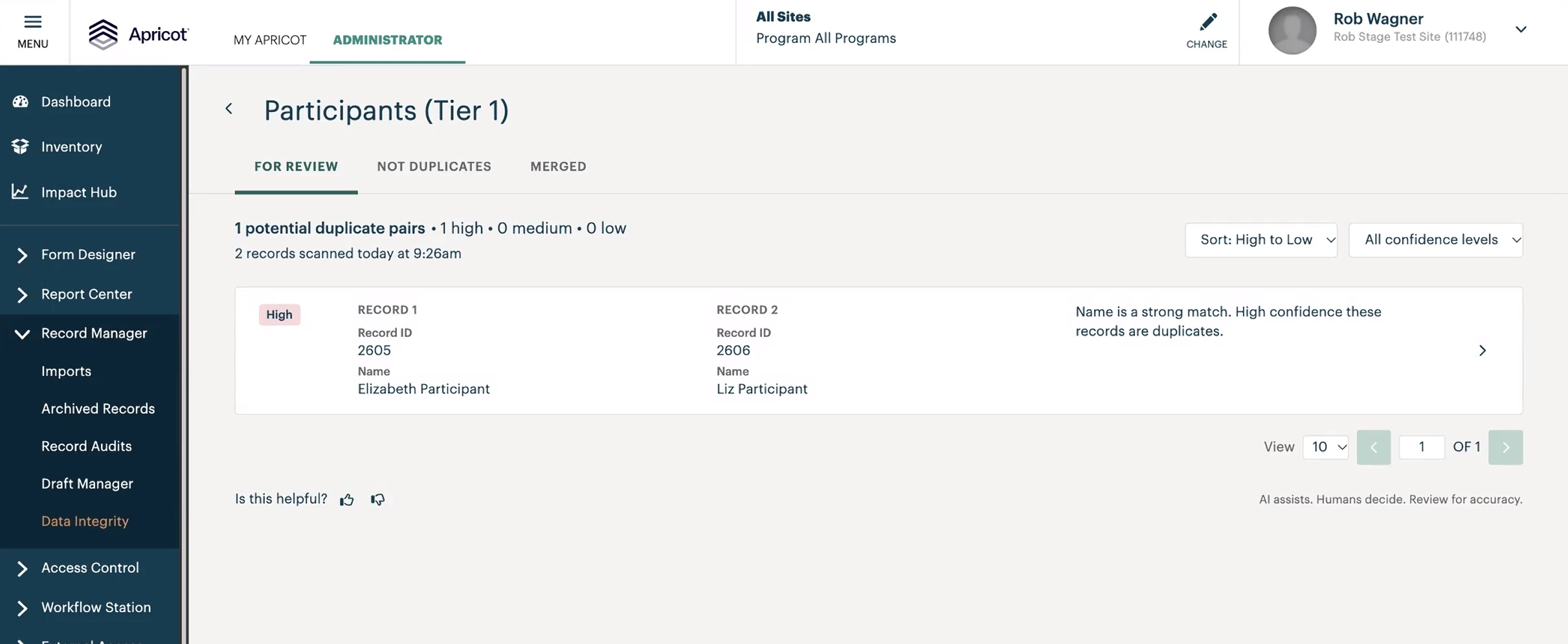
In the Apricot Administrator tab, open Record Manager from the left navigation menu, then select Data Integrity, then click a form to open its results.
Each form has three tabs:
-
For Review: pairs Que has flagged that still need a decision.
-
Not Duplicates: pairs you’ve marked as not being duplicates.
-
Merged: pairs you’ve merged, with the option to undo.

Step 2: Sort and filter the list
Each pair shows a confidence level (High, Medium, or Low) and a short Que rationale explaining why the records were flagged. Sort the list from high to low, and filter by confidence level.
Step 3: Open a pair
In the For Review tab, click a pair to open it.
Step 4: Compare the records
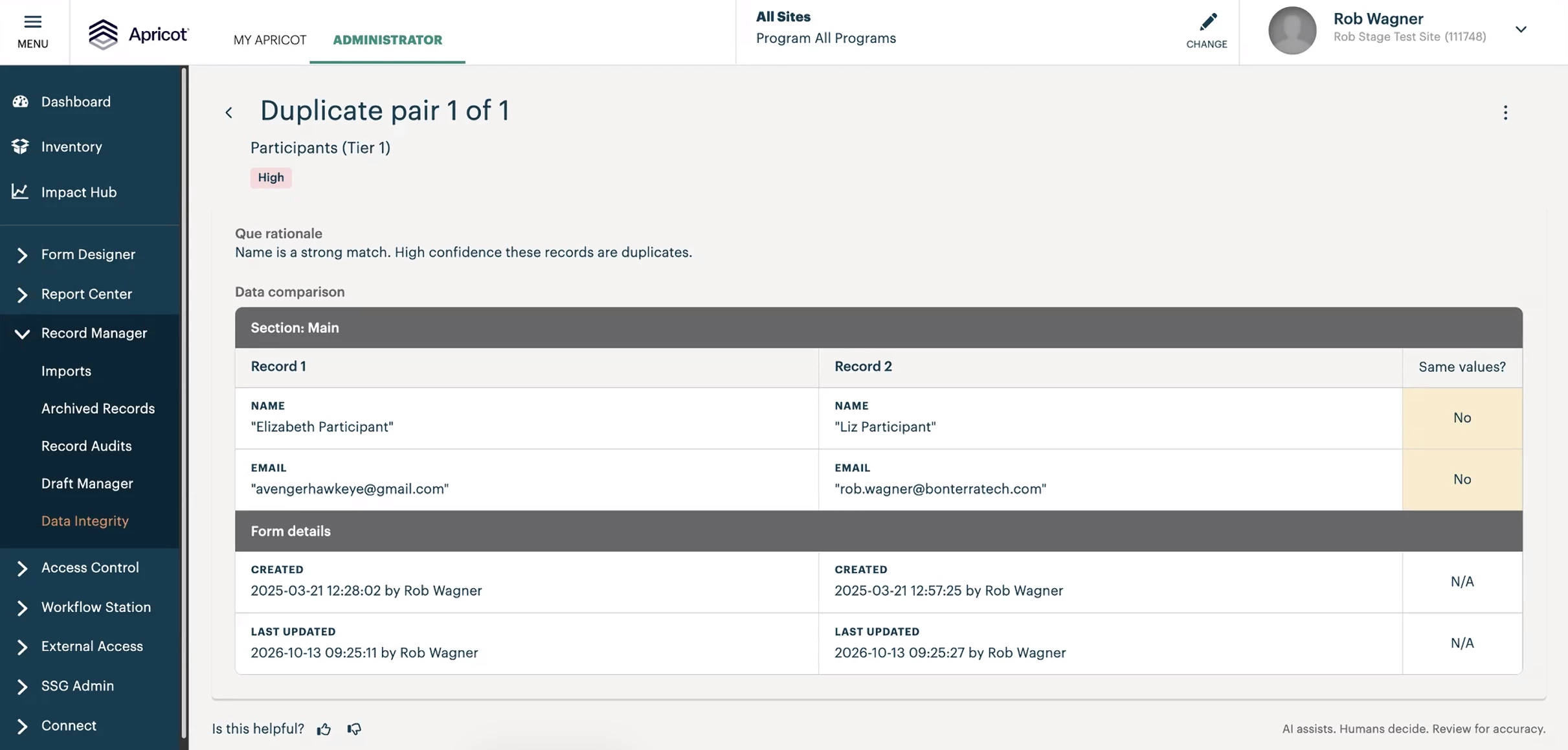
Read the Que rationale and check the Data comparison table. The Same values? column shows which fields match and which don’t.
Step 5: Choose an action
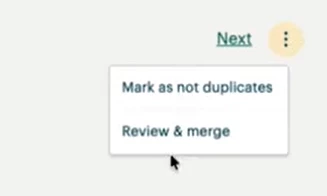
Click the ⋮ menu in the top right and choose one of two actions:
-
Review & merge: see How do I merge duplicate records in Apricot?
-
Mark as not duplicates: see How do I mark two records as not duplicates?
Good to know
Changes made outside Data Integrity, such as merges performed with the existing Merge Duplicates tool, aren’t reflected in results until after the next nightly scan completes.
What else do you need help with?
Not what you’re looking for? Navigate to back to the Data Integrity Index.
Related questions (for search): What do High, Medium, and Low confidence mean in Data Integrity? | What is the Que rationale? | How do I find duplicate records in Apricot?