

How do I download my import results?
(Apricot Administrators)
After an import finishes, Apricot lets you download the results as CSV files. You can download the rows that were imported, the rows that were skipped, and the rows that had errors. This article shows two ways to do it.
Before you start, check that:
-
The import was run with the new Imports tool. Legacy imports and SFTP imports do not have downloadable results.
-
The import status is Completed or Review. If the status is Check Status, the import is still processing and downloads are not ready yet.
-
You have form view access to the form used in the import. You need this access to open the import.
Option 1: Download from the import details view
-
In Apricot, select the Administrator tab.
-
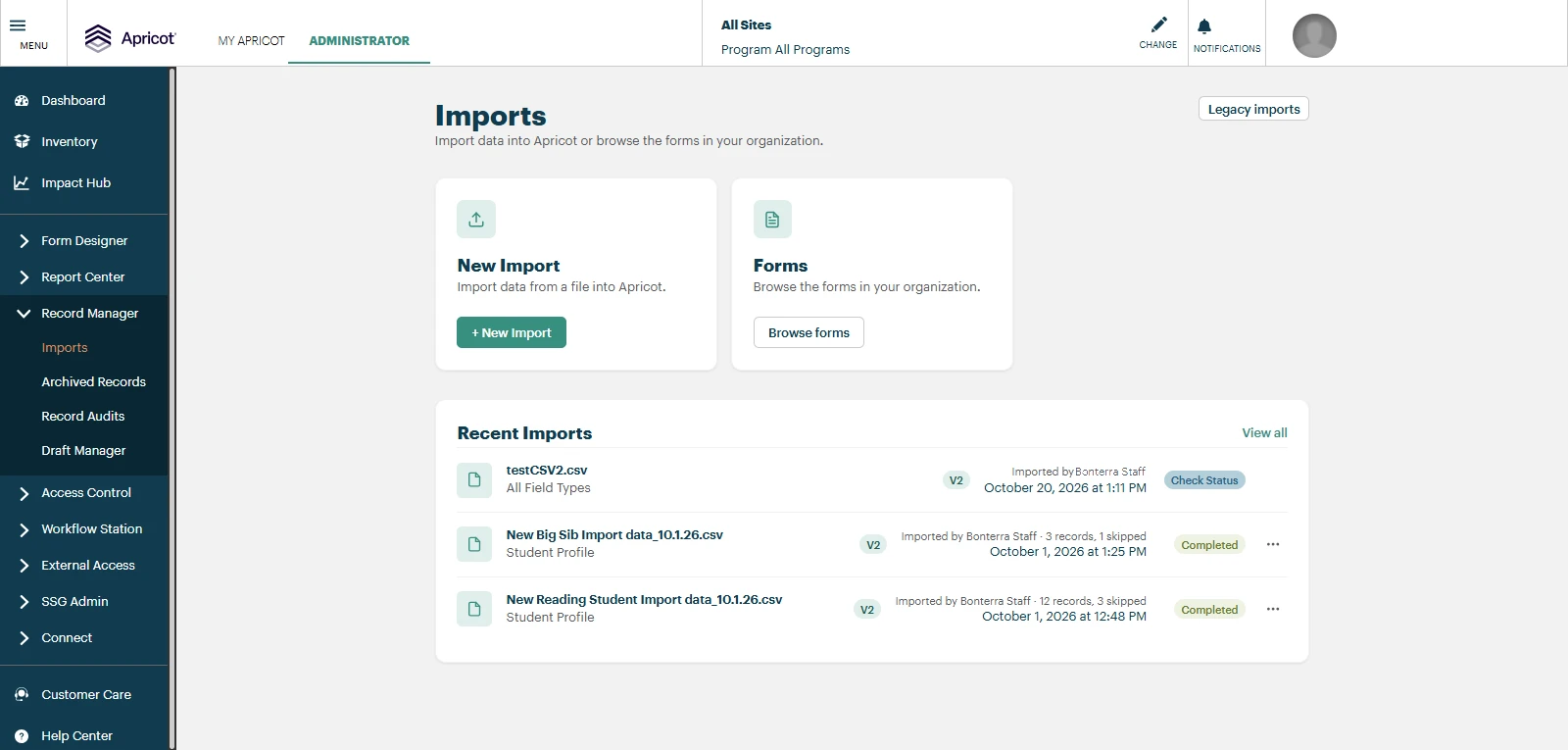
In the left navigation, expand Record Manager and select Imports.
-
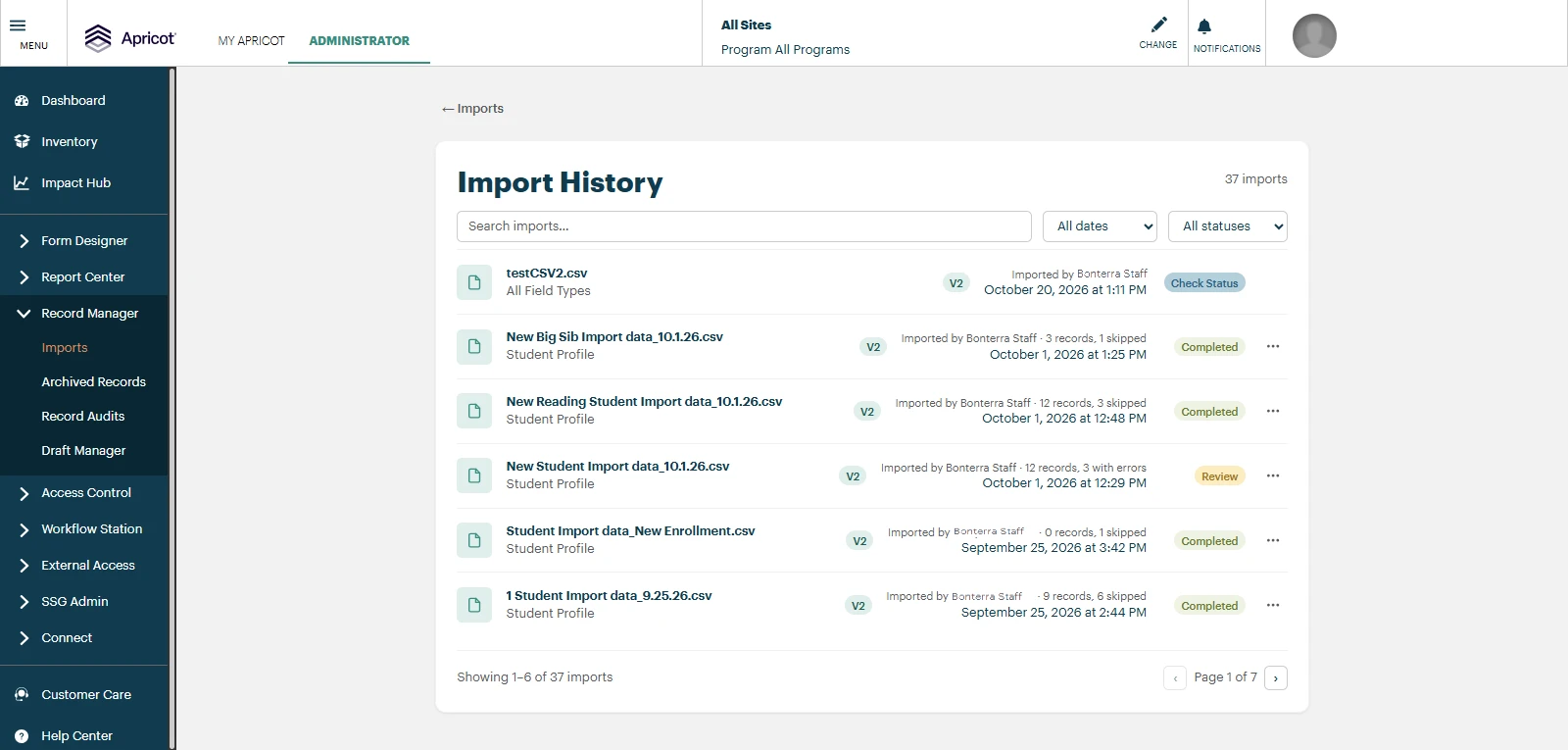
In the Recent Imports list, select the import. For an older import, select View all to open Import History, and then select the import.
-
In the Import results section, find the file you need and select Download CSV.
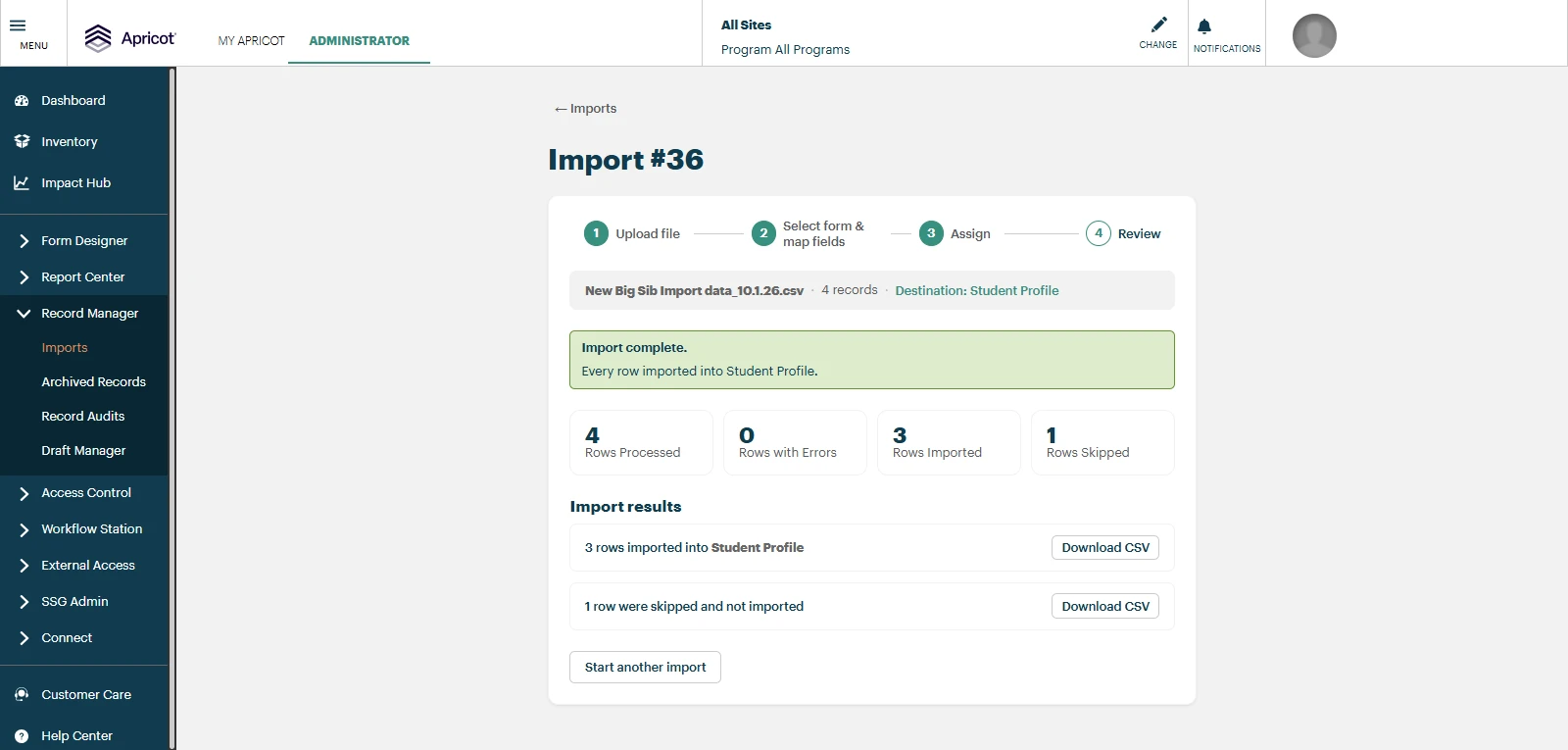
Tip: If you stay on the import screen until processing ends, the results show automatically. A green Import complete banner tells you the import is done.
Option 2: Download from the Imports list
Use this option to download without opening the import. It works for imports with a Completed or Review status.
-
On the Imports home page, find the import in Recent Imports. For an older import, select View all to open Import History.
-
Select ... next to the import.
-
Select the download you need:
-
Download imported rows
-
Download skipped rows
-
Download error rows
-
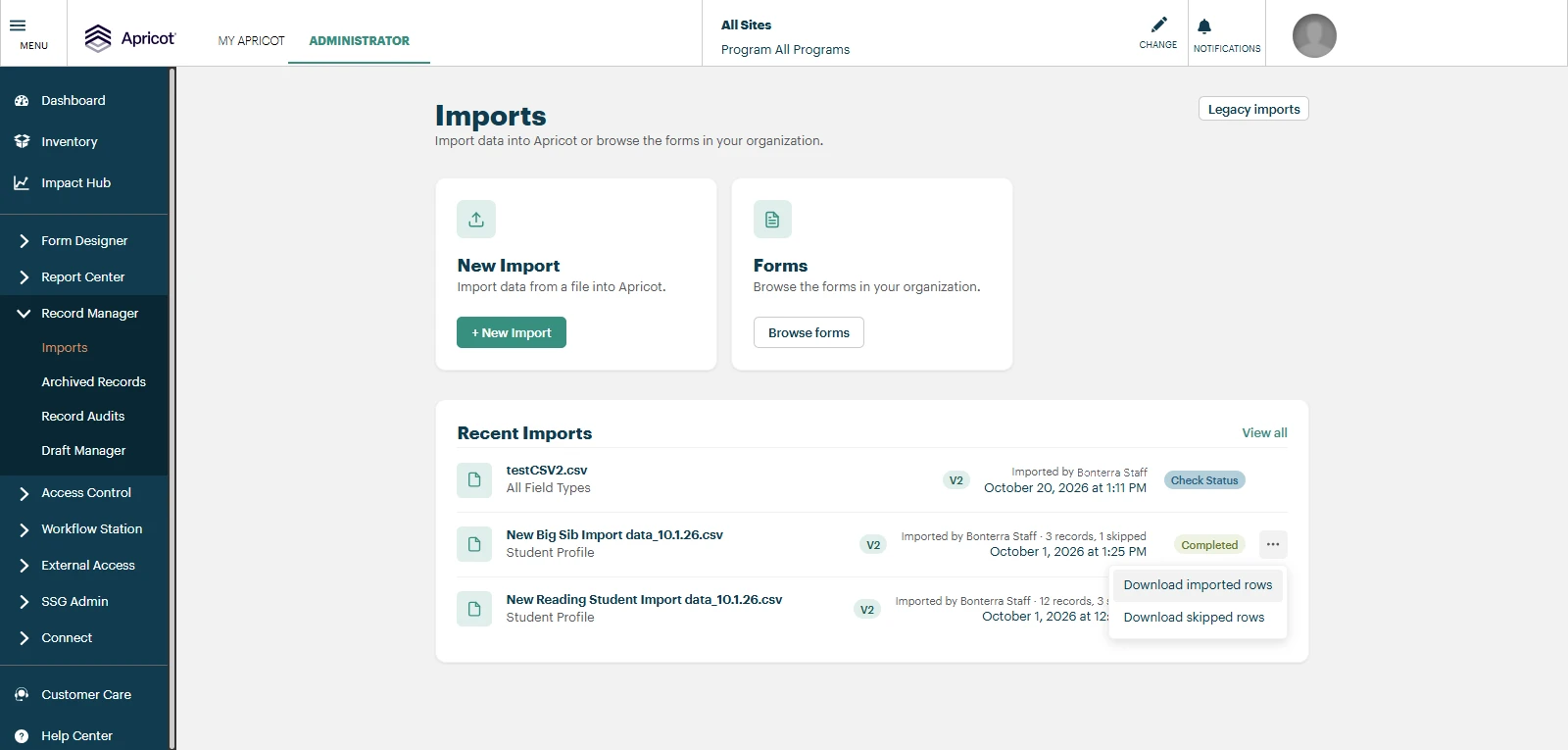
You only see the downloads that apply to the import. For example, if no rows were skipped, you do not see the skipped rows download.
What is in each file
| File | What it contains |
|---|---|
| Imported rows | One row for each record that was imported. It has all the columns from your CSV file, plus a Record ID column. The Record ID shows which Apricot record each row created. |
| Skipped rows | One row for each skipped row. This includes rows you chose to skip, and rows that were never processed because the import stopped early. It has a Reason column. |
| Error rows | One row for each row that had a validation error and was not corrected, saved as a draft, or skipped before you submitted the import. This file only shows if there are rows like this. |
If you do not see a download
-
Check that the import was run with the new Imports tool.
-
Check that the import has finished. The status must be Completed or Review.
-
Check that you have form view access to the form used in the import.
After you download, you can check your file:
-
The imported rows file has a Record ID column.
-
The number of rows in the file matches the number shown in the Import results section.
-
If the import stopped early, the rows that were not processed are in the skipped rows file with a Reason.
Related article: How do I review and correct import errors? (Step 4)
How do I download my import results in Apricot | How do I download skipped rows from an Apricot import | How do I download error rows from an Apricot import | Where is the Record ID for imported rows in Apricot | Why can't I download results for my Apricot import | Can I download results for a legacy Apricot import