

How do I merge document folders for duplicate Tier 1 records?
Accessing the Document Folder Merge Tool
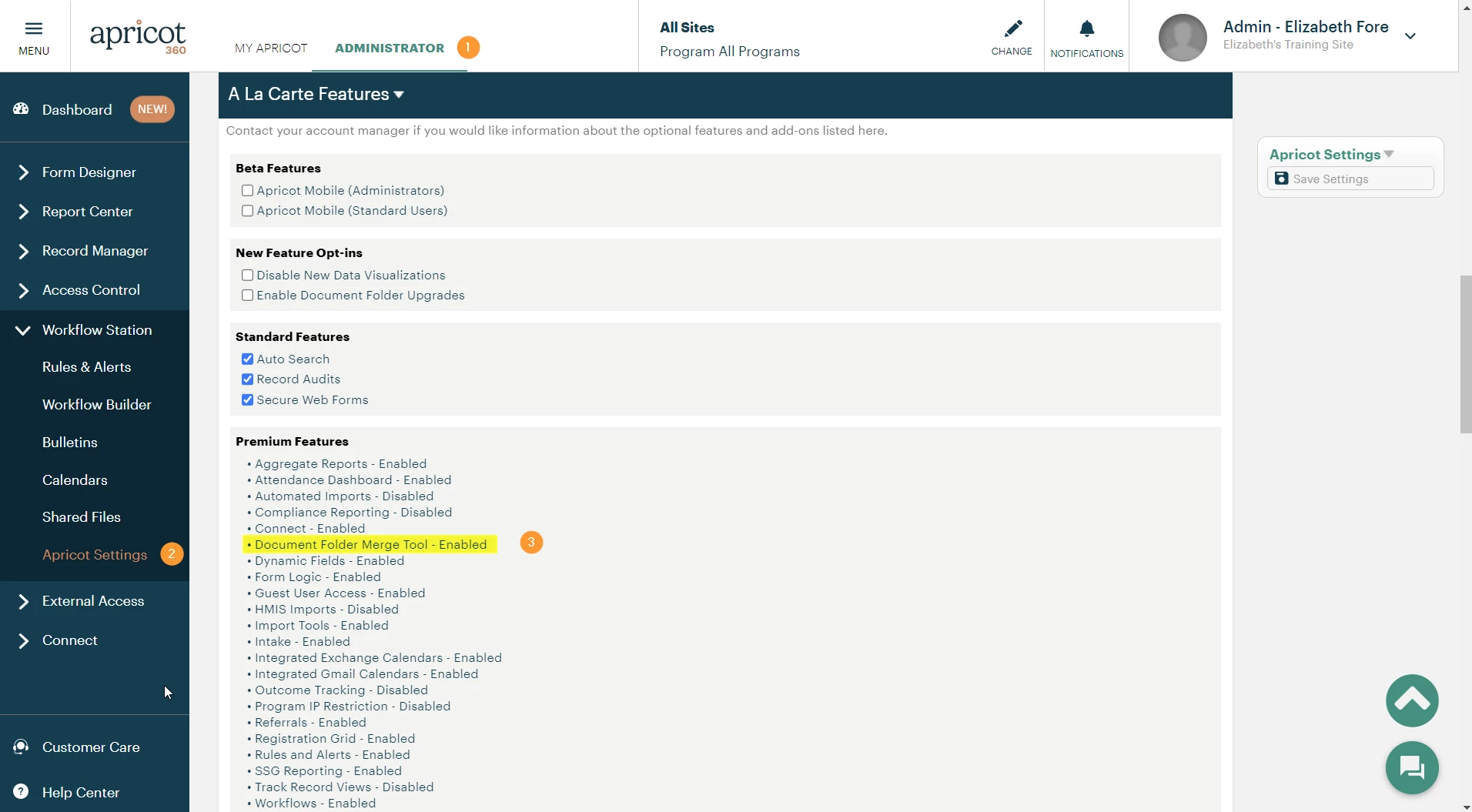
The Document Folder Merge Tool is an advanced feature in Apricot and must be turned on by the Customer Care team before it can be accessed. It does not require an additional fee, but organizations that want to use it must request that it be turned on by filling out a Customer Acknowledgement Intake Form. This secure web form must be submitted by an Administrator in order for the feature to be activated.
-
To find out if you have access to the "Document Folder Merge Tool," open the "Administrator" tab.
-
Select "Apricot Settings" under Workflow Station.
-
Under the section "A La Carte Features," check to see that "Document Folder Merge Tool" has been enabled.
Note: Only Administrators can use the Document Folder Merge tool once enabled.
Finding Duplicate Records
-
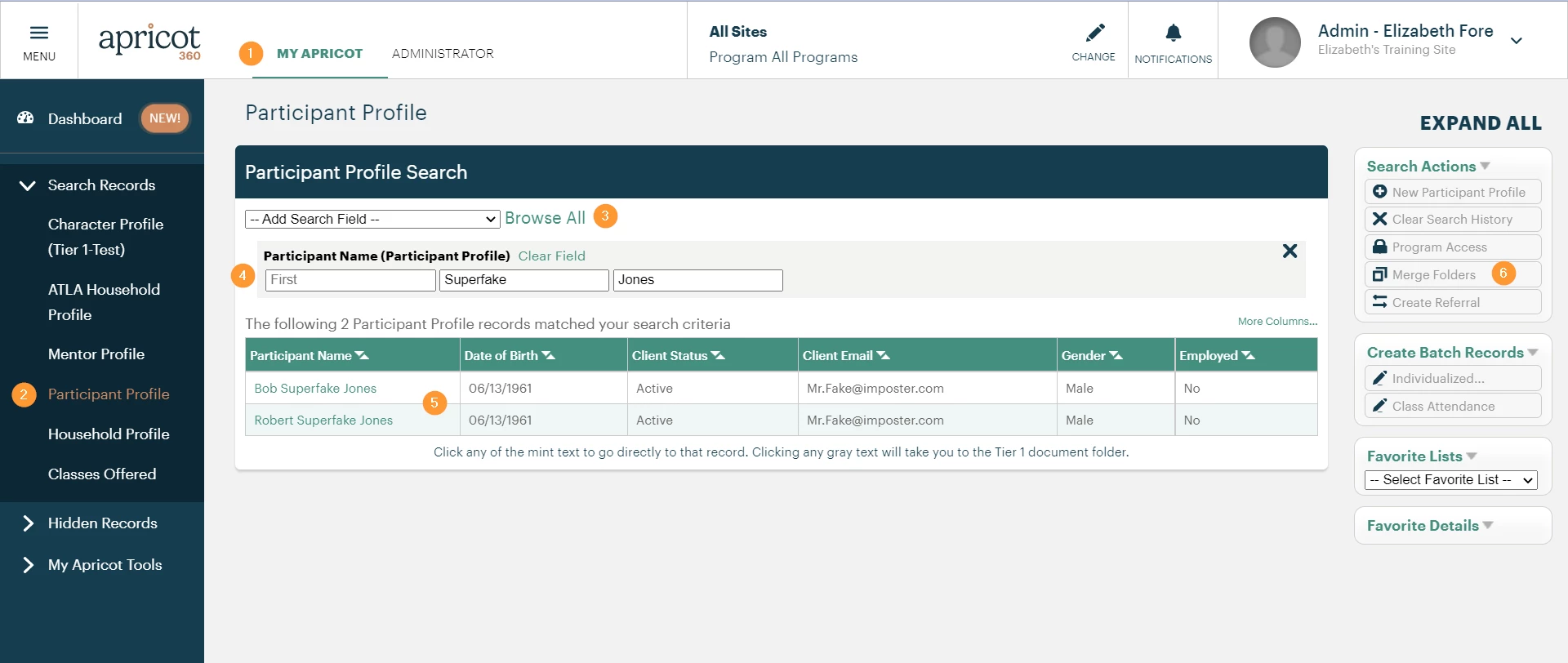
To find duplicate records to merge, click the "My Apricot" tab.
-
On the left-hand menu, select the appropriate form.
-
If necessary, expand the "Add Search Field" dropdown menu to add a search field.
-
Narrow down the records by adding search criteria.
-
In the example above, we can see that someone has entered Robert Superfake Jones twice - but they put the his full name in one record and then his nickname in the other record, so both records passed the duplicate checks and were saved separately. These records belong to the same person and need to be merged together.
-
Click the "Merge Folders" button on the right-hand side. Only Administrators will be able to see the "Merge Folders" button.
Combining Records
-
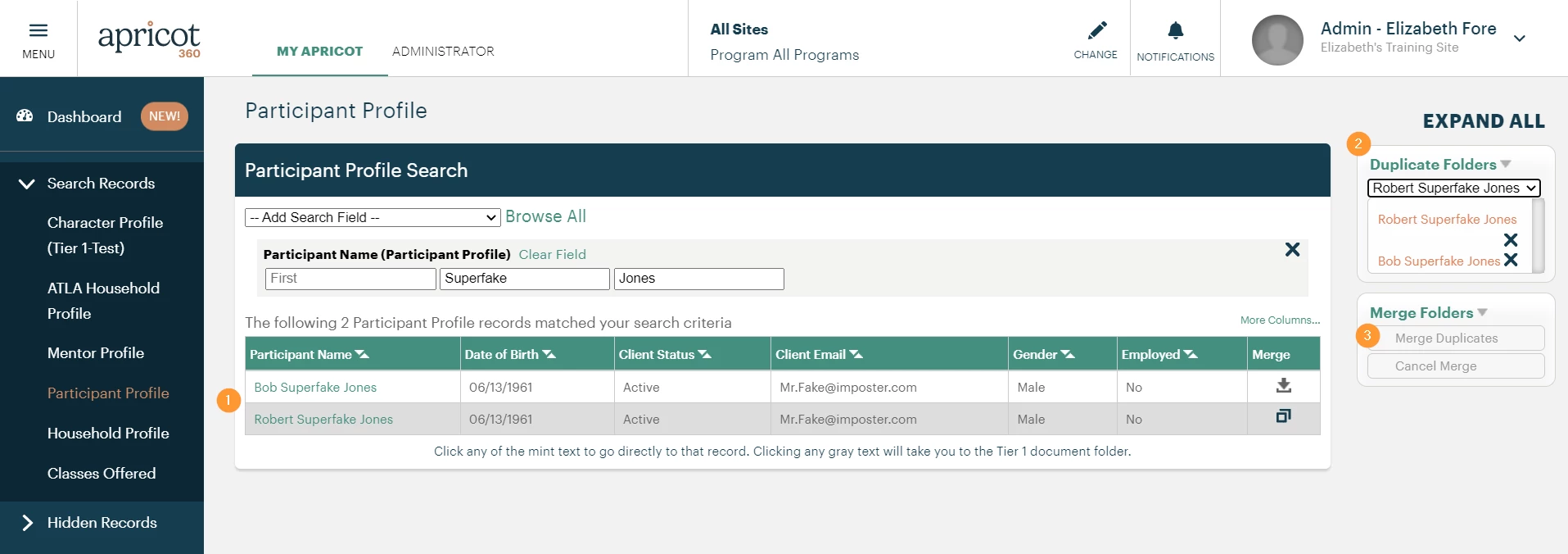
Click on the row of data you want to keep as the primary record.
-
Under Duplicate Folders, select that record within the Primary Folder dropdown menu. Then, click on all other rows of data you would like to merge into the selected primary record.
Note: To differentiate between the primary record being kept and the duplicate records being merged, the Merge column in the search results will display two different icons like the screenshot above. The primary record will have the multi-page icon (two squares overlapping each other), and all duplicate records being pulled into it will have the download icon (down arrow into a box).
- Select Merge Duplicates
Important: The Tier 1 record selected as the Primary Document is the only Tier 1 record that will be saved. All the other Tier 1 records that have been selected to be merged will be deleted and will not be available to be restored. This means that only data on the Primary Document Tier 1 will remain, including any links and related Attendance Tracker data.
If any records are linked to the secondary Tier 1s, they will not be added to the Primary Tier 1 once the folders are merged. Before you merge your documents, it is recommended that you add or import all links onto the primary document Tier 1. For more information on importing links, please see the Import Links article.
Proceed with caution. You will still be able to view information from each Tier 1 record in the Record History.
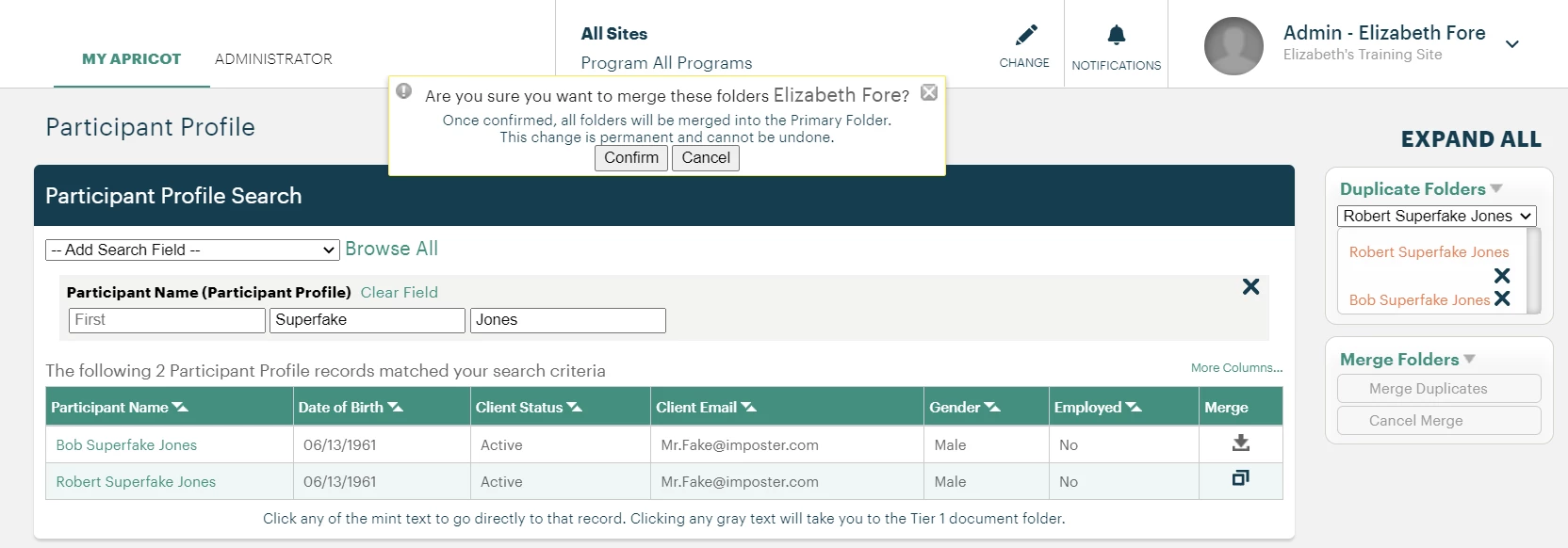
Once you have selected "Merge Duplicates," you will be asked to confirm your selection. Continuing will merge all chosen records into the primary document. This cannot be undone.
-
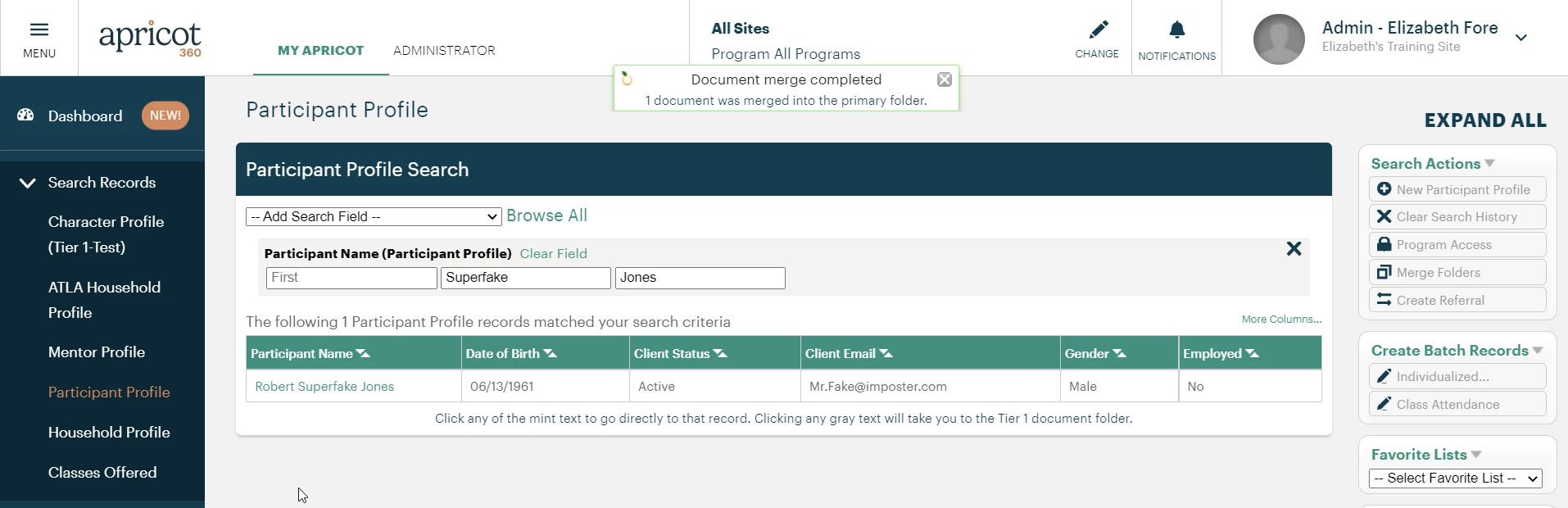
When you have confirmed your merge, you will get a message that the merge was completed with details of how many records were merged into the primary folder. Now when you search for your duplicate clients, they will no longer show up. Only the primary document will appear in search.
-
When you open the document folder for the primary document you merged the other records into, you will see all the Tier 2 records that been combined in one place.
-
There will be nothing to indicate which of these Tier 2 records were originally part of this folder or which ones were merged from another document folder.
Document Folder Merge Cannot Be Reversed or Undone
-
Please use caution when using the Document Folder Merge tool. This tool will remove records from your Apricot database. Data that is stored in a Tier 1 record that is *not* selected as the primary Tier 1 record will be removed and deleted from your database. These records will not be archived nor will they be available to be restored by either an Apricot Administrator or by the Social Solutions Customer Care team - they will be deleted. After Tier 2 records have been combined in a single document folder, there will not be an easy way to identify which records originally came from a different document folder.
Before using the Document Folder Merge Tool, you can mitigate mistakes by:
-
Printing out the Tier 1 records you plan to delete before you use the Record Merge Tool and keeping them for reference. Tip: If you don't want to print with paper you can save it to your computer as a PDF file with Chrome. To do so, while viewing the record right click anywhere on the record, choose Print, in the "Destination" click "Change...", then choose "Save as PDF"
-
Printing out the list of Tier 2 records in the Document Folder for the Tier 1 records you plan to delete before you use the Record Merge Tool and keeping them for reference.
After using the Document Folder Merge Tool, you can mitigate mistakes by:
-
Using the Record (Audit) History feature to view Tier 1 records that have been deleted. They will not be available to be restored like a record that has been archived, but you will be able to view what had been recorded. For more information on using Record History to view deleted records, please see the Help Center section on Record Audit.
How do I merge document folders for duplicate Tier 1 records in Apricot? | Where do I find the merge folders option in Apricot? | Why can’t I merge document folders for duplicates? | How do I choose which folder to keep when merging? | What happens to files during a document folder merge? | How do I undo a merge if needed? | What permissions do I need to merge document folders?