

How do I build a 'Direct Mail' communication?
The 'Create a Direct Mail' onboarder guides you through six major steps to build your 'Direct Mail' communications.
Read on for more detailed information about each of those steps!
Step 1: Name your mailing
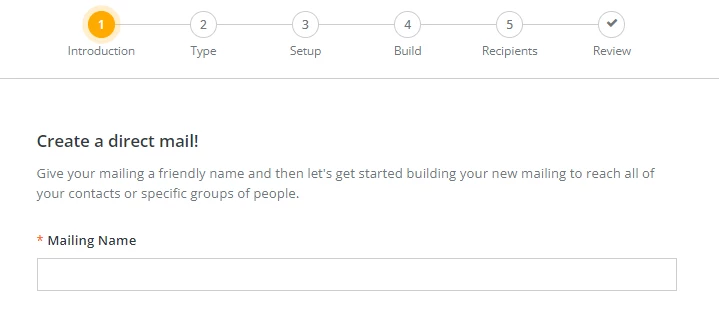
In the first step, you will be asked to name your mailing. We recommend you choose a name that indicates the subject of your mailing so you can easily identify it later on.
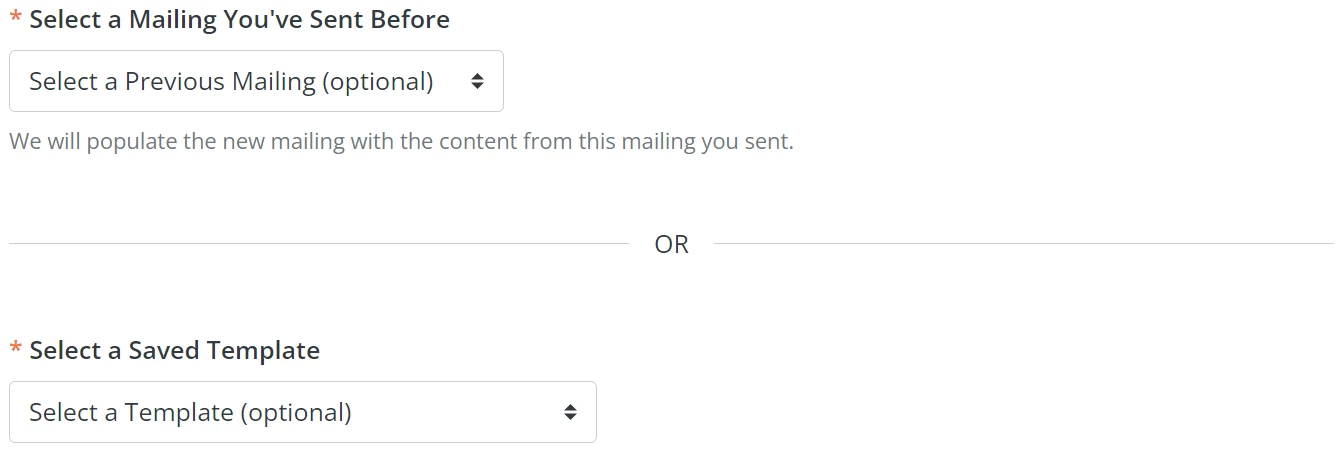
You may also use a saved template or duplicate an existing direct mailing by selecting the option below the 'Mailing Name' field.

Corresponding options will appear towards the bottom of the page.
Click the 'Next' button in the upper right corner of your screen.
Step 2: Choose how to start your mailing
If you create your direct mailing from scratch, the onboard will present two options. If you select 'Build Your Own', you can utilize our web editing tools to build and customize your mailing. If you choose the 'Upload' option, you can upload a Microsoft Word document you have already created to help expedite the process.
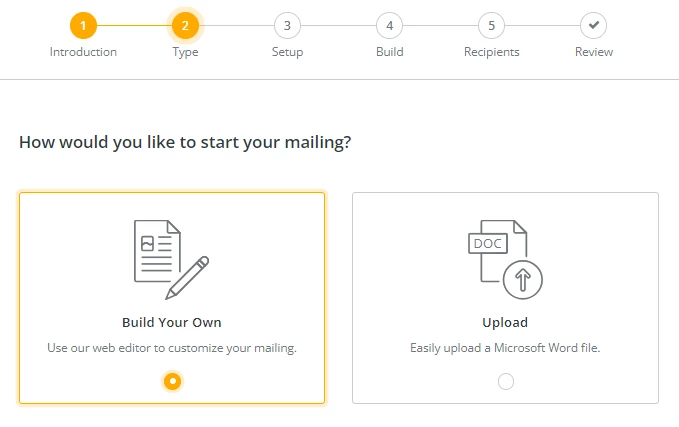
If you import a Word document for your mailing, you will automatically skip from the 'Type (2)' step of the onboarder to the 'Recipients (5)' step.
The process for this step is very similar - but, once you click the 'Next' button, you can select your desired document by clicking the 'Browse' button and selecting the correct file from your device.
Note: Your file must be in a Word-compatible format, such as .docx. If you are experiencing issues uploading the document, you may need to convert the file type to .docx.
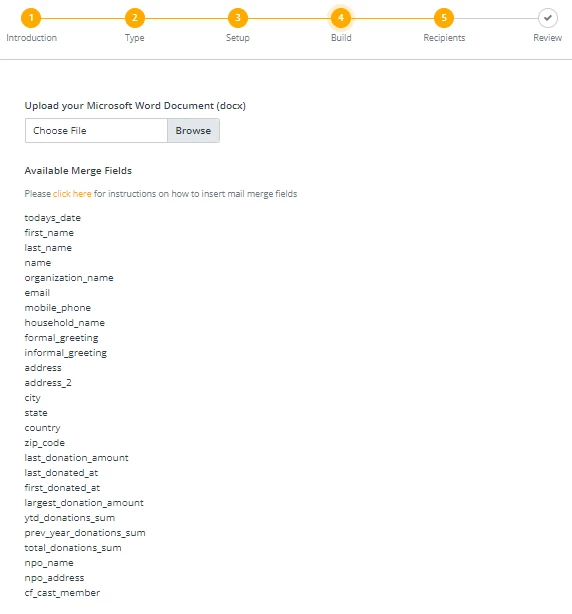
In this step, you will also find a list of available 'Merge Fields' you can include in your Word document to ensure each letter is personalized to its recipient.
Click the 'Next' button in the upper right corner of your screen once you make your selection.
Step 3: Setup your mailing
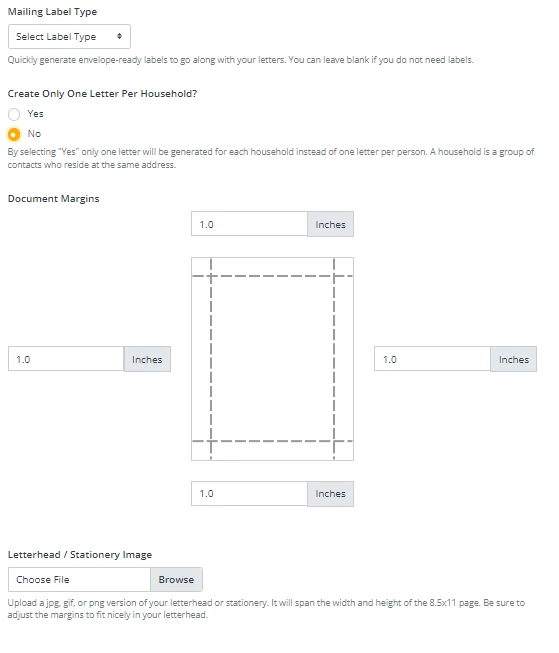
While working through this step, you can select mailing labels, indicate if you want your mailing to include only one letter per household, adjust your document's margins, and upload a letterhead or stationery image.
Click the 'Next' button in the upper right corner of your screen once you have made your changes.
Step 4: Draft your message
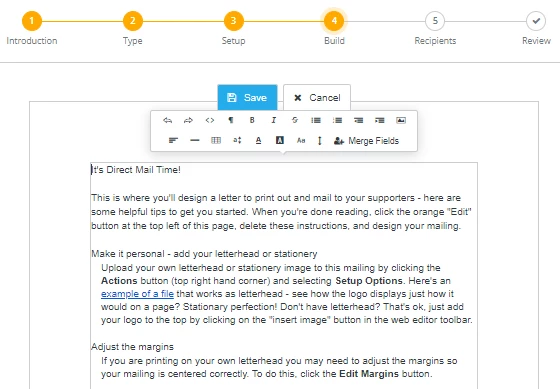
Here, you can compose your message and adjust its formatting as needed. You can add merge fields to personalize your letter and even add an image if you like!
Click the 'Next' button in the upper right corner of your screen once you are satisfied with how your message appears.
Step 5: Choose your recipients
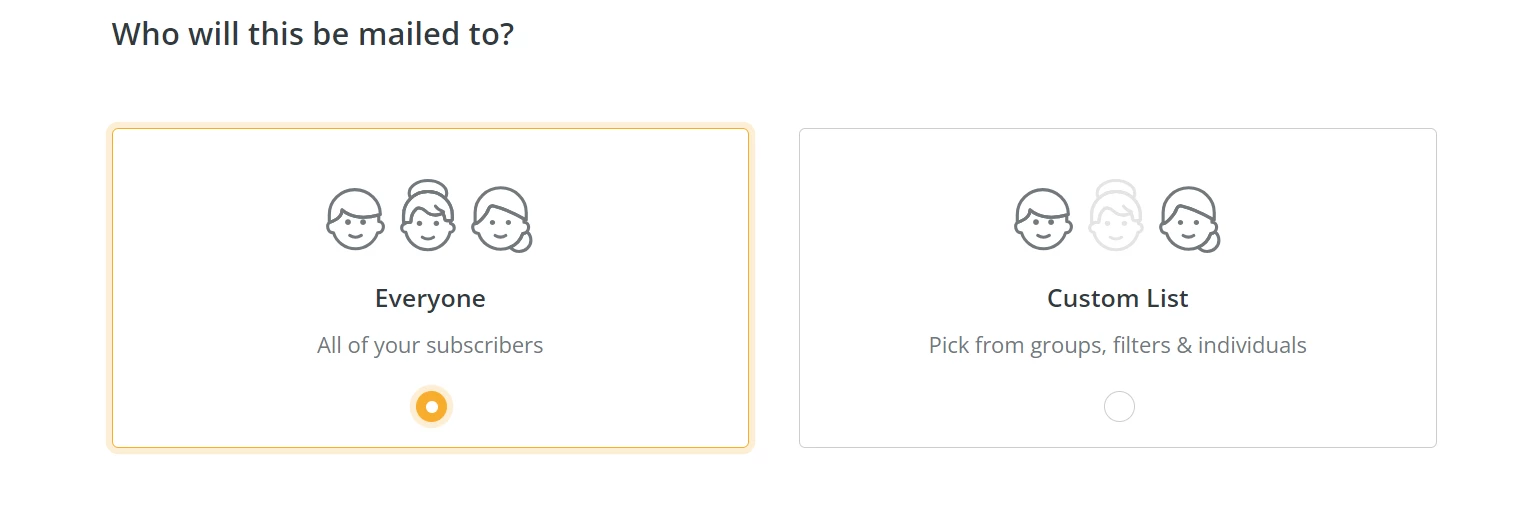
If this is a general mailing to anyone listed as a contact in 'Donor Management', select 'Everyone'. 'Custom List' allows you to select folks from your groups and filters, or search for specific individuals by name or e-mail for a more focused approach.
When you are finished building your recipient list, click 'Next'.
Step 6: Review your mailing
Finally, review your mailing before generating your labels (if you selected them in Step 3) and letters. You can view your drafted communication on the left side of the page or click the 'Download Preview' button to ensure everything appears correctly and edit if need be!
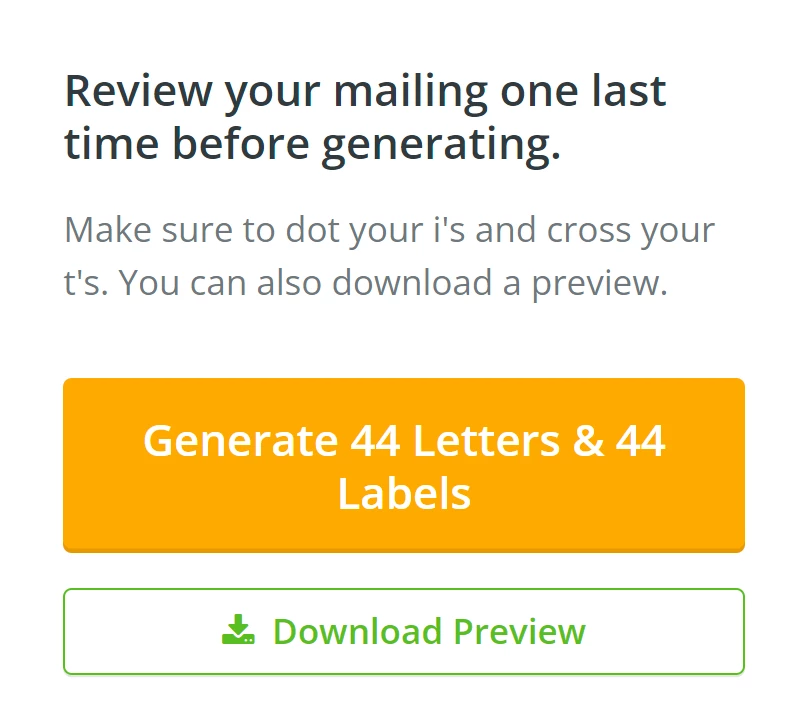
If you are satisfied with how your mailing appears, click the 'Generate [VALUE] & [VALUE] Labels' button!
Note: If you are not using mailing labels, the button will read, 'Generate [VALUE] Letters'.
Step 7: Download and print out your mailing!
Your mailing will now reflect as 'Processing' on the 'Direct Mail' page.
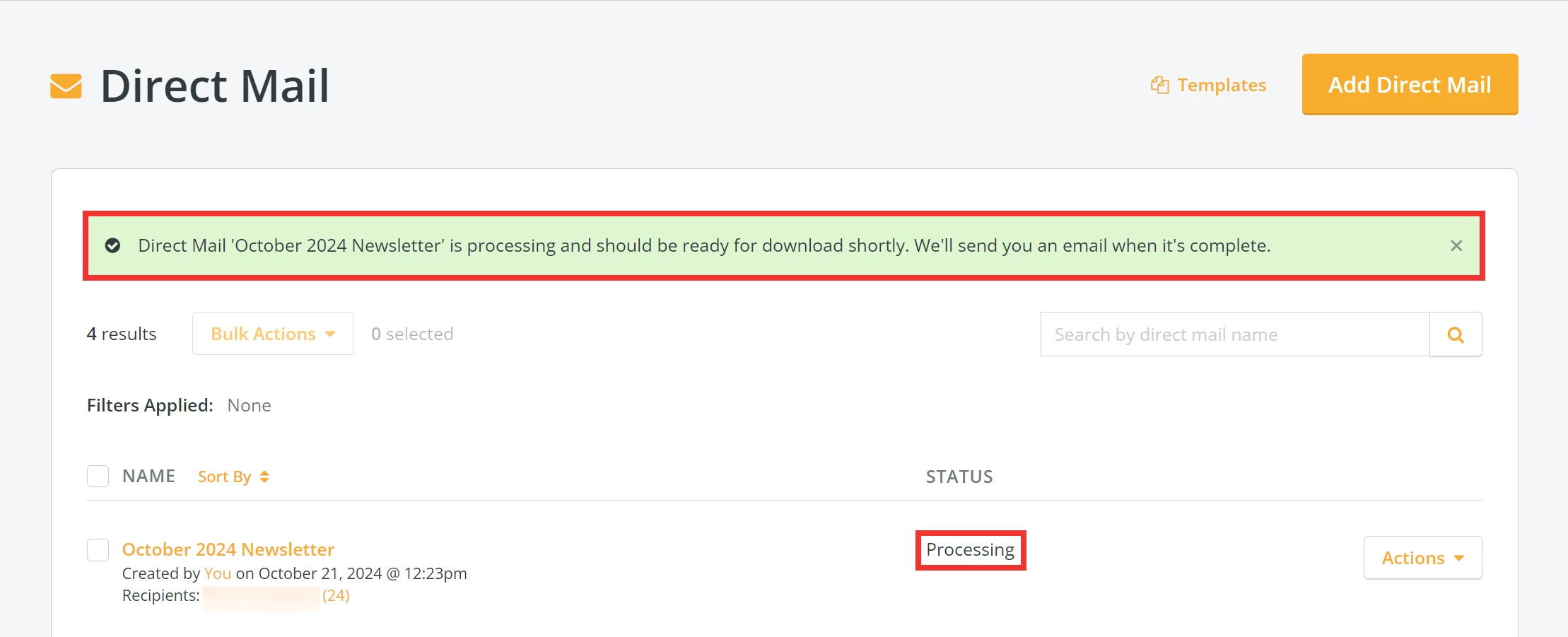
An e-mail notification will automatically be sent to you once your mailing is ready to download.
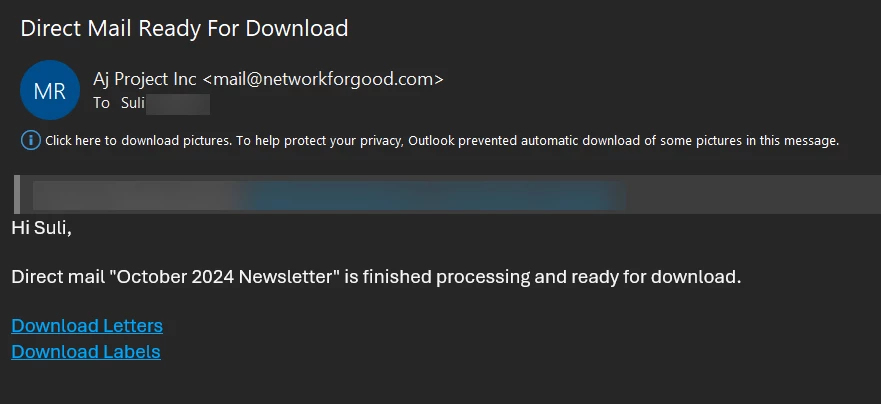
When you log back into 'Donor Management', you can download a .pdf file of your mailing from the 'Direct Mail' page that you can print and send out!
