

How do I send 'Direct Mail' to a specific individual?
One of the strongest communication tools within 'Donor Management' that can help you reach your audience is 'Direct Mail'. These communications allow you to send physical letters to your donors and community.
Direct mailings can be used for various reasons, such as sending physical newsletters or appeals to less tech-savvy contacts or sending year-end tax-related documents for a donor's records.
Similarly to their 'Email Blast' counterpart, 'Direct Mail' can be customized to include images or other organization-specific features (such as a letterhead.)
Step 1: Navigate to the supporter's contact record
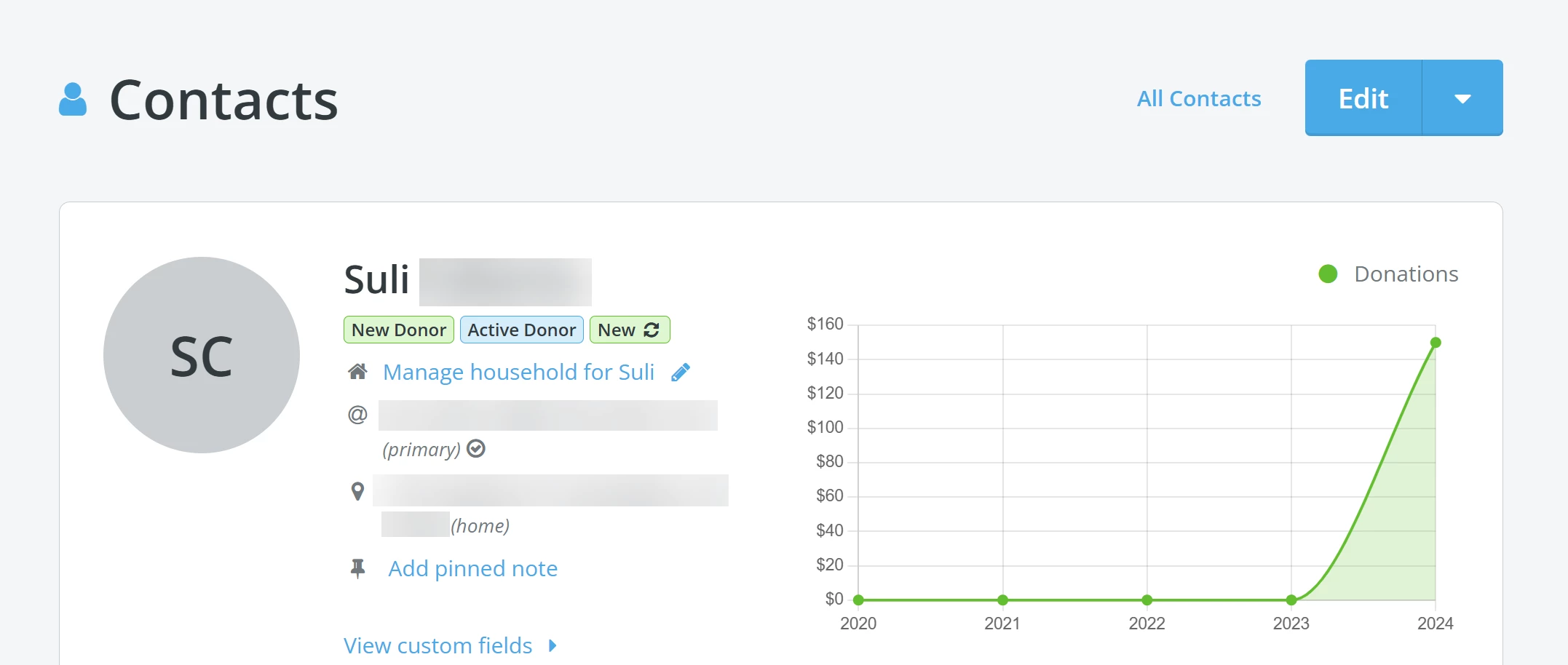
From your 'Donor Management' Dashboard, click 'Contacts' in the left navigation menu. While on the main landing page, search for your supporter by name, e-mail, phone, address, or city.

Once you click on the contact record for that supporter, you will be taken to an "overview" page for them.
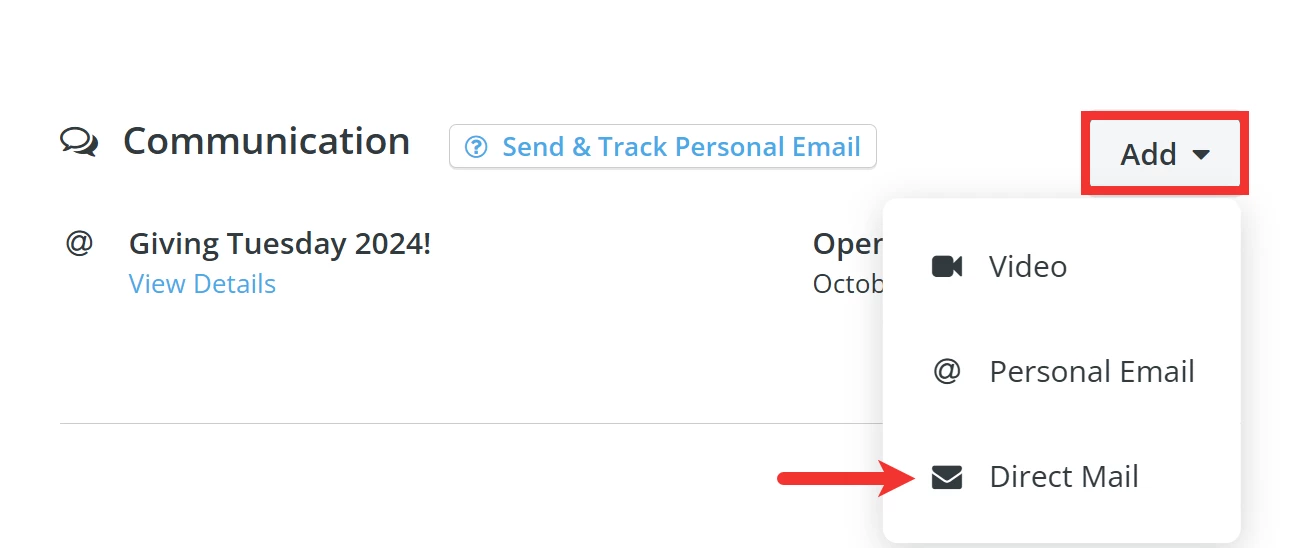
Scroll down to the 'Communication' section, and click the 'Add' button to expand a drop-down list. From there, select the 'Direct Mail' option.
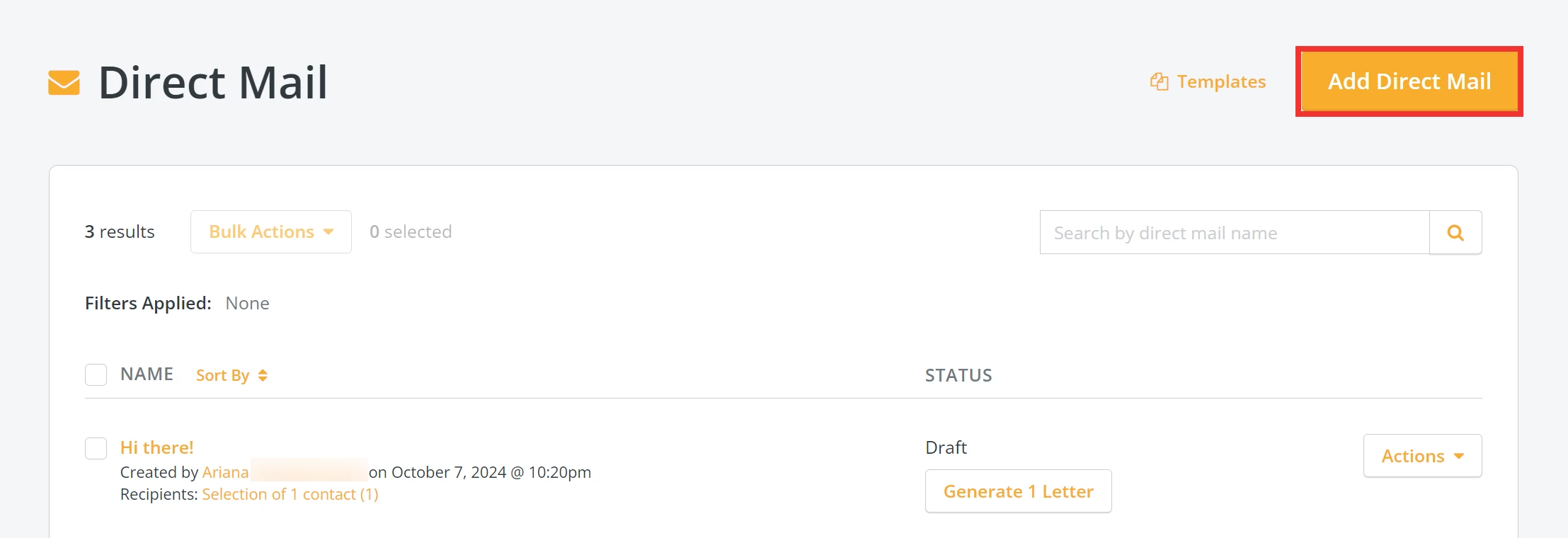
You will be directed to the 'Direct Mail' page - click the 'Add Direct Mail' button in the upper right corner of your screen.
Step 2: Build your 'Direct Mail' communication
Follow the instructions to move through the 'Create a Direct Mail' onboarder.

Step 3: Review your mailing
Finally, review your mailing before generating your label (if you selected a 'Label Type' in Step 3) and letter. You can view your drafted communication on the left side of the page or click the 'Download Preview' button to ensure everything appears correctly and edit if need be!
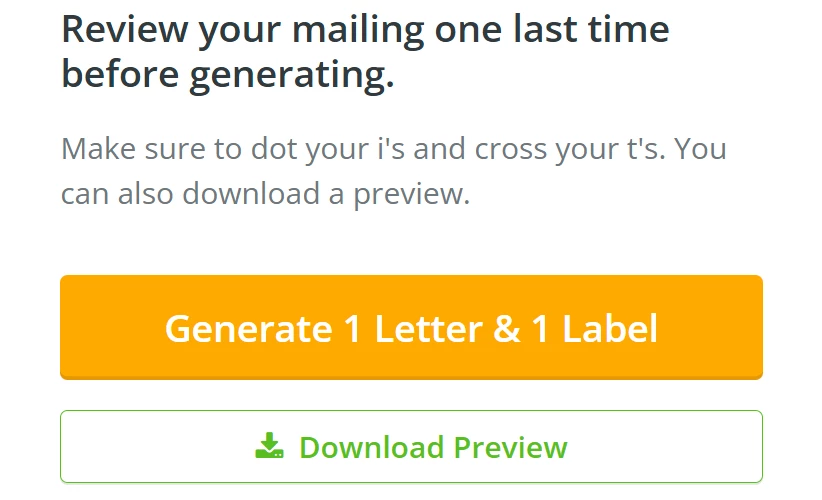
If you are satisfied with your mailing, click the 'Generate 1 & 1 Label' button!
Note: If you are not using mailing labels, the button will read, 'Generate 1 Letter'.
Step 4: Download and print out your mailing!
Your mailing will now reflect as 'Processing' on the 'Direct Mail' page.
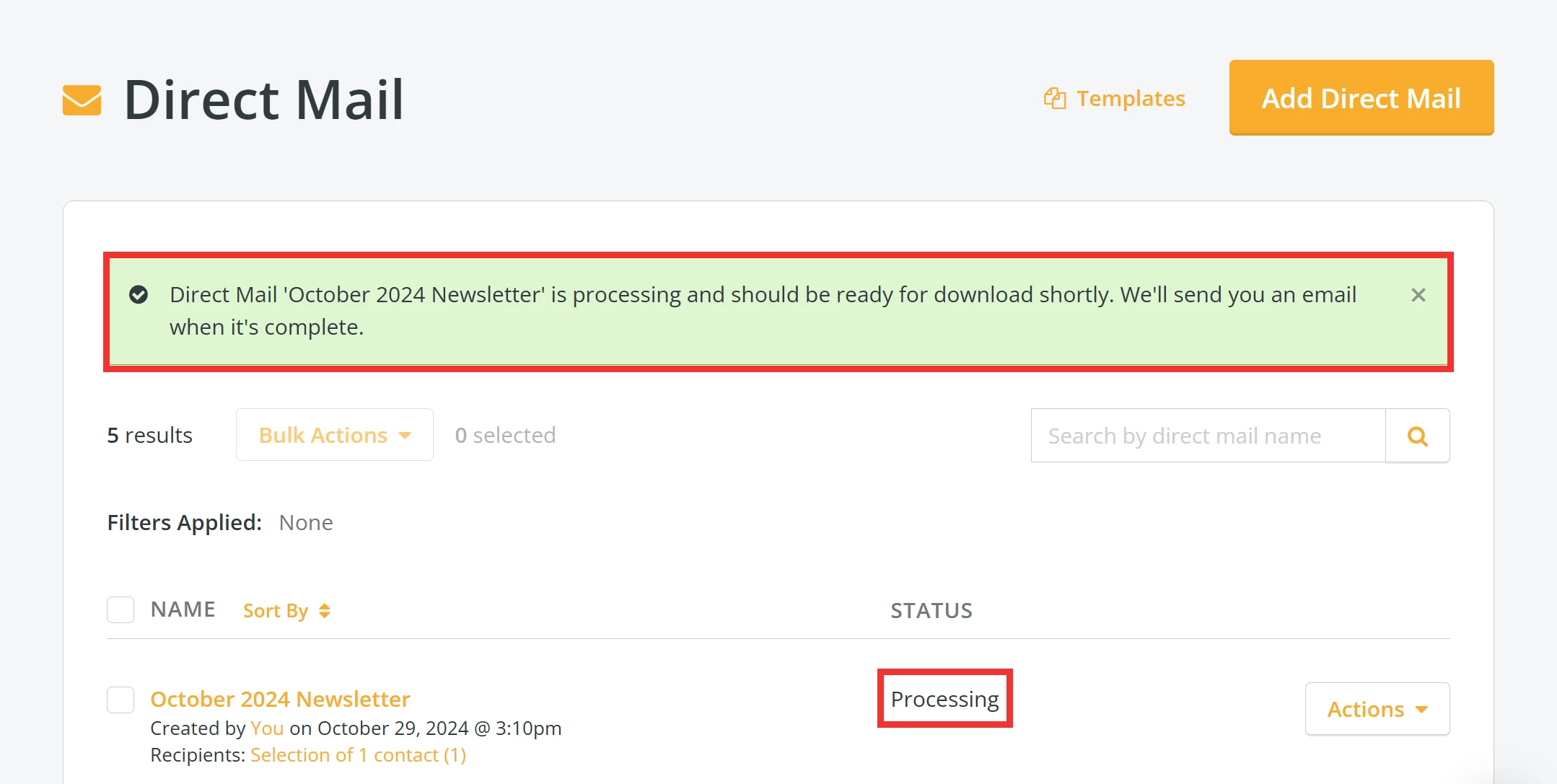
An e-mail notification will automatically be sent to you once your mailing is ready to download.
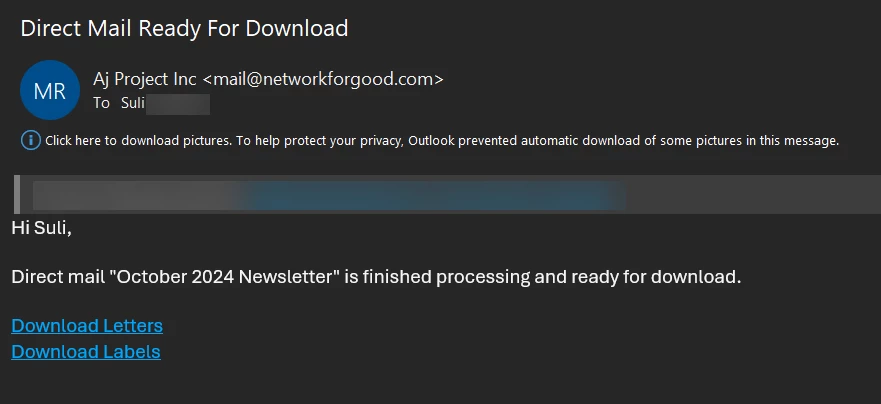
When you log back into 'Donor Management', you can download a .pdf file of your mailing from the 'Direct Mail' page that you can print and send out!

How do I add or edit individual memberships? | How does add or edit individual memberships work in EveryAction? | Why can't I add or edit individual memberships? | Where do I add or edit individual memberships in EveryAction? | What is add or edit individual memberships in EveryAction? | How to add or edit individual memberships? | Can I add or edit individual memberships in EveryAction?