How do I guide my donors through using Double the Donation?
Now that you have set up the Double the Donation configuration, you can share this support article with donors who would like to use their company's Corporate Match program. Donors will find this option in the final step of the form when completing their donation!
Step 1: Navigate to your organization's fundraising page
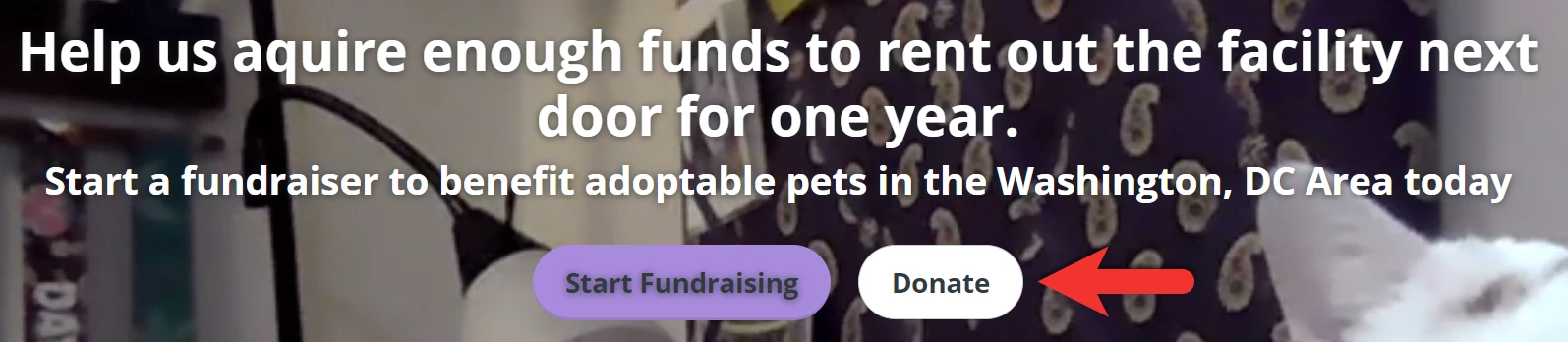
From the main landing page, click 'Donate'.
Step 2: Select your Donation Amount
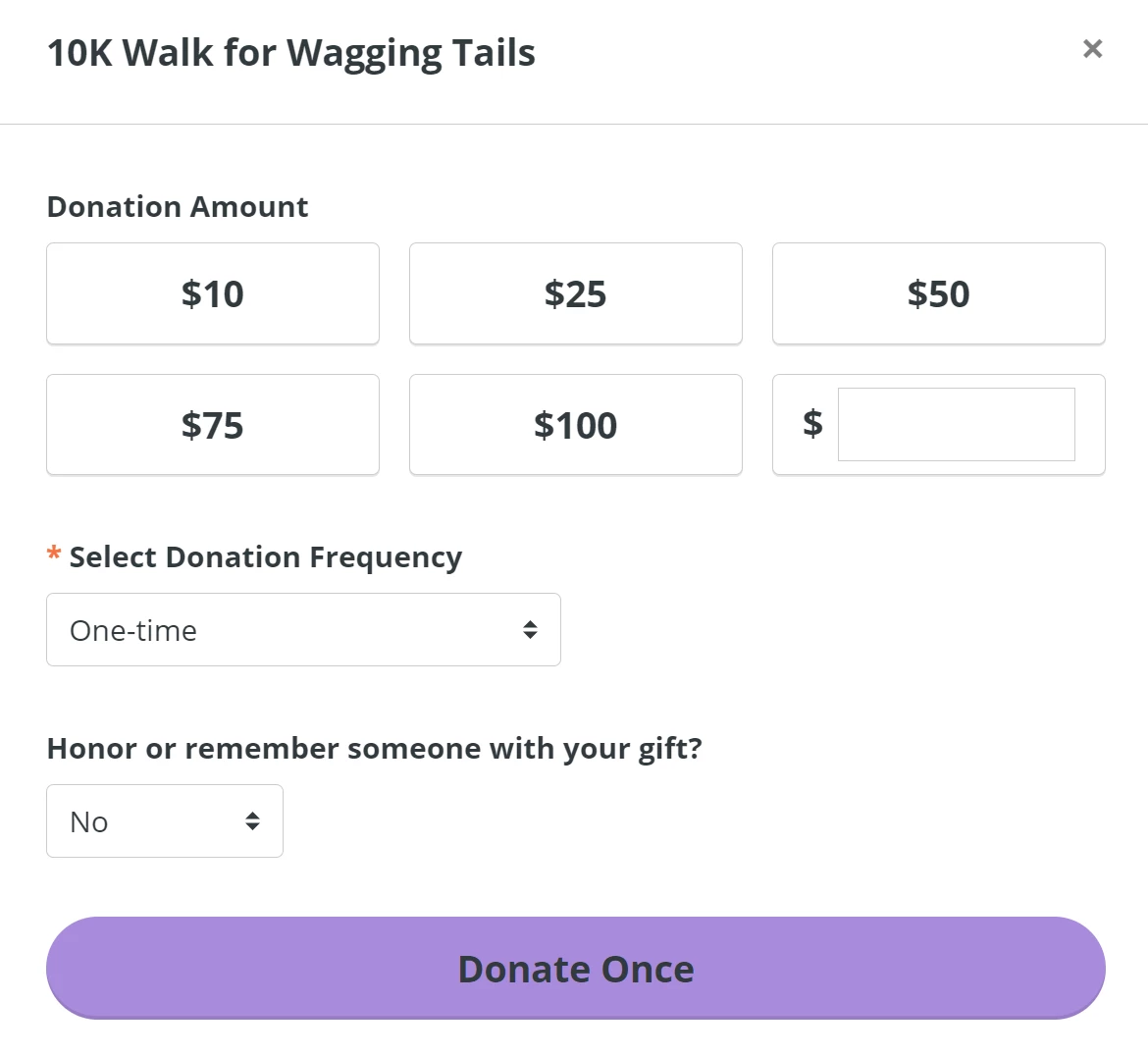
You may choose from the listed Donation Levels or enter a custom amount. Before continuing, select a Donation Frequency to make a one-time gift or schedule a recurring gift. When you are ready to continue through the donation process, click the 'Donate' button at the bottom of the page.
Note: The text on the 'Donate' button will update according to the Donation Frequency you chose.
Step 3: Enter your information
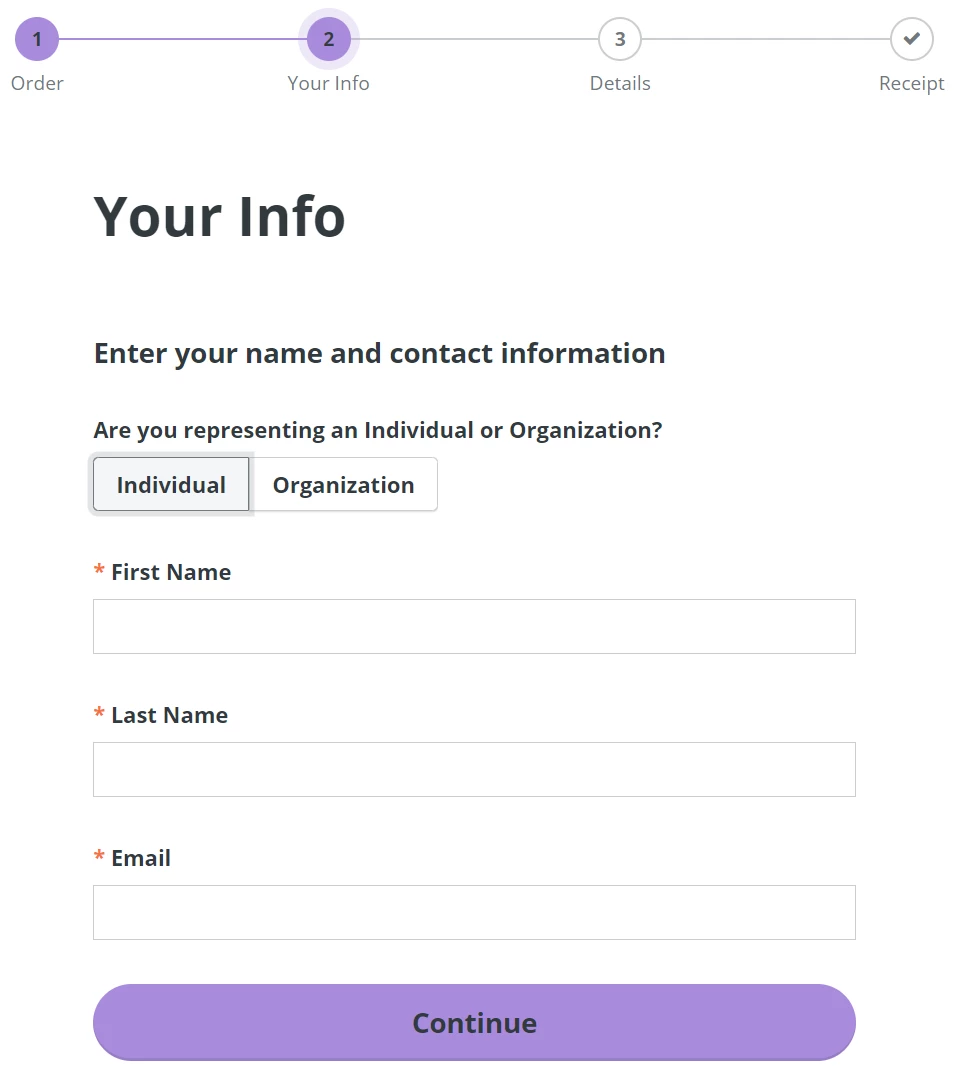
If you are making a gift on behalf of yourself or another individual, enter your/their name and e-mail address.
If you are making a gift on behalf of an organization, enter the organization's name and e-mail address.
Once you have entered all of the required information, click 'Continue'.
Step 4: Search for your company
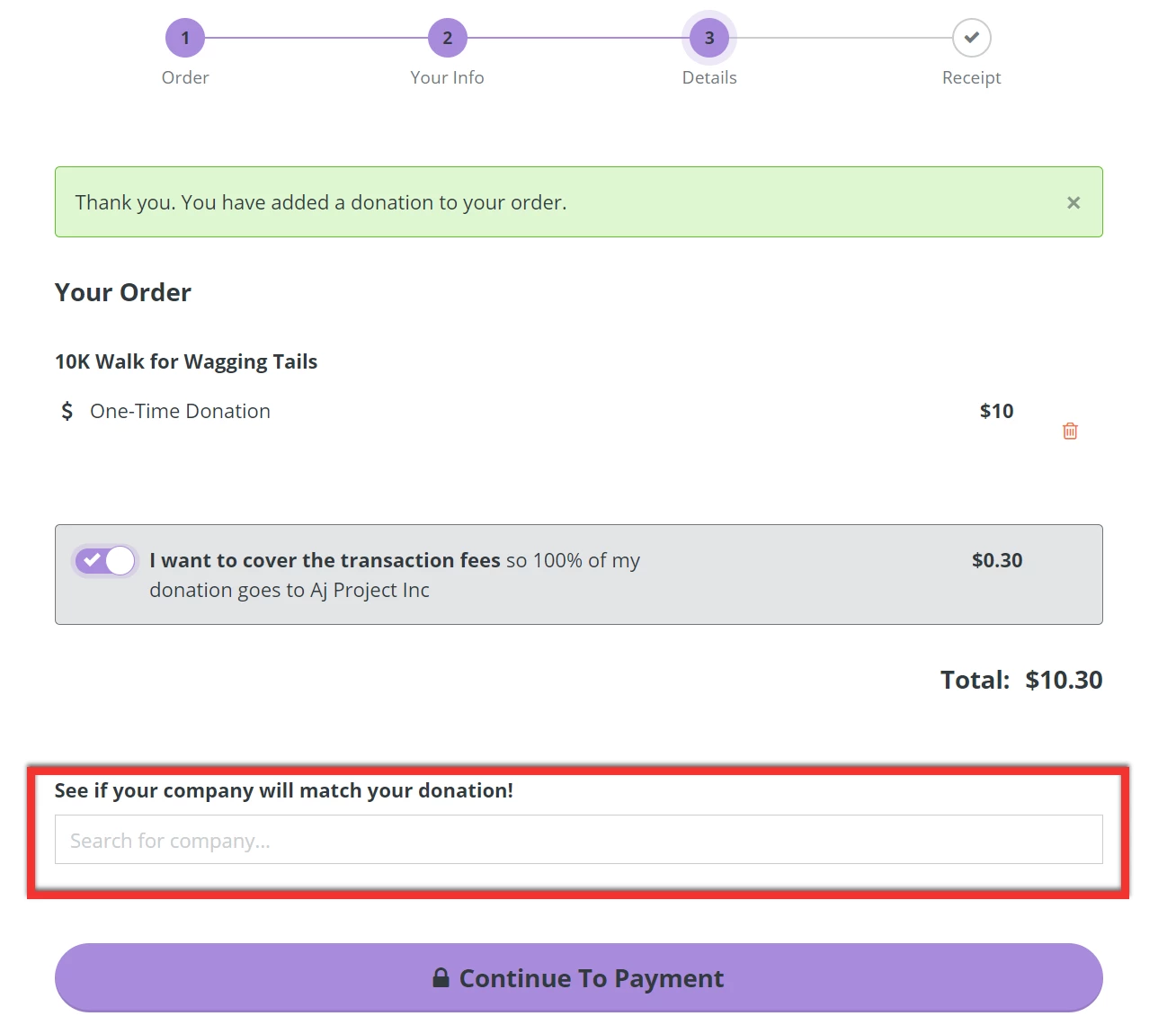
On the 'Details' page, you can review and remove gifts and indicate whether or not you would like to cover the transaction fees. Your reflected Total will be updated based on your choice.
You can use the Search bar to search for and select your company before clicking 'Continue To Payment'.
Step 5: Review your details and select your Payment
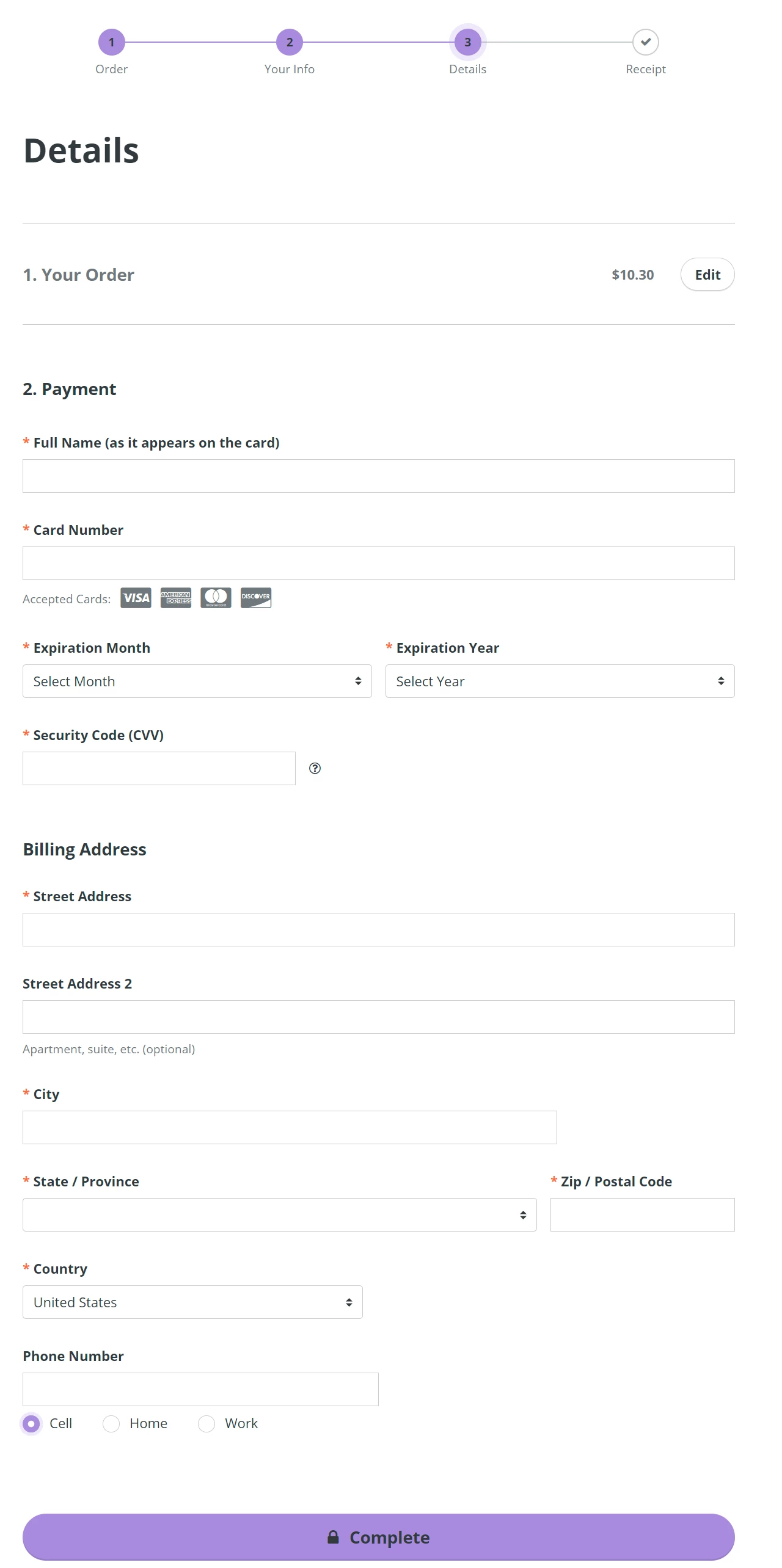
In this section, you will have another chance to edit details about your donation(s). Select your preferred payment method and enter your details and billing address before clicking 'Complete'.
Step 6: Complete your company's Matching Gift Form
After clicking 'Complete', you will be directed to the 'Receipt' page.
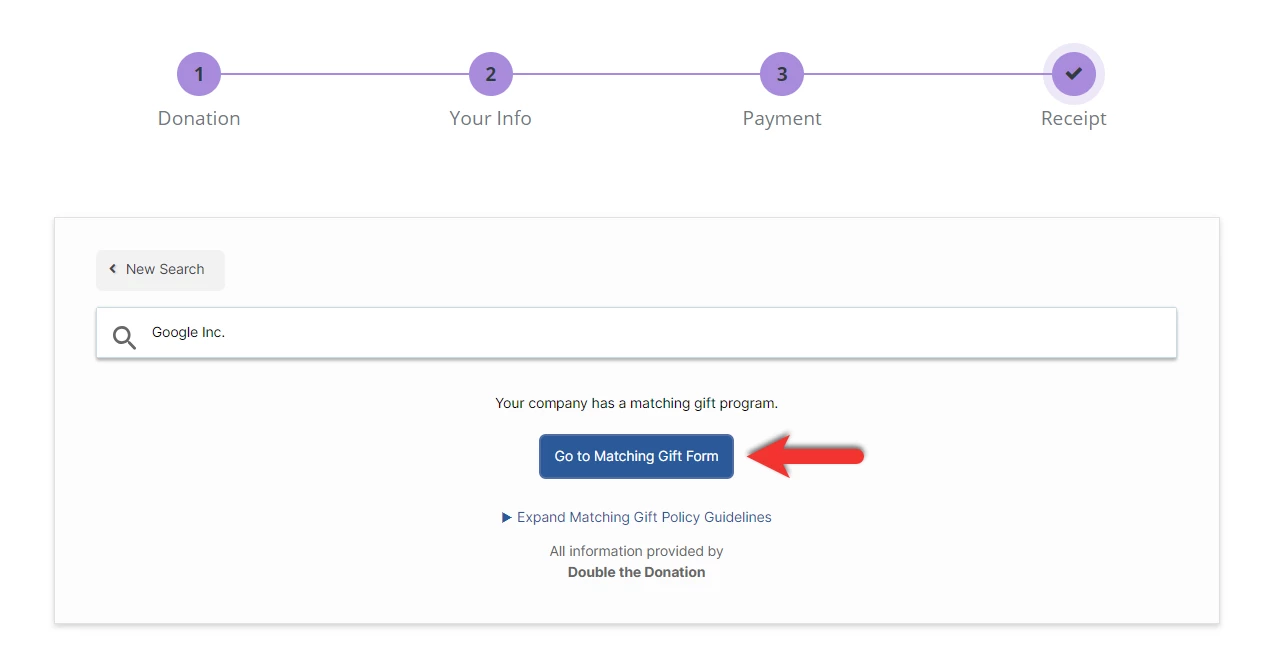
If your company has a Corporate Match program: You can click on the 'Go to Matching Gift Form' button. Here's an article that outlines the general process for how matching gifts are submitted, verified, and ultimately disbursed to an organization. In most cases, you will be prompted to log into your employee portal to provide more information. However, this process will vary from company to company. We recommend reaching out to your Human Resources department for additional guidance.
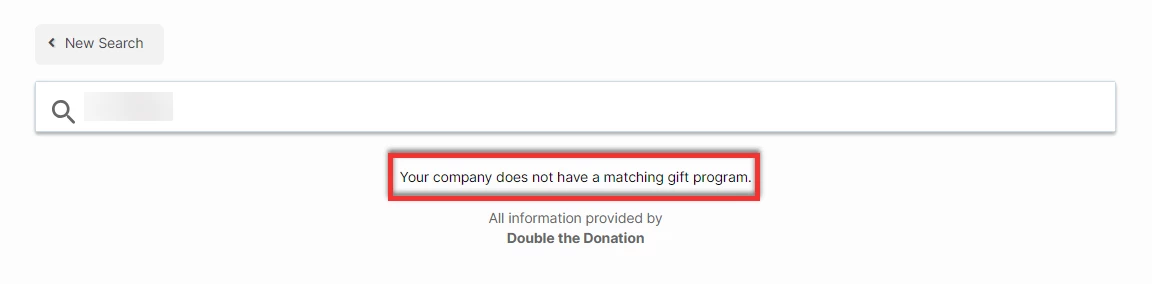
If your company does not have a Corporate Match program: A confirmation message, stating "Your company does not have a matching gift program" will appear below the Search box.
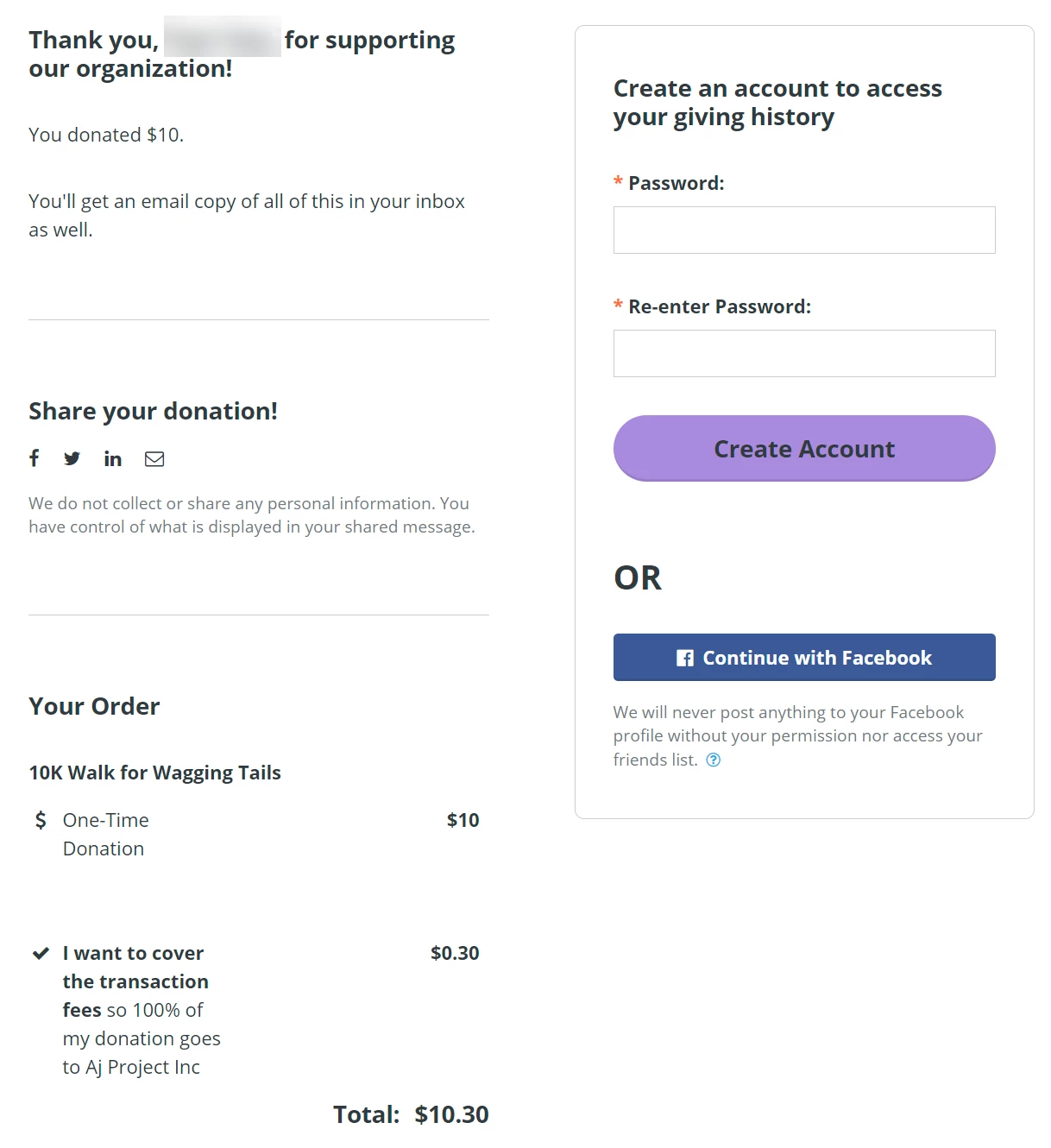
Further down on the 'Receipt' page, you will find confirmation details about your gift. From here, you may create a Network For Good account if you do not already have one.