

How do I move a donation from one campaign to another?
If your donor accidentally made an online gift to the incorrect campaign, you may update this through your admin account following the steps outlined below.
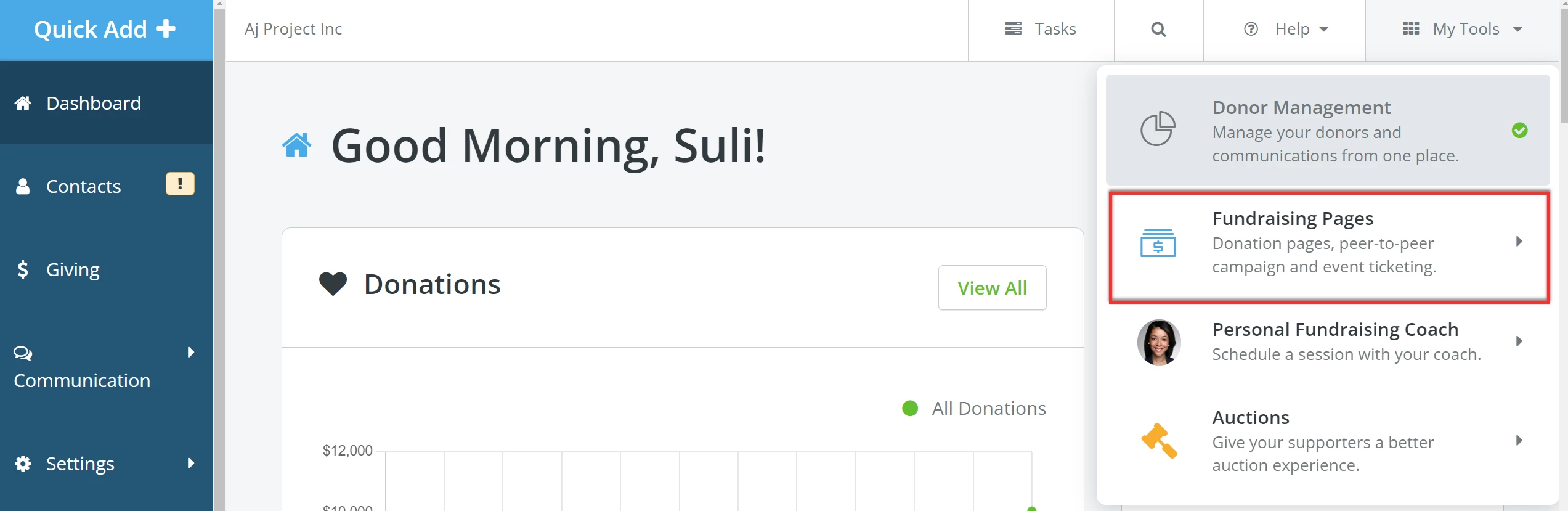
Step 1: Navigate to 'Fundraising Pages'
From the Dashboard, click on 'My Tools' in the upper right corner of the page. Select 'Fundraising Pages' from the drop-down menu.
Step 2: Search for the donor
Click on the 'People' tab in 'Fundraising Pages' and select 'Donors/Fundraisers' from the drop-down menu.

Begin typing the donor's name in the search field and select the correct donor from a list of suggestions that appear.
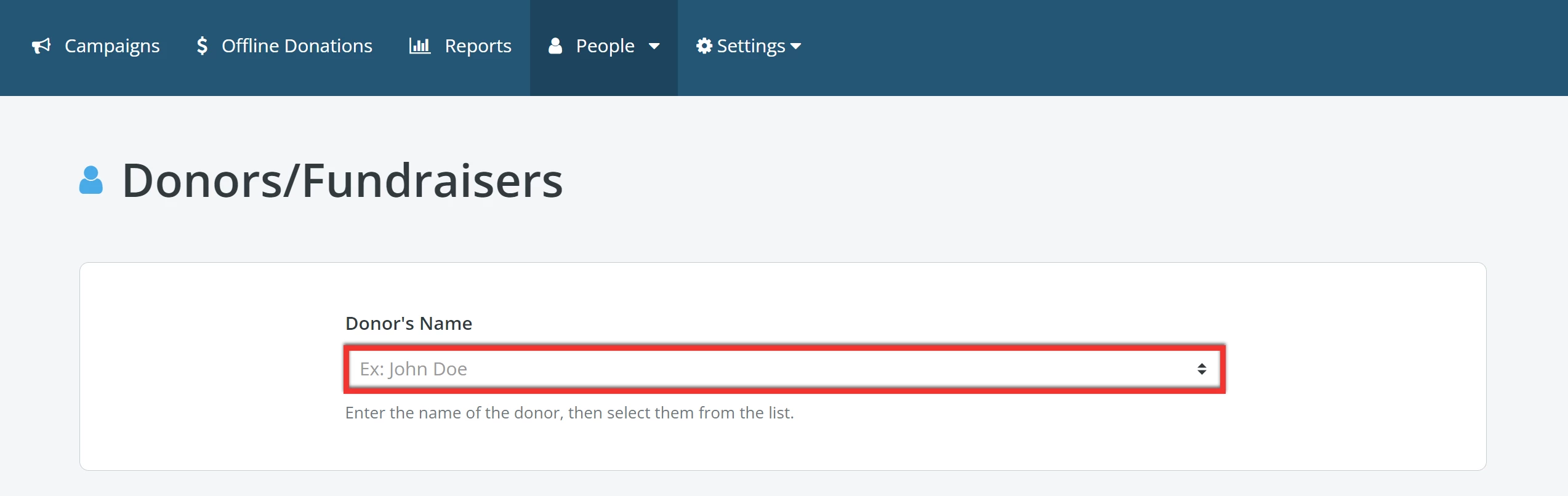
Tip: If no results pop up, search using their e-mail address or last name instead.
Step 3: Search for the donation
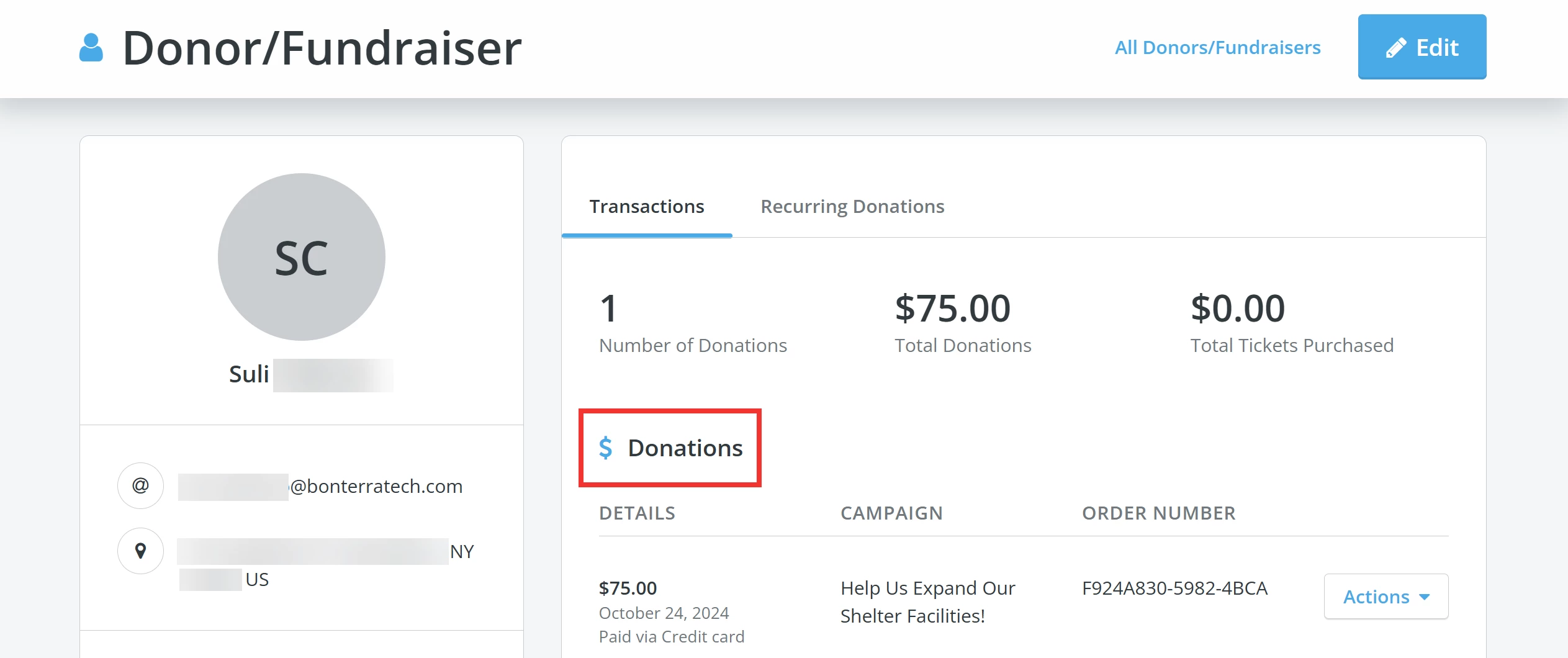
You will be taken to the donor's profile, where you can search for a specific donation.
Step 4: Edit the donation
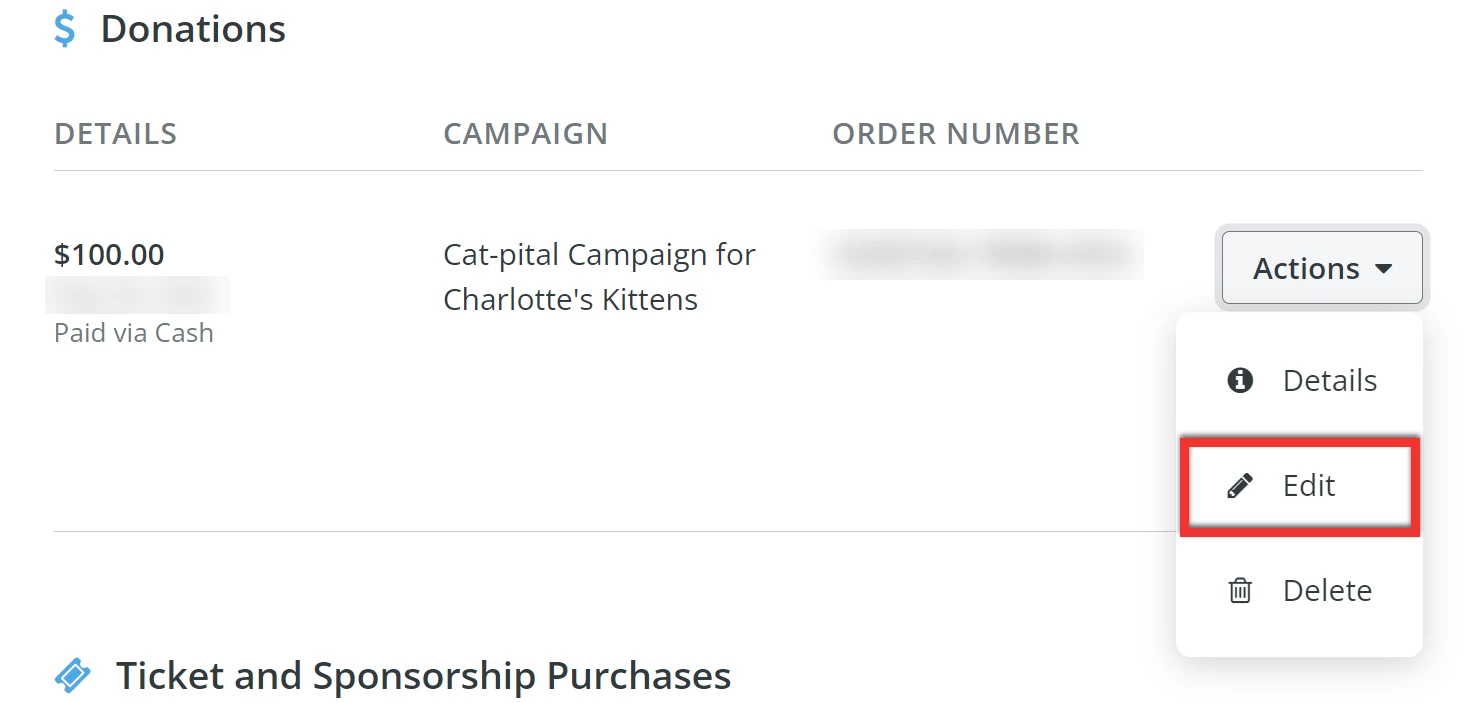
Click the 'Actions' button next to that donation and select 'Edit' from the drop-down menu.
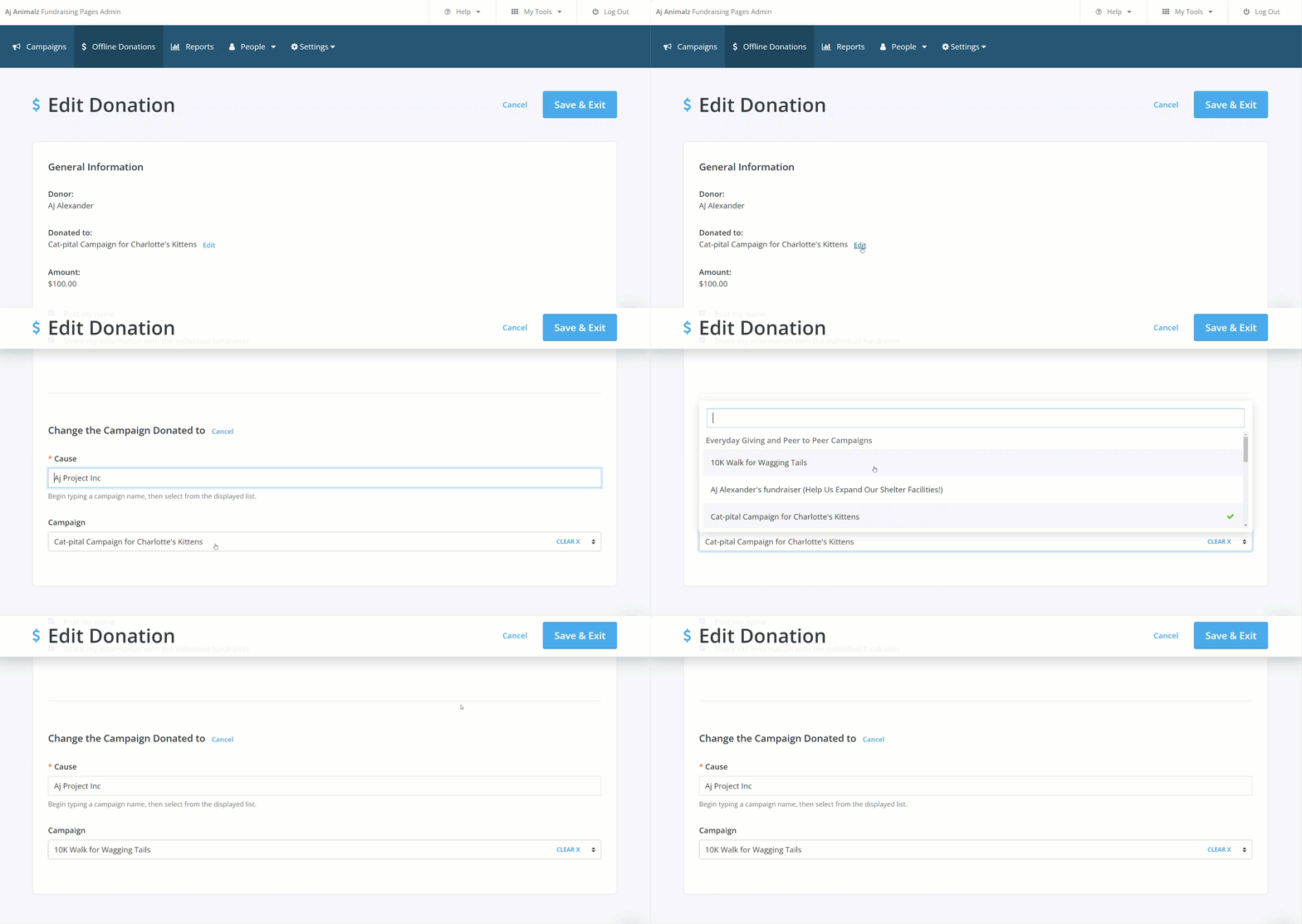
Locate the 'Donated To' field under the 'General Information' section and click the 'Edit' link.
A new section at the bottom of the page will appear: 'Change the Cause/Campaign Donated To'. Leave the 'Cause' field as is - but, select the campaign you would like to move the donation to in the 'Campaign' field.
Step 5: Save your changes
Once finished making your updates, click 'Save & Exit' - the donation should now be listed under the correct campaign.
How do I change which campaign a donation is assigned to? | Can I move a donation to a different fundraising page? | How do I edit the Donated To field on a donation? | What if a donor gave to the wrong campaign? | How do I reassign a donation in Fundraising Pages? | Why is a donation showing under the wrong campaign? | Can I update the campaign after a donation is made?