

How do I set up a recurring donation for an existing donor?
Setting up recurring donations on behalf of an existing donor can be a bit trickier - but, still completely possible!
Step 1: Open an 'Incognito Window' or 'Private Browsing Session'
We highly recommend you complete this process in an 'Incognito Window' or 'Private Browsing Session'. This is to ensure the recurring donation is set up for the correct donor and that their information is not accidentally used for another donor's record in the future.
Step 2: Visit your donation page
Navigate to your organization's donation page.
Step 3: Set up the donor's recurring donation
Acting as the donor, select the donation amount and set the frequency of the scheduled payments.
Set up their donor profile using either an e-mail address they provided or a "throwaway" e-mail you created that can be used to receive their donation receipts.
For more information on setting up a "throwaway" e-mail, check out this article.
Once this is all set, you can follow the standard donation flow outlined here.
Step 4: Navigate to 'Fundraising Pages'
Once the donation has been processed, close out your incognito window or private browsing session and log into your 'Donor Management' Dashboard.
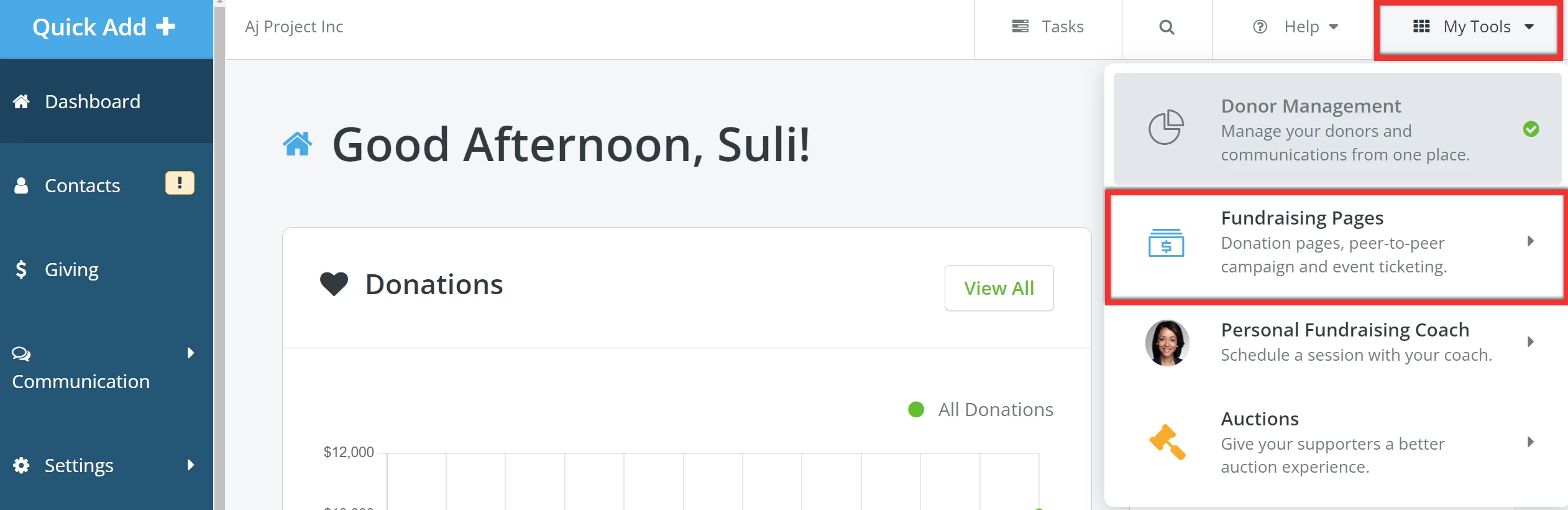
Click 'My Tools' in the upper right corner and select 'Fundraising Pages' from the drop-down list.
Step 5: Search for the donor
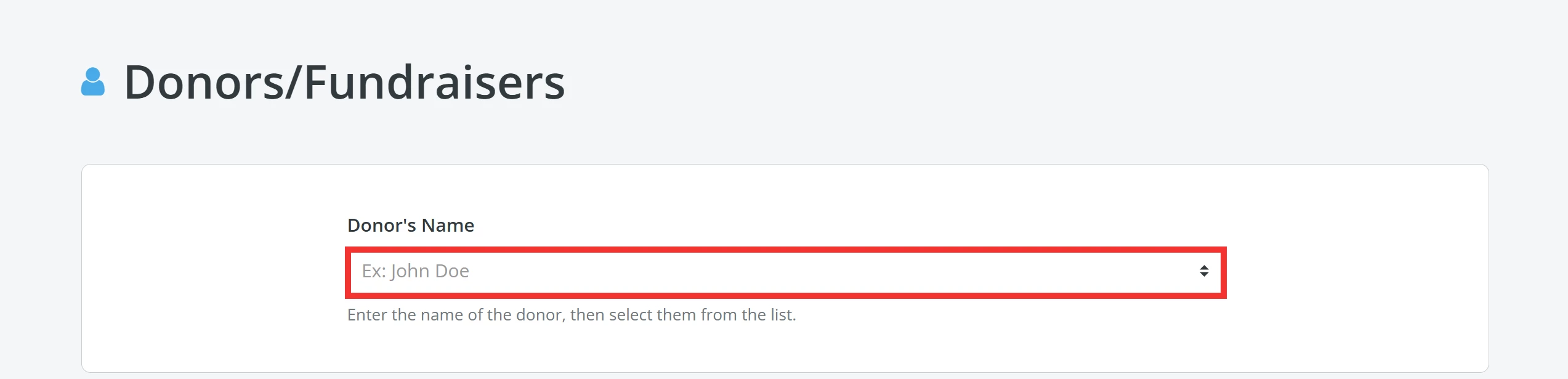
Click the 'People' tab on your 'My Campaigns' page and select 'Donors/Fundraisers' from the drop-down list.

From this page, you can search for the "throwaway" e-mail account to find the new donor profile you created.
Step 6: Edit the donor's profile
In the upper right corner of the donor's profile, click the 'Edit' button.

On the next page, you can update the e-mail address to reflect the donor's true e-mail (replacing the "throwaway"/placeholder e-mail with the donor's actual e-mail address).
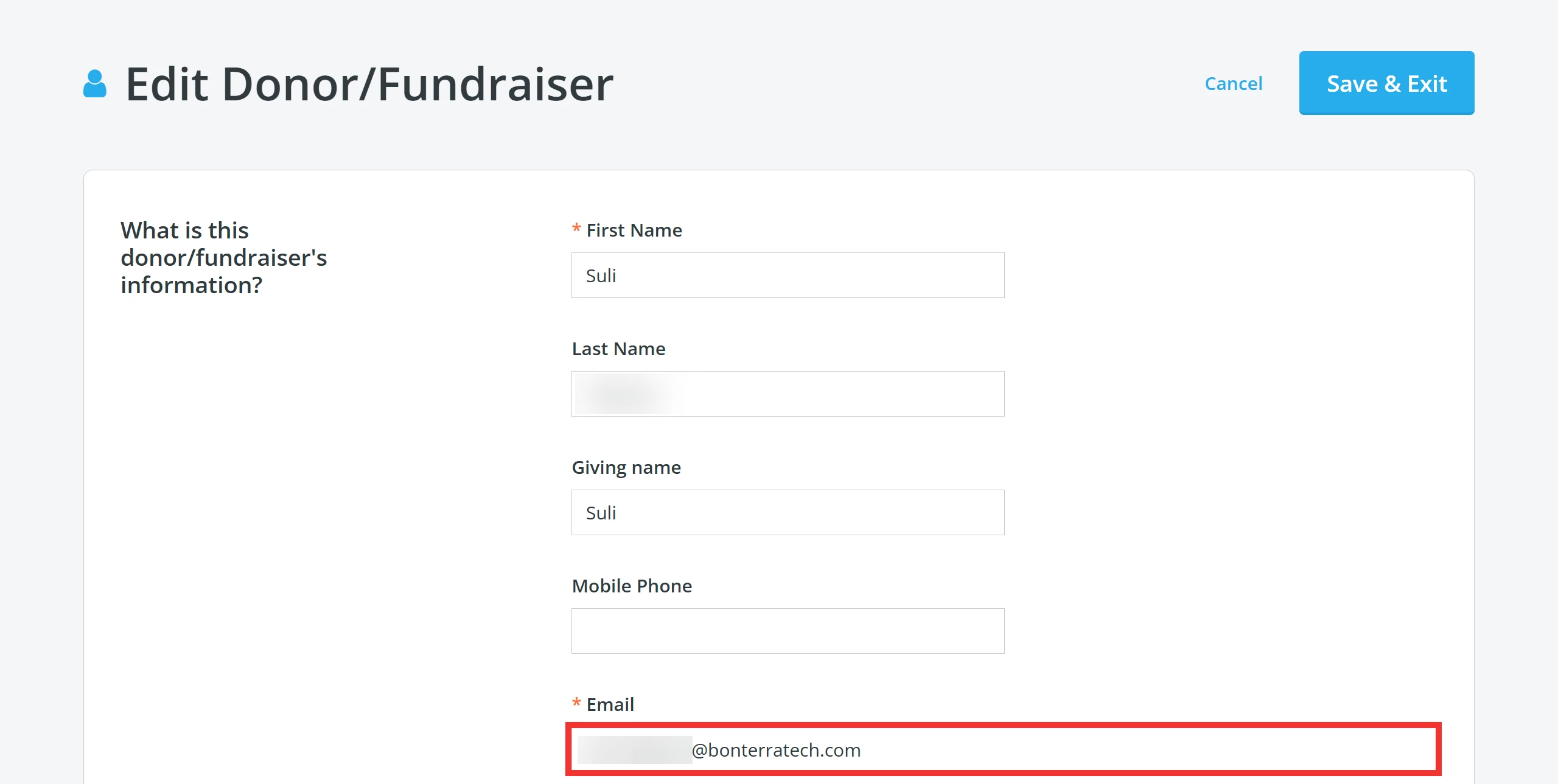
Click 'Save & Exit'.
Step 5: Resend your donor's receipt to the donor
Finally, once you have saved the updated donor record, click the 'Actions' button next to the donation you just processed and select 'Details' from the drop-down menu.
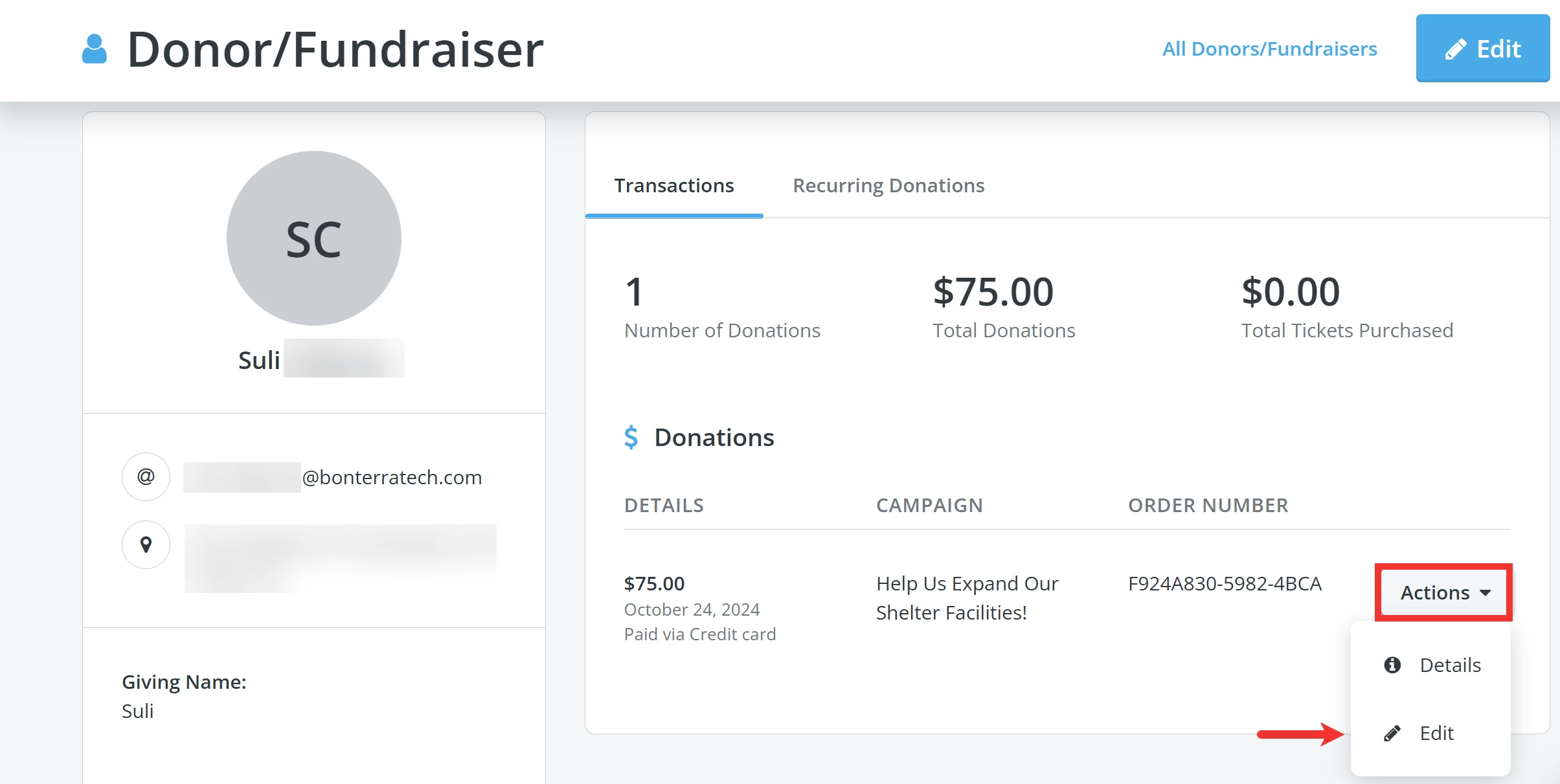
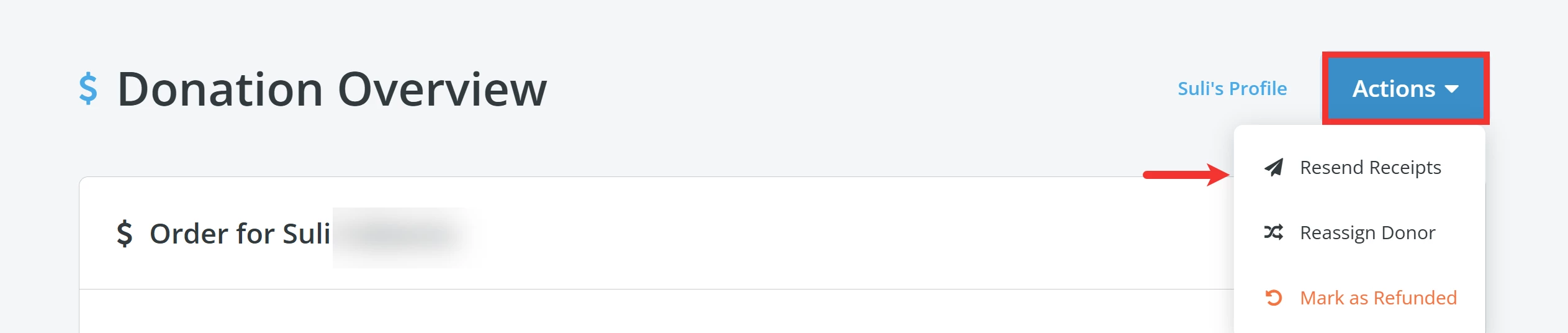
Once the page reloads, click the 'Actions' button in the top right corner, and select 'Resend Receipt' from the available options. This will ensure that the receipt from the recurring donation you set up will be delivered to your donor's actual e-mail.
How do I create custom referral links for thank you pages and emails? | How does create custom referral links for thank you pages and emails work in EveryAction? | Why can't I create custom referral links for thank you pages and emails? | Where do I create custom referral links for thank you pages and emails in EveryAction? | What is create custom referral links for thank you pages and emails in EveryAction? | How to create custom referral links for thank you pages and emails? | Can I create custom referral links for thank you pages and emails in EveryAction?