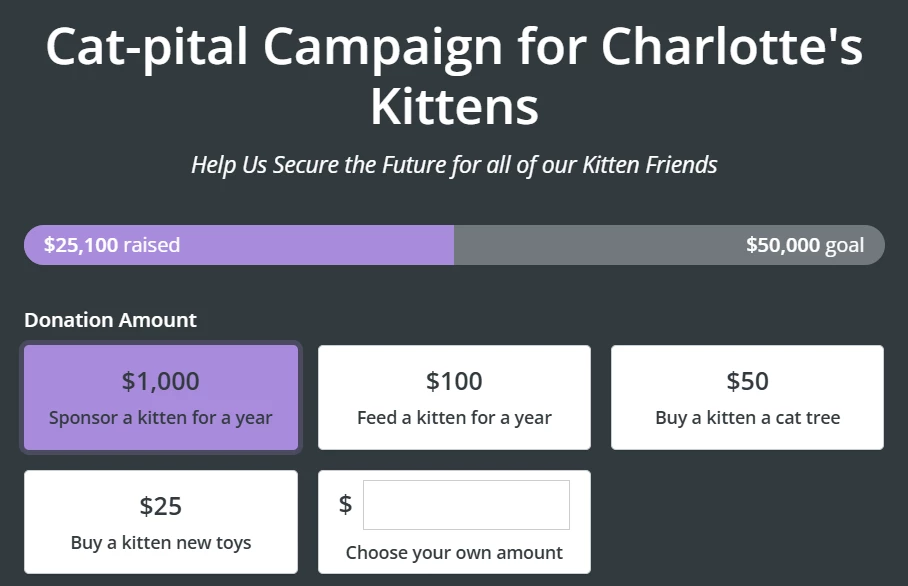
How do I set up 'Impact Statements'?
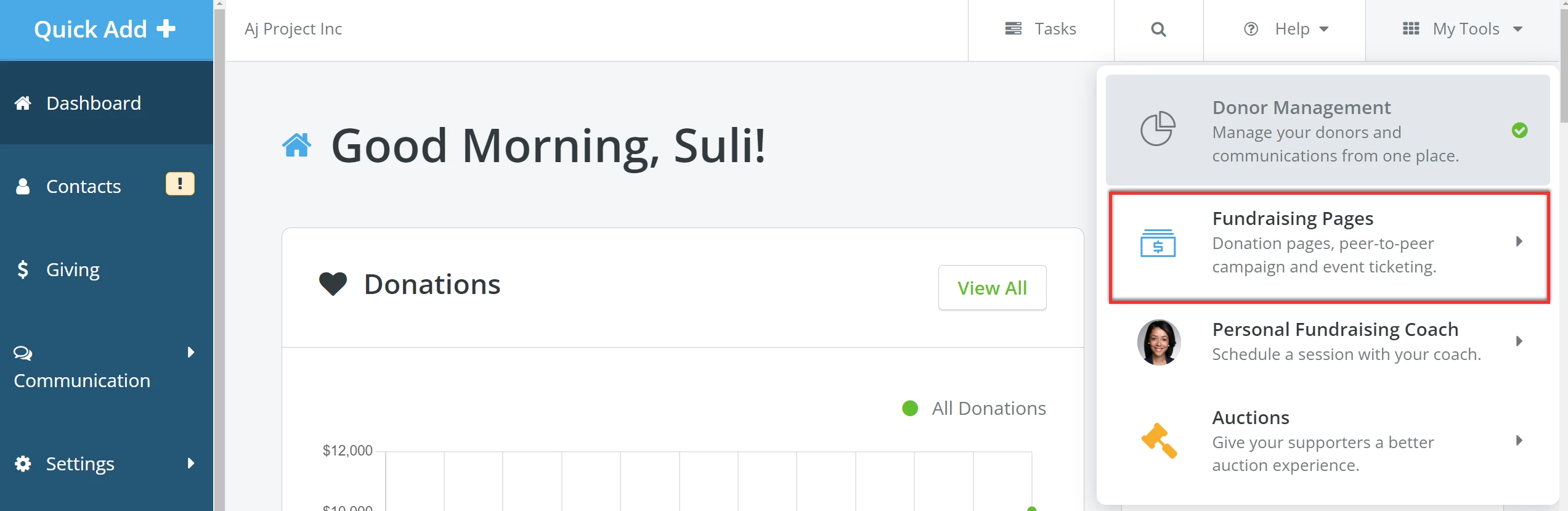
Step 1: Navigate to 'Fundraising Pages'
From the Dashboard, click on 'My Tools' in the upper right corner of the page. Select 'Fundraising Pages' from the drop-down menu.
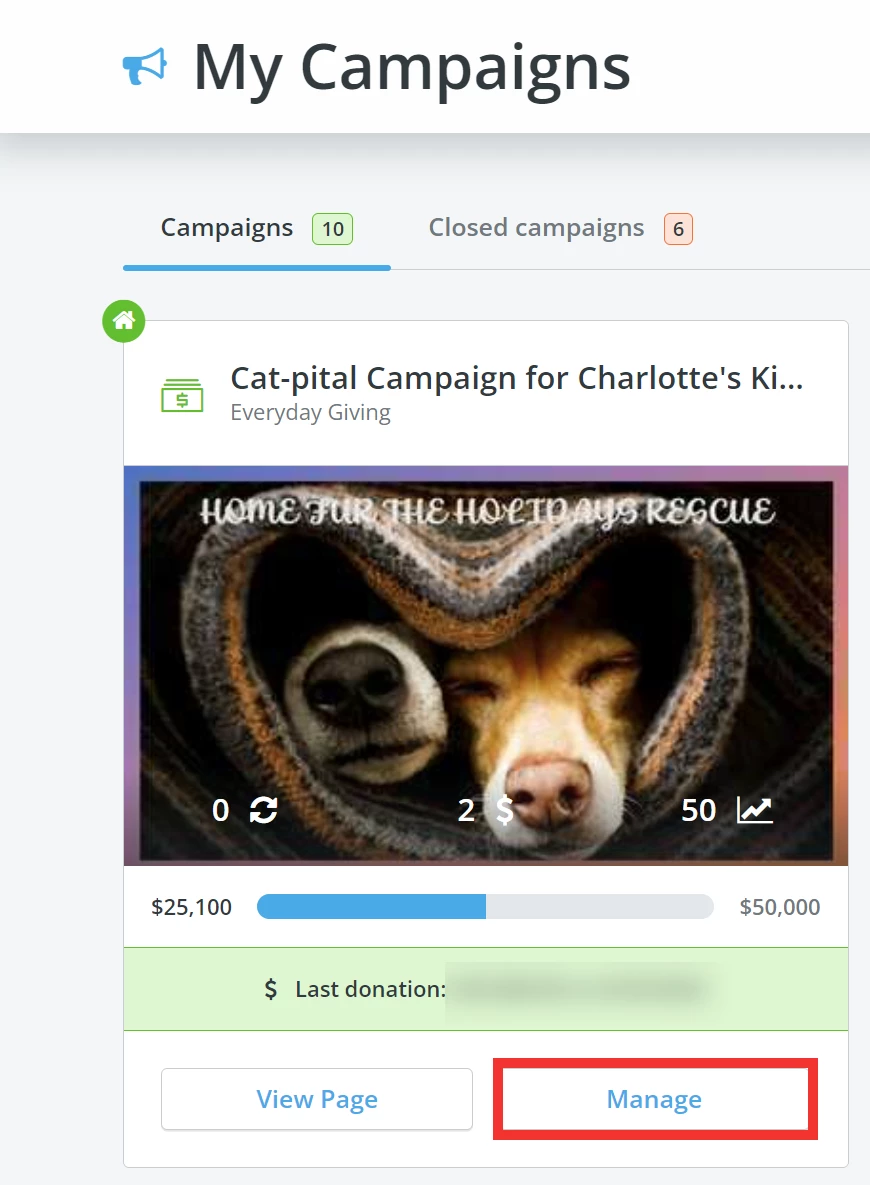
Step 2: Locate your campaign
Locate the campaign you want to edit from your 'My Campaigns' page and click the 'Manage' button within that campaign's tile.
Step 3: Edit your campaign
Once on the 'Campaign Overview' page, select the 'Edit' button in the top-right corner.

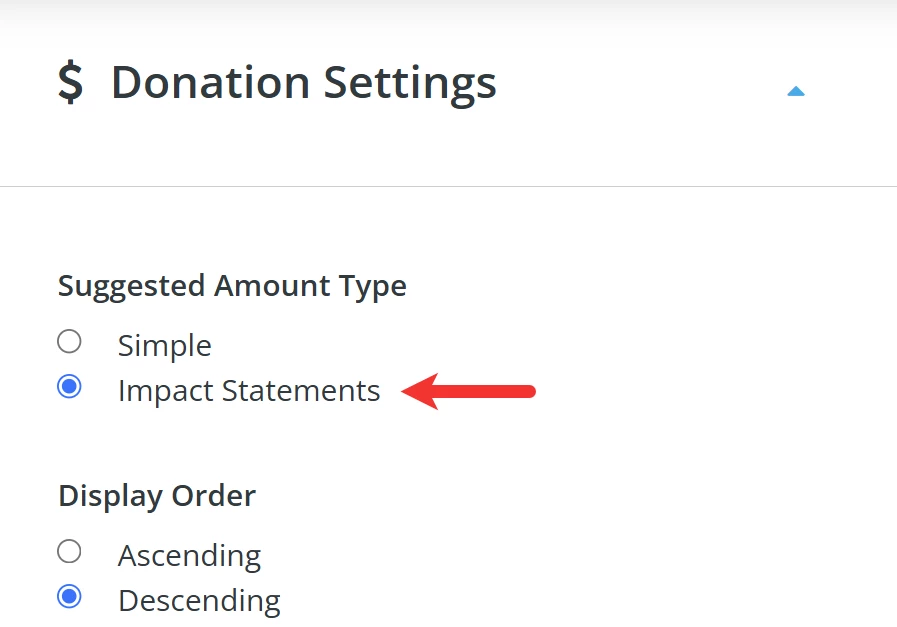
When the page reloads, scroll down to the 'Donation Settings' section. Confirm 'Impact Statements' is selected under 'Suggested Amount Type'.
Step 4: Add 'Impact Statements'
Click the 'Add Impact Statement' button to get started!
Note: You can create up to 5 impact statements.
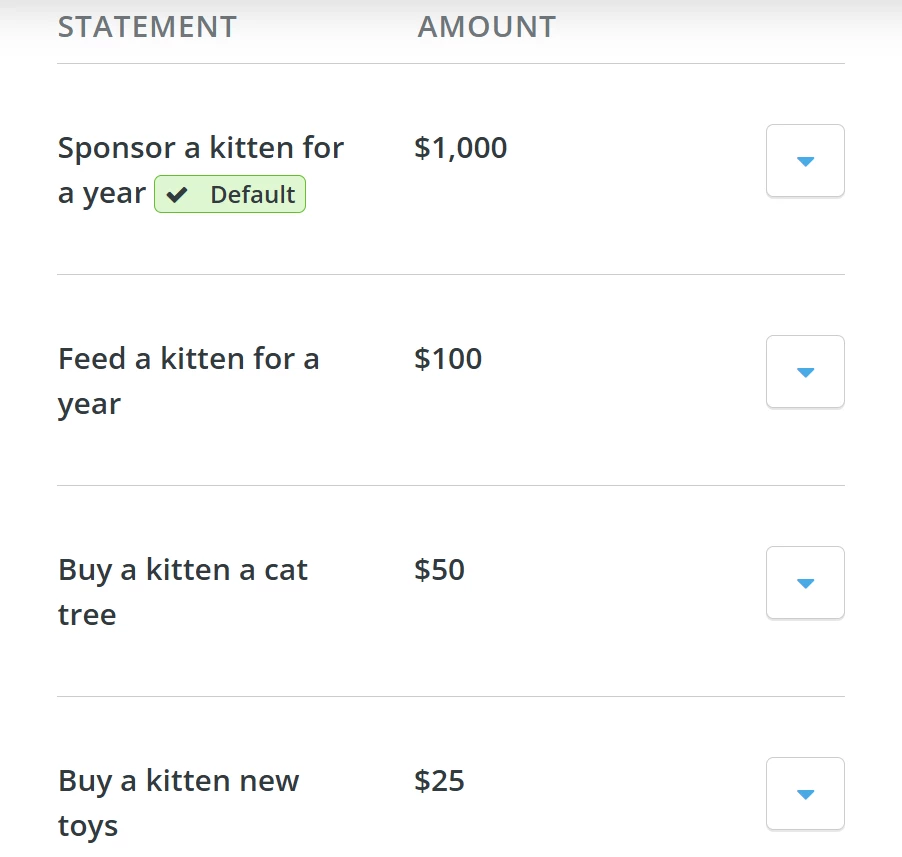
Here are some examples:
Step 5: Save & Exit!
Once you have made your edits, click the 'Save & Exit' button in the upper right corner of the page; the Donor Scroll will automatically update to reflect those changes!
Here is how they will appear on your public-facing donation page: