

How do I switch off 'Optimized Ask'?
Step 1: Navigate to your 'Fundraising Pages'
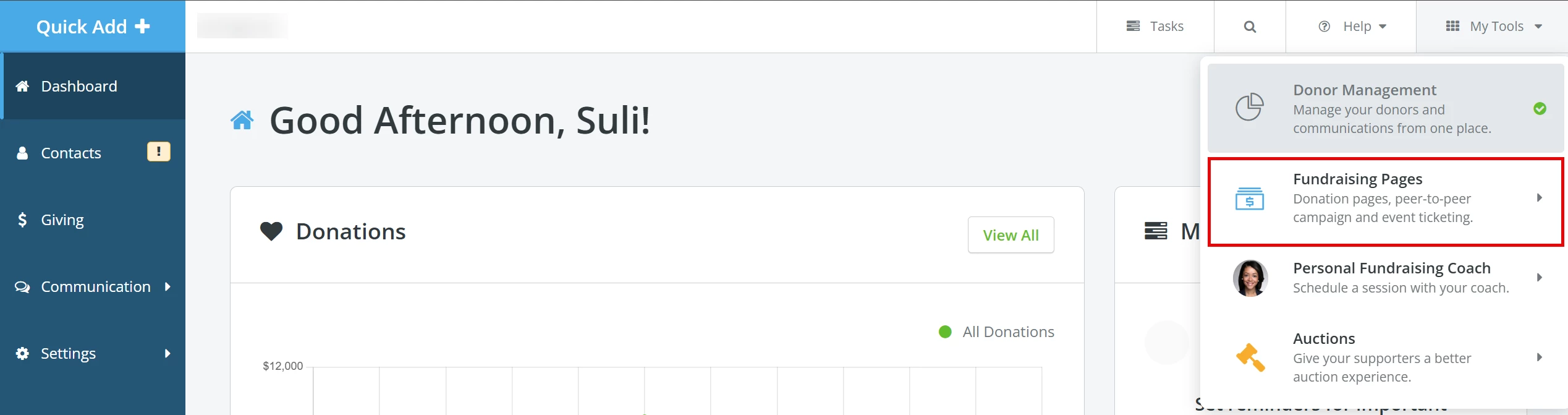
From your 'Donor Management' Dashboard, click 'My Tools' in the top right corner of the page and then select 'Fundraising Pages' from the newly expanded drop-down.
Step 2: Manage your 'Site Settings'
You will be directed to your 'My Campaigns' page, where you can click 'Settings' towards the top of the page and then select 'Site Settings'.

Step 3: Click to edit your Giving Site
On your 'Giving Site Overview' page, click the 'Edit' button in the upper right corner to edit your settings.

Step 4: Turn off 'Optimized Ask'
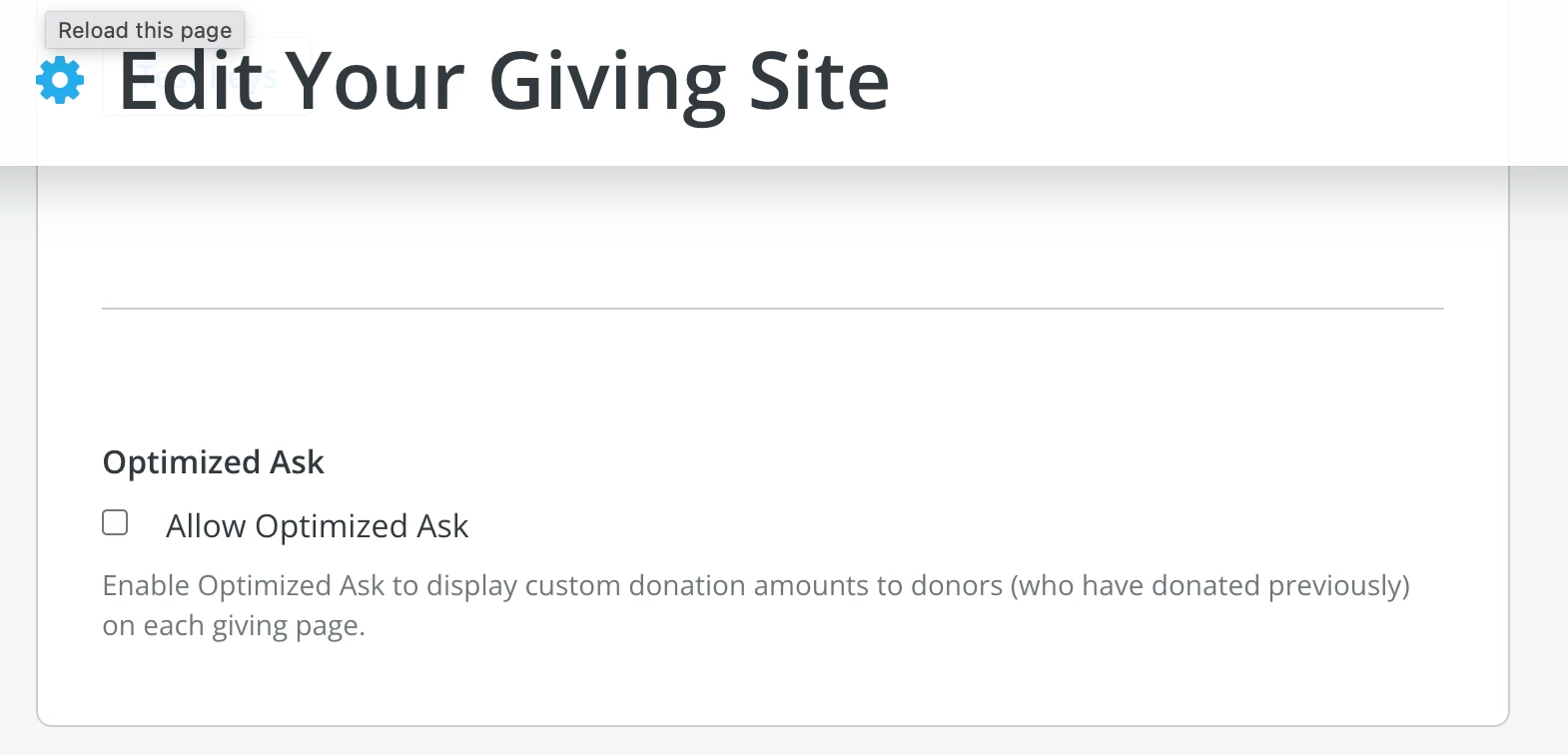
The top of your page should now read 'Edit Your Giving Site'. Scroll until you locate the 'Optimized Ask' section, where you can "uncheck" the box next to 'Allow Optimized Ask'.
Be sure to click the 'Save & Exit' button once you are finished!

What else do you need help with?
Navigate back to the Feature Overview.
How do I turn off Optimized Ask on my donation page? | How do I disable Optimized Ask in EveryAction? | Why is Optimized Ask changing my donation amounts? | Where do I find Optimized Ask in Site Settings? | How do I stop suggested donation amounts from updating automatically? | How do I edit my Giving Site settings? | How do I remove Optimized Ask from my fundraising page?
How do I view and report on referral data? | How does view and report on referral data work in EveryAction? | Why can't I view and report on referral data? | Where do I view and report on referral data in EveryAction? | What is view and report on referral data in EveryAction? | How to view and report on referral data? | Can I view and report on referral data in EveryAction?