

How can I resize an image in an e-mail blast?
The advanced image editor allows you to customize different aspects of each image you include in your e-mail blast without the need to submit a ticket to your design team or rely on an outside image editor such as Photoshop or Paint.
Step 1: Edit your e-mail blast
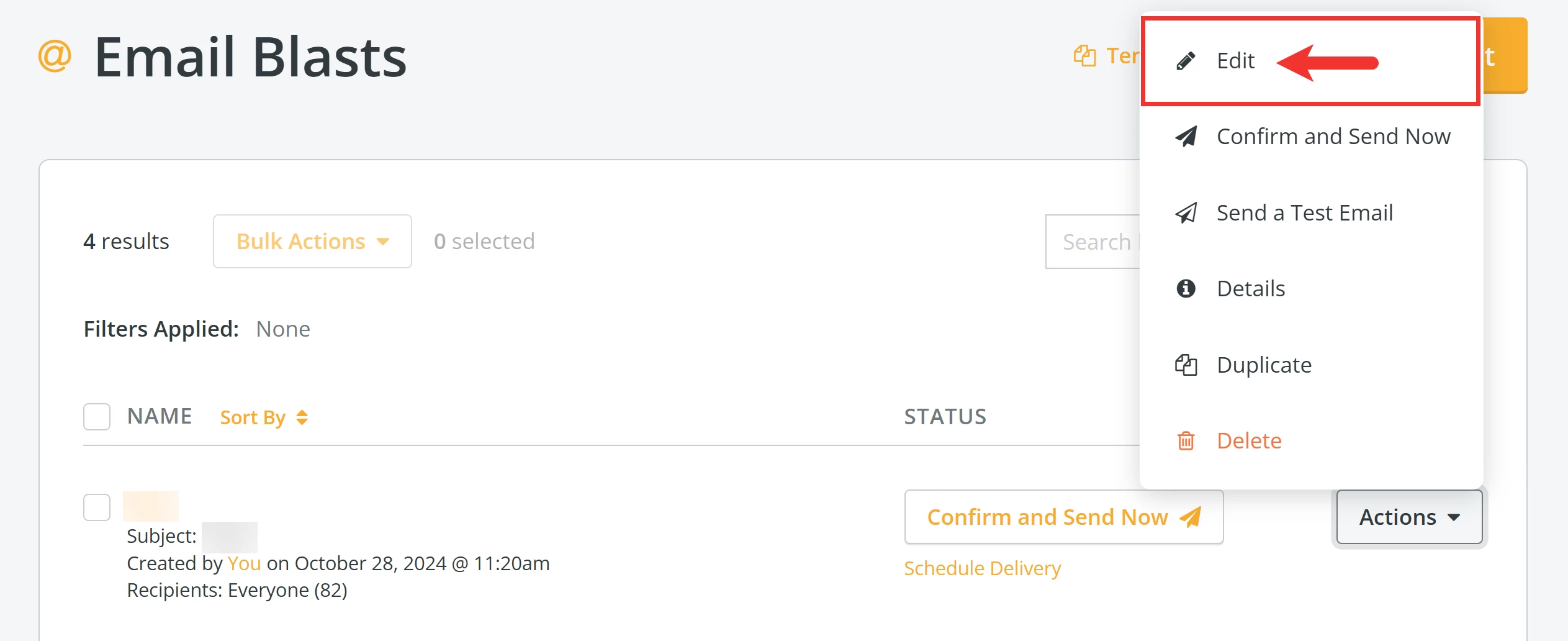
If you are not already working in the 'Email Blasts' onboarder, navigate to your 'Email Blasts' page, click the 'Actions' button next to the e-mail you want to edit, and select 'Edit' from the drop-down menu.
Step 2: Click to apply effects
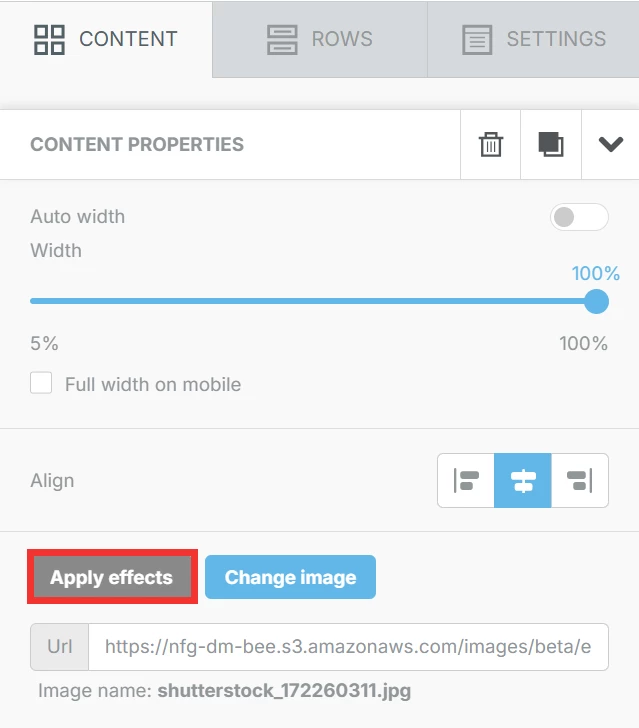
In Step 4 ('Build') of the onboarder, click the image you want to resize. This will automatically bring up options in the right navigation menu, under the 'Content' tab.
Click the 'Apply effects' button.
Step 3: Resize the image
You will be taken to the advanced image editor, where you can click the 'Resize' icon.

This will bring up options to adjust the width and height of the image. You can choose to maintain its aspect ratio or use percentages instead.

To preview your edits, click the 'Apply' button. Once you are satisfied with how the resized image appears, click the 'Save' button in the upper right corner of the editor.
How do I resize an image in an Email Blast? | Where is the advanced image editor in Donor Management? | How do I maintain aspect ratio when resizing an image? | Why is my image too large in my email? | How do I adjust image width and height in Network for Good? | Can I edit images without using Photoshop? | How do I preview image changes before saving?