

How do I export a guest list from an Events page?
There are plenty of reasons you may want to export your event's guest list out of Fundraising Pages - for example, you may want a physical copy for a volunteer to cross-reference while writing handwritten thank-yous.
You might also want to ensure that all of your event's guests are added into Donor Management - not just the ticket purchasers that are automatically added through the platform's one-way sync.
Below, we've provided a few simple steps to walk you through that process, so you can quickly and easily access that list and meet your organization's needs.
Step 1: Log into your Fundraising Pages account
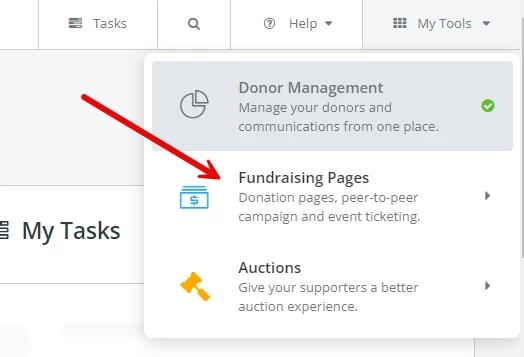
If you’re currently in Donor Management, you should be able to access Fundraising Pages by clicking on the “My Tools” dropdown menu in the top right corner, and selecting the option for “Fundraising Pages.”
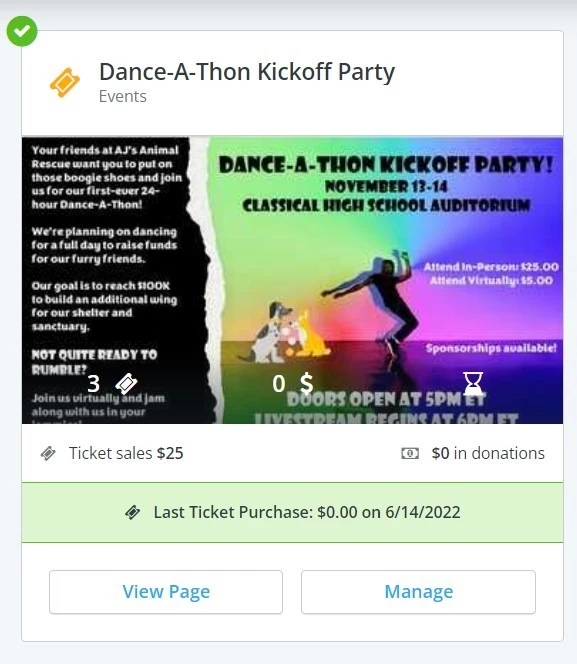
Step 2: Locate the tile for the specific Events page that contains the guest list in question
Step 3: From the Events Overview page, select the "Guests" tab at the top of your screen
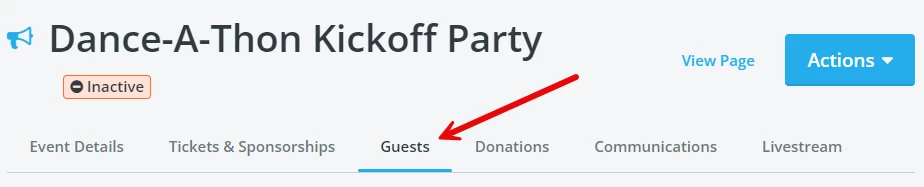
Please note that you do NOT have to click "Edit" on this page, as it will take you away from the section you need to be viewing!
Step 4: Click on the "Export" button
From the "Guests" tab, you should see a white "Export" button next to several other buttons near the top of the guest list.
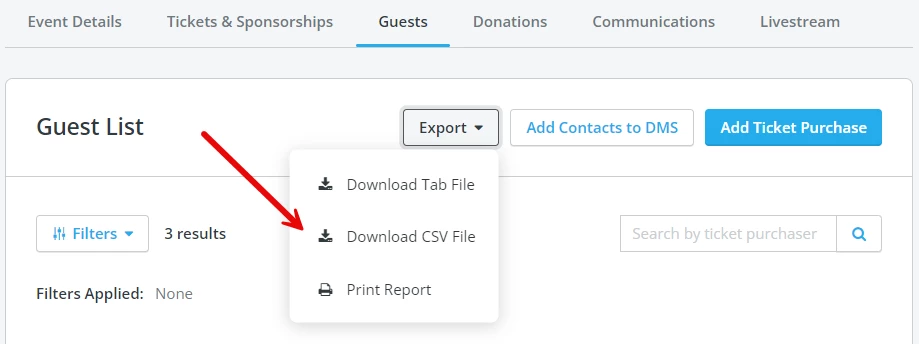
If you're looking to import that guest list into Donor Management, you'll want to select the "CSV" file type from the drop-down options. This will ensure that the formatting is Excel-friendly and compatible with Donor Management.
(If you're simply looking for a printed list to share, you can also select the option to "Print Report" instead.)
Step 5: Wait for the downloaded file to fully process
Once you've selected the option to download your guest list, you should see a page titled "Exports," with a list of all of the guests lists (or other data) that you've downloaded from Fundraising Pages.
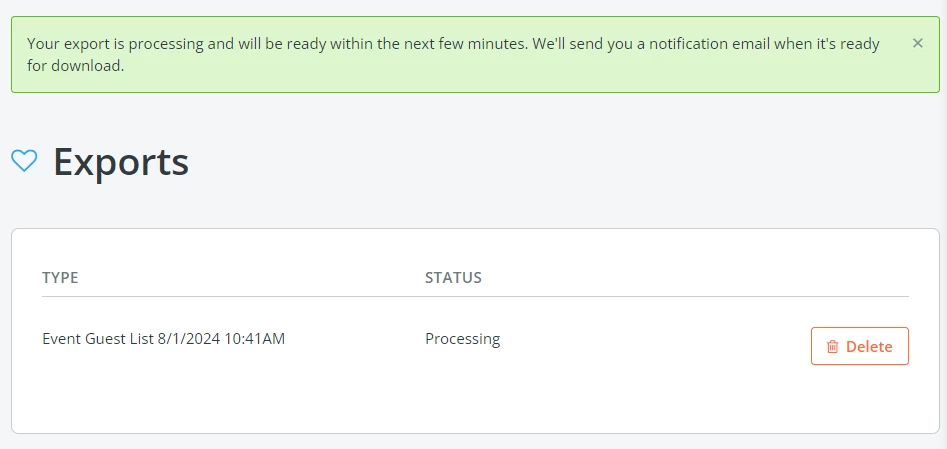
The most recent file should be listed as "Processing" underneath the "Status" column.
At this point, you can remain on this Exports page and refresh periodically to see if the file has downloaded - but Fundraising Pages will also sent you an automated email informing you once that download request has been completed.
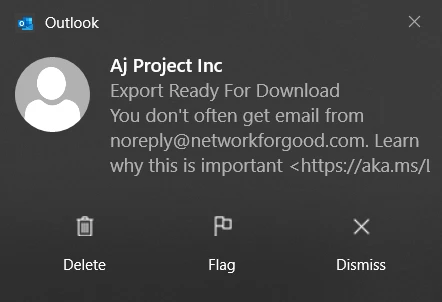
This email will contain a link to bring you right back to the Exports page so that you can download the appropriate file.
Step 6: Download and open the file on your computer
Once back on the Exports page, you should see that the "Delete" button has now been replaced with an "Actions" button. You'll want to click on that button and select the option to "Download."
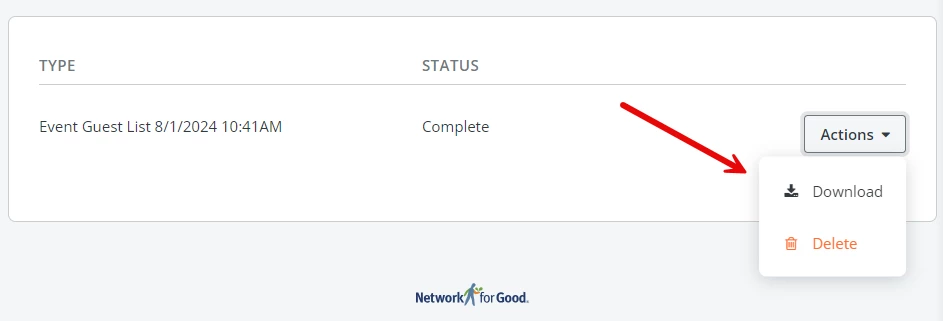
You should now see a copy of that guest list download directly to your computer or device as a .CSV file - depending on your personal settings, it may be in your "downloads" file, or perhaps your "desktop."
What else do you want to do?
Not what you're looking for?
Go back to the Events Pages Feature Overview.
How do I export my event guest list in Network for Good? | How do I download a CSV of event attendees? | Where do I find the guest list for my event? | How do I print a list of event guests? | How do I move my event guest list into Donor Management? | Why is my guest list export still processing? | How do I download my event export file?
How do I log in to my weebly account for the first time? | How does log in to my weebly account for the first time work in EveryAction? | Why can't I log in to my weebly account for the first time? | Where do I log in to my weebly account for the first time in EveryAction? | What is log in to my weebly account for the first time in EveryAction? | How to log in to my weebly account for the first time? | Can I log in to my weebly account for the first time in EveryAction?