

How do I create an Everyday Giving page?
Follow the steps below to set up your Everyday Giving page so you can focus on fundraising and promoting your page as soon as possible!
Step 1: Navigate to your 'Fundraising Pages'
From your Network for Good account, navigate to Fundraising Pages. You can find the link in the left navigation menu. You can also access Fundraising Pages from the top navigation bar by clicking the waffle icon and selecting Fundraising Pages from the dropdown menu.
Note: A banner may appear at the top of the page, prompting you to set up Bonterra Payments as your payment processor. Set up Bonterra Payments to collect donations by following the steps outlined here.

Step 2: Create your Everyday Giving campaign
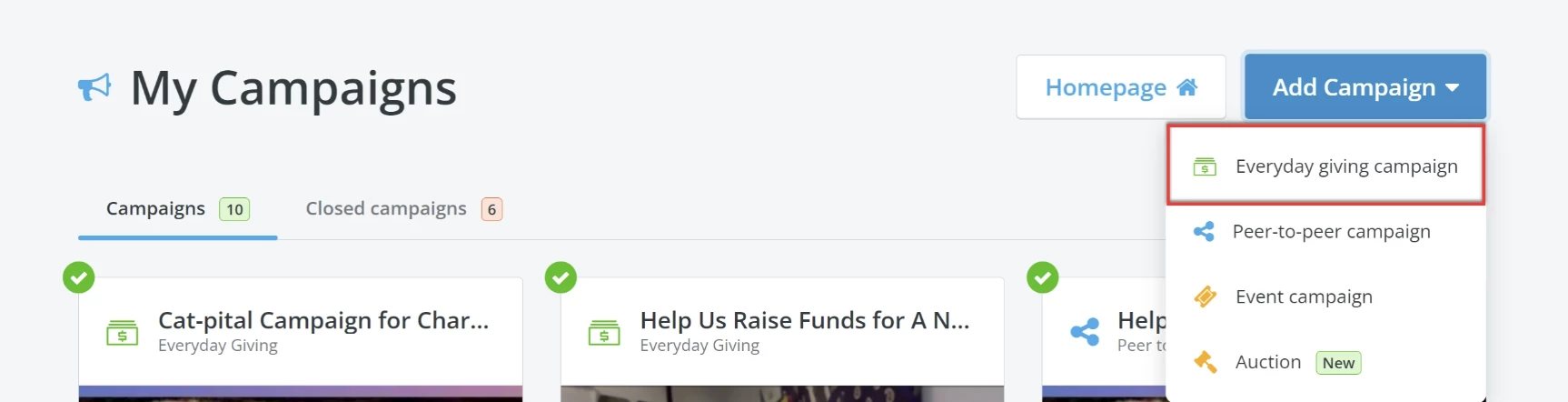
On the upper right corner of your 'My Campaigns' page, click the 'Add Campaign' button and select 'Everyday giving campaign' to get started.
Step 3: Build your Everyday Giving page
The campaign onboarder will guide you step-by-step on how to set up your Everyday Giving page.
For more detailed guidance, click here!
Step 4: Publish and view your Campaign Dashboard
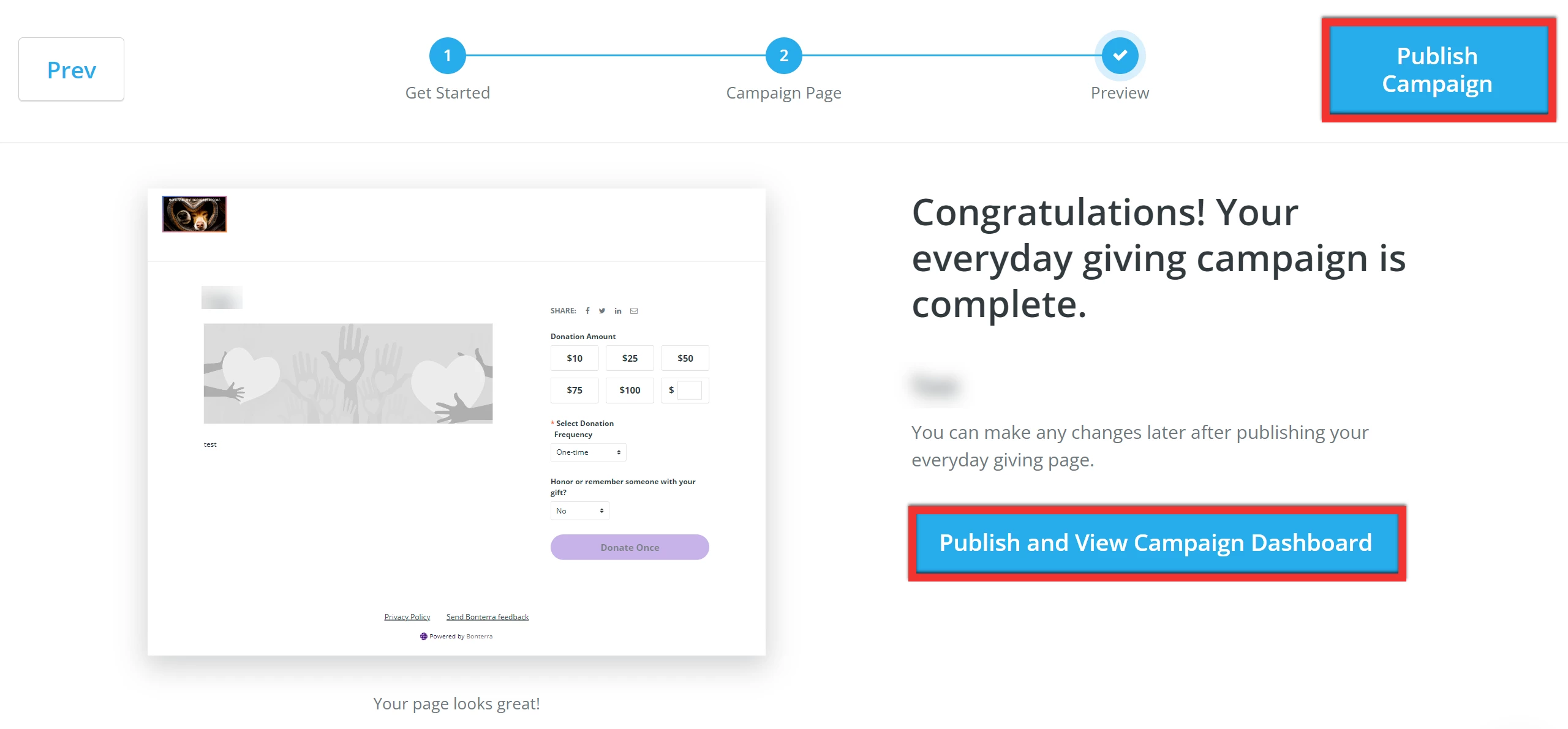
Finally, you will see a preview of your Everyday Giving page and a confirmation message letting you know it is complete. You can click 'Publish campaign' in the upper right corner of the page if you are finished or click 'Publish and View Campaign Dashboard' to continue managing your campaign from there.
Step 5: Make a test donation
Bonterra Payments must be set up and activated before you can make your test donation.
Before sharing your page, make a small test donation (minimum of $5) on your page:
-
this will ensure your page and Bonterra Payments are set up correctly to receive and process donations
-
this will allow you to view the donor experience and preview the automated 'Thank You' e-mail and tax receipt
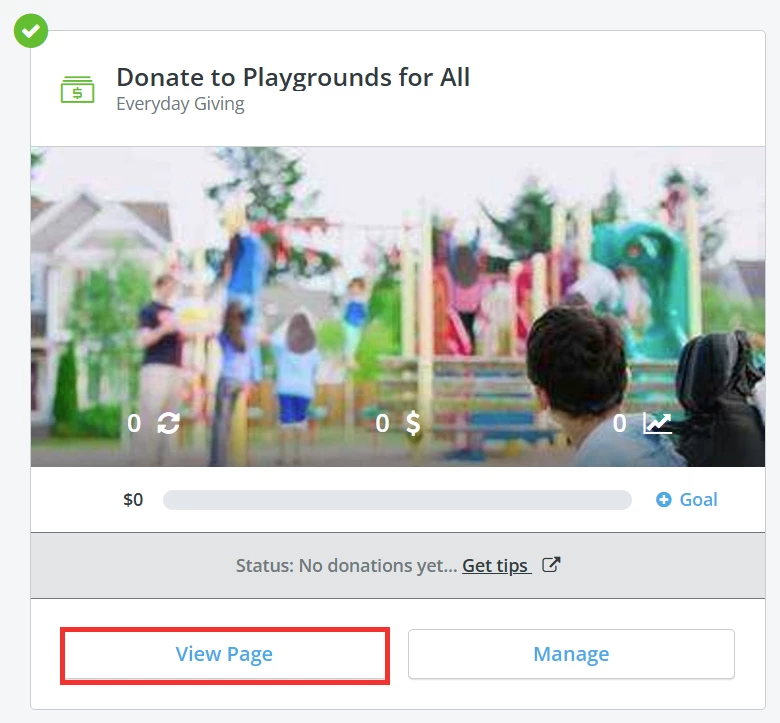
Click the 'View Page' button on your campaign's tile to open your page and submit your test donation!
What else would you like to do?
Not quite what you were searching for?
Navigate back to the Feature Overview.
Looking for training?
Explore this feature at your own pace - join a live training session or watch a recorded webinar by clicking the link below.