

How do I edit the Donor Scroll?
The Donor Scroll is a feature on your 'Fundraising Pages' that allows your donors and supporters to share messages of appreciation and encouragement while showcasing their generosity.
If your donors contact you about a typo in their message or decide they no longer want their information to be publicized on your donation page, follow the steps below to make those changes on their behalf.
Step 1: Navigate to your 'Fundraising Pages'
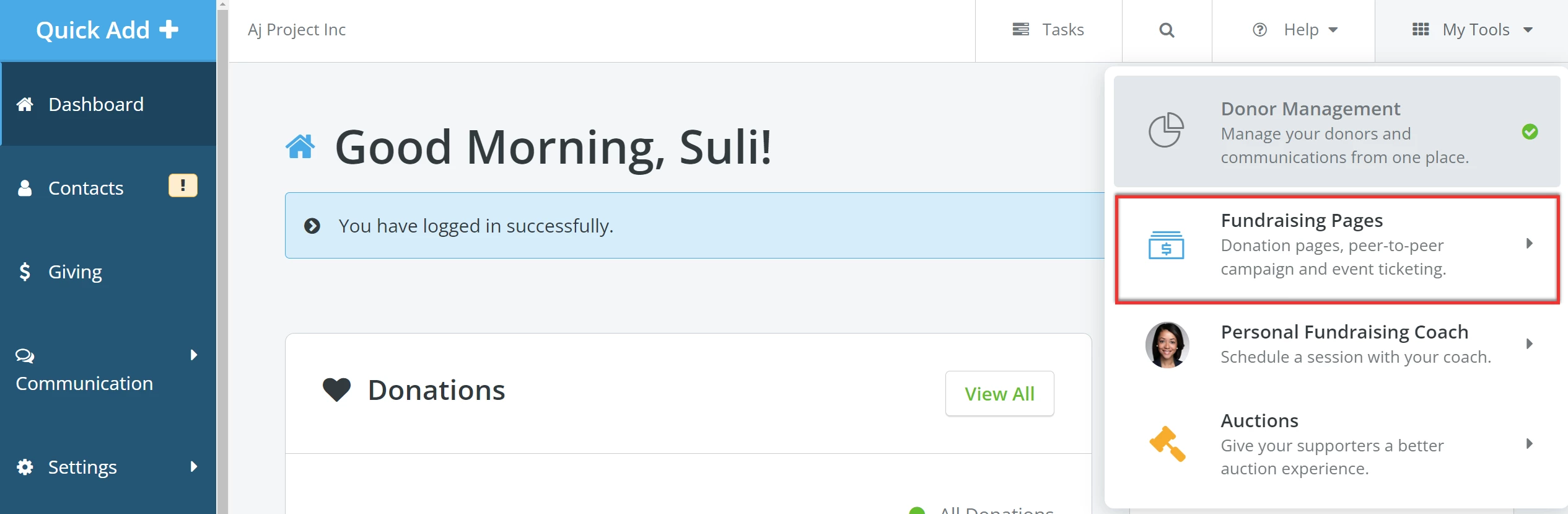
From your 'Donor Management' Dashboard, click 'My Tools' in the upper-right corner of the page and select 'Fundraising Pages' from the drop-down menu.
Step 2: Search for the donor by name or e-mail
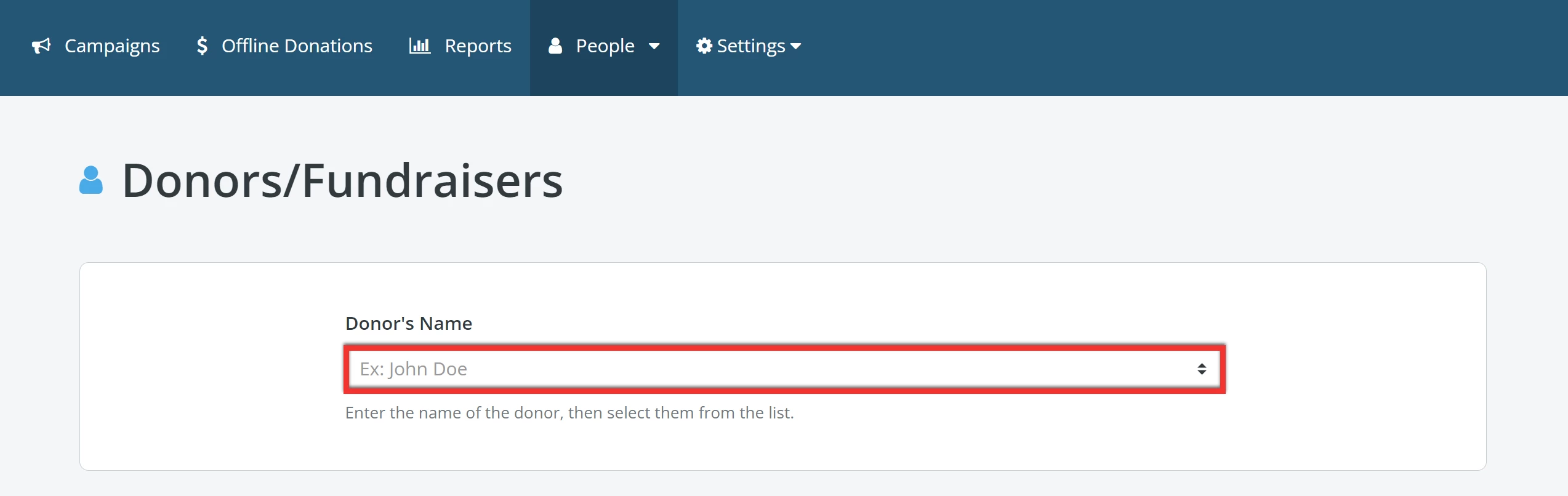
While on the 'My Campaigns' page under your 'Fundraising Pages', you will want to click on the 'People' tab towards the top of your screen. This will expand a drop-down menu, where you can select 'Donors/Fundraisers'.

When the page reloads, begin typing the name or e-mail of the donor who requested this change to populate suggested records. Then, select the donor from the drop-down list below the search bar to be taken to their 'Overview'.
Step 3: Search for the donation record you want to edit
Once you have selected the donor, you should be brought to the donor's 'Overview' page, where you can see a list of all the donations and other transactions they have made through 'Fundraising Pages'.
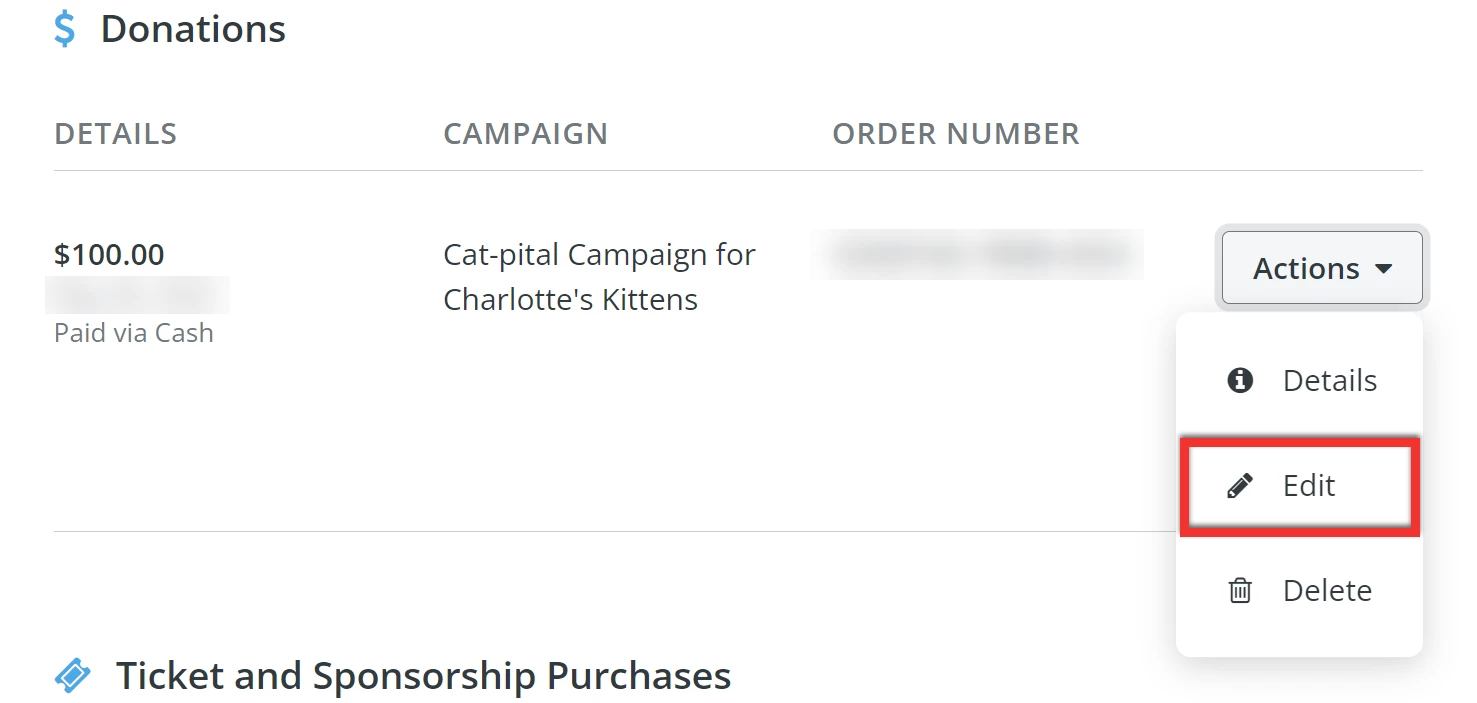
Locate the donation associated with the Donor Scroll post you would like to adjust, click on the 'Actions' button next to that donation, and select 'Edit' from the drop-down menu.
Step 4: Edit the donation
You will find yourself on the 'Edit Donation' page, where you can scroll down to the section titled 'Privacy Settings', and make adjustments to the text included within the associated donor scroll post.
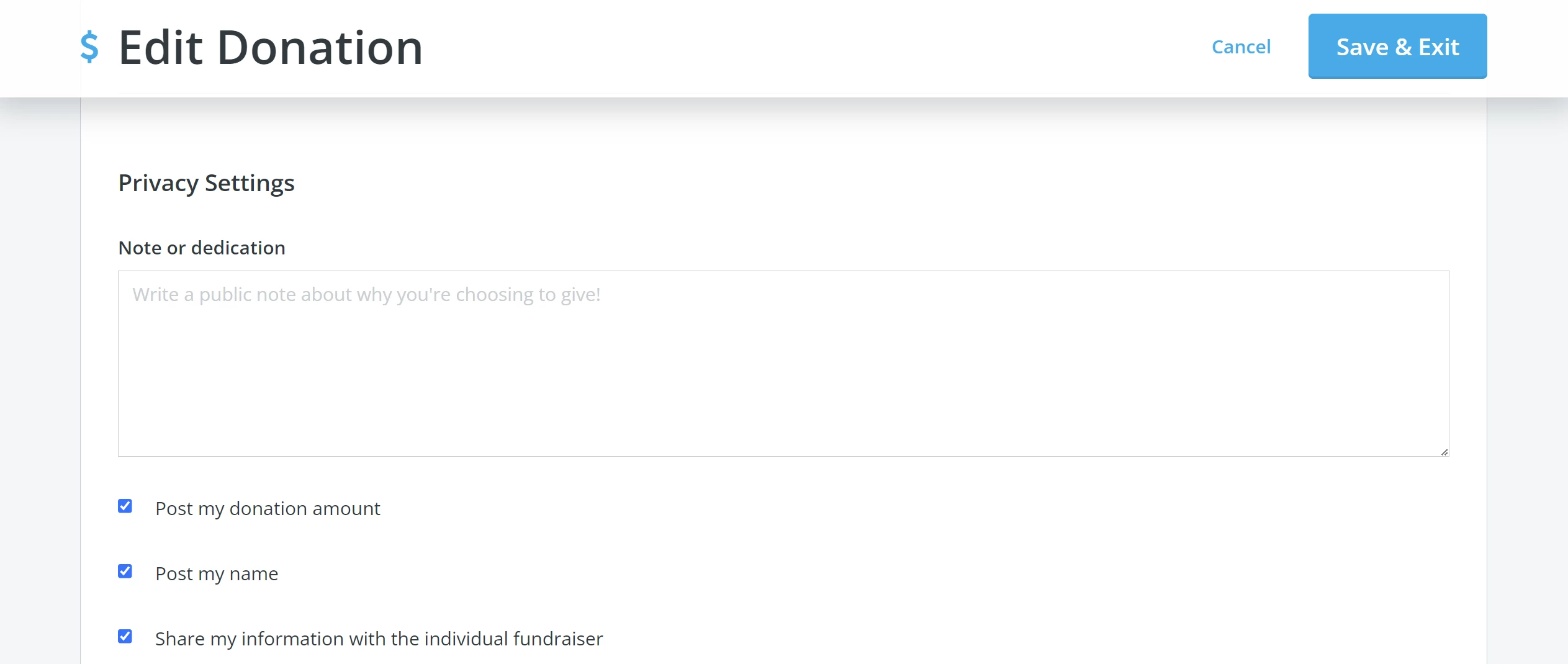
Once you have made your edits, click the 'Save & Exit' button in the upper right corner of the page; the Donor Scroll will automatically update to reflect those changes!
How do I edit a donor’s message on the Donor Scroll? | How do I fix a typo in a donation message? | Can I change a donor’s privacy settings after they give? | Where do I edit a donation in Fundraising Pages? | How do I update a Donor Scroll post? | How do I hide a donor’s name from the Donor Scroll? | Why isn’t my Donor Scroll updating after edits?
How do I manage individual membership records? | How does manage individual membership records work in EveryAction? | Why can't I manage individual membership records? | Where do I manage individual membership records in EveryAction? | What is manage individual membership records in EveryAction? | How to manage individual membership records? | Can I manage individual membership records in EveryAction?