

How do I select an Everyday Giving page template?
Not sure which template to use for your Everyday Giving page? We have broken down the three template options below and included additional guidance on switching between those templates for your Everyday Giving page.
Step 1: Navigate to your 'Fundraising Pages'
From your Network for Good account, navigate to Fundraising Pages. You can find the link in the left navigation menu. You can also access Fundraising Pages from the top navigation bar by clicking the waffle icon and selecting Fundraising Pages from the dropdown menu.
Step 2: Create your Everyday Giving page
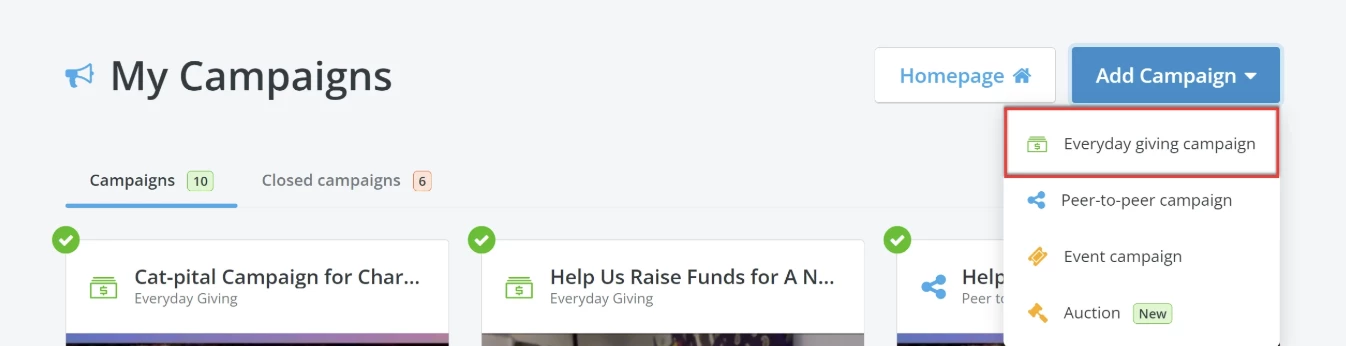
From your 'My Campaigns' page, click on the 'Add Campaign' button on the left side of the page and select 'Everyday giving campaign' from the drop-down menu.
Step 3: Set up your Everyday Giving page
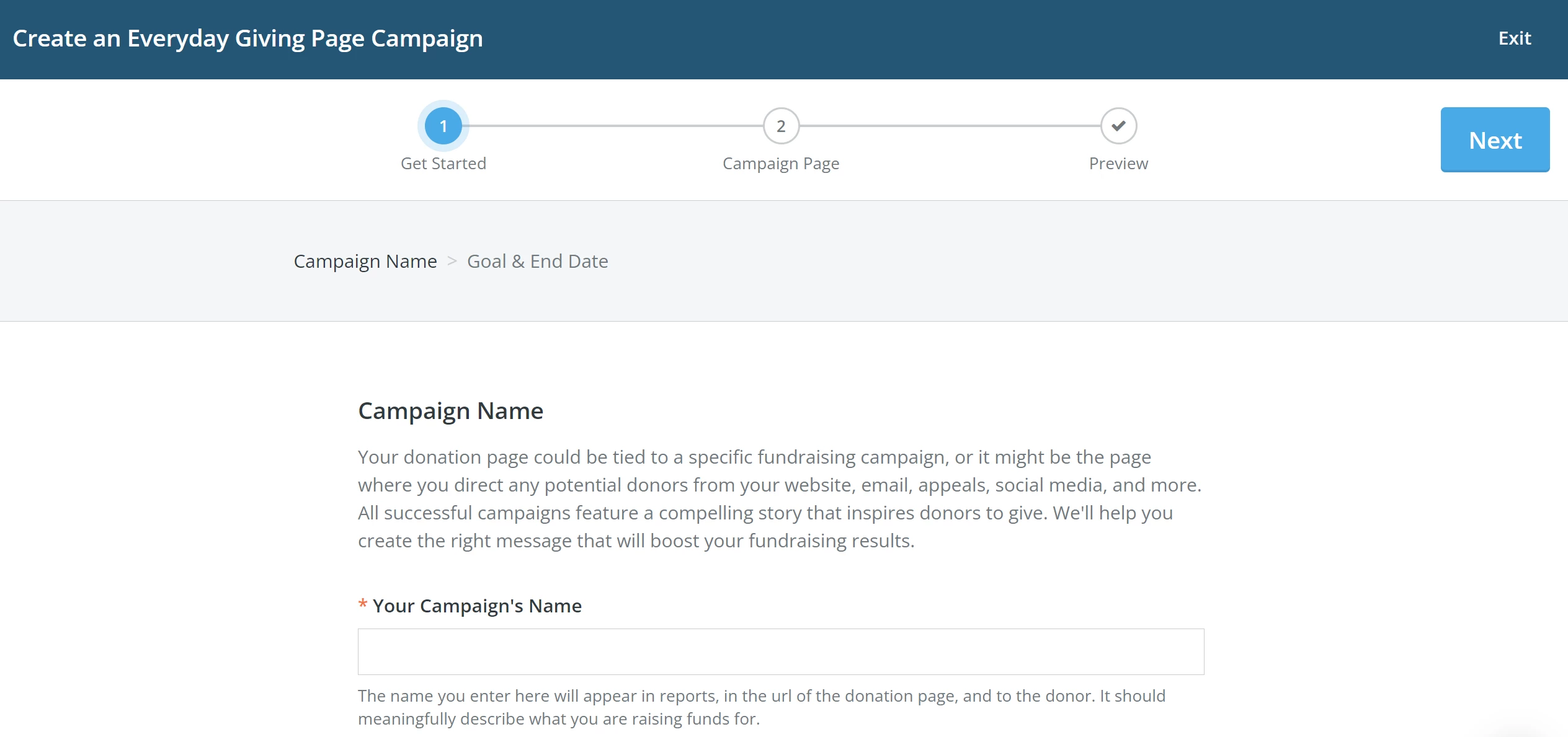
Follow through each step of the campaign creator to complete the initial setup of your page. Check out this related article for a more detailed walkthrough of this process!
Step 4: Select your template
Scroll down on the 'Edit Campaign' page to choose a template from the 'Page Template Selection' section.
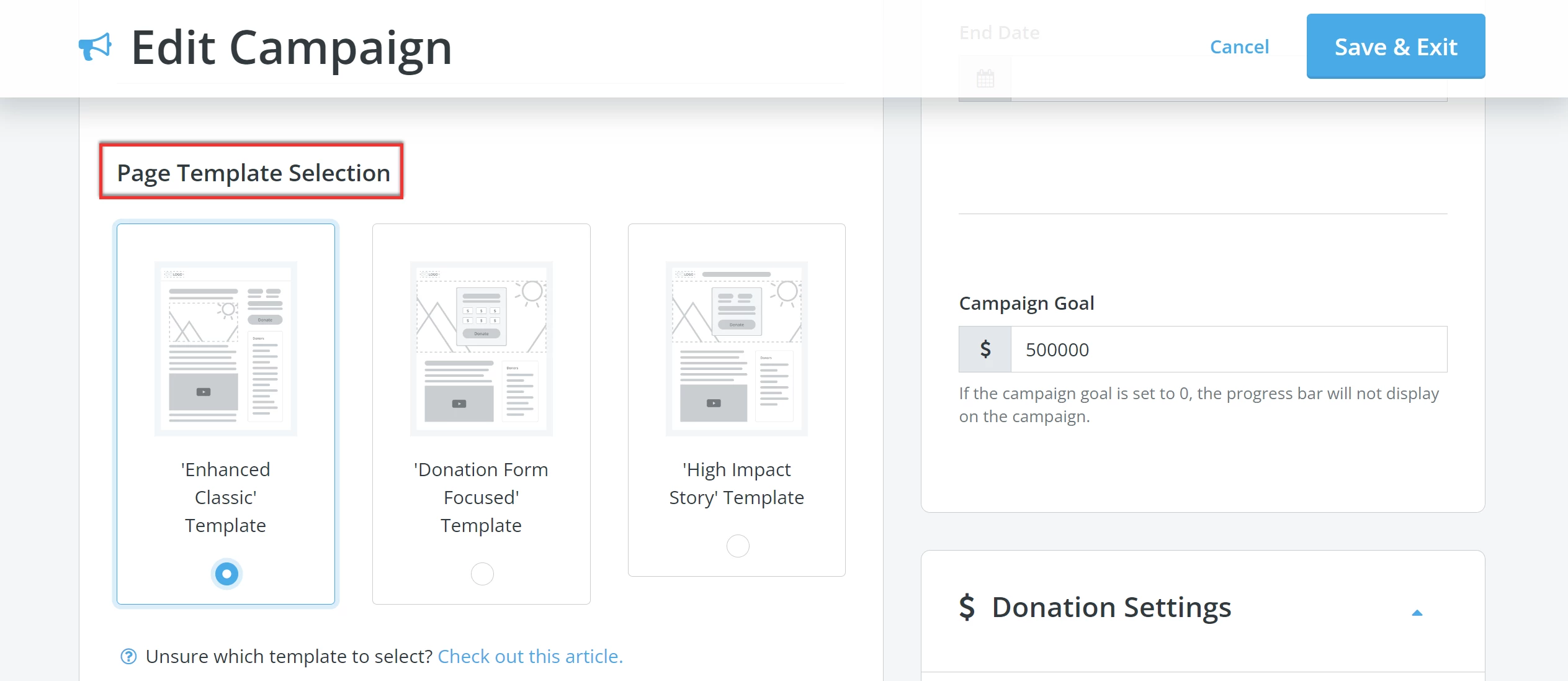
Once you are finished, click the 'Save & Exit' button in the upper right corner of the page
How do I change the template on my donation page? | What templates are available for Everyday Giving pages? | Where do I select a fundraising page template? | Can I switch templates after creating my campaign? | How do I customize the layout of my donation page? | Why doesn’t my donation page look like the template I chose? | How do I update the page template in Fundraising Pages?