

How do I create a report on transactions made through Bonterra Payments?
Step 1: Click 'Search'
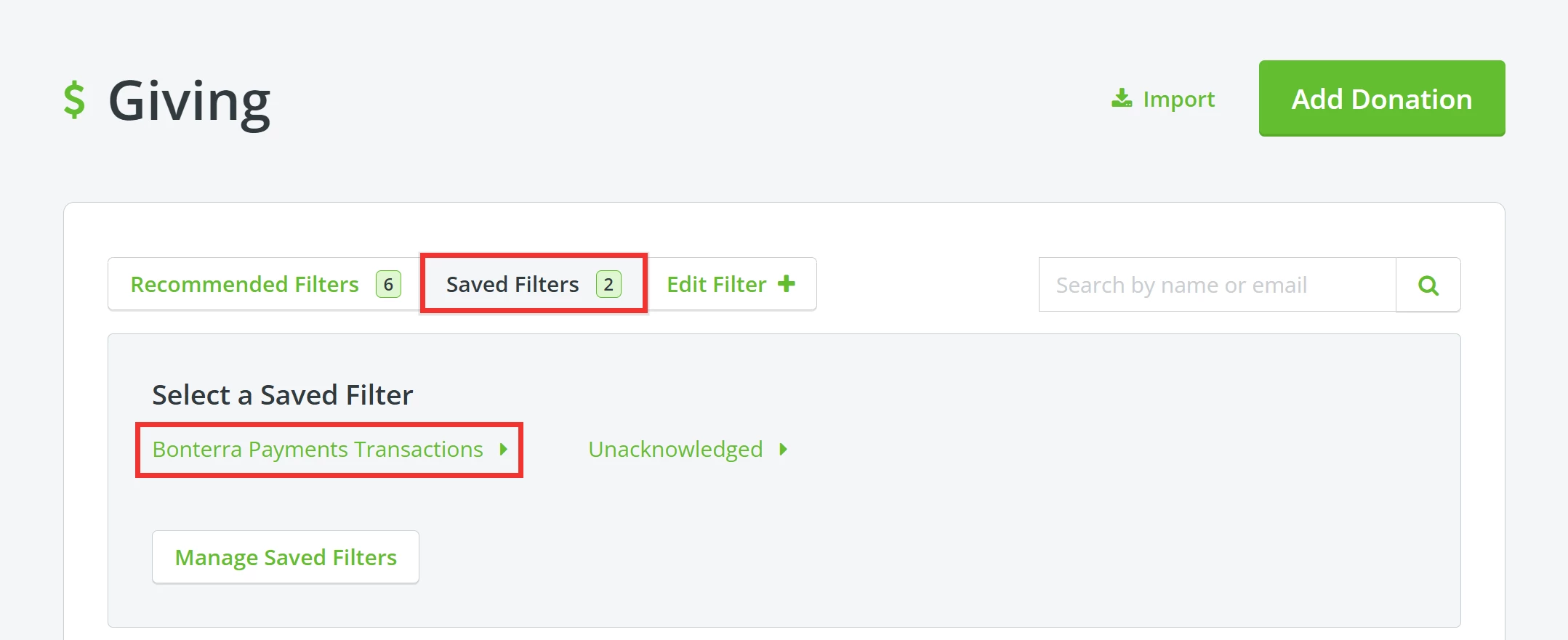
Once you have created a filter to pull details of transactions you want to report on, click the 'Search' button to pull your results.

If you saved your filter previously, click the 'Saved Filters' button to select your saved filter.
Note: This list of totals does not include transaction fees.
If you are trying to reconcile an amount transferred to your bank, you can include those fees in the following steps.
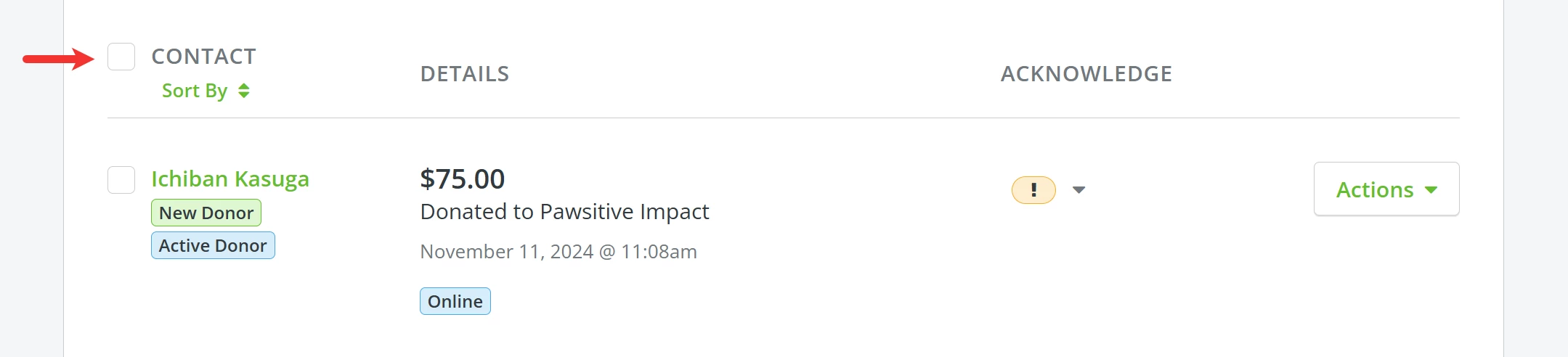
Step 2: Select all contacts listed in the results
Select all of the records produced by that filter by checking the box next to 'Contact'.
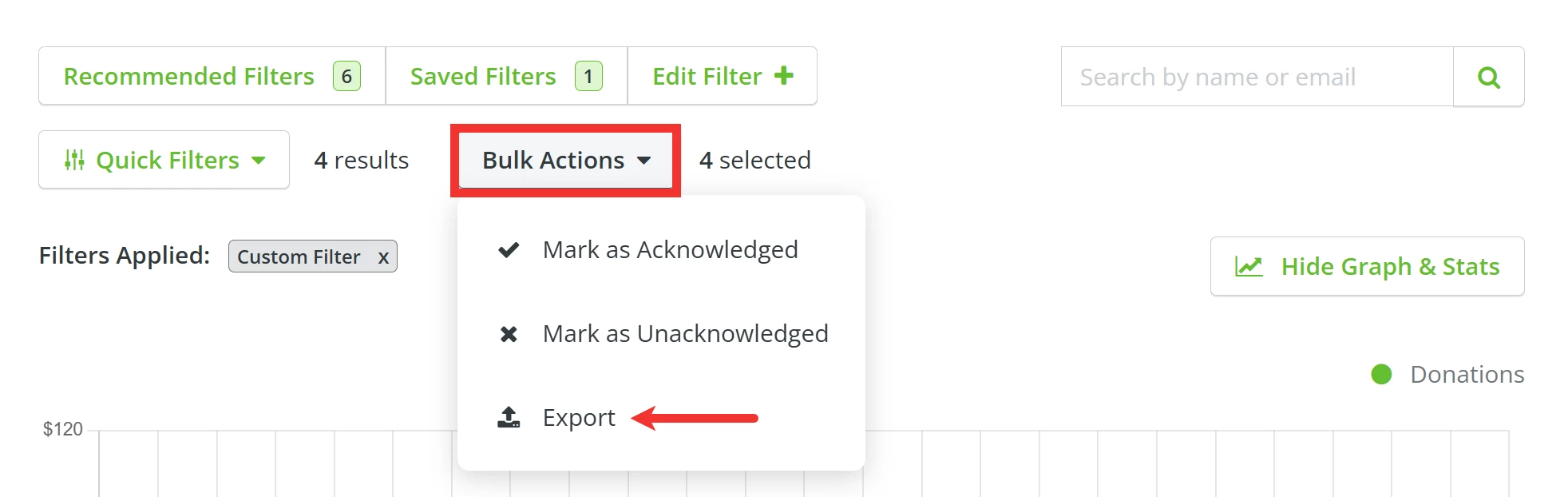
Step 3: Click 'Bulk Actions'
Next, click the 'Bulk Actions' button near the top of the page. Select 'Export' from the drop-down list of options.
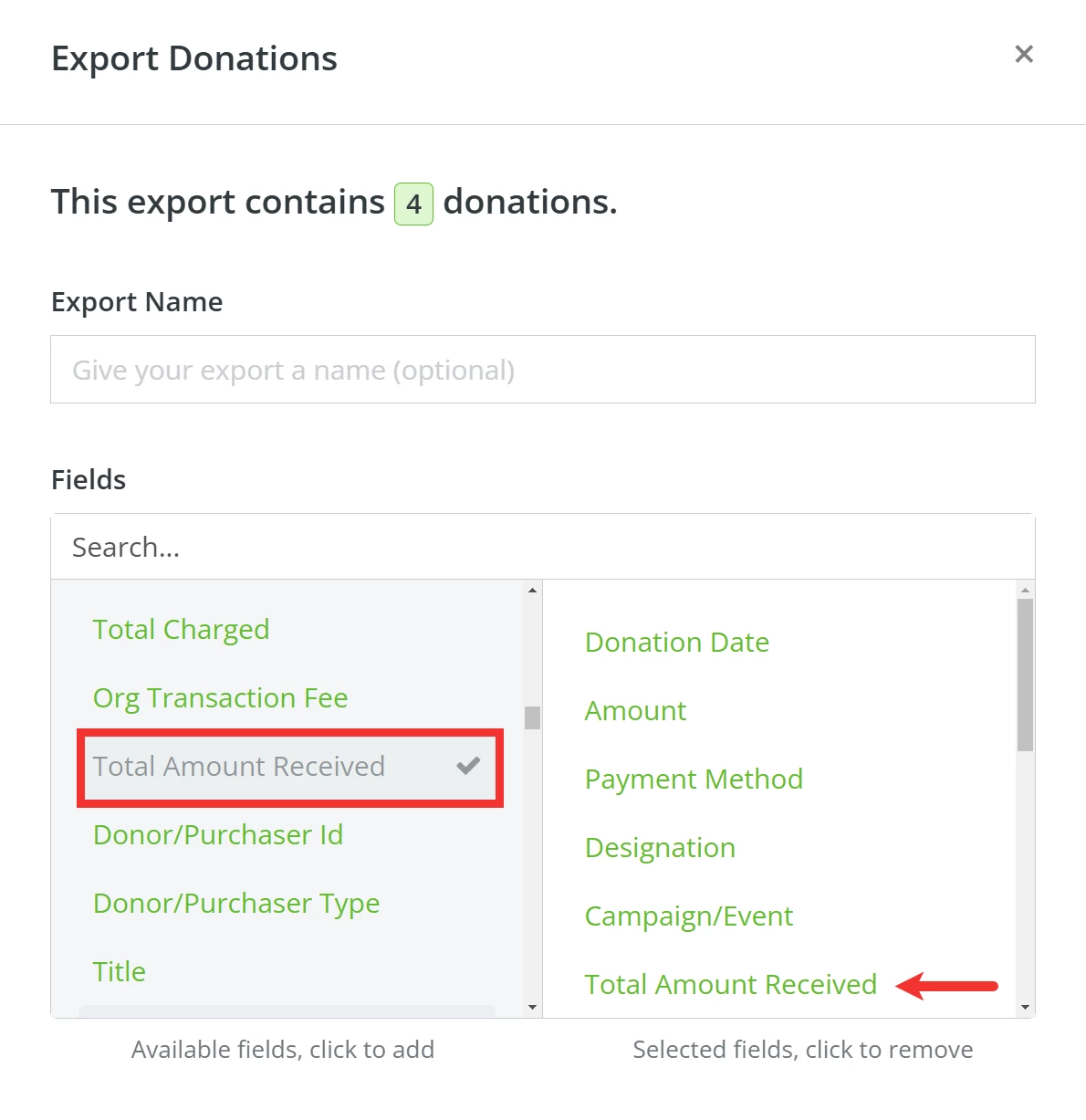
Step 4: Select any fields you want included in your report
A pop-up window will appear, where you can name your export and select fields you want included in your report.
Tip: To ensure you are including all necessary fees, we highly recommend including the 'Total Amount Received' field.
Step 4 (OPTIONAL): Save your settings for future exports
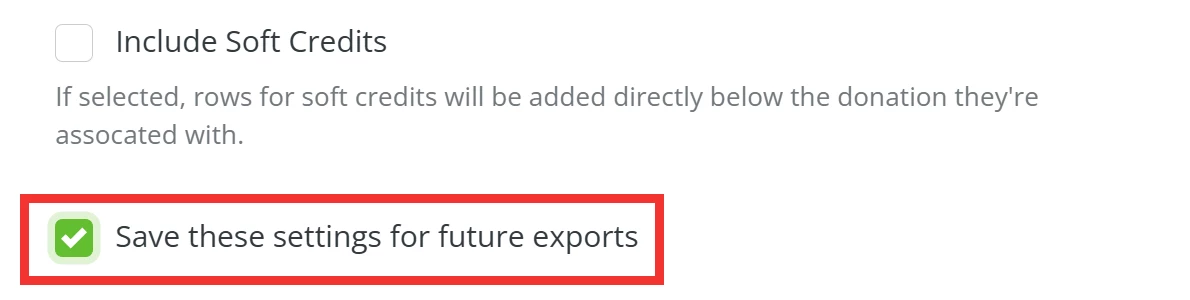
We also recommend selecting the option to "Save these settings for future exports," which can be found at the bottom of that pop-up message. This will ensure that next time you pull a report, it will include that field and all related details.
Step 5: Export your data
When you are ready for the system to start generating your report, click the 'Export' button at the bottom of the pop-up window.

You will be directed to your 'Exports' page, where you can view the status of your export.
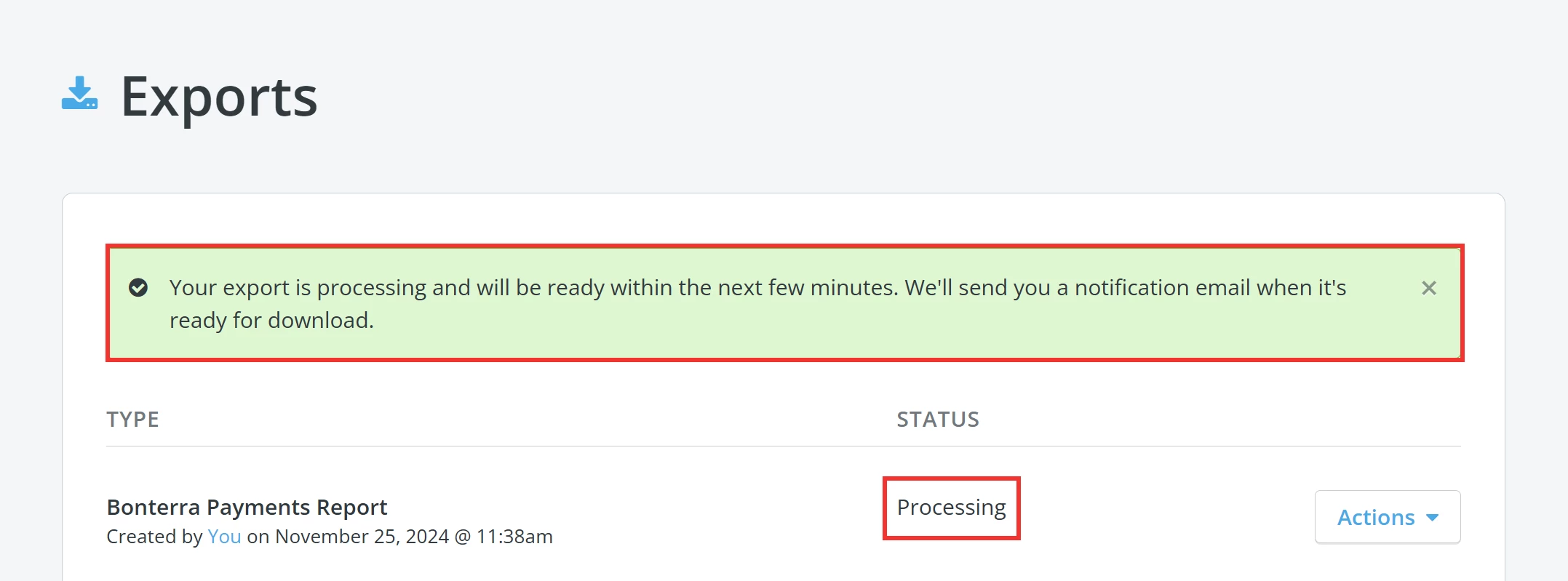
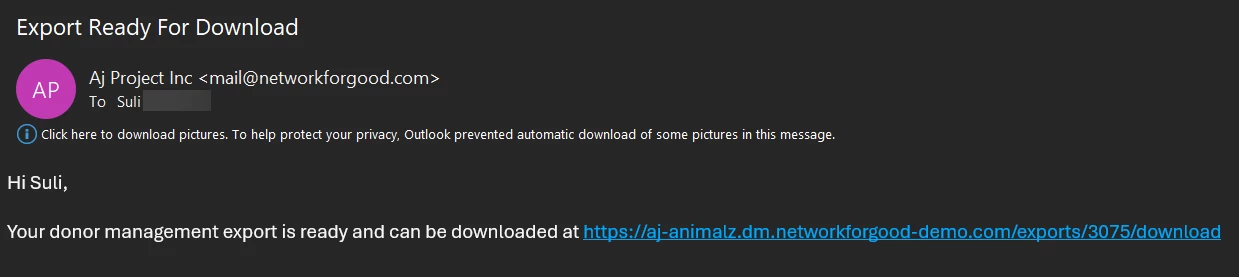
An automated e-mail with notify you once your export is ready for download!
Step 6: Download your report
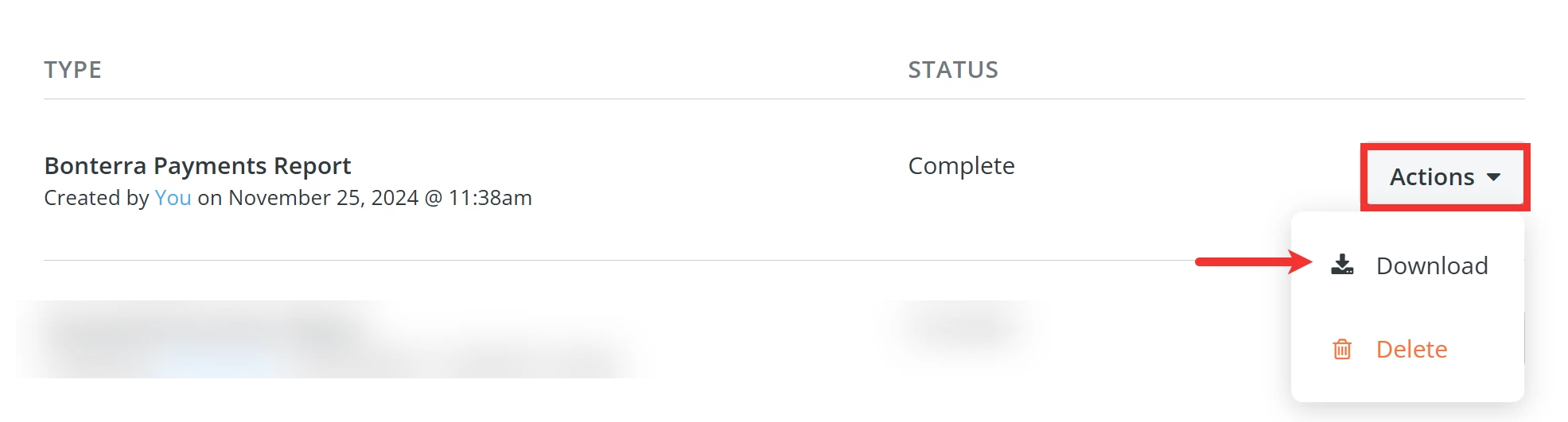
From the 'Exports' page, click the 'Actions' button next to your export and select 'Download' from the drop-down list of options.
What else do you need help with?
How do I create a filter specifically on Bonterra Payments transactions?
Not quite what you were searching for?
Navigate back to the Feature Overview.
How do I export a Bonterra Payments transaction report? | How do I include transaction fees in a Bonterra Payments report? | Why doesn’t my report match the bank deposit amount? | How do I download a Stripe payout report? | What fields should I select for a Bonterra Payments export? | Can I save my export settings for future reports? | How do I reconcile Bonterra Payments transactions with my bank account?