


How do I add an image or logo to a Results report?
Sometimes there is a need to add an image or an organization's logo to the report. By following these steps, a logo (or any other image) can be added to the report.
Step 1 – First, if there isn’t already one saved on your hard drive, find and save a copy of the picture/your organization’s logo. You may be able to pull one from the organization’s website or request one from a member of the marketing team. Step 2 – Click the wrench icon in the top right of the report
Step 2 - Click the the Formatting tab in the panel.
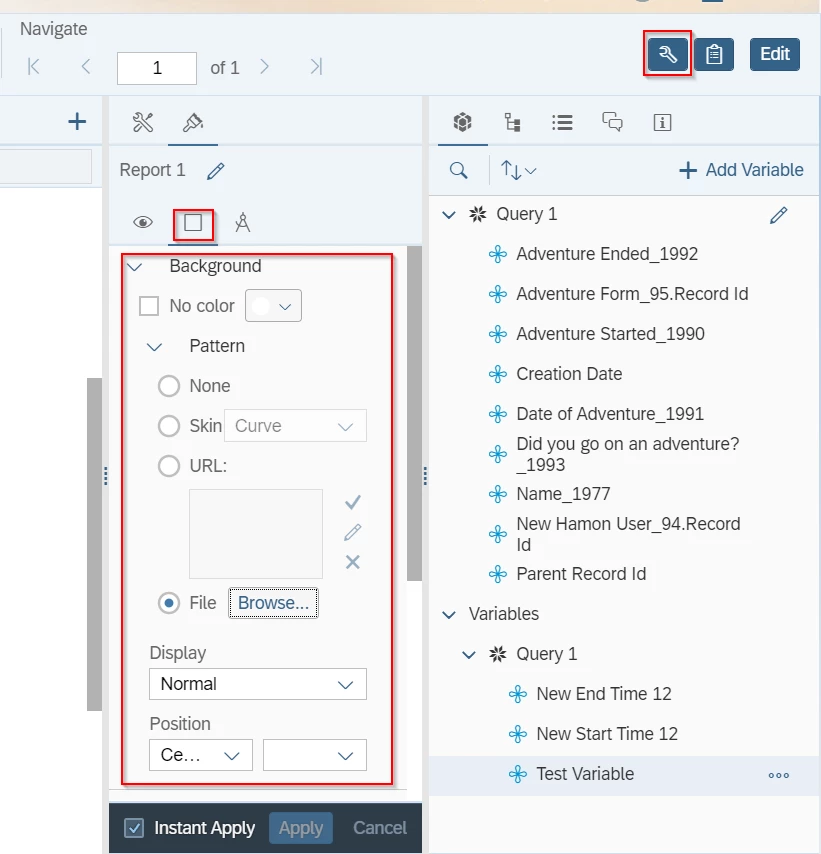
Step 3 – Specify if you want a background by selecting either Color, None, or Skin.
-
If you select skin, you can select from the different skins in the drop-down.
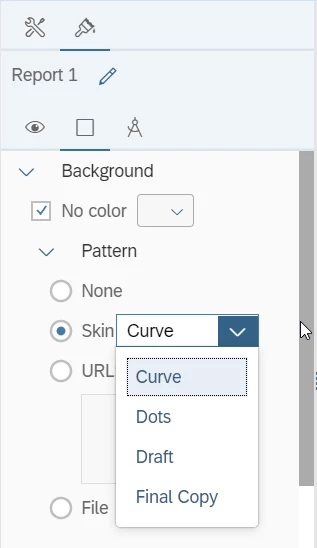
Step 4 – Select if you would like to add an image from a URL or from a file on your computer.
-
If you select Image from URL, copy and paste the URL of the image you wish to insert.
-
If you select Image from File, browse for the image on your hard drive and select it.
-
Images cannot be resized in Apricot Results and it is helpful to get the correct size before uploading it a report.
Step 5 – Select the display and position of the image from the three drop-downs.
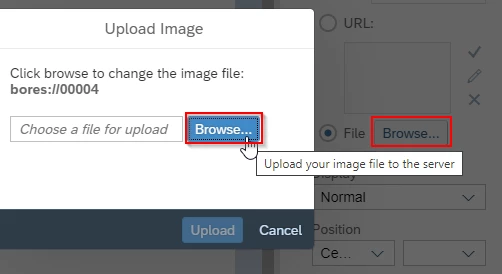
Step 6 – Click the OK button to add the image/logo to the report.
How do I add a logo to an Apricot Results report | How do I insert an image into a report | Can I upload a picture to my report | How do I use a URL to add an image in Apricot | How do I position an image in a report | Why can’t I resize my report image | How do I change the background or skin of a report