


How do I manage a report category? (Native Reporting)
Native reports in Apricot are displayed by category in the Report Center and My Reports page. Users can easily find reports by expanding and collapsing the sections to run the report they want to view or edit.
Follow the steps listed below to learn how to organize report categories for your organization.
Step 1: Open the Report Center
In the Administrator tab, expand the Report Center category in the navigation bar and select 'Reports'.
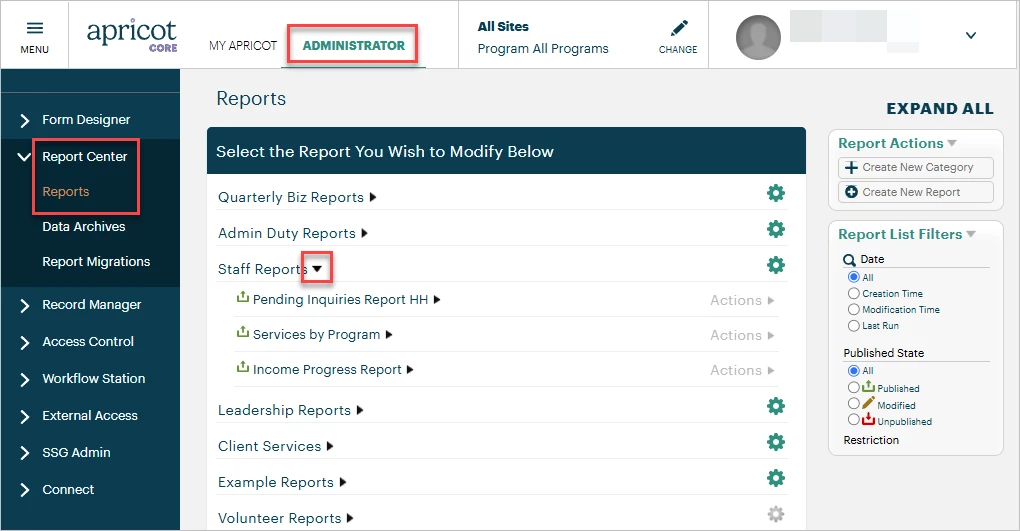
This page displays all existing report categories in your database. Click the black arrow next to a report category name to view all reports located in that category.
Step 2: Add a new category
To create another category for organizing your reports, select '+ Create New Category' from the Report Actions palette at the top-right of your page.
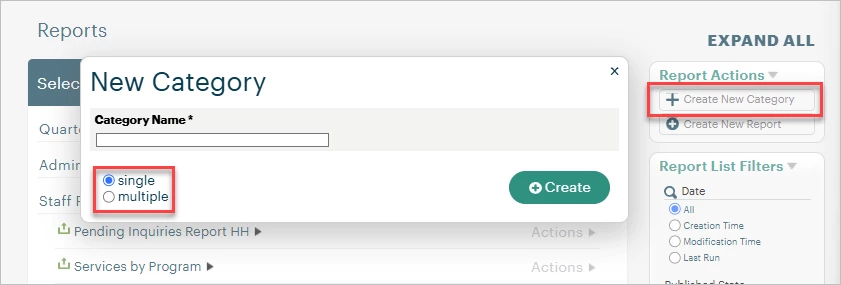
You can add a single category or multiple categories at once by selecting the radio button at the bottom of the pop-up window. Then, type the name of your new category in the text field and click '+ Create'.
Note: Users will not see a category on the My Reports page if there is no report in the category.
Step 3: Reorder your categories
New categories will populate at the bottom of the Reports page. You can drag and drop any category to rearrange them.
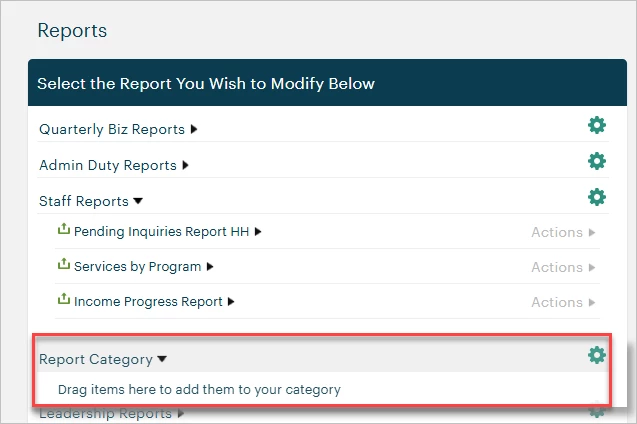
Step 4: Change a report's category
When creating a new report, a required Category dropdown field will have you select which category you want the report to be saved in.
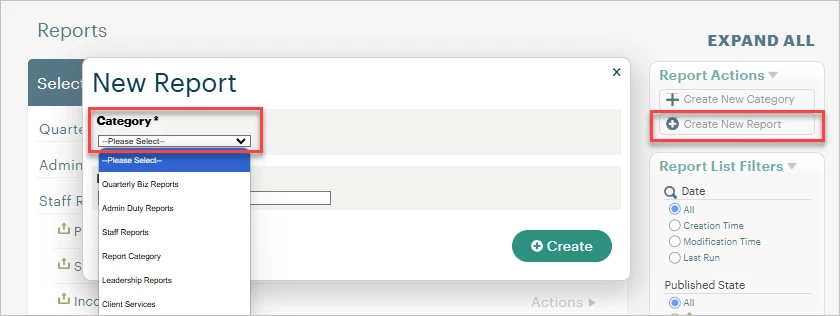
You can also drag and drop an existing report on the Reports page from one category to another to change what category it's located in.
Step 5: Edit a category
Click the green gear icon to the right of a report category's name to open its properties.
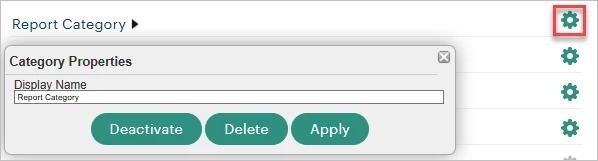
You can change the category's name here and select Apply to save your changes.
You can also deactivate the category to hide it and the reports within it from users on the My Reports page.
Finally, you have the option to delete the category. If there are any reports currently in the category, a pop-up message will appear at the top of your screen to ensure it's moved to another category so you don't lose the report.

What else do you need help with?
-
Not what you're looking for? Navigate to overview
How do I manage a report category in Apricot? | How do I create a new report category? | How do I reorder report categories? | How do I move a report to a different category? | How do I edit or rename a report category? | How do I deactivate or hide a report category? | How do I delete a report category without losing reports?