


Opening the Error Console
How to Open the Error Console
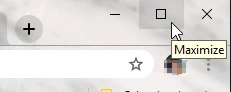
Maximize your web browser.
2. On the page where the error has occurred, hit F12 on your keyboard to open the Console.
If F12 does not work for you, here is another method for opening the Console:
- Windows/Linux: Shift+CTRL+J
- Mac: Option + ? + J
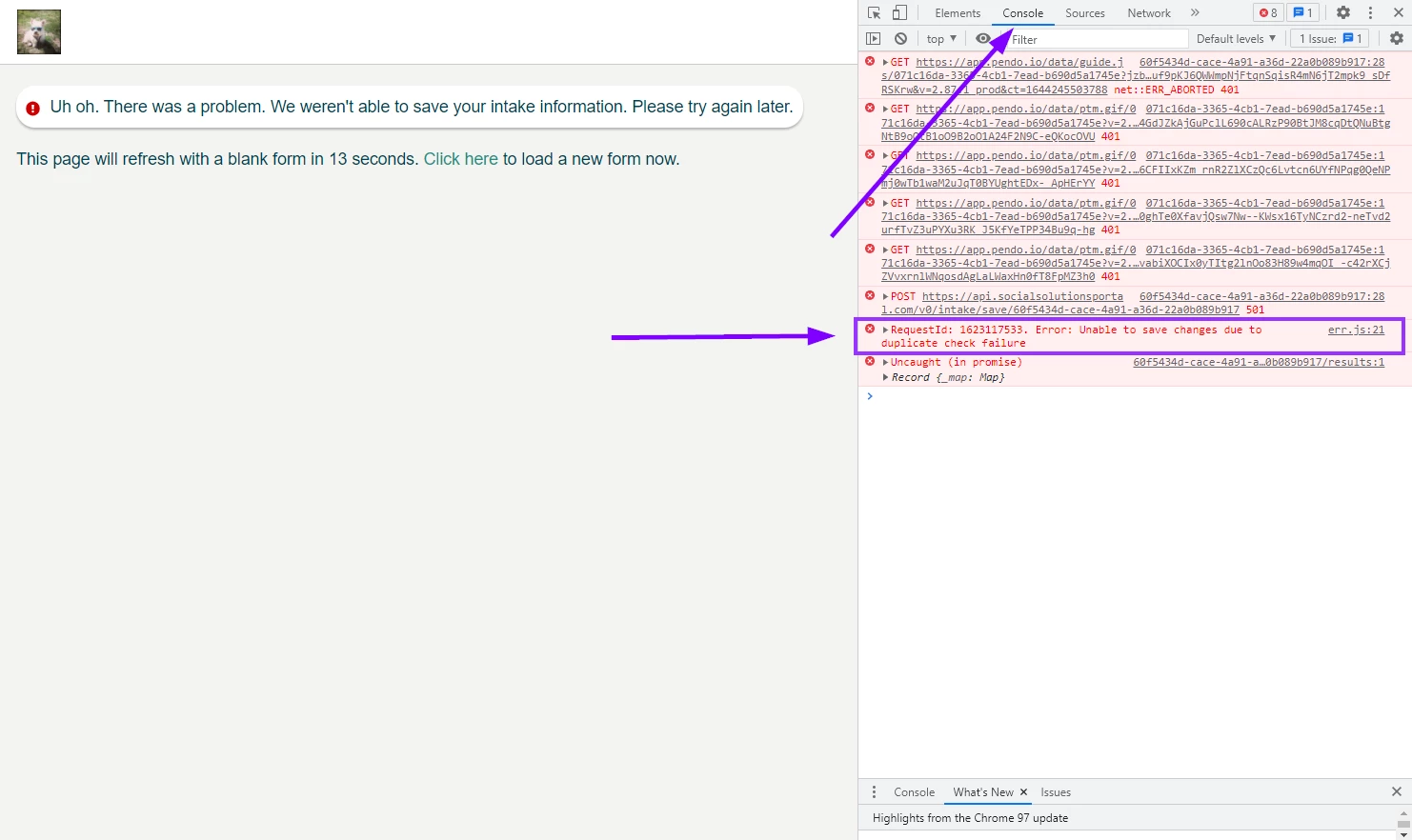
3. Be sure to click the Console tab on the right side of the page to display the error information.
4. Scroll down if necessary to make sure the red error text is visible on the page. The information most helpful to us will contain a RequestID and description of the specific error.
5. Take a screenshot of the entire page with the Console open. Here are the steps for taking a screenshot:
Mac: Press Shift + Command (?) + 3
PC: Press Windows key + Print Screen key (PrtScn - usually located to the right of F12)
6. Find the screenshot as a .png file on your desktop.
7. Send the screenshot to Support within your case.
How do I open the error console in my browser | How do I access the console on Windows | How do I access the console on Mac | How do I view error messages in the console | How do I take a screenshot of the console | Why can’t I see errors in my browser console | How do I provide console info to Apricot Support