

Taking a Screenshot
Windows:
To take a screenshot in Windows, follow these instructions:
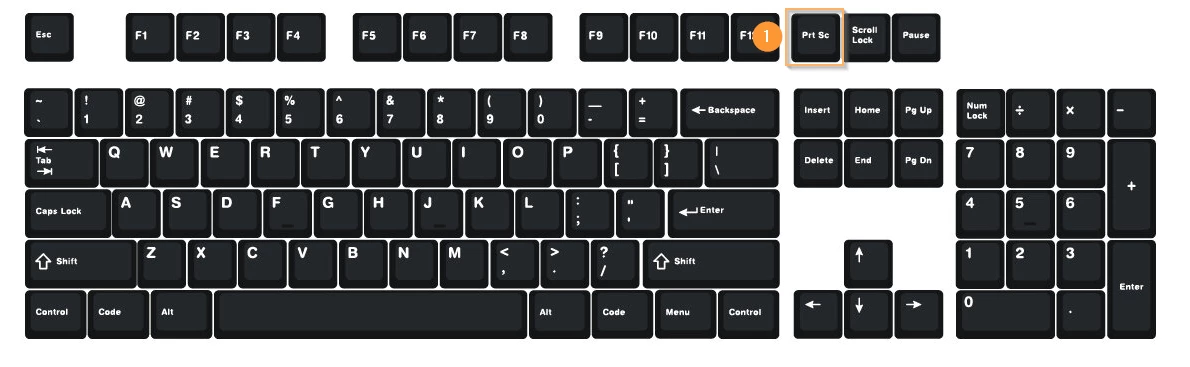
-
Locate the "Print Screen" button on your keyboard. It is usually located in the top row, near the function keys.
-
Press the "Print Screen" button. This will take a screenshot of your entire screen and save it to the clipboard.
-
Press "Ctrl + V" to paste the screenshot into the chat.
The screenshot can be saved in an image editing software like Microsoft Paint.
-
Open an image editing program, such as Paint or GIMP.
-
Locate the "Print Screen" button on your keyboard. It is usually located in the top row, near the function keys.
-
Press the "Print Screen" button. This will take a screenshot of your entire screen and save it to the clipboard.
-
Press "Ctrl + V" to paste the screenshot into the image editing program.
-
Crop the screenshot as needed and save the image to your desired location.
Alternatively, you can use the "Snipping Tool" to take a screenshot of a specific area of your screen. To do this:
-
Press the "Start" button and search for "Snipping Tool".
-
Open the "Snipping Tool" and select the "New" button.
-
Use your mouse to select the area of your screen that you want to capture. The screenshot will be saved automatically.
Note: You can also use the "Windows + Shift + S" keyboard shortcut to take a screenshot of a specific area of your screen. The screenshot will be saved to your clipboard.
Macintosh:
To take a screenshot on a Mac, follow these instructions:
-
Locate the "Command + Shift + 3" keys on your keyboard.
-
Press the "Command + Shift + 3" keys at the same time. This will take a screenshot of your entire screen and save it to your desktop.
-
Alternatively, you can use the "Command + Shift + 4" keys to take a screenshot of a specific area of your screen. When you press these keys, your cursor will turn into a crosshair. Use the crosshair to select the area of your screen that you want to capture, and the screenshot will be saved to your desktop.
-
Press "Command + V" to paste the screenshot into the chat.
Note: You can also use the "Command + Shift + 5" keys to open the screenshot tool, which allows you to take a screenshot of a specific area of your screen or the entire screen, and also provides options for recording a video of your screen.
How do I take a screenshot on Windows | How do I take a screenshot on Mac | How do I use the Snipping Tool in Windows | How do I capture part of my screen | How do I paste a screenshot into Paint | How do I save a screenshot to my desktop | How do I use keyboard shortcuts to take a screenshot